
Einführung
This manual provides detailed instructions for the installation, operation, and maintenance of your ZERTRAN ZT-V6288D Android Car Stereo. Please read this manual thoroughly before using the product to ensure proper function and to prevent damage. Keep this manual for future reference.
Sicherheitshinweise
- Ensure professional installation to avoid electrical damage or malfunction.
- Do not attempt to disassemble or modify the unit. This may cause damage or void the warranty.
- Vermeiden Sie es, das Gerät extremen Temperaturen, direkter Sonneneinstrahlung über längere Zeiträume oder übermäßiger Feuchtigkeit auszusetzen.
- Always operate the vehicle safely. Do not operate the stereo in a way that distracts you from driving.
- Disconnect the vehicle's battery before installation to prevent short circuits.
Packungsinhalt
Überprüfen Sie, ob alle Artikel im Paket vorhanden sind:
- 1x ZERTRAN Android Head Unit (including plastic frame)
- 1x GPS-Antenne
- 1x Stromkabel
- 2x USB Port Cables
- 1x RCA Expand Cable
- 1x RCA Connector for Backup Camera
- 1x Universal Backup Camera Set
Note: CANBUS is not included. If your car requires a CANBUS for amplifier integration, please acquire it separately.
Setup und Installation
Installation of this car stereo requires technical knowledge. It is highly recommended to have the unit installed by a qualified professional to ensure correct wiring and functionality, especially for vehicles like the Ax3 A30 2014 model.
Allgemeine Installationsschritte:
- Batterie abklemmen: Vor Beginn der Arbeiten den Minuspol der Fahrzeugbatterie abklemmen.
- Altes Autoradio ausbauen: Das vorhandene Autoradio vorsichtig aus dem Armaturenbrett ausbauen.
- Kabelbaum anschließen: Connect the provided power cable and other necessary cables (USB, RCA, GPS antenna) to the new head unit. Ensure all connections are secure.
- GPS-Antenne installieren: Montieren Sie die GPS-Antenne an einem Ort mit freiem Blick view des Himmels, typischerweise auf dem Armaturenbrett oder unter der Windschutzscheibe.
- Verbindungen testen: Vor dem vollständigen Zusammenbau schließen Sie die Batterie wieder an und testen Sie kurz die Grundfunktionen des Geräts (Einschalten, Radio, Display).
- Sichere Headunit: Mount the ZERTRAN head unit into the dashboard opening and secure it.
- Armaturenbrett wieder zusammenbauen: Alle entfernten Armaturenbrettverkleidungen wieder einbauen.
Installation der Rückfahrkamera:
The unit supports a car rear view camera. A universal backup camera is included as a gift.
- Mount the backup camera at the rear of your vehicle, typically near the license plate light.
- Route the camera's video cable to the head unit and connect it to the RCA connector for the backup camera.
- Connect the camera's power wire to your vehicle's reverse light circuit so it activates when the vehicle is in reverse.

Abbildung 1: Illustration of car reverser camera installation and its display on the head unit screen, showing parking guidelines.
Bedienungsanleitung
The ZERTRAN ZT-V6288D operates on an Android system with a sensitive IPS full HD multi-touch screen.
1. CarPlay & Android Auto
This unit features built-in CarPlay and Android Auto for seamless integration with iOS and Android devices. Connect your smartphone via USB to access navigation, music, calls, and messages directly from the head unit's display. Voice assistants can be used for hands-free operation.

Abbildung 2: Display showing the CarPlay interface for iOS and Android Auto interface for Android devices, with various app icons.
2. GPS-Navigation
The unit supports GPS navigation. With a Wi-Fi connection, you can use online navigation applications in real-time. The included GPS antenna ensures accurate satellite positioning.
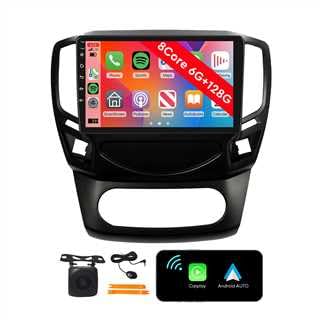
Abbildung 3: GPS Navigation screen showing a map, vehicle status, and common navigation app icons.
3. UKW-Radio
Access FM radio stations. You can transfer music to the car stereo via FM. Long press to save your favorite radio stations. The unit is designed for better radio reception with small radiation interference.

Abbildung 4: FM Radio interface displaying current frequency, station presets, and tuning controls.
4. Bluetooth-Funktion (BT)
The built-in Bluetooth allows for wireless streaming of music from your mobile phone and hands-free calling. Pair your device through the Bluetooth settings menu.

Abbildung 5: Bluetooth interface showing a dial pad for calls and music playback controls.
5. Wi-Fi-Konnektivität
Utilize the internal Wi-Fi to browse websites, access online navigation, watch videos, and download applications. The unit supports Wi-Fi and hot-spot sharing from your mobile device.

Abbildung 6: Car stereo home screen displaying various application icons, indicating Wi-Fi connectivity.
6. Lenkradsteuerung (SWC)
The unit supports steering wheel controls, allowing you to quickly switch functions without taking your hands off the wheel. Configuration may be required in the system settings.

Abbildung 7: Steering Wheel Control learning interface, showing various button assignments for functions like volume, track skip, and call handling.
7. Dual-Screen-Display
The unit supports dual screen display, allowing different functions to be operated simultaneously. For exampSie können view navigation on one part of the screen while playing music or videos on the other.

Abbildung 8: Dual screen display example, showing navigation on one side and music playback on the other, or web Browsen und Videowiedergabe.
8. Weitere Funktionen
- Video & Music Playback: Supports 1080P hardware decoding and all formats of audio playback.
- USB Eingang: Supports 2 USB inputs for media playback and device charging.
- USB Interface Camera/DVR: Supports connection of USB interface cameras and DVRs.
- Spiegel Link: Supports Mirror Link functionality for both Android phones and iPhones.
- DSP: Digital Sound Processor for enhanced audio quality.
- OSD-Sprache: Supports over 20 languages including English, French, German, Spanish, and Italian.
Technische Daten
| Besonderheit | Detail |
|---|---|
| Marke | ZERTRAN |
| Modellnummer | ZT-V6288D |
| Bildschirmgröße | 10 Zoll |
| Betriebssystem | Android-System |
| CPU | Achtkern |
| RAM | 6 GB |
| ROM | 128 GB |
| CarPlay / Android Auto | Eingebaut |
| USB-Eingang | 2 Anschlüsse |
| Videodekodierung | 1080P Hardware Decoding |
| Konnektivität | Bluetooth, Wi-Fi |
| Hinteren View Kamera-Unterstützung | Yes (Universal camera included) |
| Lenkradsteuerung | Unterstützt |
| OSD-Sprache | 20+ languages (e.g., English, French, German, Spanish, Italian) |
Wartung
- Reinigung: Reinigen Sie den Bildschirm und das Gehäuse mit einem weichen, trockenen Tuch. Verwenden Sie keine Scheuermittel oder Lösungsmittel.
- Software-Updates: Prüfen Sie regelmäßig, ob Software-Updates verfügbar sind, um optimale Leistung und Zugriff auf neue Funktionen zu gewährleisten. Updates finden Sie in der Regel in den Systemeinstellungen oder auf der Website des Herstellers. webWebsite.
- Vermeiden Sie Flüssigkeiten: Es darf kein Wasser in das Gerät gelangen, da dies zu schweren Schäden führen kann.
Fehlerbehebung
| Problem | Mögliche Ursache | Lösung |
|---|---|---|
| Gerät lässt sich nicht einschalten. | Lose Stromverbindung, durchgebrannte Sicherung, Problem mit der Fahrzeugbatterie. | Prüfen Sie die Stromkabelanschlüsse. Kontrollieren Sie die Fahrzeugsicherungen. Stellen Sie sicher, dass die Fahrzeugbatterie geladen ist. |
| Kein Ton. | Lautstärke zu niedrig, Lautsprecherkabel nicht angeschlossen ampVerstärkerproblem (falls zutreffend). | Increase volume. Check speaker wiring. Verify external amplifier (if used) is powered and connected. |
| GPS-Signal verloren oder ungenau. | GPS-Antenne blockiert oder nicht angeschlossen. | Stellen Sie sicher, dass die GPS-Antenne freie Sicht hat. view des Himmels und ist sicher verbunden. |
| Bluetooth-Verbindung wird nicht hergestellt. | Device not in pairing mode, incorrect pairing code, Bluetooth disabled. | Ensure Bluetooth is enabled on both devices. Put phone in pairing mode. Re-attempt pairing. |
| Die Rückfahrkamera zeigt kein Bild an. | Camera power issue, video cable disconnected, incorrect camera settings. | Check camera power and video cable connections. Verify camera settings in the head unit. |
| CarPlay/Android Auto startet nicht. | USB cable issue, phone software issue, incorrect settings. | Use a high-quality USB cable. Ensure phone software is updated. Check settings on both phone and head unit. |
Sollten die Probleme weiterhin bestehen, wenden Sie sich bitte an den Kundendienst.
Garantie und Support
The ZERTRAN ZT-V6288D Android Car Stereo comes with a ein Jahr Garantie ab Kaufdatum.
For technical assistance, warranty claims, or any questions regarding your product, please contact ZERTRAN customer support. When contacting support, please have your model number (ZT-V6288D) and purchase information ready.
Kontaktieren Sie den Support: support@zertran.com (Placeholder email, please refer to your purchase documentation for actual contact details.)