
Einführung
This manual provides comprehensive instructions for setting up, operating, maintaining, and troubleshooting your Apple iPad Air (M4) 13-inch. Please read this manual thoroughly to ensure proper use and to maximize the device's capabilities. The iPad Air features a Liquid Retina display, the powerful M4 chip, advanced cameras, Wi-Fi 7, and 5G Cellular connectivity.
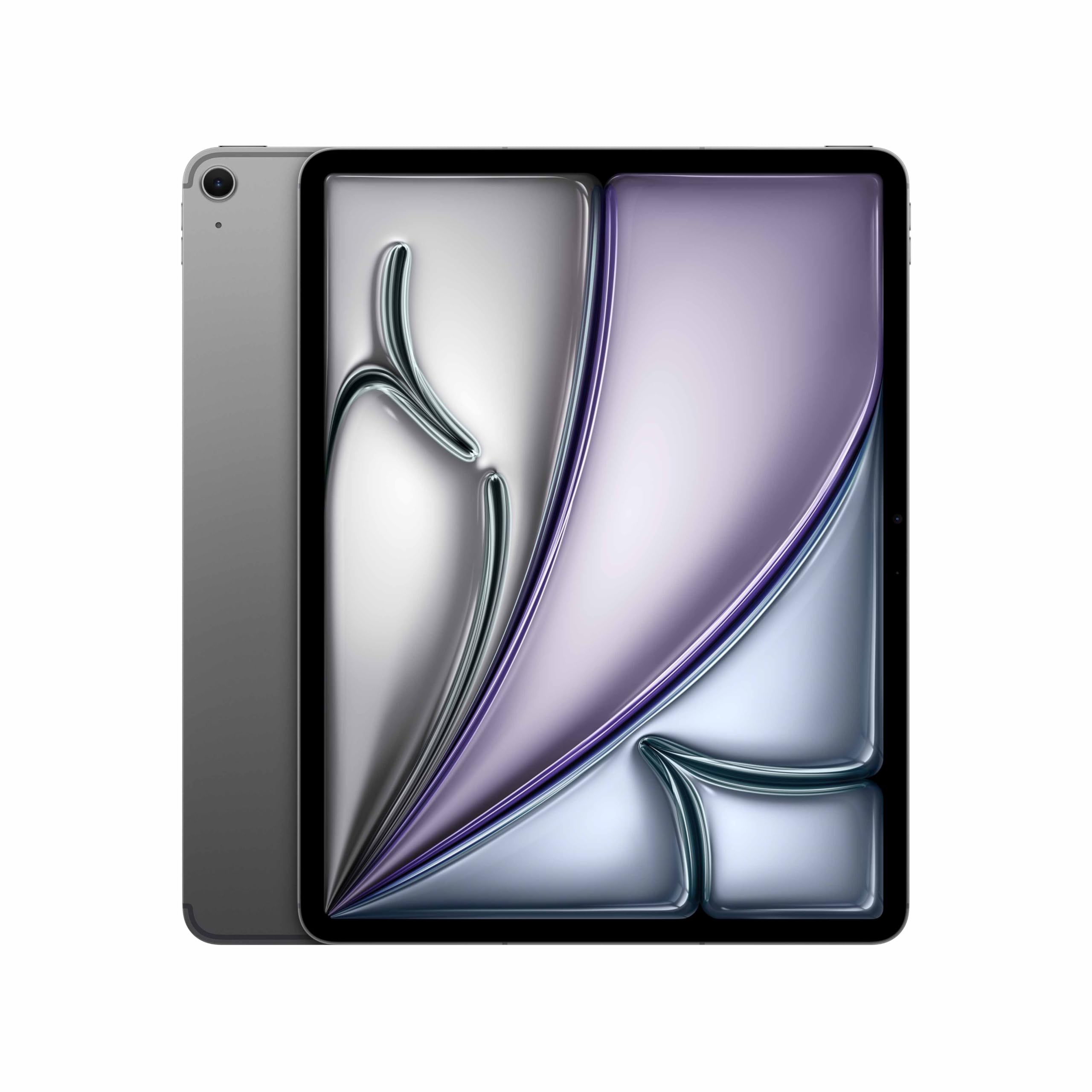
Image: The Apple iPad Air (M4) 13-inch in Space Gray, showcasing sein elegantes Design.
1. Einrichtung
1.1 Auspacken und enthaltene Komponenten
Nehmen Sie alle Teile vorsichtig aus der Verpackung. Stellen Sie sicher, dass folgende Komponenten vorhanden sind:
- iPad Air (M4) 13-inch
- USB-C-Ladekabel
- 20W USB-C Netzteil

Image: The iPad Air, USB-C charge cable, and 20W USB-C power adapter, illustrating the contents of the box.
1.2 Erste Inbetriebnahme und grundlegende Konfiguration
- Einschalten: Halten Sie die obere Taste gedrückt, bis das Apple-Logo erscheint.
- Befolgen Sie die Anweisungen auf dem Bildschirm: Wählen Sie Ihre Sprache und Region aus.
- Mit WLAN verbinden: Wählen Sie Ihr WLAN-Netzwerk und geben Sie das Passwort ein.
- Datenschutz und Privatsphäre: Review Apples Informationen zu Daten und Datenschutz.
- Touch ID-Einrichtung: Follow the prompts to set up Touch ID for secure authentication.
- Erstellen Sie einen Passcode: Set a six-digit passcode for additional security.
- Apps und Daten übertragen: Choose to restore from a backup (iCloud or computer) or set up as a new iPad.
- Apple-ID: Melden Sie sich mit Ihrer Apple-ID an oder erstellen Sie eine neue. Dies ist für den App Store, iCloud und andere Apple-Dienste unerlässlich.
- Location Services & Siri: Configure these settings as desired.
- Bildschirmzeit: Set up parental controls or monitor your usage.
- App-Analyse: Choose whether to share analytics with Apple.
- True Tone Display: Enable or disable True Tone for automatic white balance adjustment.
1.3 Charging the iPad Air
Connect the USB-C Charge Cable to the iPad Air's USB-C port and the 20W USB-C Power Adapter. Plug the power adapter into a wall outlet. The battery icon in the status bar will indicate charging status.
2. Bedienungsanleitung
2.1 Grundlegende Navigation und Gesten
- Startbildschirm: Wischen Sie vom unteren Bildschirmrand nach oben, um zum Startbildschirm zu gelangen.
- App-Umschalter: Wischen Sie vom unteren Bildschirmrand nach oben und halten Sie in der Mitte des Bildschirms kurz inne, um view Apps öffnen.
- Kontrollzentrum: Durch Wischen Sie von der oberen rechten Ecke nach unten, um auf die Schnelleinstellungen zuzugreifen.
- Benachrichtigungen: Swipe down from the top-left corner or center to view Benachrichtigungen.
- Suchen: Swipe down from the middle of the Home Screen to open Search.
2.2 Using Touch ID
Touch ID is integrated into the top button. Place your registered finger on the top button to unlock your iPad, make purchases, or authenticate within apps.
2.3 Wi-Fi and 5G Cellular Connectivity
- W-lan: Gehe zu Einstellungen > WLAN to connect to available networks. The iPad Air supports Wi-Fi 7 for faster wireless speeds.
- 5G-Mobilfunk: Insert a nano-SIM card or set up an eSIM. Go to Einstellungen > Mobilfunkdaten to manage your cellular plan and data usage.
2.4 Kameras
The iPad Air features 12MP front and back cameras. Open the Camera app to take photos, record videos, or use features like Center Stage for video calls.
2.5 iPadOS and Apple Intelligence
iPadOS provides a powerful and intuitive operating system. The M4 chip enhances performance for demanding tasks and enables advanced Apple Intelligence features, offering personalized assistance and improved productivity.

Image: The iPad Air screen showing a presentation outline and a trend search report, highlighting the M4 chip and iPadOS for speed, power, and flexibility.

Image: The iPad Air screen showing detailed notes on whale vocalizations, illustrating how Apple Intelligence provides effortlessly helpful features.

Image: The iPad Air attached to a Magic Keyboard, showcasing an enhanced typing and trackpad experience.
3. Wartung
3.1 Reinigung Ihres iPad Air
To clean your iPad Air, use a soft, lint-free cloth. Avoid abrasive materials, aerosols, solvents, or ammonia-based cleaners. For stubborn marks, slightly dampBefeuchten Sie das Tuch mit Wasser. Sprühen Sie keine Reinigungsmittel direkt auf das Gerät.
3.2 Batteriepflege
For optimal battery life, avoid exposing your iPad to extreme temperatures. Charge your device regularly, but it is not necessary to fully discharge it before recharging. If storing the iPad for an extended period, charge it to about 50% to prevent deep discharge.
3.3 Softwareaktualisierungen
Keep your iPad Air's software up to date to ensure the latest features, security enhancements, and performance improvements. Go to Einstellungen > Allgemein > Softwareupdate um verfügbare Updates zu überprüfen und zu installieren.
4. Fehlerbehebung
4.1 Häufige Probleme und Lösungen
- Gerät reagiert nicht: If your iPad is unresponsive, force restart it. Press and quickly release the Volume Up button, press and quickly release the Volume Down button, then press and hold the Top button until the Apple logo appears.
- Probleme mit der Wi-Fi-Konnektivität: Try turning Wi-Fi off and on in Control Center or Settings. Restart your Wi-Fi router. If issues persist, reset network settings (Einstellungen > Allgemein > iPad übertragen oder zurücksetzen > Zurücksetzen > Netzwerkeinstellungen zurücksetzen).
- Apps stürzen ab oder frieren ein: Close the app from the App Switcher and reopen it. If the problem continues, restart your iPad. Ensure the app and iPadOS are updated to the latest versions.
- Batterie entlädt sich schnell: Überprüfen Sie den Batterieverbrauch in Einstellungen > Akku to identify apps consuming significant power. Reduce screen brightness, disable unnecessary background app refresh, and ensure software is up to date.
4.2 Werksreset
As a last resort for persistent issues, you can factory reset your iPad. This will erase all data and settings. Before proceeding, ensure you have backed up your data to iCloud or a computer. Go to Einstellungen > Allgemein > iPad übertragen oder zurücksetzen > Alle Inhalte und Einstellungen löschen.
5. Spezifikationen
| Marke | Apfel |
| Modellname | 13-inch iPad Air (M4, 2026) |
| Modellnummer | MH9H4HN/A |
| Bildschirmgröße | 13 Zoll (32.78 cm) |
| Maximale Bildschirmauflösung | 2732 x 2048 Pixel |
| Betriebssystem | iPadOS |
| Prozessor | Apple M4 |
| RAM-Speicher installiert | 12 GB |
| Hard-Drive Size | 256 GB |
| Art der drahtlosen Technologie | Wi-Fi 7, 5G Cellular |
| Batteriezellentyp | Lithium Ion (36.59 Watt Hours) |
| Artikelgewicht | 0.62 Kilogramm |
| Artikelabmessungen (L x B x Dicke) | 21.5L x 28.1W x 0.6Th Centimeters |
| Im Lieferumfang enthaltene Komponenten | iPad Air, USB-C Charge Cable, 20W USB-C Power Adapter |
6. Garantieinformationen
Your Apple iPad Air (M4) 13-inch is covered by an Ein (1) Jahr eingeschränkte Apple-Garantie from the date of original retail purchase. This warranty covers manufacturing defects and workmanship under normal use. For full terms and conditions, please refer to the warranty documentation included with your product or visit the official Apple support webWebsite.
The warranty does not cover damage caused by accidents, unauthorized modifications, or misuse. Proof of purchase may be required for warranty service.
7. Unterstützung
Für weitere Unterstützung, technischen Support oder Serviceanfragen wenden Sie sich bitte an den Apple Support:
- Online-Hilfe: Visit the official Apple Support website for articles, troubleshooting guides, and contact options. support.apple.com
- Herstellerkontakt: Apple Inc, One Apple Park Way, Cupertino, CA 95014, USA.
- India Specific Contact: Apple India Private Limited, 13th Floor, Prestige Minsk Square, Municipal No. 6, Cubbon Road, Bengaluru, Karnataka - 560001, India.
Before contacting support, it is recommended to have your device's serial number available. This can be found in Einstellungen > Allgemein > Info.