
1. Einleitung
The SABLUTE K21Pro is a large print, backlit, wired USB keyboard designed for enhanced readability and ergonomic comfort. It features oversized characters, 7-color adjustable backlighting, an integrated wrist rest, and a convenient phone/tablet holder. This manual provides instructions for setup, operation, maintenance, and troubleshooting to ensure optimal use of your keyboard.
2. Packungsinhalt
- SABLUTE K21Pro Large Print Backlit Wired USB Keyboard
- Integrated Wrist Rest
- Integrierte Handballenauflage
3. Einrichtung
To set up your SABLUTE K21Pro keyboard, follow these simple steps:
- Packen Sie die Tastatur aus der Verpackung.
- Locate an available USB-A port on your computer (desktop, laptop, or Mac).
- Plug the USB connector of the keyboard into the USB-A port.
- Your operating system (Windows, macOS, etc.) should automatically detect and install the necessary drivers. No additional software installation is typically required.
- The keyboard is ready for use once detected.

Notiz: For optimal performance, ensure the USB cable is securely connected.
4. Hauptmerkmale und Bedienung
4.1 Large Print Keys
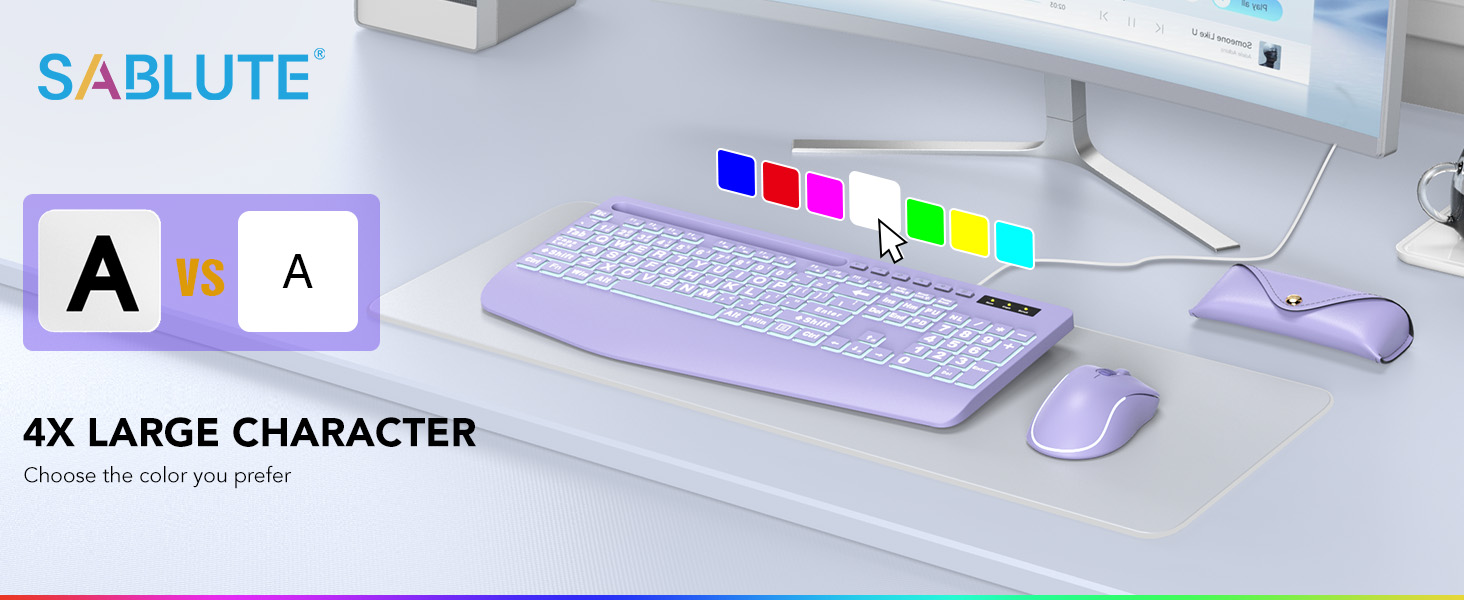
The SABLUTE K21Pro features oversized characters on each key, making them significantly easier to read compared to standard keyboards. This design helps reduce eye strain and improves typing accuracy, especially for users with visual impairments, seniors, or those working in low-light conditions.
4.2 Zoll 7-Farben-Hintergrundbeleuchtung
The keyboard includes a vibrant 7-color backlight system with adjustable brightness and multiple modes. Use the Function (Fn) key in combination with other keys to control the backlighting:
- Toggle Backlight Color: Drücken Fn + 1 um die 7 verfügbaren Hintergrundbeleuchtungsfarben durchzuschalten.
- Keep One Backlight Color: Drücken Fn + 2 repeatedly until your desired single color is displayed. The backlight will remain this color.
- Backlighting While Typing: Drücken Fn + 3 to activate a mode where keys light up as you type.
- Backlight Color Changes Back and Forth: Drücken Fn + 4 to enable a dynamic mode where backlight colors transition.
- Helligkeit anpassen: Drücken Fn + ↑ (Pfeil nach oben) um die Helligkeit der Hintergrundbeleuchtung zu erhöhen und Fn + ↓ (Pfeil nach unten) Um die Helligkeit zu verringern. Es gibt 8 Helligkeitsstufen.


4.3 Ergonomic Design with Wrist Rest
The keyboard is designed with an integrated palm and wrist rest to provide support and reduce strain during extended typing sessions. This ergonomic feature helps maintain a neutral wrist position, contributing to comfort and potentially preventing discomfort.

4.4 Integrated Phone/Tablet Holder
A dedicated slot at the top of the keyboard serves as a convenient holder for your smartphone or tablet. This allows you to keep your device upright and visible while working, facilitating multitasking such as watching videos, video conferencing, or reading documents.

4.5 Multimedia-Tasten
The keyboard includes standard function keys (F1-F12) which, when combined with the Fn key, can activate various multimedia and system controls. Refer to your operating system's documentation for specific functions associated with these keys.
5. Wartung
Proper care and maintenance will extend the lifespan of your keyboard:
- Reinigung: Use a soft, dry, lint-free cloth to wipe the surface of the keyboard. For deeper cleaning, a slightly damp Man kann ein Tuch mit milder Seife verwenden, wobei darauf zu achten ist, dass keine Flüssigkeit in die Schlüsselschalter oder interne Bauteile gelangt.
- Staubentfernung: Verwenden Sie Druckluft, um Staub und Schmutz zwischen den Tasten zu entfernen.
- Vermeiden Sie Flüssigkeiten: Verschütten Sie keine Flüssigkeiten auf der Tastatur. Sollte dennoch etwas verschüttet werden, trennen Sie die Tastatur sofort vom Computer und lassen Sie sie vollständig trocknen, bevor Sie sie wieder anschließen.
- Lagerung: Bewahren Sie die Tastatur in einer sauberen, trockenen Umgebung fern von extremen Temperaturen auf.
6. Fehlerbehebung
If you encounter issues with your SABLUTE K21Pro keyboard, try the following troubleshooting steps:
- Tastatur reagiert nicht:
- Stellen Sie sicher, dass das USB-Kabel sowohl an die Tastatur als auch an den USB-Anschluss des Computers fest angeschlossen ist.
- Versuchen Sie, die Tastatur an einen anderen USB-Anschluss Ihres Computers anzuschließen.
- Starten Sie Ihren Computer neu.
- Testen Sie die Tastatur an einem anderen Computer, um festzustellen, ob das Problem an der Tastatur oder an Ihrem System liegt.
- Backlight Not Working or Not Changing:
- Ensure the backlight is turned on. Use Fn + ↑ (Pfeil nach oben) Helligkeit zu erhöhen.
- Durchschalten der Hintergrundbeleuchtungsmodi mit Fn + 1, Fn + 2, Fn + 3, Und Fn + 4 to see if a different mode activates the lights.
- Verify that the keyboard is receiving power (e.g., if other keys are functioning).
- Specific Keys Not Working or Registering Incorrectly:
- Check for any physical obstructions or debris under the affected key. Use compressed air to clear.
- If multiple keys are affected, try the general troubleshooting steps for
Ask a question about this manual
Ask about setup, troubleshooting, compatibility, parts, safety, or missing instructions. Manuals+ will review the question and use this page’s manual context to help answer it.