1. Einleitung
Vielen Dank für Ihren Einkauf.asing the NANAO FlexScan L767-R 19-inch Color LCD Display. This manual provides essential information for setting up, operating, and maintaining your monitor. Please read this manual thoroughly before use to ensure proper and safe operation.
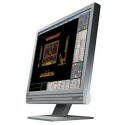
Figure 1: NANAO FlexScan L767-R LCD Monitor. This image shows the monitor from a slight angle, highlighting its slim bezel and adjustable stand.
2. Funktionen
The FlexScan L767-R is designed for optimal visual performance and user convenience. Key features include:
- Lebendiges Farbdisplay: Supports approximately 16.77 million full colors for impressive color vibrancy.
- FineContrast Function: Easily adjust brightness and gamma settings to match content (text, images) for optimal viewing.
- Dual Input Support: Equipped with both analog and digital input terminals for versatile connectivity.
- Integriertes Audio: Features built-in speakers for audio output.
- Ergonomischer Ständer: The stand allows for a 50mm vertical height adjustment, enhancing user comfort.
- Blendfreie Oberfläche: The screen surface is non-glare, reducing reflections and eye strain.
3. Einrichtung
Follow these steps to set up your FlexScan L767-R monitor:
- Auspacken des Monitors: Nehmen Sie den Monitor und sämtliches Zubehör vorsichtig aus der Verpackung.
- Positionieren Sie den Monitor: Stellen Sie den Monitor auf eine stabile, ebene Fläche. Sorgen Sie für ausreichende Belüftung um den Monitor herum.
- Videokabel anschließen:
- Für Analoge Verbindung: Connect the D-Sub (VGA) cable from your computer's video output to the analog input port on the monitor.
- Für Digitale Verbindung: Connect the DVI cable from your computer's video output to the digital input port on the monitor.
- Connect Audio Cable (Optional): If you wish to use the built-in speakers, connect an audio cable from your computer's audio output to the audio input port on the monitor.
- Netzkabel anschließen: Stecken Sie das Netzkabel in den Stromeingang des Monitors und das andere Ende in eine geerdete Steckdose.
- Einschalten: Press the power button on the monitor. Power on your computer. The monitor should display your computer's screen.
4. Betrieb
This section describes the basic operation of your FlexScan L767-R monitor.
4.1. FineContrast Function
The FineContrast function allows you to quickly switch between different display modes optimized for various content types. Use the dedicated buttons on the monitor's front panel to cycle through modes such as Text, Picture, Movie, and Custom. Each mode adjusts brightness, gamma, and color temperature for the best viewErfahrung.
4.2. Ständereinstellung
The monitor stand offers vertical height adjustment. Gently push or pull the monitor panel up or down to adjust its height within the 50mm range. Ensure the monitor is stable after adjustment.
4.3. Bildschirmmenü (OSD)
Access the OSD menu using the control buttons on the front panel to fine-tune settings such as brightness, contrast, color balance, input selection, and more. Refer to the detailed OSD menu guide in the full manual for comprehensive options.
5. Wartung
Durch sachgemäße Wartung werden die Langlebigkeit und Leistungsfähigkeit Ihres Monitors sichergestellt.
- Reinigen des Bildschirms: Mit einem weichen, fusselfreien Tuch leichtampened with water or a non-abrasive, monitor-specific cleaning solution. Do not spray liquid directly onto the screen.
- Reinigung des Casing: Wischen Sie den Monitor ab.asinMit einem weichen, trockenen Tuch abwischen. Vermeiden Sie die Verwendung von scharfen Reinigungsmitteln oder Lösungsmitteln.
- Belüftung: Um eine Überhitzung zu vermeiden, stellen Sie sicher, dass die Lüftungsöffnungen am Monitor nicht blockiert sind.
- Ausschalten: Vor der Reinigung oder wenn der Monitor längere Zeit nicht benutzt wird, schalten Sie ihn immer aus und ziehen Sie den Netzstecker.
6. Fehlerbehebung
Sollten Sie Probleme mit Ihrem Monitor haben, beachten Sie bitte die folgenden häufig auftretenden Probleme und Lösungen:
- Kein Bild auf dem Bildschirm:
- Überprüfen Sie, ob der Monitor eingeschaltet ist.
- Verify that the video cable is securely connected to both the monitor and the computer.
- Ensure the correct input source is selected on the monitor (Analog/Digital).
- Das Bild ist verzerrt oder unscharf:
- For analog connections, perform an auto-adjustment via the OSD menu.
- Check the display resolution settings on your computer. Ensure it matches the monitor's native resolution (1280x1024).
- Kein Ton aus den Lautsprechern:
- Verify the audio cable is properly connected.
- Überprüfen Sie die Lautstärkeeinstellungen sowohl am Monitor als auch am Computer.
If the problem persists after trying these solutions, please contact EIZO customer support or refer to the comprehensive troubleshooting guide in the full product manual.
7. Spezifikationen
| Besonderheit | Spezifikation |
|---|---|
| Marke | EIZO |
| Modell | L767-R |
| Bildschirmgröße | 19 Zoll |
| Auflösung | 1280 x 1024 |
| Beschreibung der Bildschirmoberfläche | Blendfrei |
| Helligkeit | 250 cd/m² |
| Bildwiederholrate | 60 Hz |
| Hintergrundbeleuchtungstechnologie | CCFL |
| HDMI-Eingangsanschlüsse | 0 |
| USB-Funktion | Keiner |
| Eingebauter Lautsprecher | Ja |
| TV-Funktion | NEIN |
| 3D Display Support | Nicht unterstützt |
| Berührungsempfindliches Bedienfeld | Nicht unterstützt |
| Artikelgewicht | 10 Kilogramm |
| Verpackungsabmessungen | 56 x 53.5 x 22.5 cm |
8. Garantie und Support
For detailed warranty information, please refer to the warranty card included with your product or visit the official EIZO webDie Garantiebedingungen können je nach Region variieren.
For technical support, product inquiries, or service requests, please contact EIZO customer support through their official channels. Keep your product model number (L767-R) and serial number ready when contacting support.
EIZO Official WebWebsite: www.eizo.com


