1. Introduction to CorelDraw Graphics Suite 12
CorelDraw Graphics Suite 12 is a comprehensive software package designed for professional graphic design, illustration, page layout, and digital imaging. This suite provides a powerful set of tools to create and edit various types of visual content. It includes applications such as CorelDRAW 12 for vector illustration and page layout, Corel PHOTO-PAINT 12 for image editing, and Corel R.A.V.E. 3 for motion graphics.
This manual provides essential information for installing, setting up, and effectively using the CorelDraw Graphics Suite 12 Upgrade. Please read through the instructions carefully to ensure optimal performance and utilization of all features.
2. Lieferumfang
The CorelDraw Graphics Suite 12 Upgrade package typically includes the following components:
- CorelDRAW 12: For vector illustration and page layout.
- Corel PHOTO-PAINT 12: For professional digital image editing.
- Corel R.A.V.E. 3: For creating motion graphics and animations.
- CorelTRACE 12: For converting bitmap images into editable vector graphics.
- Corel CAPTURE 12: For screen capture.
- Bitstream Font Navigator 5.0: For font management.
- Kodak Digital Science color management system: For consistent color reproduction.
- Microsoft Visual Basic for Applications 6.3: For scripting and automation.
- QuickTime 6.0 Player: Zur Multimedia-Wiedergabe.
- Inhaltsbibliothek: Over 10,000 professional clipart images, 1,000 TrueType and Type 1 fonts, and 1,000 photos and objects.
- Installation Discs and User Guide.
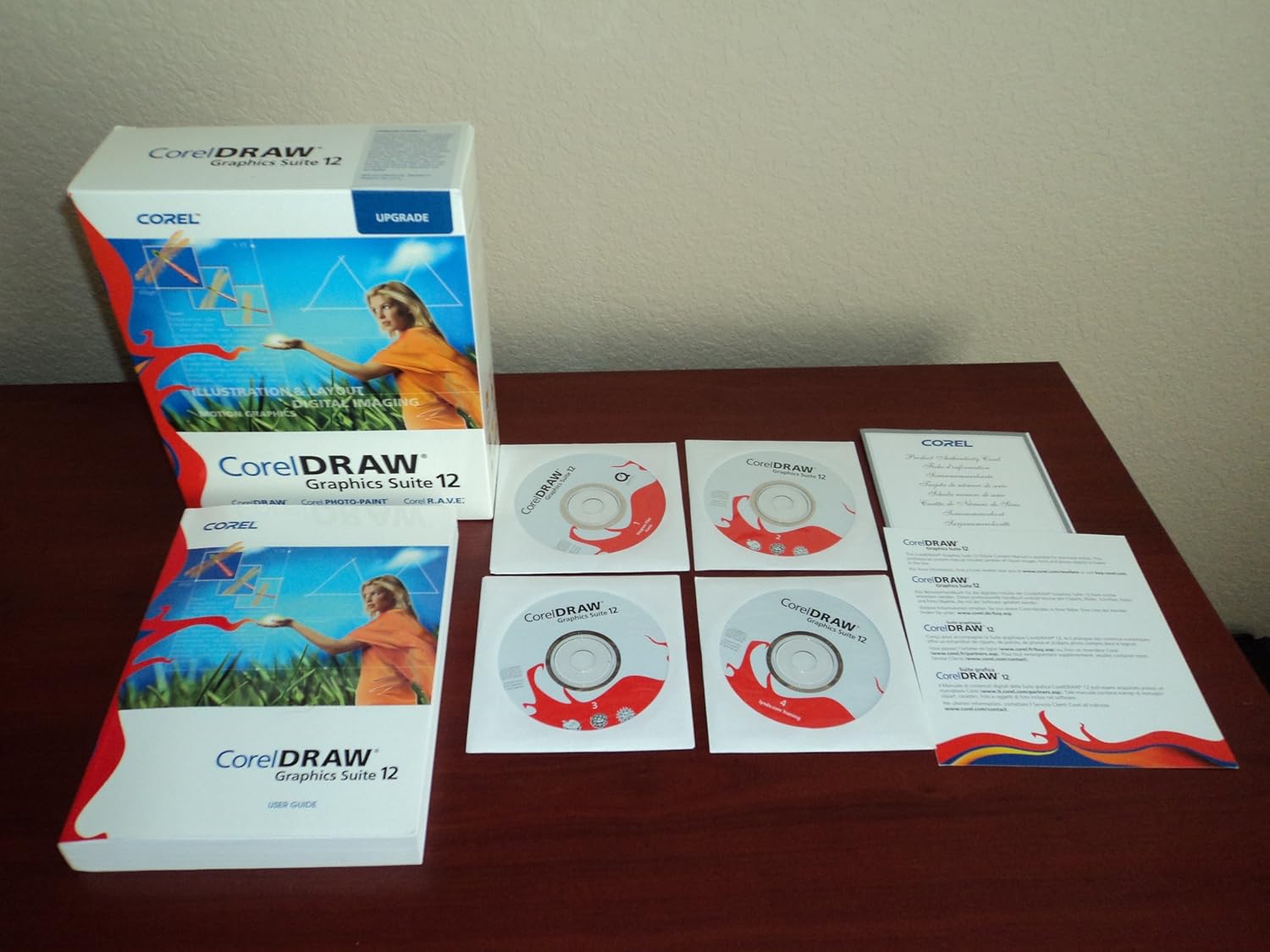
Image 1: Contents of the CorelDraw Graphics Suite 12 Upgrade package, showing the software box, user guide, and multiple installation discs.
3. Systemanforderungen
To ensure proper functionality of CorelDraw Graphics Suite 12, your computer system must meet the following minimum requirements. Please note that these are general guidelines for software from this era; specific requirements may vary slightly.
- Betriebssystem: Windows 2000, Windows XP, or later compatible Windows versions.
- Prozessor: Pentium III, 600 MHz or greater.
- RAM: 256 MB RAM (512 MB or more recommended).
- Festplattenspeicher: 250 MB for program files and additional space for content.
- Anzeige: 1024 x 768 screen resolution.
- Eingabegeräte: Mouse or tablet.
- Optisches Laufwerk: CD-ROM drive for installation.
- Internetverbindung: Required for product activation and online features (if applicable).
4. Installation und Einrichtung
Follow these steps to install CorelDraw Graphics Suite 12 on your computer:
- Bereiten Sie Ihr System vor: Close all other applications before starting the installation process. Ensure your system meets the minimum requirements.
- Insert Installation Disc: Insert the CorelDraw Graphics Suite 12 installation CD into your CD-ROM drive. The setup program should start automatically. If it does not, navigate to your CD-ROM drive in "My Computer" and double-click the "Setup.exe" file.
- Folgen Sie den Anweisungen auf dem Bildschirm: The installation wizard will guide you through the process.
- Lizenzvereinbarung: Lesen und akzeptieren Sie die Endbenutzer-Lizenzvereinbarung.
- Seriennummer: Enter your unique serial number, which can be found on the CD sleeve or in your product documentation.
- Installationstyp: Choose "Typical" for a standard installation or "Custom" to select specific components and installation paths. For most users, "Typical" is recommended.
- Destination Folder: Confirm or change the installation directory.
- Vollständige Installation: Allow the installation process to complete. This may take several minutes.
- Starte den Computer neu: You may be prompted to restart your computer after installation. It is recommended to do so to ensure all changes take effect.
- Aktivierung des Produkts: Upon first launch, you may be required to activate the product online or via phone. Follow the instructions provided by the software.
5. Bedienung der Software
CorelDraw Graphics Suite 12 consists of several integrated applications, each designed for specific tasks. You can launch these applications from the Windows Start menu under "CorelDraw Graphics Suite 12".
5.1. CorelDRAW 12 (Vector Illustration and Page Layout)
CorelDRAW is the primary application for creating vector graphics, illustrations, and page layouts. It is ideal for logos, brochures, technical drawings, and multi-page documents.
- Starting a New Project: Aus dem File menu, select "New" to create a new blank document. You can specify page size, orientation, and color mode.
- Werkzeuge: The Toolbox on the left side of the interface contains various tools for drawing, shaping, editing, and arranging objects. Hover over a tool to see its name and a brief description.
- Object Properties: Use the Property Bar (usually at the top) to adjust properties of selected objects, such as fill, outline, size, and position.
- Working with Text: CorelDRAW offers extensive text tools for artistic and paragraph text, including font selection, styling, and text-to-path features.
- Speichern und Exportieren: Save your work frequently using "File > Save". To use your designs in other applications or formats, use "File > Export" and choose from various file types like JPG, PNG, PDF, AI, or SVG.
5.2. Corel PHOTO-PAINT 12 (Digital Image Editing)
Corel PHOTO-PAINT is a powerful image editing application for retouching photos, creating compositions, and applying effects to bitmap images.
- Opening Images: Verwenden "File > Open" to load existing image files.
- Bildanpassungen: Access tools for color correction, brightness/contrast, and tone adjustments from the "Adjust" menu.
- Retouching Tools: Utilize tools like the Clone tool, Healing tool, and various brushes for photo retouching.
- Schichten: Work with layers to organize your image elements and apply non-destructive edits.
- Auswirkungen: Explore a wide range of filters and effects from the "Effects" menu to enhance your images.
5.3. Corel R.A.V.E. 3 (Motion Graphics)
Corel R.A.V.E. is designed for creating web animations and motion graphics, leveraging CorelDRAW's vector capabilities.
- Creating Animations: Use the timeline and keyframes to define object movements, transformations, and effects over time.
- Importing Objects: Import vector objects from CorelDRAW to animate them in R.A.V.E.
- Exporting Animations: Export animations in formats suitable for web use, such as Flash (SWF) or animated GIF.
6. Hauptmerkmale und Kompatibilität
CorelDraw Graphics Suite 12 offers several features designed to enhance productivity and workflow:
- Smart Design Tools: New tools for creating and manipulating shapes and objects with real-time visual feedback.
- Industry-Standard File Kompatibilität: Unterstützt eine breite Palette von file formats including SVG, AutoCAD, HPGL, Adobe Photoshop (PSD), Adobe Illustrator (AI), PDF, and Microsoft Office export.
- Umfangreiche Inhaltsbibliothek: Access to a large collection of clipart, fonts, photos, and objects to jumpstart your projects.
- Integrated Applications: Seamless workflow between CorelDRAW, PHOTO-PAINT, and R.A.V.E. for a complete design solution.
- Interaktives Training: An interactive training CD (if included in your package) helps users quickly learn the software.
7. Wartung und bewährte Verfahren
To ensure the smooth operation and longevity of your CorelDraw Graphics Suite 12 installation, consider the following maintenance tips:
- Regelmäßige Ersparnisse: Save your work frequently to prevent data loss. Utilize incremental saves or versioning for critical projects.
- Systemaktualisierungen: Keep your operating system updated with the latest service packs and security patches.
- Treiber-Updates: Ensure your graphics card drivers are up to date for optimal display performance.
- Speicherplatz: Maintain sufficient free disk space on your system drive for temporary files and program operations.
- Backup Projects: Sichern Sie Ihr Projekt regelmäßig. fileauf ein externes Laufwerk oder in einen Cloud-Speicher.
- Schriftverwaltung: Use Bitstream Font Navigator to manage your fonts efficiently, installing only necessary fonts to avoid system slowdowns.
8. Fehlerbehebung
This section addresses common issues you might encounter while using CorelDraw Graphics Suite 12.
- Software Crashing or Freezing:
-
- Stellen Sie sicher, dass Ihr System die Mindestanforderungen erfüllt.
- Aktualisieren Sie Ihre Grafikkartentreiber.
- Close other demanding applications to free up system resources.
- Try resetting the application workspace to default settings (often found in the Options or Preferences menu).
- Sollte das Problem weiterhin bestehen, ziehen Sie eine Neuinstallation der Software in Betracht.
- Installationsfehler:
-
- Verify your serial number is entered correctly.
- Ensure you have administrator privileges on your computer.
- Temporarily disable antivirus software during installation (remember to re-enable it afterward).
- Clean your CD-ROM drive and installation discs for smudges or scratches.
- File Kompatibilitätsprobleme:
-
- When importing or exporting files, ensure you select the correct file format and version.
- Some advanced features or effects from newer software versions may not be fully supported in CorelDraw Graphics Suite 12.
9. Spezifikationen
| Attribut | Detail |
|---|---|
| Produktname | CorelDraw Graphics Suite 12 Upgrade |
| Hersteller | Corel |
| ASIN | B00014TCTK |
| Sprache | Englisch |
| Verpackungsabmessungen | 9.7 x 8 x 3.1 Zoll |
| Paketgewicht | 2.29 Pfund |
| Datum der ersten Verfügbarkeit | 10. Januar 2004 |
| Eingestellt | Ja |
10. Support und Ressourcen
For further assistance or detailed information, please refer to the following:
- Offizielle Dokumentation: Consult the comprehensive user guide included with your software package for in-depth tutorials and reference material.
- Online-Ressourcen: Besuchen Sie die offizielle Corel-Website. website for support articles, FAQs, and community forums. While CorelDraw Graphics Suite 12 is an older version, archived resources may still be available.
- Interaktives Training: If available, utilize the interactive training CD to learn specific features and workflows.
11. Garantieinformationen
Specific warranty terms for CorelDraw Graphics Suite 12 would have been provided at the time of purchase. As this is an older software version, direct manufacturer support and warranty claims may be limited or no longer available. Please refer to the original product packaging or documentation for any applicable warranty details. For software, warranties typically cover defects in the media (e.g., installation disc) rather than the software's functionality itself, assuming it meets system requirements.


