1. Einleitung
This manual provides essential information for the setup, operation, maintenance, and troubleshooting of your Microsoft Wheel Optical Mouse, Model D66-00069. Please read this manual thoroughly to ensure optimal performance and longevity of your device.
2. Einrichtung
Follow these steps to connect your Microsoft Wheel Optical Mouse to your computer.
2.1 Systemanforderungen
- PC: Windows XP (Pentium 233-MHz or faster), Windows 2000 (Pentium 133 MHz or higher processor), Windows ME/98 (Pentium 133 MHz or higher processor), Windows NT 4.0 SP Pack 6 or later (Pentium 133 MHz or higher processor).
- 25 MB of available hard-disk space.
- CD-ROM drive (for software installation, if applicable).
- Microsoft Internet Explorer version 5.0 or later (to view Helfen fileS).
- An available PS/2 or Universal Serial Bus (USB) port.
- Mac: 15MB free Hard Drive space, Mac OS X version 10.1 to 10.1.3 (excluding 10.0), Mac OS 8.6 to 9.x, CD-ROM drive, An available Universal Serial Bus (USB) port.
2.2 Anschließen der Maus
- Locate an available USB or PS/2 port on your computer.
- Insert the mouse connector into the appropriate port. The mouse is plug-and-play, meaning it should be recognized automatically by your operating system.
- If prompted, follow any on-screen instructions for driver installation. For advanced customization, install the provided software from the CD-ROM drive.
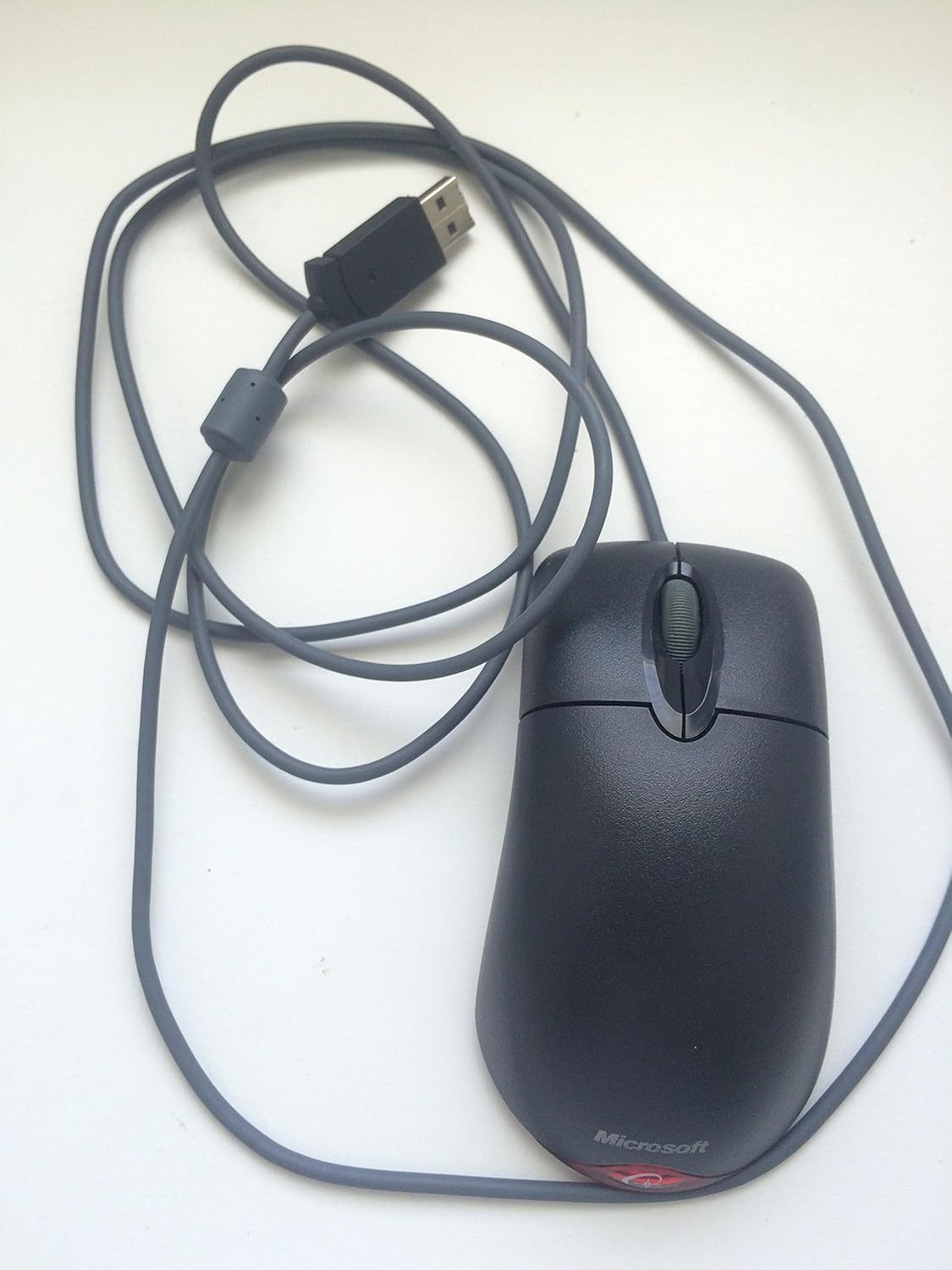
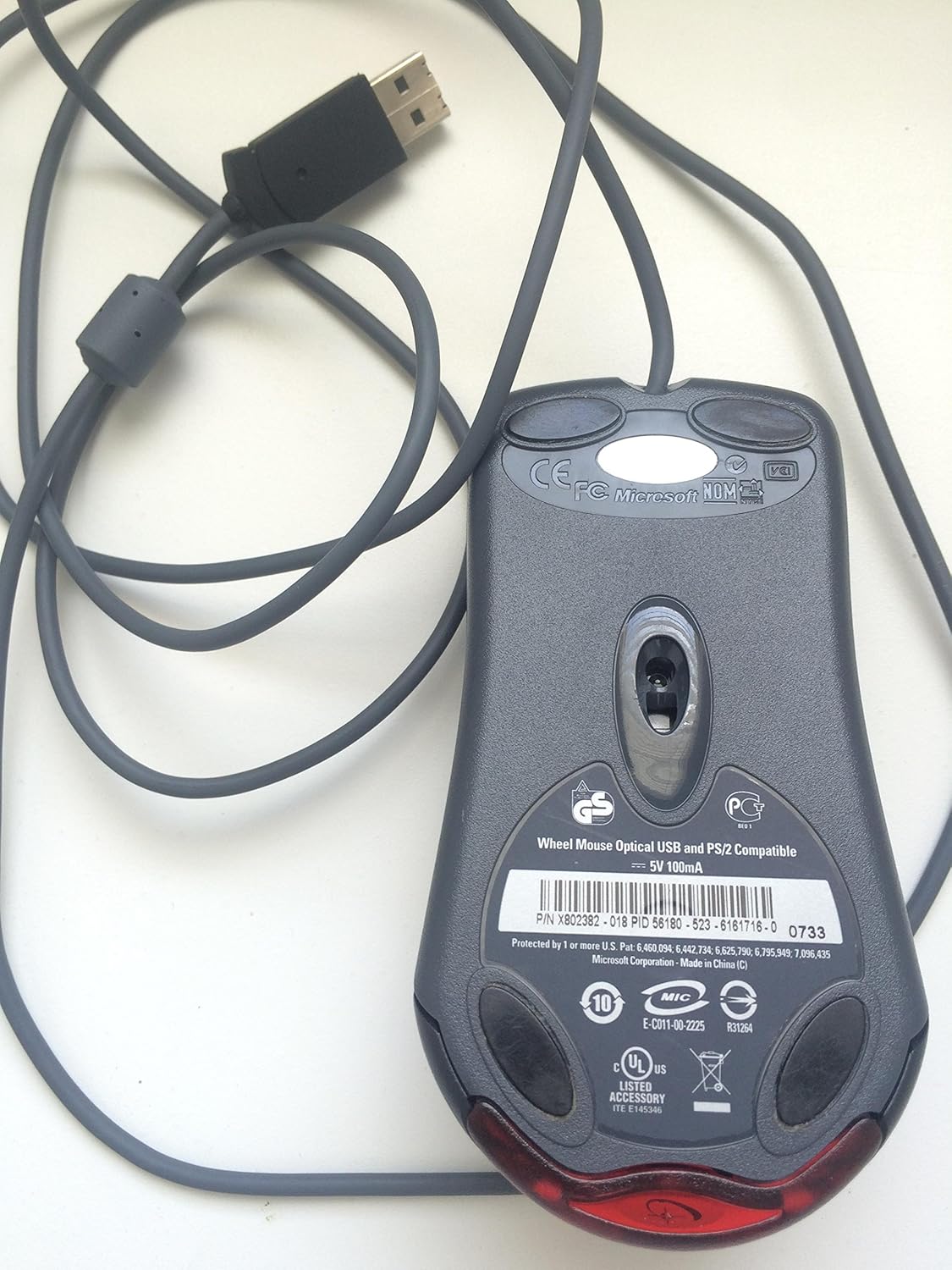
Dieses Video bietet einen allgemeinen Überblickview of the Microsoft Wheel Optical Mouse, demonstrating its physical features and basic functionality.
3. Bedienung der Maus
The Microsoft Wheel Optical Mouse is designed for intuitive and precise control.
3.1 Grundfunktionen
- Linksklick-Schaltfläche: Wird zum Auswählen von Elementen und zum Öffnen verwendet. files und aktivierende Funktionen.
- Rechtsklick-Schaltfläche: Used to open context menus for additional options.
- Scrollrad: Drehen Sie das Rad nach oben oder unten, um durch die Dokumente zu scrollen, und web pages. Press the wheel down to activate the customizable middle-click function, often used for auto-scrolling or opening links in new tabs.
3.2 IntelliEye Optical Technology
The mouse utilizes IntelliEye optical technology, which tracks mouse movement 6000 times per second. This provides smooth, precise motion on almost any surface, eliminating the need for a mouse pad in most cases.
3.3 Anpassbare Tasten
The buttons and scroll wheel can be customized using the Microsoft mouse software. This allows you to assign new commands or repetitive tasks to suit your workflow, such as opening a file or web page with a single click.
4. Wartung
To ensure the longevity and optimal performance of your mouse, follow these simple maintenance guidelines:
- Reinigung: Benutzen Sie ein weiches, fusselfreies Tuch, dampReinigen Sie die Oberfläche der Maus anschließend mit Wasser oder einer milden Reinigungslösung. Vermeiden Sie scharfe Chemikalien oder scheuernde Materialien.
- Optischer Sensor: Keep the optical sensor on the underside of the mouse clean and free from dust or debris. Do not attempt to open the mouse casing.
- Kabelpflege: Um interne Schäden zu vermeiden, sollte das Mauskabel nicht abrupt geknickt oder verdreht werden.
5. Fehlerbehebung
If you encounter issues with your Microsoft Wheel Optical Mouse, try the following solutions:
- Maus reagiert nicht:
- Ensure the USB or PS/2 connector is securely plugged into the correct port on your computer.
- Try plugging the mouse into a different USB or PS/2 port.
- Starten Sie Ihren Computer neu.
- Unregelmäßige Cursorbewegung:
- Reinigen Sie den optischen Sensor an der Unterseite der Maus.
- Ensure you are using the mouse on a suitable surface. Highly reflective or transparent surfaces may cause issues.
- Check for any software conflicts or outdated drivers. Reinstalling the mouse software may resolve the issue.
- Tasten oder Scrollrad funktionieren nicht:
- Verify that the mouse software is correctly installed and configured.
- Testen Sie die Maus an einem anderen Computer, um festzustellen, ob das Problem an der Maus oder an Ihrem System liegt.
6. Spezifikationen
| Besonderheit | Detail |
|---|---|
| Marke | Microsoft |
| Serie | Wheel Mouse Optical |
| Modellnummer | D66-00069 |
| Hardware-Plattform | PC, Tablet |
| Betriebssystemkompatibilität | Mac OS X v10.1x–10.4x, Windows Vista/XP/Pro/Home/Media Center Edition/Tablet PC Edition/Windows 2000 SP4 + |
| Artikelgewicht | 14.2 Unzen |
| Produktabmessungen (L x B x H) | 9.5 x 9 x 2.25 Zoll |
| Farbe | Schwarz |
| Stromquelle | Kabelgebundene Elektrik |
| Konnektivitätstechnologie | USB |
| Bewegungserkennungstechnologie | Optisch |
7. Garantieinformationen
Dieses Produkt wird mit einem 3 Jahr Herstellergarantie. For specific terms and conditions, please refer to the warranty documentation included with your purchase or visit the official Microsoft support webWebsite.
Haftungsausschluss: This product is sold as is.
8. Unterstützung
For further assistance, technical support, or to download the latest drivers and software, please visit the official Microsoft support website or contact their customer service. Ensure you have your product model number (D66-00069) available when seeking support.


