1. Einleitung
This manual provides comprehensive instructions for the setup, operation, and maintenance of your AOC 2436Vw 24-inch Widescreen HD Monitor. Please read this manual thoroughly before using the product to ensure proper functionality and to prevent damage.
The AOC 2436Vw monitor features a 24-inch (23.6-inch viewable) TFT LCD panel with a 1920 x 1080 resolution, a 5ms response time, and a 60,000:1 dynamic contrast ratio. It includes VGA and DVI-D inputs with HDCP support, touch-sensitive controls, and a USB pass-through connector for enhanced user convenience.

Figure 1.1: The AOC 2436Vw monitor showcasing its display capabilities with a colorful image.
2. Packungsinhalt
Carefully unpack the monitor and verify that all items listed below are present and in good condition. If any items are missing or damaged, contact your retailer.
- AOC 2436Vw 24-inch Widescreen HD Monitor
- Monitorständerbasis
- Power Cable (AC 120/230 V)
- VGA-Kabel
- DVI-Kabel
- USB-Kabel
- Treiber-CD
- Kurzanleitung
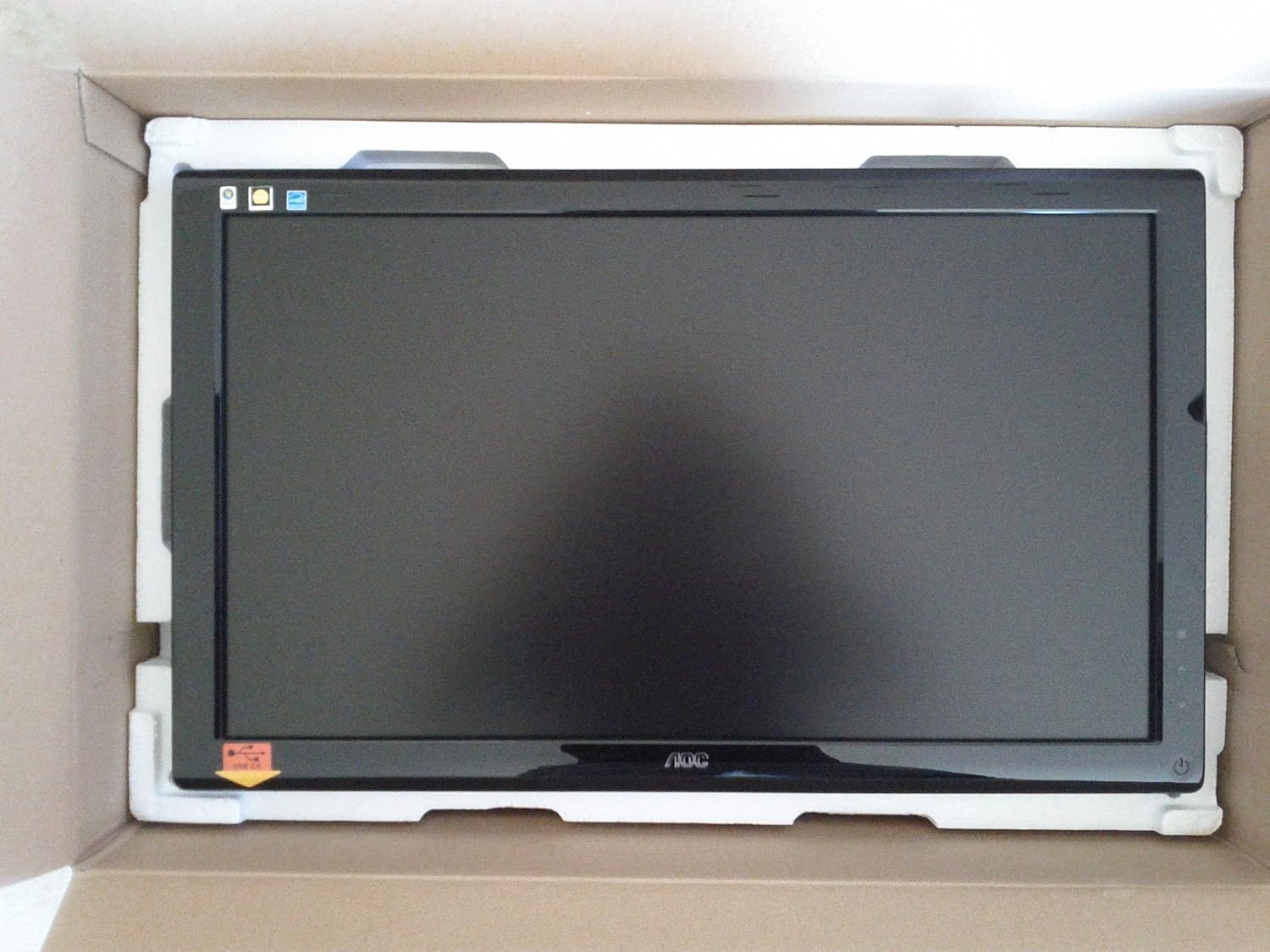
Figure 2.1: The AOC 2436Vw monitor securely packaged in its box, showing the screen protected by foam inserts.

Figure 2.2: Various accessories for the AOC 2436Vw monitor, including cables, stand base, and driver CD, neatly arranged in their packaging compartments.
3. Einrichtungsanweisungen
3.1 Zusammenbau des Monitorständers
- Nehmen Sie den Monitor vorsichtig aus der Verpackung und legen Sie ihn mit der Vorderseite nach unten auf eine weiche, saubere Oberfläche, um Kratzer zu vermeiden.
- Attach the stand base to the monitor neck. Ensure it clicks securely into place or is fastened with the provided screw, depending on the model's design.
- Heben Sie den zusammengebauten Monitor vorsichtig an und stellen Sie ihn auf eine stabile, ebene Fläche.
3.2 Anschlusskabel
Stellen Sie sicher, dass Computer und Monitor ausgeschaltet sind, bevor Sie irgendwelche Verbindungen herstellen.
- Stromanschluss: Schließen Sie das Netzkabel an den Stromeingang des Monitors und anschließend an eine geerdete Steckdose an.
- Videoverbindung:
- DVI-D: Connect one end of the DVI cable to the DVI-D port on the monitor and the other end to the DVI-D port on your computer's graphics card. This is recommended for optimal digital signal quality.
- VGA: Alternatively, connect one end of the VGA cable to the VGA port on the monitor and the other end to the VGA port on your computer's graphics card.
- USB-Passthrough: Connect the USB cable from the monitor's upstream USB port to an available USB port on your computer. This enables the monitor's built-in USB pass-through functionality.
3.3 Initial Power On and Driver Installation
- Power on your computer, then power on the monitor by pressing the power button located on the bezel.
- The monitor should automatically detect the input signal. If not, use the OSD menu to select the correct input source (DVI or VGA).
- Treiberinstallation: For optimal performance and access to all features, it is recommended to install the monitor drivers.
- Insert the provided driver CD into your computer's optical drive and follow the on-screen instructions.
- Alternatively, visit the official AOC website and download the latest drivers for the 2436Vw model.
4. Bedienung des Monitors
4.1 Controls and On-Screen Display (OSD) Menu
The AOC 2436Vw features touch-sensitive controls located on the lower right side of the bezel. These controls allow you to navigate the OSD menu and adjust various display settings.
To access the OSD menu, press the Menu button (usually indicated by an icon or a specific touch area). Use the navigation buttons (up/down, left/right, or similar) to browse through options and the Select/Enter button to confirm choices.
4.2 Häufige OSD-Einstellungen
- Helligkeit Kontrast: Adjust the overall luminance and difference between light and dark areas of the display.
- Farbeinstellungen: Modify color temperature, gamma, and individual RGB levels to achieve desired color accuracy.
- Eingangsauswahl: Manually switch between DVI and VGA input sources.
- Bildmodi: Select from predefined display modes (e.g., Standard, Text, Internet, Game, Movie) optimized for different content types. The monitor also features a Dynamic Contrast Ratio (DCR) setting that automatically adjusts brightness based on screen content.
- i-Menu Software: The monitor includes AOC's proprietary i-Menu software, which allows you to adjust OSD settings using your mouse and keyboard from within the operating system. Install this software from the driver CD or AOC webWebsite.
5. Wartung
5.1 Reinigung des Monitors
- Vor der Reinigung den Monitor immer ausschalten und das Netzkabel abziehen.
- Benutzen Sie ein weiches, fusselfreies Tuch, dampMit Wasser oder einem milden, nicht scheuernden Bildschirmreiniger abspülen.
- Do not spray cleaner directly onto the screen or bezel. Apply it to the cloth first.
- Vermeiden Sie die Verwendung von Benzol, Verdünner, ammoniakhaltigen Reinigern oder Scheuermitteln, da diese die Displayoberfläche beschädigen können.
5.2 Allgemeine Pflege
- Vermeiden Sie es, den Monitor direktem Sonnenlicht oder in der Nähe von Wärmequellen auszusetzen.
- Sorgen Sie für ausreichende Belüftung rund um den Monitor.
- Blockieren Sie nicht die Belüftungsöffnungen.
- Schützen Sie den Monitor vor übermäßigem Staub und Feuchtigkeit.
- The monitor is VESA 100mm wall mount compliant. If mounting, ensure proper installation according to VESA standards.
- A Kensington Security Slot is built in to help protect your computer display from theft.
6. Fehlerbehebung
Sollten Sie Probleme mit Ihrem Monitor haben, beachten Sie bitte die folgenden häufig auftretenden Probleme und Lösungen:
| Problem | Mögliche Ursache/Lösung |
|---|---|
| Kein Bild auf dem Bildschirm |
|
| Das Bild ist unscharf oder verzerrt. |
|
| Die Farben wirken falsch oder verwaschen. |
|
| Touch-Bedienelemente reagieren nicht |
|
7. Technische Daten
| Besonderheit | Spezifikation |
|---|---|
| Marke | AOC |
| Modellnummer | 2436VW |
| Bildschirmgröße | 24 Zoll (23.6 Zoll) Viewfähig) |
| Panel-Typ | TFT-LCD |
| Auflösung | 1920 x 1080 (FHD 1080p) |
| Seitenverhältnis | 16:9 |
| Ansprechzeit | 5 ms |
| Helligkeit (typisch) | 300 cd/m² |
| Kontrastverhältnis (dynamisch) | 60,000:1 |
| Unterstützte Farben | > 16 Millionen |
| Analog-Eingang | RGB D-Sub (VGA) |
| Digitale Eingabe | DVI with HDCP |
| USB-Anschlüsse | USB-Weiterleitung |
| Eingebaute Lautsprecher | NEIN |
| Stromversorgung | Wechselstrom 120/230 V (50/60 Hz) |
| Power Consumption (Operational) | 49 Watt |
| Abmessungen (BxTxH) | 22.91 x 2.56 x 16.73 Zoll (582.1 x 65.9 x 425.5 mm) |
| Gewicht | 12.1 kg (5.5 lbs) |
| Kompatibilität mit VESA-Halterung | 100 mm |
| Zertifizierungen | ENERGY STAR Compliant, EPEAT Rated |
8. Garantie und Support
8.1 Garantieinformationen
Please note that this product is sold "as is" and does not include a manufacturer's warranty. For specific details regarding your purchase, please refer to the terms and conditions provided by your retailer at the time of purchase.
8.2 Kundendienst
For further assistance, technical support, or to download the latest drivers and software, please visit the official AOC website or contact AOC customer service through their provided channels.


