1. Einleitung
Welcome to the user manual for your Logitech M705 Marathon Wireless Mouse. This document provides essential information for setting up, operating, and maintaining your device, ensuring optimal performance and longevity. The M705 mouse is designed for comfort and efficiency, featuring a long battery life and customizable controls for enhanced productivity.
2. Produktüberschreitungview
Hauptmerkmale
- Verlängerte Akkulaufzeit: Enjoy up to 3 years of battery life, reducing the need for frequent replacements.
- Ergonomisches Design: Sculpted to fit the natural curve of your right hand, providing comfort during prolonged use.
- Hyperschnelles Scrollen: Navigate through long documents and web pages with a single spin of the scroll wheel, or switch to click-to-click scrolling for precision.
- Programmierbare Tasten: Five customizable buttons, including forward/back thumb buttons, allow for personalized shortcuts and enhanced control.
- Einheitlicher Empfänger: A small USB Unifying receiver connects up to six compatible Logitech devices, freeing up USB ports.
- Breite Kompatibilität: Kompatibel mit den Betriebssystemen Windows, macOS, Chrome OS und Linux.
Packungsinhalt
The Logitech M705 Marathon Wireless Mouse package typically includes:
- Logitech M705 Kabellose Maus
- Logitech Unifying USB-Empfänger
- 2 AA Alkaline Batteries (may vary by region/packaging)

3. Einrichtungsanweisungen
3.1. Einlegen der Batterien
- Turn the mouse over and locate the battery compartment cover on the underside.
- Drücken Sie den Entriegelungsknopf oder schieben Sie die Abdeckung, um das Fach zu öffnen.
- Legen Sie die beiden AA-Batterien ein und achten Sie dabei auf die richtige Polarität (+/-).
- Bringen Sie die Abdeckung des Batteriefachs wieder an.

3.2. Connecting the USB Unifying Receiver
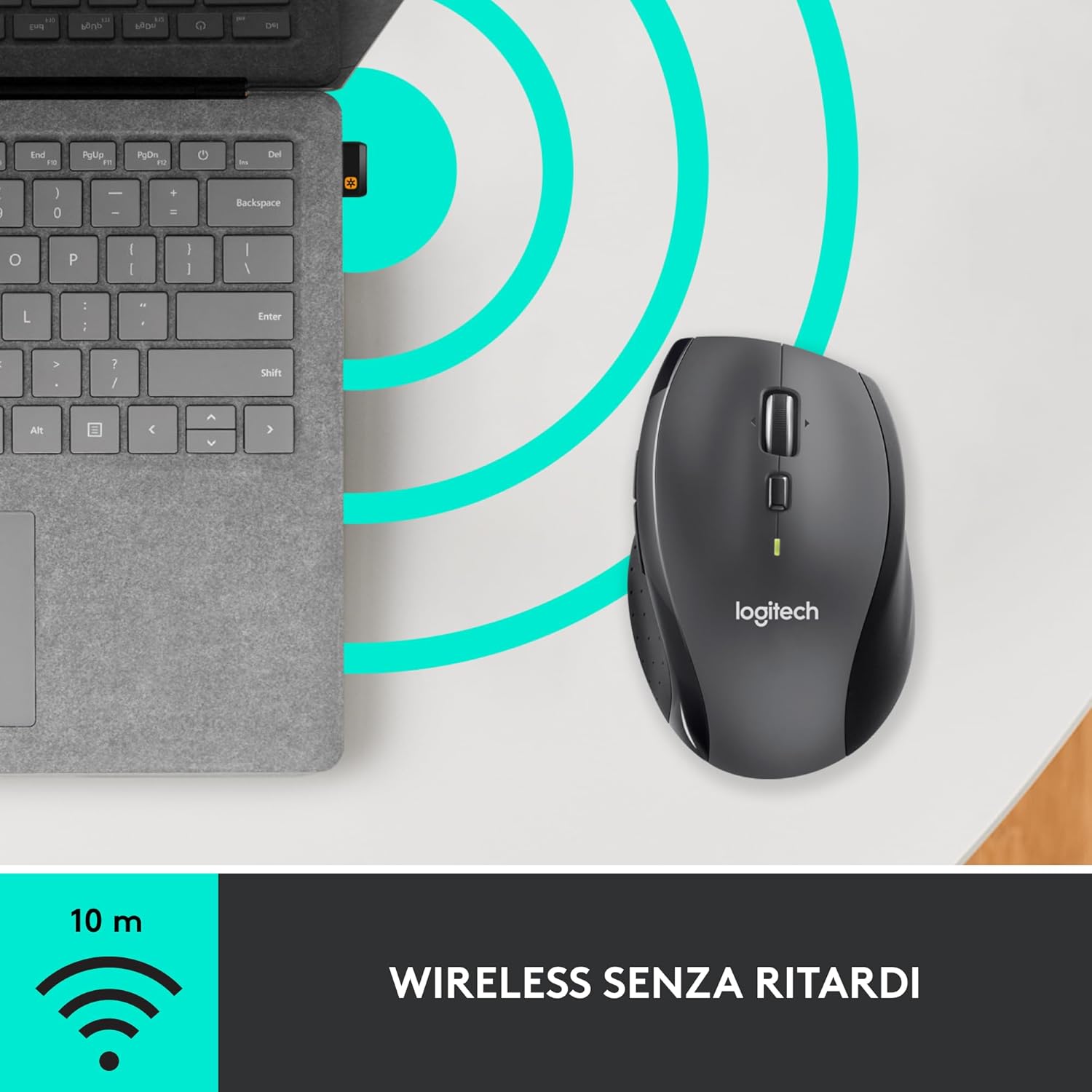
- Locate the small USB Unifying receiver. It may be stored inside the battery compartment of the mouse.
- Stecken Sie den USB-Empfänger in einen freien USB-Port Ihres Computers.
- Schalten Sie die Maus mit dem Ein-/Ausschalter an der Unterseite ein.
- Your computer should automatically detect the mouse. If not, visit the Logitech support website for driver installation.
4. Bedienungsanleitung
4.1. Grundlegende Mausfunktionen
The M705 mouse features standard left and right-click buttons, a scroll wheel, and additional programmable buttons.

4.2. Hyperschnelles Scrollen
Das Scrollrad bietet zwei Modi:
- Hyper-Schnellmodus: Press the button directly below the scroll wheel to unlock it for smooth, rapid scrolling through long documents or web Seiten.
- Klick-zu-Klick-Modus: Press the button again to engage precise, stepped scrolling, ideal for navigating lists or image galleries.

4.3. Programmierbare Tasten
The M705 features five programmable buttons, including two thumb buttons and tilt-scroll functionality. These can be customized using the Logitech Options software.

5. Anpassung
To unlock the full potential of your M705 mouse, download and install the Logitech Options software from the official Logitech webWebsite. Diese Software ermöglicht Ihnen Folgendes:
- Assign custom functions to the five programmable buttons.
- Abtastgeschwindigkeit (DPI) anpassen.
- Konfigurieren Sie anwendungsspezifische Einstellungen.
- Batteriestatus prüfen.

6. Wartung
6.1. Reinigung
Reinigen Sie Ihre Maus mit einem weichen, fusselfreien Tuch. Bei hartnäckigem Schmutz tupfen Sie die Maus leicht ab.ampen the cloth with water. Avoid using harsh chemicals or abrasive materials, as these can damage the mouse surface or internal components.
6.2. Batteriewechsel
When the battery indicator light on your mouse begins to flash or if performance degrades, it's time to replace the batteries. Follow the steps in Section 3.1 to replace the two AA batteries. Dispose of old batteries responsibly according to local regulations.
7. Fehlerbehebung
7.1. Maus reagiert nicht
- Stellen Sie sicher, dass die Maus eingeschaltet ist.
- Prüfen Sie den Batteriestand und tauschen Sie die Batterien gegebenenfalls aus.
- Verify the USB Unifying receiver is securely plugged into a working USB port.
- Versuchen Sie, den Empfänger an einen anderen USB-Anschluss oder einen anderen Computer anzuschließen, um das Problem einzugrenzen.
- Wenn Sie einen USB-Hub verwenden, versuchen Sie, ihn direkt mit dem Computer zu verbinden.
7.2. Unregelmäßige Cursorbewegung
- Reinigen Sie den optischen Sensor an der Unterseite der Maus.
- Ensure you are using the mouse on a suitable surface. Highly reflective or transparent surfaces may cause tracking issues. A mouse pad is recommended.
- Prüfen Sie, ob Störungen durch andere drahtlose Geräte vorliegen. Bewegen Sie die Maus näher an den USB-Empfänger heran.
7.3. Unifying Receiver Issues
If the mouse loses connection or you need to pair it with a new receiver, download the Logitech Unifying Software from the Logitech support website. This software guides you through the pairing process.
8. Spezifikationen
| Besonderheit | Detail |
|---|---|
| Marke | Logitech |
| Modellname | M705 |
| Modellnummer | 910-001949 |
| Konnektivitätstechnologie | Wireless (2.4 GHz USB Unifying Receiver) |
| Bewegungserkennungstechnologie | Laser |
| Bewegungsauflösung | 1000 DPI (up to 3200 DPI maximum resolution) |
| Anzahl der Tasten | 5 programmierbare Tasten |
| Stromquelle | Battery (2 x AA Alkaline) |
| Durchschnittliche Akkulaufzeit | Bis zu 3 Jahre |
| Drahtlose Reichweite | Bis zu 10 Meter |
| Formfaktor | Ergonomisch für Rechtshänder |
| Abmessungen (L x B x H) | 20 x 13 x 12 cm (Abmessungen der Produktverpackung) |
| Gewicht | 136 Gramm |
| Kompatible Betriebssysteme | Windows 7, 8, 10; macOS 10.11 or later; Chrome OS; Linux |
9. Garantie und Support
Detaillierte Garantieinformationen und technischen Support finden Sie auf der offiziellen Logitech-Website. webBesuchen Sie die Website oder kontaktieren Sie den Logitech-Kundendienst. Bewahren Sie Ihren Kaufbeleg für Garantieansprüche auf.


