1. Einleitung
The Olympus E-PL5 is a compact mirrorless digital camera designed for both photography enthusiasts and casual users. It features a 16MP Live MOS sensor, a TruePic VI image processor, and a versatile 14-42mm lens, offering high-quality imaging in a portable form factor. This manual provides essential information for setting up, operating, and maintaining your camera.
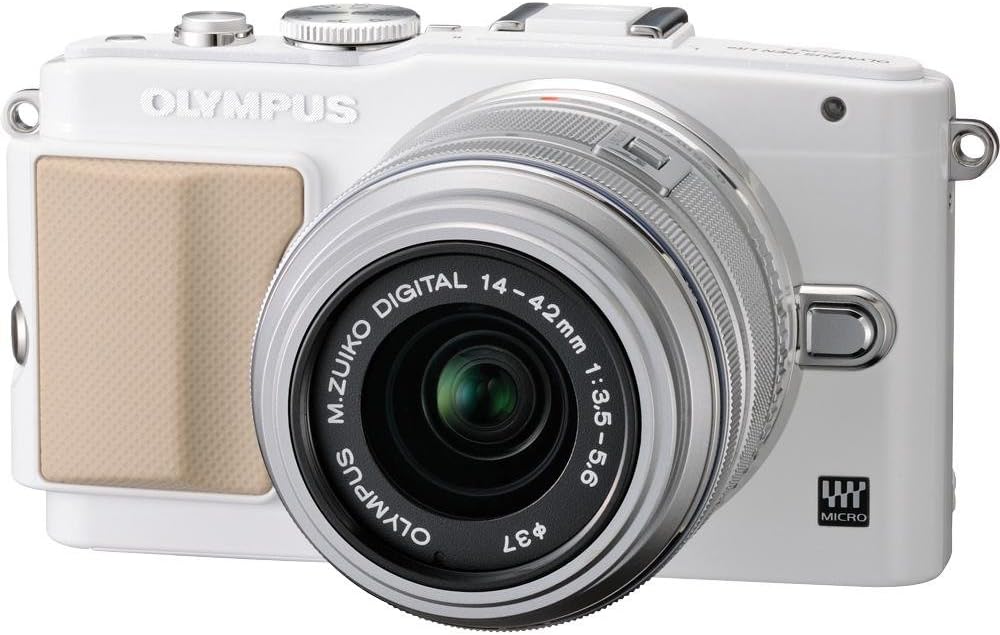
Abbildung 1: Vorderseite view of the Olympus E-PL5 Mirrorless Digital Camera with the 14-42mm lens attached.
2. Einrichtung
2.1 Installation von Akku und Speicherkarte
- Öffnen Sie die Batterie-/Speicherkartenabdeckung an der Unterseite der Kamera.
- Insert the battery with the correct orientation until it clicks into place.
- Insert an SD/SDHC/SDXC memory card into the slot until it clicks. Ensure the card is facing the correct direction.
- Schließen Sie die Abdeckung sicher.
2.2 Anbringen des Objektivs
- Entfernen Sie den Gehäusedeckel von der Kamera und den hinteren Objektivdeckel vom Objektiv.
- Richten Sie den weißen Punkt auf der Linse mit dem weißen Punkt auf dem Kameragehäuse aus.
- Montieren Sie das Objektiv, indem Sie es im Uhrzeigersinn drehen, bis es einrastet.
- Entfernen Sie den vorderen Objektivdeckel.

Abbildung 2: Vorderseite view of the camera, illustrating the lens attachment point.
3. Bedienung
3.1 Grundlegende Aufnahmemodi
Turn the mode dial to select your desired shooting mode:
- i-Auto: Intelligent Auto mode for automatic scene detection.
- P (Programm Auto): Die Kamera stellt Blende und Verschlusszeit für eine optimale Belichtung ein.
- A (Blendenpriorität): Sie steuern die Blende, die Kamera die Verschlusszeit.
- S (Verschlusspriorität): Sie steuern die Verschlusszeit, die Kamera die Blende.
- M (Manuell): Volle manuelle Kontrolle über Blende und Verschlusszeit.
- SCN (Szenenmodi): Voreingestellte Modi für bestimmte Situationen (z. B. Hochformat, Querformat).
- ART (Art Filters): Verleihen Sie Ihren Fotos kreative Effekte.
3.2 Using the Touch LCD Screen
The 3.0-inch flip self-portrait touch LCD screen allows for intuitive control:
- Touch Shutter: Tap the screen to focus and take a picture.
- Touch AF: Tap to set the autofocus point.
- Live Guide System: Adjust settings like brightness, color, and background blur by touching on-screen sliders and previewEffekte.
- The screen can be tilted for various shooting angles, including self-portraits.

Abbildung 3: Rückseite view of the Olympus E-PL5, showing the LCD screen in use.

Abbildung 4: Seite view of the Olympus E-PL5 with its tilting LCD screen extended.
3.3 Video aufnehmen
The E-PL5 supports Full 1080i HD video recording with Art Filter Movie and Effects. To record a video:
- Set the mode dial to the movie recording mode (usually indicated by a film camera icon).
- Drücken Sie die spezielle Filmaufnahmetaste, um die Aufnahme zu starten und zu stoppen.
- Utilize the Art Filters for creative video effects.
Video 1: This video showcases the Olympus E-PL5 camera being used in a 72-hour filmmaking challenge, demonstrating its capabilities for video production in various environments.
4. Wartung
4.1 Reinigung der Kamera
- Kameragehäuse: Wischen Sie das Kameragehäuse mit einem weichen, trockenen Tuch ab. Bei hartnäckigem Schmutz verwenden Sie ein leicht feuchtes Tuch.ampmit Wasser abspülen. Vermeiden Sie aggressive Chemikalien.
- Linse: Verwenden Sie einen Linsenpinsel oder Blasebalg, um Staub zu entfernen. Für Fingerabdrücke verwenden Sie eine spezielle Linsenreinigungslösung und ein Mikrofasertuch. Berühren Sie die Linsenoberfläche niemals mit den Fingern.
- LCD Bildschirm: Wischen Sie den Bildschirm vorsichtig mit einem weichen, fusselfreien Tuch ab. Vermeiden Sie zu starken Druck.
4.2 Speicherung
When not in use, store the camera in a cool, dry place away from direct sunlight and extreme temperatures. Remove the battery if storing for extended periods to prevent leakage.
5. Fehlerbehebung
5.1 Häufige Probleme und Lösungen
- Die Kamera lässt sich nicht einschalten: Stellen Sie sicher, dass der Akku vollständig geladen und korrekt eingesetzt ist. Prüfen Sie, ob die Akkukontakte sauber sind.
- Die Bilder sind unscharf: Check if the lens is clean and properly attached. Ensure the autofocus is working correctly or try manual focus. Verify that the shutter speed is appropriate for the lighting conditions to prevent camera shake.
- LCD screen is blank or unresponsive: Press the DISPLAY button to cycle through display modes. If the screen is unresponsive to touch, try restarting the camera. Ensure the screen is not physically damaged.
- Speicherkartenfehler: Ensure the memory card is inserted correctly and is not full. Try formatting the card (this will erase all data, so back up first). If the issue persists, try a different memory card.
- Blitz löst nicht aus: Check if the flash is enabled in the camera settings and if the shooting mode allows flash. Ensure the external flash (if used) is properly mounted and powered.
6. Spezifikationen
| Besonderheit | Detail |
|---|---|
| Modellname | Olympus E-PL5 |
| Auflösung des Fotosensors | 16 Megapixel |
| Sensortyp | MOS |
| Kompatible Halterungen | Mikro Four Thirds |
| Bildstabilisierung | Sensorverschiebung |
| Objektivtyp | Zoom (14-42mm) |
| Maximale Blendenöffnung | 3.5 f |
| Bildschirmgröße | 3 Zoll |
| Anzeigetyp | LCD, Tilting, Touch Screen |
| Videoauflösung | FHD 1080i |
| Unterstützt File Format | RAW, JPEG, RAW+JPEG, MPO(3D still) |
| Flash-Speichertyp | SD/SDHC/SDXC |
| Konnektivitätstechnologie | HDMI, USB, Drahtlos |
| Artikelgewicht | 0.72 Pfund |
7. Garantie und Support
For detailed warranty information and customer support, please refer to the official Olympus webBesuchen Sie die Website oder kontaktieren Sie direkt den Kundenservice. Bewahren Sie Ihren Kaufbeleg für eventuelle Garantieansprüche auf.
Online resources, FAQs, and software updates may also be available on the Olympus support pages.