1. Einleitung
This manual provides comprehensive instructions for the Monoprice MS-WN513N2 Wireless N300 4-Port Broadband Router. This device is designed to provide a high-speed wireless network connection for your home or small office, offering reliable internet access and advanced security features. Please read this manual thoroughly before operating the device.
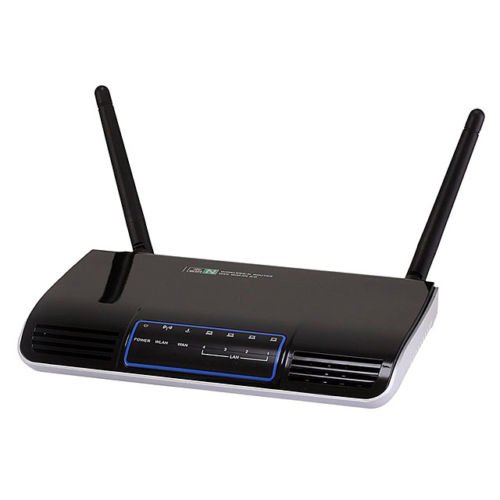
Bild 1.1: Vorderseite view of the Monoprice MS-WN513N2 Wireless N300 Router. The router is black with indicator lights on the front panel.
2. Funktionen
The Monoprice MS-WN513N2 router offers a range of features to enhance your network experience:
- Wireless N300 Performance: Complies with 802.11b/g/n standards, offering wireless transmission speeds up to 300 Mbps.
- 4-Port Broadband Router: Includes four (4) LAN ports for wired connections.
- Erweiterte Sicherheit: Supports 64-bit/128-bit WEP, WPA/WPA2, and WPA-PSK/WPA2-PSK authentication.
- IPv6-Unterstützung: Compatible with Internet Protocol Version 6.
- Dienstqualität (QoS): Bandwidth control for prioritizing network traffic.
- WPS (Wi-Fi Protected Setup): Simplifies wireless security configuration.
- Mehrere Betriebsmodi: Can be configured as a Gateway, Wireless Bridge, or Wireless ISP (WISP).
- Dynamisches DNS (DDNS): Supports dynamic domain name system configuration.
- UPnP Support: Universal Plug and Play for easy device discovery.
- Firewall: Integrated firewall for network protection.
- Automatic MDI/MDIX: Automatic cable detection for Ethernet ports.
3. Packungsinhalt
Bitte überprüfen Sie, ob alle Artikel in Ihrem Paket vorhanden sind:
- Monoprice MS-WN513N2 Wireless N300 Router
- Netzteil (DC 5 V)
- Ethernet-Kabel
- Kurzinstallationsanleitung (falls enthalten)
4. Körperliche Übergriffeview
4.1 Anzeigen auf der Vorderseite
Die Frontplatte verfügt über LED-Anzeigen, die Statusinformationen liefern:
- Betriebs-LED: Zeigt an, ob der Router eingeschaltet ist.
- WAN-LED: Zeigt den Verbindungsstatus zum Internet an.
- LAN-LEDs (1-4): Aktivität an den jeweiligen kabelgebundenen LAN-Anschlüssen anzeigen.
- WLAN-LED: Zeigt die Aktivität im drahtlosen Netzwerk an.
4.2 Anschlüsse und Tasten auf der Rückseite
The rear panel contains all physical connection points:
- DC 5 V Stromanschluss: Wird an das mitgelieferte Netzteil angeschlossen.
- WAN-Port: Verbindet sich mit dem Netzwerk Ihres Modems oder Internetdienstanbieters.
- LAN-Ports (1-4): Connect to wired devices such as computers, gaming consoles, or switches.
- WPS-Taste: Startet Wi-Fi Protected Setup für eine einfache drahtlose Verbindung.
- Loch zurücksetzen: Used to restore the router to factory default settings. Insert a paperclip and hold for 5-10 seconds.
- Antennenanschlüsse: Two (2) ports for connecting the external antennas.
5. Einrichtung
5.1 Hardware-Anschluss
- Antennen anschließen: Screw the two external antennas onto the antenna ports on the rear panel.
- Modem anschließen: Verbinden Sie ein Ende eines Ethernet-Kabels mit dem LAN-Anschluss Ihres Modems und das andere Ende mit dem WAN Port des Routers.
- Strom anschließen: Schließen Sie das Netzteil an den Router an. DC 5V Stromanschluss and plug the adapter into a power outlet.
- Einschalten: Wait for the router to power on. The Power LED should illuminate. Allow a few minutes for the router to boot up and establish a connection.
- Computer anschließen (optional): For initial configuration, it is recommended to connect a computer directly to one of the router's LAN ports using an Ethernet cable.
5.2 Erstkonfiguration (Web Schnittstelle)
- Zugangsrouter: Öffnen Sie ein web browser on a connected computer. In the address bar, type the router's default IP address (commonly
192.168.1.1or192.168.0.1) and press Enter. Refer to the label on the bottom of your router for the exact IP address and default login credentials. - Login: Geben Sie den Standardbenutzernamen und das Standardpasswort ein (z. B.
adminfür beide). - Setup-Assistenten ausführen: Die des Routers web interface will typically present a Quick Setup Wizard. Follow the on-screen prompts to configure your internet connection type (e.g., PPPoE, Dynamic IP, Static IP) and basic wireless settings (SSID, password).
- Standardanmeldeinformationen ändern: For security, it is highly recommended to change the default login username and password for the router's web Schnittstelle.
6. Betrieb
6.1 Konfiguration des drahtlosen Netzwerks
To configure your wireless network:
- Navigieren Sie zum WLAN-Einstellungen im web Schnittstelle.
- SSID: Change the default Wireless Network Name (SSID) to a unique name.
- Sicherheitsmodus: Wählen WPA2-PSK as the recommended security mode.
- Passwort: Set a strong, unique password (at least 8 characters, including letters, numbers, and symbols).
- Kanal: The router can automatically select the best 2.4 GHz channel. You can also manually select a fixed channel (e.g., 1, 6, or 11) to avoid interference.
- Speichern Sie Ihre Änderungen.
6.2 Sicherheitseinstellungen
The router provides various security features:
- Firewall: The built-in firewall helps protect your network from external threats. Ensure it is enabled.
- MAC-Filterung: You can restrict network access to specific devices based on their MAC addresses.
- Kindersicherung: Some routers offer features to block specific websites or limit internet access times for certain devices.
- WPS: Use the WPS button for quick, secure connections with WPS-compatible devices.
6.3 Erweiterte Funktionen
Explore the advanced settings in the web interface for more control:
- Dienstqualität (QoS): Prioritize bandwidth for applications like gaming or video streaming.
- Port-Weiterleitung: Configure specific ports to allow external access to devices on your local network (e.g., for gaming servers).
- Dynamisches DNS (DDNS): If you have a dynamic public IP address, DDNS allows you to access your network using a consistent domain name.
- IPv6: Configure IPv6 settings if your ISP supports it.
- Betriebsmodus: Change the router's mode to Wireless Bridge or WISP if needed for specific network setups.
7. Wartung
7.1 Firmware-Updates
Periodically check the Monoprice website for firmware updates. Firmware updates can improve performance, add new features, and fix security vulnerabilities. Follow the instructions provided with the firmware update carefully to avoid damaging the device.
7.2 Router zurücksetzen
If you forget your login password or experience persistent issues, you can restore the router to its factory default settings:
- Bei eingeschaltetem Router suchen Sie den/die/das Loch zurücksetzen auf der Rückseite.
- Use a paperclip or a thin, pointed object to press and hold the reset button inside the hole for approximately 5-10 seconds.
- Release the button when the router's LEDs flash or restart.
- The router will reboot with factory default settings. You will need to reconfigure it using the web Schnittstelle.
8. Fehlerbehebung
Hier finden Sie Lösungen für häufige Probleme:
- Kein Internetzugang:
- Check if the WAN LED is lit. If not, ensure the Ethernet cable from the modem is securely connected to the router's WAN port.
- Starten Sie Ihr Modem und Ihren Router neu.
- Überprüfen Sie die Einstellungen Ihrer Internetverbindung im Router. web Schnittstelle.
- Kein Zugriff möglich Web Schnittstelle:
- Stellen Sie sicher, dass Ihr Computer über Ethernet oder WLAN mit dem Router verbunden ist.
- Verify the router's IP address. Try
192.168.1.1or192.168.0.1. - Leeren Sie den Cache Ihres Browsers oder versuchen Sie es mit einem anderen Browser.
- If you forgot the password, perform a factory reset.
- Langsame WLAN-Geschwindigkeit:
- Ensure your devices support 802.11n for optimal speeds.
- Check for interference from other 2.4 GHz devices (cordless phones, microwaves). Try changing the wireless channel.
- Stellen Sie sicher, dass der Router zentral platziert und nicht verdeckt ist.
- Aktualisieren Sie die Treiber des WLAN-Adapters Ihres Geräts.
- Abbrüche der drahtlosen Verbindung:
- Prüfen Sie die Signalstärke und mögliche Störungen.
- Stellen Sie sicher, dass die Firmware des Routers auf dem neuesten Stand ist.
- Verify that the wireless security settings are correctly configured.
9. Spezifikationen
| Besonderheit | Spezifikation |
|---|---|
| Modell | MS-WN513N2 |
| Drahtlose Standards | IEEE 802.11n (Draft 2.0), IEEE 802.11g, IEEE 802.11b |
| Wireless Signal Rates (802.11n) | Up to 300 Mbps (270, 243, 216, 162, 135, 130, 108, 81, 65, 54, 40.5, 27, 13.5 Mbps) |
| Wireless Signal Rates (802.11g) | 54, 48, 36, 24, 18, 12, 9, 6 Mbit/s |
| Wireless Signal Rates (802.11b) | 11, 5.5, 2, 1 Mbit / s |
| Frequenzbereich | 2.4 - 2.4835 GHz |
| Drahtlose Sendeleistung | Bis zu 20 dBm |
| Modulationstechnik | DBPSK, DQPSK, CCK, OFDM, 16-QAM, 64-QAM |
| Häfen | 4x LAN Ports, 1x WAN Port, 2x Antenna Ports, 1x DC 5V Power Port |
| Schaltflächen | WPS Button, Reset Hole |
| Sicherheit | 64/128-Bit WEP, WPA/WPA2, WPA-PSK/WPA2-PSK |
| Stromversorgung | Gleichstrom 5 V |
| Unterstützte Protokolle | IPv6, PPPoE |
10. Garantie und Support
Informationen zur Garantie und zum technischen Support finden Sie auf der offiziellen Monoprice-Website. website or contact Monoprice customer service directly. Keep your purchase receipt for warranty claims.
Monopreis WebWebsite: www.monoprice.com


