1. Einleitung
The Coby Car Dash Cam (Model DCHD101-V2) is designed to provide reliable video recording of your driving experience. Equipped with a 1080P Full HD camera, 4x digital zoom, and a 140° wide-angle lens, it captures clear footage. Key features include LED night vision, automatic motion detection, and G-sensor collision detection for enhanced security. The device features a 2.7-inch LCD screen for on-spot playback and supports MicroSD cards up to 32GB.
This manual provides detailed instructions for the proper installation, operation, and maintenance of your Coby Car Dash Cam to ensure optimal performance and longevity.
2. Lieferumfang
- Coby Car Dash Cam Unit
- Saughalterung
- Autoladegerät (Stromkabel)
- USB-Kabel
- Benutzerhandbuch (dieses Dokument)
3. Produktüberschreitungview
Familiarize yourself with the components and controls of your Coby Car Dash Cam.
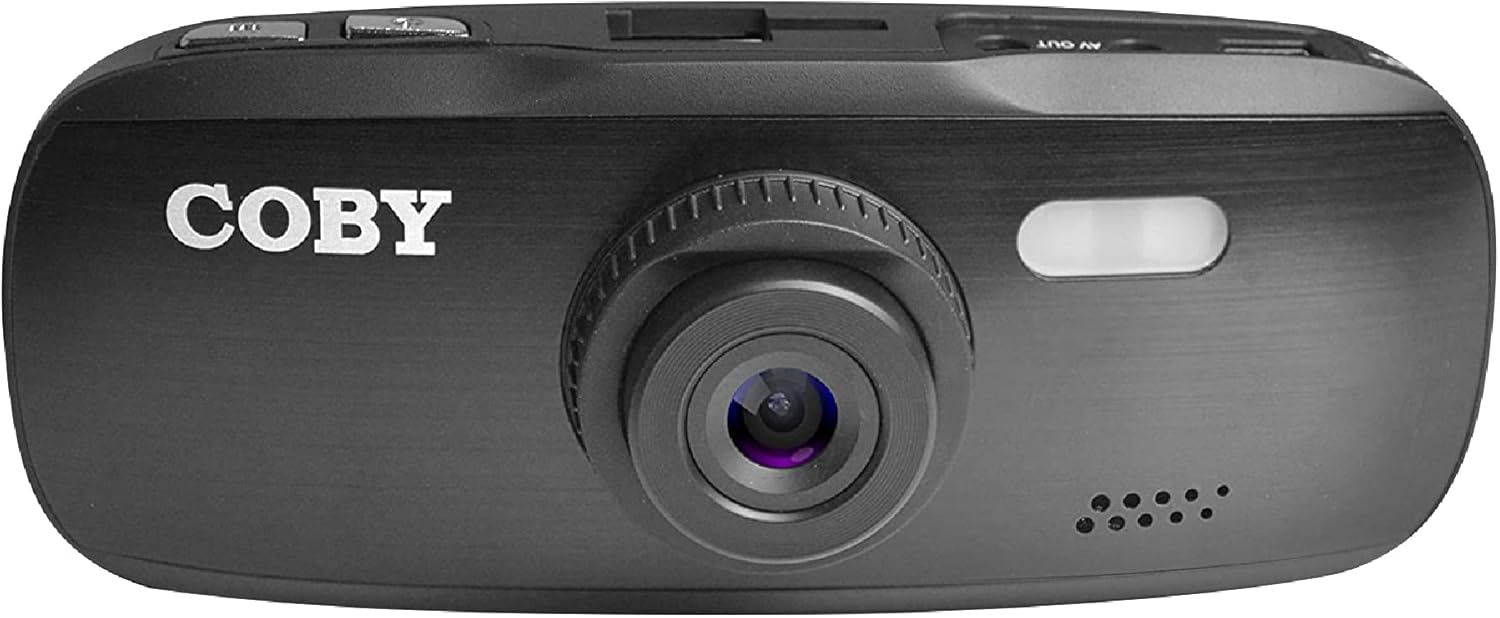
Abbildung 3.1: Vorderseite View of the Dash Cam. This image displays the front of the Coby dash cam, highlighting the main camera lens and the Coby brand logo.

Abbildung 3.2: Rückseite View with LCD Screen and Controls. The back of the dash cam is shown, featuring the 2.7-inch LCD screen displaying a scenic road, flanked by control buttons on both sides.

Abbildung 3.3: Seite View with Ports and Slots. This image illustrates the side of the dash cam, detailing the MicroSD card slot, AV Out port, and Micro USB port for connectivity.
3.1. Komponenten und Bedienelemente
- Kameraobjektiv: Main lens for video recording.
- LCD Bildschirm: 2.7-Zoll-Display für Live-Übertragung view, Wiedergabe und Menünavigation.
- Netzschalter: Schaltet das Gerät ein/aus.
- Menü-Schaltfläche: Greift auf Systemeinstellungen zu.
- Modus-Taste: Switches between video recording, still photo, and playback modes.
- REC-Taste: Startet/stoppt die Videoaufnahme.
- Auf/Ab-Tasten: Navigieren Sie durch die Menüoptionen und passen Sie die Einstellungen an.
- MicroSD-Kartensteckplatz: Insert your MicroSD card (up to 32GB, Class 10 recommended).
- Micro-USB-Anschluss: For power supply and data transfer to a computer.
- AV-Ausgang: Zum Anschluss an ein externes Display.
- Lautsprecher/Mikrofon: Zur Audioaufnahme und -wiedergabe.
4. Einrichtung
4.1. Installing the Suction Mount
- Clean the windshield area where you intend to mount the dash cam. Ensure it is free of dust and grease for optimal suction.
- Attach the suction mount to the dash cam by sliding it into the top mount slot until it clicks securely.
- Press the suction cup firmly against the cleaned windshield and push down the lever on the mount to secure it.
- Passen Sie den Winkel der Dashcam an, um eine klare Sicht zu gewährleisten view die Straße vor uns im Blick behalten und Hindernisse von hinten vermeiden.view Spiegel oder andere Fahrzeugkomponenten.

Figure 4.1: Dash Cam Mounted in a Vehicle. This image shows the dash cam securely mounted on the windshield, providing a clear view of the road from the driver's seat.
4.2. Einsetzen der MicroSD-Karte
- Suchen Sie den MicroSD-Kartensteckplatz an der Seite der Dashcam.
- Insert a Class 10 or higher MicroSD card (up to 32GB) into the slot with the gold contacts facing the back of the camera until it clicks into place.
- Zum Herausnehmen die Karte vorsichtig hineindrücken, bis sie herausspringt.
- Notiz: It is recommended to format the MicroSD card within the dash cam before first use and periodically thereafter to ensure stable recording.
4.3. Stromanschluss
- Connect the provided car charger to the Micro USB port on the dash cam.
- Stecken Sie das andere Ende des Autoladegeräts in die 12-V-Steckdose (Zigarettenanzünderbuchse) Ihres Fahrzeugs.
- The dash cam is designed to automatically power on and begin recording when the vehicle's ignition is turned on, and power is supplied. It will also automatically power off shortly after the ignition is turned off.
5. Bedienungsanleitung
5.1. Grundlegende Aufnahme
- Once powered on, the dash cam will automatically start recording in a continuous loop.
- The recording indicator (usually a red dot or flashing icon) will appear on the screen.
- To manually stop recording, press the AUFNAHME button. Press it again to resume recording.
- Loop-Aufnahme: The dash cam records video in segments (e.g., 1, 3, or 5 minutes). When the MicroSD card is full, the oldest unlocked fileDie vorhandenen Aufnahmen werden durch neue überschrieben.
5.2. G-Sensor (Notfallaufzeichnung)
- The built-in G-sensor detects sudden movements, such as hard braking, impacts, or sharp turns.
- When triggered, the current video segment will be automatically locked and saved to prevent it from being overwritten by loop recording.
- These locked files are typically stored in a separate folder on the MicroSD card (e.g., "EVENT" or "EMERGENCY").
5.3. Bewegungserkennung
- When enabled in the settings, the dash cam can automatically start recording when motion is detected in front of the lens, even when the vehicle is parked.
- This feature is useful for monitoring your vehicle while it is stationary.
- Notiz: Continuous use of motion detection while parked may drain your vehicle's battery if not connected to a constant power source or a dedicated hardwire kit.
5.4. Menu Settings and Playback
- Menü aufrufen: While not recording, press the SPEISEKARTE Taste, um das Einstellungsmenü aufzurufen.
- Navigationsmenü: Verwenden Sie die Up Und Runter Pfeiltasten zum Durchblättern der Optionen.
- Optionen auswählen: Drücken Sie die AUFNAHME button (often functions as OK/Confirm) to select an option or enter a sub-menu.
- Menü verlassen: Drücken Sie die SPEISEKARTE Zum Verlassen des Menüs erneut die Taste drücken.
- Umschalten der Modi: Drücken Sie die MODUS button to switch between Video Recording, Still Photo, and Playback modes.
- Wiedergabe: In Playback mode, use the Up Und Runter Tasten zur Auswahl a fileund drücken Sie dann AUFNAHME zum Spielen.
- Datum/Uhrzeit Stamp: Ensure the date and time are correctly set in the menu for accurate recording timestamps.
6. Wartung
- Reinigung von Linse und Bildschirm: Use a soft, lint-free cloth to gently wipe the camera lens and LCD screen. Avoid abrasive materials or chemical cleaners that could damage the surfaces.
- MicroSD-Kartenverwaltung:
- Format the MicroSD card regularly (e.g., once a month) using the dash cam's format function. This helps maintain card performance and prevents data corruption.
- Replace the MicroSD card periodically (e.g., every 6-12 months, depending on usage) as continuous overwriting can degrade its lifespan.
- Temperaturüberlegungen: Avoid exposing the dash cam to extreme temperatures for prolonged periods. High temperatures can affect battery life and device performance.
7. Fehlerbehebung
| Problem | Mögliche Ursache | Lösung |
|---|---|---|
| Die Dashcam lässt sich nicht einschalten. | No power supply; low internal battery; faulty power cable. |
|
| Dash cam turns off unexpectedly or overheats. | Poor power connection; faulty MicroSD card; extreme ambient temperature. |
|
| "Card Error" or "Please Insert Card" message. | MicroSD card not inserted correctly; card corrupted; incompatible card. |
|
| Cannot access menu settings or buttons unresponsive. | Device is recording; temporary software glitch. |
|
| Suction mount does not stick. | Dirty windshield; cold temperature; worn suction cup. |
|
8. Spezifikationen
| Besonderheit | Detail |
|---|---|
| Modellname | DCHD101 |
| Artikelmodellnummer | DCHD101-V2 |
| Auflösung der Videoaufnahme | 1080p Full HD (30 FPS), 720p (60 FPS) |
| Kamera-Megapixel | 5.0 Megapixel |
| Linsenwinkel | 140 Grad Weitwinkel |
| Digital Zoom | 4x |
| Anzeigetyp | 2.7" HD Wide Screen LCD |
| Speicherunterstützung | Up to 32GB MicroSDHC card (not included) |
| Besondere Merkmale | G-Sensor, Loop Recording, LED Night Vision, Automatic Motion Detection |
| Montagetyp | Saughalterung |
| Konnektivitätstechnologie | Auxiliary (Micro USB, AV Out) |
| Artikelgewicht | 3.2 Unzen |
| Technische Daten | 4.3 x 1.3 x 1.8 Zoll |
| Hersteller | Summit Electronics, LLC |
9. Garantie und Support
9.1. Garantieinformationen
This Coby Car Dash Cam (Model DCHD101-V2) comes with a 30-tägige Herstellergarantie Diese Garantie gilt ab Kaufdatum und deckt Material- und Verarbeitungsfehler bei normalem Gebrauch ab. Sie deckt keine Schäden ab, die durch Missbrauch, Unfälle, unbefugte Änderungen oder äußere Einflüsse verursacht wurden.
Bitte bewahren Sie Ihren Kaufbeleg für Garantieansprüche auf.
9.2. Kundendienst
For technical assistance, troubleshooting, or warranty inquiries, please contact Coby customer support. You may find contact information on the official Coby weboder über den Einzelhändler, bei dem das Produkt gekauft wurde.
You can also visit the official Coby store on Amazon for more information and product updates: Coby Amazon Store.


