1. Einleitung
This manual provides essential instructions for the setup, operation, maintenance, and troubleshooting of your IBM Lenovo Preferred Pro USB Wired Keyboard and Mouse Set. Please read this manual thoroughly before using the product to ensure proper functionality and longevity.
2. Produktüberschreitungview
The IBM Lenovo Preferred Pro USB Wired Keyboard and Mouse Set offers a reliable input solution for your computer. The keyboard features a standard layout with a numeric keypad, while the mouse is a 2-button optical mouse with a scroll wheel. Both devices connect via a standard USB interface, providing plug-and-play compatibility with most operating systems.

Abbildung 2.1: Oben view of the IBM Lenovo Preferred Pro USB Wired Keyboard.
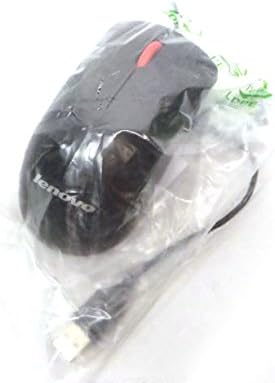
Abbildung 2.2: Oben view of the Lenovo USB 2-Button Optical Mouse.
Hauptmerkmale:
- USB Wired Connectivity: Ensures a stable and reliable connection.
- Plug-and-Play: No additional drivers typically required for basic functionality.
- Standard Keyboard Layout: Full-size keyboard with numeric keypad.
- Optical Mouse: Precise tracking with a scroll wheel for easy navigation.
3. Einrichtung
Follow these steps to connect your keyboard and mouse to your computer.
- Geräte auspacken: Nehmen Sie Tastatur und Maus vorsichtig aus der Verpackung.
- Identify USB Connectors: Locate the USB connectors at the end of the keyboard and mouse cables.
- Mit Computer verbinden: Insert the USB connector of the keyboard into an available USB port on your computer. Repeat this step for the mouse.
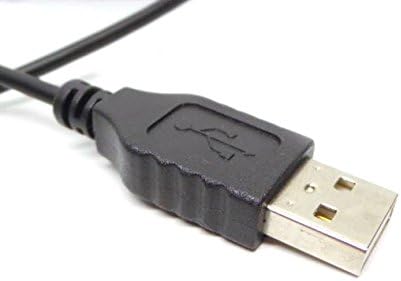
Figure 3.1: Close-up of a standard USB Type-A connector, used for connecting the keyboard and mouse.
Your computer should automatically detect and install the necessary drivers for the keyboard and mouse. No additional software installation is typically required for basic functionality.
4. Bedienungsanleitung
4.1 Tastaturnutzung
- Tippen: Verwenden Sie die alphanumerischen Tasten zur Texteingabe.
- Funktionstasten (F1-F12): Diese Tasten erfüllen je nach Anwendung oder Betriebssystem unterschiedliche Funktionen.
- Numerische Tastatur: Use the dedicated numeric keypad for efficient data entry. Ensure the "Num Lock" indicator light is on.
- Spezielle Schlüssel: Utilize keys like "Print Screen", "Scroll Lock", "Pause/Break", "Insert", "Home", "Page Up", "Delete", "End", and "Page Down" for their respective functions.
4.2 Mausnutzung
- Bewegung: Move the mouse across a flat surface to control the cursor on the screen.
- Links Klick: Drücken Sie die linke Taste, um Elemente auszuwählen, Links zu öffnen oder Funktionen zu aktivieren.
- Rechtsklick: Drücken Sie die rechte Taste, um Kontextmenüs zu öffnen.
- Scrollrad: Drehen Sie das Scrollrad nach oben oder unten, um durch Dokumente zu navigieren, oder web pages. The scroll wheel may also function as a middle click button.
5. Wartung
Proper care and maintenance will extend the life of your keyboard and mouse.
- Reinigung:
- Disconnect devices from the computer before cleaning.
- Verwenden Sie ein weiches,amp cloth with a mild cleaning solution (e.g., water or isopropyl alcohol) to wipe surfaces.
- Avoid excessive moisture, especially near keycaps and optical sensors.
- Verwenden Sie Druckluft, um Staub und Schmutz zwischen den Tasten der Tastatur zu entfernen.
- Lagerung: Store the devices in a clean, dry environment away from extreme temperatures and direct sunlight.
- Verschütten vermeiden: Um Beschädigungen zu vermeiden, sollten Flüssigkeiten von Tastatur und Maus ferngehalten werden.
6. Fehlerbehebung
If you encounter issues with your keyboard or mouse, refer to the following common problems and solutions:
| Problem | Mögliche Ursache | Lösung |
|---|---|---|
| Tastatur/Maus reagiert nicht | Wackelkontakt am USB-Anschluss, defekter USB-Anschluss, Treiberproblem. |
|
| Keys not working or typing incorrectly | Debris under keys, software conflict, keyboard settings. |
|
| Der Mauszeiger bewegt sich unregelmäßig oder gar nicht. | Dirty optical sensor, unsuitable surface, software issue. |
|
If the problem persists after trying these solutions, contact customer support or your reseller for further assistance.
7. Spezifikationen
| Besonderheit | Detail |
|---|---|
| Keyboard Model Numbers | 54Y9400, 41A5289, SK-8825, KB1021 |
| Mouse Model Numbers | 45J4888, 25011476, 45J4889, M-U0025-O |
| Marke | IBM/Lenovo |
| Farbe | Schwarz |
| Konnektivitätstechnologie | USB verkabelt |
| Tastaturtyp | Preferred Pro USB Wired Keyboard |
| Maustyp | 2-Button Black Red Scroll Wheel Optical Mouse |
| Verpackungsabmessungen | 22 x 10.2 x 4.7 Zoll (ungefähr) |
| Artikelgewicht | 1 Pfund (ungefähr) |
| Hersteller | Lenovo |
8. Garantie und Support
For warranty information, please refer to the documentation provided at the time of purchase or contact your reseller. IBM and Lenovo products typically come with a standard manufacturer's warranty.
For technical support or further inquiries, please contact the product's manufacturer or the authorized reseller from whom you purchased the item. Keep your purchase receipt and product model numbers handy for faster service.