1. Einleitung
The Google Nest Protect is an advanced smoke and carbon monoxide (CO) alarm designed to provide comprehensive safety for your home. This device offers intelligent features such as voice alerts, phone notifications, and self-testing capabilities, ensuring you are informed and protected at all times. It detects both fast-burning and smoldering fires, as well as the presence of carbon monoxide, an odorless and colorless gas.
This manual provides essential information for the proper installation, operation, and maintenance of your Nest Protect. Please read it thoroughly before using the device.
2. Sicherheitshinweise
Always adhere to local building codes and regulations when installing and maintaining your Nest Protect. Ensure the device is installed in appropriate locations as recommended by safety standards for smoke and carbon monoxide alarms.
- Lackieren Sie das Gerät nicht.
- Die Lüftungsöffnungen der Alarmanlage dürfen nicht blockiert werden.
- Testen Sie den Alarm regelmäßig gemäß den Anweisungen in dieser Bedienungsanleitung.
- In case of an alarm, follow your home's emergency plan.
WARNING: This product can expose you to chemicals including carbon black, which is known to the State of California to cause cancer. For more information go to www.P65Warnings.ca.gov.
3. Packungsinhalt
Your Google Nest Protect package includes the following items:
- Google Nest Protect (Battery Operated) unit
- Six long-life Energizer® Ultimate Lithium “L91” AA batteries (pre-installed or included separately)
- Montageplatte
- Schrauben und Dübel
- Kurzanleitung
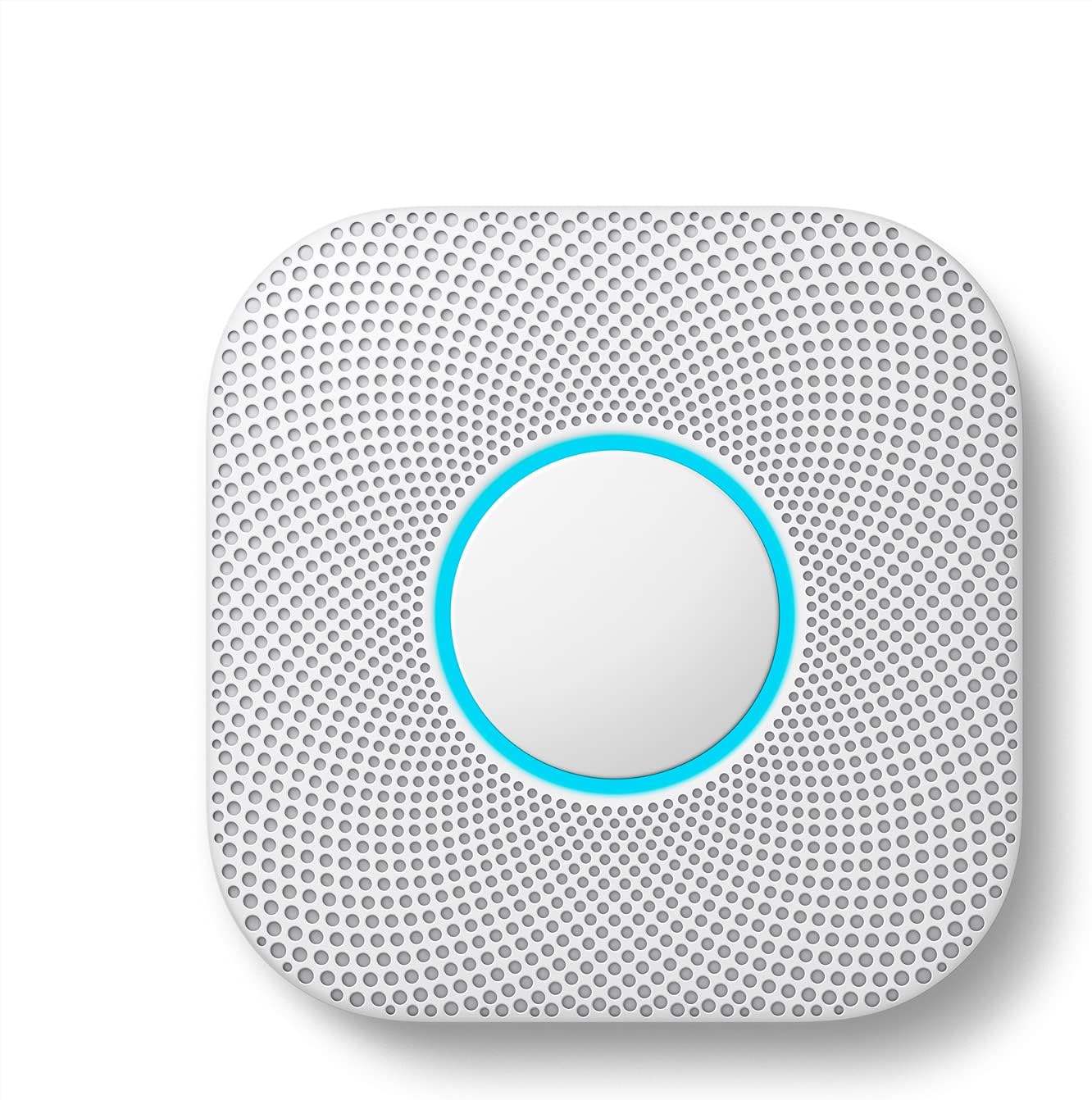
Figure 3.1: Google Nest Protect unit and packaging contents.
4. Einrichtung und Installation
Setting up your Nest Protect is designed to be straightforward, often taking only a few minutes using the Nest app.
4.1. Wahl eines Standorts
Install Nest Protect on the ceiling or wall in accordance with local regulations. For optimal smoke detection, place alarms on every level of your home, including inside and outside sleeping areas. For carbon monoxide detection, place alarms near sleeping areas and on every level of the home.

Figure 4.1: Nest Protect installed on a ceiling, demonstrating typical placement.
4.2. Physische Installation
- Twist the Nest Protect unit off its mounting plate.
- Secure the mounting plate to your chosen ceiling or wall location using the provided screws and anchors.
- Align the Nest Protect unit with the mounting plate and twist it clockwise until it clicks into place.

Figure 4.2: Hands demonstrating the simple installation process of the Nest Protect.
4.3. Connecting to the Nest App
Download the Nest app on your smartphone or tablet. Follow the in-app instructions to add your Nest Protect to your account and connect it to your home's Wi-Fi network. This enables remote monitoring and advanced features.
5. Bedienung und Funktionen
5.1. Smoke and Carbon Monoxide Detection
The Nest Protect utilizes a Split Spectrum Sensor to detect both fast-burning and smoldering fires. It also continuously monitors for carbon monoxide, providing comprehensive protection.

Figure 5.1: The Split Spectrum Sensor detects both fast-burning and smoldering fires, crucial when every second counts.
5.2. Voice Alerts and Phone Notifications
Instead of just a loud siren, Nest Protect speaks in a friendly voice, telling you what the danger is and where it's located. For example, "Heads-Up: There's smoke in the kitchen."
If an alarm is triggered or batteries are low, you will receive alerts on your phone through the Nest app, even when you are away from home.

Figure 5.2: Phone alerts keep you informed of your home's safety status from anywhere.
5.3. App Silence
If there's a false alarm, such as from burnt toast, you can silence the alarm directly from your phone using the Nest app, without needing to reach the device itself.

Figure 5.3: The App Silence feature allows convenient silencing of alarms via your smartphone.
5.4. Nightly Promise and Pathlight
Nest Protect performs self-tests and gives you a quick green glow when you turn off the lights, indicating that everything is working correctly and you won't be woken up by low-battery chirps.
Der Weglicht feature illuminates your way in the dark when you walk underneath the device, acting as a subtle night light.

Figure 5.4: The green glow of Nightly Promise confirms the device is functioning properly.

Figure 5.5: Pathlight provides illumination when you pass under the Nest Protect in the dark.
5.5. Sicherheitscheck
You can test all your smoke and CO alarms with just a tap in the Nest app and receive a full report once the test is complete, ensuring all connected devices are working.
5.6. Interoperability
Nest Protect can work with other Nest devices, such as a Nest thermostat to turn off the heat in an emergency, or a Nest Cam to record a clip if smoke or CO is detected.

Figure 5.6: Nest Protect integrates with other Nest devices for enhanced home safety.
6. Wartung
6.1. Batteriewechsel
The Nest Protect (Battery) uses six long-life Lithium Metal AA batteries. The device will notify you via the Nest app and voice alerts when the batteries are running low, long before chirps begin.
To replace batteries, twist the unit counter-clockwise from its mounting plate, replace the batteries, and then reattach the unit.
6.2. Sensor Lifespan
The smoke and carbon monoxide sensors in your Nest Protect have a lifespan of 10 years. The device will alert you when it's nearing its end-of-life and needs to be replaced.

Figure 6.1: Nest Protect's long-lasting sensors provide up to a decade of protection.
6.3. Reinigung
Gently clean the exterior of your Nest Protect with a soft, damp cloth. Do not use cleaning sprays or solvents, as these can damage the sensors. Do not paint the device.
7. Fehlerbehebung
If you encounter issues with your Nest Protect, consider the following common solutions:
- Falscher Alarm: Use the App Silence feature for nuisance alarms. Ensure the device is not installed too close to cooking appliances or high-humidity areas.
- Kein Strom/Niedriger Batteriestand: Check the battery status in the Nest app. Replace batteries if indicated.
- Verbindungsprobleme: Ensure your Wi-Fi network is active and the signal strength is adequate at the device's location. Restart your Wi-Fi router if necessary.
- Gerät reagiert nicht: Try restarting the device by removing and reinserting the batteries. If issues persist, consult the Nest app for diagnostic information or contact Google support.
8. Spezifikationen
| Besonderheit | Detail |
|---|---|
| Marke | |
| Modellnummer | S3000BWES (Item model number: A11) |
| Stromquelle | Battery Powered (6 Lithium Metal AA batteries included) |
| Farbe | Weiß |
| Technische Daten | 1.5"T x 5.3"B x 5.3"H |
| Artikelgewicht | 1 Pfund |
| Alarmtyp | Audible, Voice Alerts |
| Sensortyp | Photoelectric (Split Spectrum Sensor) |
| Material | Kunststoff, Edelstahl |
| Sensorlebensdauer | 10 Jahre |
| Konnektivität | Bluetooth 4.0 LE, Wi-Fi 4 (802.11n) |
| UPC | 854448003679 |
9. Garantie und Support
The Google Nest Protect is designed for a 10-year lifespan for its smoke and carbon monoxide sensors. For detailed warranty information, product support, and frequently asked questions, please visit the official Google Nest support website or refer to the full user guide PDF.


