1. Einleitung
This manual provides comprehensive instructions for the setup, operation, maintenance, and troubleshooting of your AOC E2270SWDN monitor. Designed for optimal viewing with a 1920x1080 resolution on a 21.5-inch TN panel, this monitor offers both VGA and DVI connectivity for versatile use.
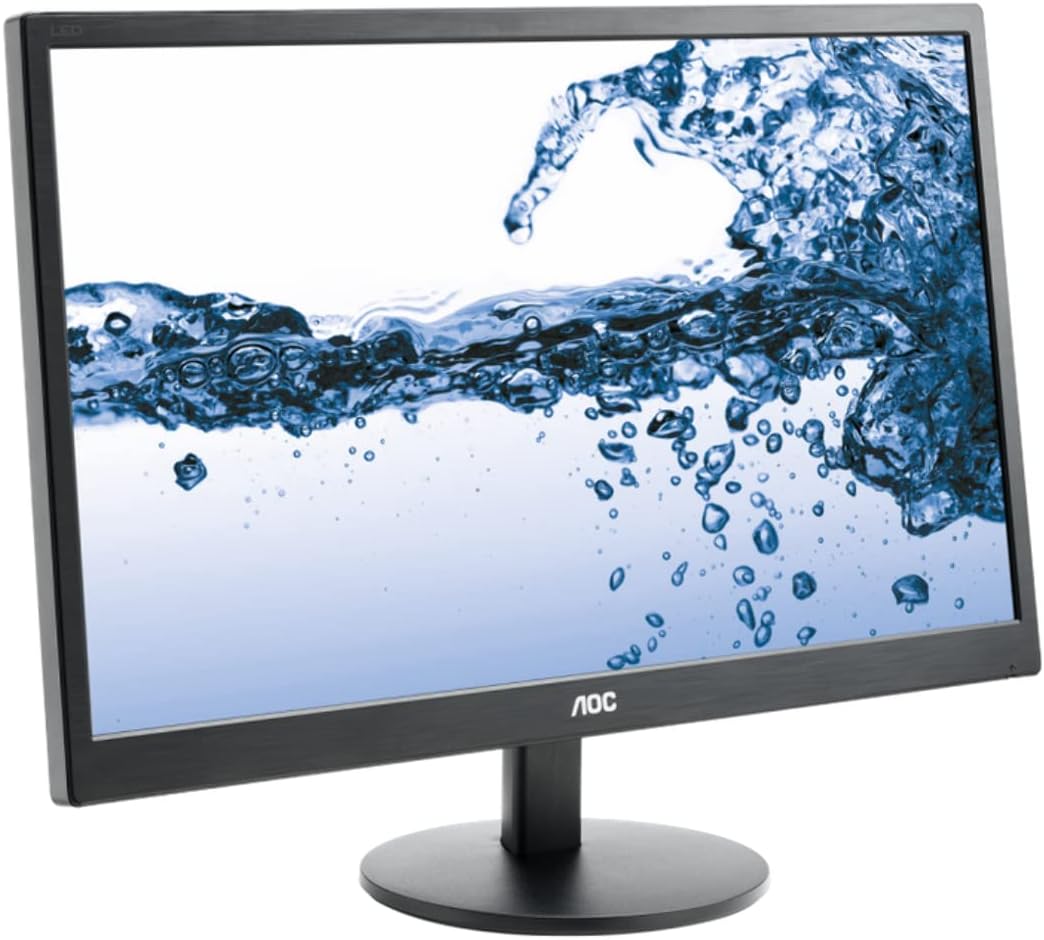
Abbildung 1: AOC E2270SWDN 21.5-inch monitor. This image shows the AOC E2270SWDN 21.5-inch monitor from a slight angle, highlighting its slim bezel and the stand. The screen displays a vibrant image of water splashing, demonstrating its display capabilities.
2. Installationsanleitung
2.1 Auspacken
Nehmen Sie alle Komponenten vorsichtig aus der Verpackung. Stellen Sie sicher, dass folgende Teile vorhanden sind:
- AOC E2270SWDN Monitor
- Netzkabel
- VGA-Kabel
- DVI-Kabel
- Monitorständer (Fuß und Hals)
- Benutzerhandbuch (dieses Dokument)
2.2 Montage des Ständers
- Befestigen Sie den Ständerhals am Monitorpanel, indem Sie die Laschen ausrichten und fest drücken, bis er einrastet.
- Secure the stand base to the neck using the captive screw located on the underside of the base. Tighten clockwise until firm.
- Stellen Sie den zusammengebauten Monitor auf eine stabile, ebene Fläche.
2.3 Anschließen des Monitors
Vor dem Anschließen vergewissern Sie sich, dass Ihr Computer und der Monitor ausgeschaltet sind.
- Stromanschluss: Connect one end of the power cord to the monitor's power input and the other end to a grounded electrical outlet.
- Video Connection (Choose One):
- VGA: Connect the VGA cable from the monitor's VGA port to the VGA port on your computer's graphics card. Tighten the screws on the connector.
- DVI: Connect the DVI cable from the monitor's DVI port to the DVI port on your computer's graphics card. Tighten the screws on the connector.
After connecting, power on your computer, then power on the monitor using the power button.
3. Bedienungsanleitung
3.1 Ein-/Ausschalten
Drücken Sie den Netzschalter an der Vorder- oder Unterseite des Monitors, um ihn ein- oder auszuschalten. Die Betriebsanzeige leuchtet, wenn der Monitor eingeschaltet ist.
3.2 Bildschirmmenü (OSD)
The OSD menu allows you to adjust various monitor settings. Use the control buttons (usually located on the bottom right bezel) to navigate and select options.
- Menü-Schaltfläche: Öffnet das OSD-Menü.
- Arrow Buttons (Up/Down or Left/Right): Navigieren Sie durch die Menüoptionen.
- Eingabe-/Auswahltaste: Bestätigt eine Auswahl oder ruft ein Untermenü auf.
- Exit-Taste: Exits the current menu or the OSD.
3.3 Anpassen der Anzeigeeinstellungen
Häufig angepasste Einstellungen sind:
- Helligkeit Kontrast: Passen Sie die Gesamthelligkeit und den Unterschied zwischen hellen und dunklen Bereichen an.
- Farbtemperatur: Change the color warmth (e.g., Cool, Normal, Warm, User).
- Eingangsauswahl: Manually switch between VGA and DVI inputs if auto-detection fails.
- Image Setup (VGA only): Auto Adjust, H. Position, V. Position, Clock, Phase for analog signal optimization.
4. Wartung
4.1 Reinigung des Monitors
To ensure a clear display and prolong the life of your monitor, follow these cleaning guidelines:
- Vor der Reinigung den Monitor immer ausschalten und das Netzkabel abziehen.
- Mit einem weichen, fusselfreien Tuch leichtampMit Wasser oder einem nicht scheuernden, ammoniak- und alkoholfreien Glasreiniger abspülen.
- Sprühen Sie den Reiniger nicht direkt auf den Bildschirm. Tragen Sie ihn zuerst auf ein Tuch auf.
- Vermeiden Sie die Verwendung von Scheuermitteln, Wachsen oder Lösungsmitteln, da diese die Bildschirmoberfläche beschädigen können.
- Wischen Sie den Bildschirm vorsichtig ab, um Staub und Fingerabdrücke zu entfernen.
- Reinigen Sie den Monitor casinmit einem weichen, trockenen Tuch abwischen.
4.2 Speicherung
If storing the monitor for an extended period, ensure it is kept in a cool, dry place, away from direct sunlight and extreme temperatures. Use the original packaging if available to protect it from dust and physical damage.
5. Fehlerbehebung
This section addresses common issues you might encounter with your AOC E2270SWDN monitor.
| Problem | Mögliche Ursache | Lösung |
|---|---|---|
| Kein Bild auf dem Bildschirm | Monitor nicht eingeschaltet; Videokabel lose oder nicht angeschlossen; falscher Eingang ausgewählt. | Ensure power cord is securely connected and monitor is on. Check video cable connection at both monitor and computer. Use OSD to select correct input (VGA/DVI). |
| Bild zu dunkel/hell | Die Helligkeits-/Kontrasteinstellungen sind falsch. | Passen Sie Helligkeit und Kontrast über das OSD-Menü an. |
| Flackerndes oder instabiles Bild | Loose video cable; interference; incorrect resolution/refresh rate. | Check video cable connection. Ensure computer's display resolution and refresh rate are compatible with the monitor (1920x1080). |
| Farben werden falsch angezeigt | Color settings are off; faulty video cable. | Adjust color settings in the OSD menu. Try a different video cable if available. |
6. Spezifikationen
Detailed technical specifications for the AOC E2270SWDN monitor:
| Besonderheit | Detail |
|---|---|
| Marke | AOC |
| Modellnummer | E2270SWDN (also 215LM00041) |
| Bildschirmgröße | 21.5 Zoll |
| Panel-Typ | TN (verdreht nematisch) |
| Maximale Bildschirmauflösung | 1920 x 1080 (Full HD 1080p) |
| Seitenverhältnis | 16:9 |
| Helligkeit | 200 cd/m² (typisch) |
| Konnektivität | VGA, DVI |
| Farbe | Schwarz |
| Artikelgewicht | 5.95 Pfund |
| Produktabmessungen (L x B x H) | 0.74 x 7.8 x 4.82 inches (without stand, approximate) |
| Bandtage | 240 Volt (Eingang) |
| Hersteller | AOC |
| Datum der ersten Verfügbarkeit | 22. April 2014 |
7. Garantie und Support
For specific warranty details and the most up-to-date support information, please refer to the warranty card included with your product or visit the official AOC website. You can typically find drivers, FAQs, and contact information for technical support there.
AOC-Offizielle WebWebsite: https://us.aoc.com/


