Einführung
This manual provides essential information for setting up, operating, maintaining, and troubleshooting your Microsoft Surface Pro 3. The Surface Pro 3 is a versatile device designed to function as both a tablet and a laptop, powered by the Windows 10 operating system.
It features a 12-inch high-resolution screen, ample internal storage, dual HD cameras, and robust connectivity options, including a full-size USB 3.0 port. Its integrated kickstand allows for comfortable viewing in various positions, and the magnesium frame ensures a lightweight and durable design.
Sicherheitshinweise
- Setzen Sie das Gerät keinen extremen Temperaturen, direkter Sonneneinstrahlung oder hoher Luftfeuchtigkeit aus.
- Vermeiden Sie es, das Gerät fallen zu lassen oder starken Stößen auszusetzen.
- Use only Microsoft-approved power adapters and accessories.
- Keep the device away from liquids. In case of liquid contact, power off immediately and seek professional assistance.
- Versuchen Sie nicht, das Gerät selbst zu zerlegen oder zu reparieren. Dies kann zum Erlöschen der Garantie und zu Schäden führen.
- Sorgen Sie bei der Verwendung des Geräts für ausreichende Belüftung, um eine Überhitzung zu vermeiden.
Aufstellen
1. Auspacken und erste Inspektion
Carefully remove the Surface Pro 3 and all accessories from the packaging. Inspect the device for any visible damage. Retain the packaging for future transport or service needs.
2. Einschalten und Ersteinrichtung
- Connect the power supply to the Surface Pro 3 and a power outlet.
- Press the power button located on the top edge of the device.
- Folgen Sie den Anweisungen auf dem Bildschirm, um die Ersteinrichtung von Windows 10 abzuschließen, einschließlich Sprachauswahl, Netzwerkverbindung und Erstellung des Benutzerkontos.
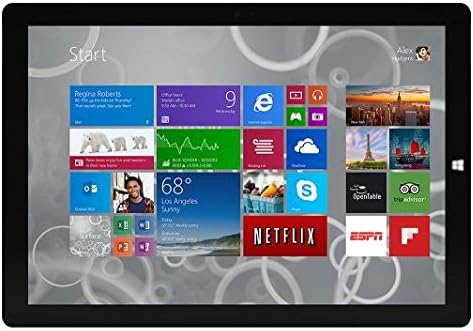
Figure 1: Windows 10 Start Screen during initial setup.
This image shows the Microsoft Surface Pro 3 screen displaying the Windows 10 Start menu, characterized by a grid of live tiles representing various applications and services. This is typically seen during the initial setup or when navigating the operating system.
3. Attaching Accessories (Sold Separately)
The Surface Pro 3 is compatible with various accessories, such as the Surface Type Cover keyboard and the Surface Pen, which are sold separately.
- Surface Type Cover: Align the magnetic connector of the Type Cover with the bottom edge of the Surface Pro 3 until it clicks into place.
- Surface Pen: The Surface Pen can be magnetically attached to the side of the Surface Pro 3 for storage. For initial pairing, follow the instructions provided with the pen.
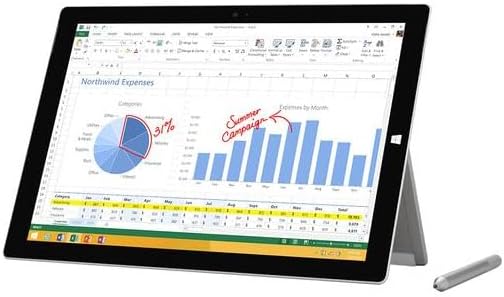
Figure 2: Surface Pro 3 with optional Surface Pen.
This image illustrates the Microsoft Surface Pro 3 in use, displaying an Excel spreadsheet on its screen. A Surface Pen is positioned next to the device, highlighting its compatibility for precise input and navigation.
4. Expanding Storage with a MicroSD Card
You can expand the internal storage of your Surface Pro 3 using a microSD card (sold separately).
- Locate the microSD card slot on the side of the Surface Pro 3, typically behind the kickstand.
- Insert the microSD card into the slot until it clicks into place.
- The device will automatically detect the card. You may need to format it if it's a new card or if prompted by the system.

Figure 3: MicroSD card slot.
This close-up image shows the microSD card slot on the side of the Microsoft Surface Pro 3, with a microSD card partially inserted, demonstrating how to expand the device's storage.
Bedienungsanleitung
1. Navigating Windows 10
- Startmenü: Click the Windows icon in the bottom-left corner to access applications, settings, and power options.
- Touch-Screen: Use gestures for navigation, zooming, and scrolling.
- Edge Browser: Utilize the pre-installed Edge browser for web browsing, which includes features for marking up web Seiten.

Figure 4: Using the Surface Pro 3 for productivity.
This image depicts the Microsoft Surface Pro 3 in an active use scenario, showcasing a note-taking application open on its screen. The display features handwritten notes, diagrams, and sketches, illustrating the device's capability for creative and productive tasks.
2. Verwendung des integrierten Ständers
The multi-position kickstand allows you to adjust the viewing angle for optimal comfort, whether you are typing, watching videos, or drawing.
- Gently pull the kickstand out from the back of the device.
- Adjust it to your desired angle. The kickstand offers a wide range of positions for versatility.
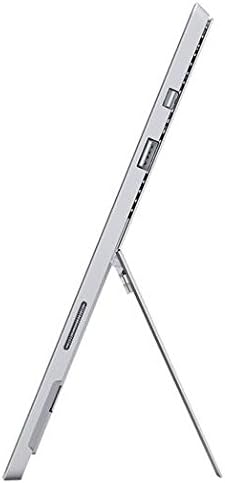
Figure 5: Adjustable kickstand.
Dieses Bild zeigt eine Seite view of the Microsoft Surface Pro 3, clearly showing its integrated kickstand extended to support the device at an angle, demonstrating its versatile viewing-Fähigkeiten.
3. Kamerafunktionalität
The Surface Pro 3 is equipped with 5.0MP front and rear cameras.
- Open the Camera application from the Start Menu.
- Switch between front and rear cameras as needed for photos or video calls.

Figure 6: Front camera.
This close-up image focuses on the front-facing camera and associated sensors located at the top edge of the Microsoft Surface Pro 3 screen.
4. Konnektivität
The full-size USB 3.0 port allows for connecting various peripherals and transferring data.
- Insert USB devices (e.g., flash drives, external hard drives, printers) into the USB 3.0 port.
- The device also supports Wi-Fi (802.11a/b/g/n/ac) for wireless internet connectivity.
Wartung
1. Cleaning Your Surface Pro 3
- Verwenden Sie ein weiches, fusselfreies Tuch dampened with water or a screen cleaner specifically designed for electronics.
- Vermeiden Sie die Verwendung von aggressiven Chemikalien, Scheuermitteln oder Aerosolsprays.
- Wischen Sie den Bildschirm und die Außenflächen vorsichtig ab.
2. Software-Updates
Regularly check for and install Windows updates to ensure your device has the latest security patches and performance improvements.
- Gehe zu Einstellungen > Update & Sicherheit > Windows Update.
- Klicken Sie auf „Nach Updates suchen“ und installieren Sie alle verfügbaren Updates.
3. Speicherverwaltung
To maintain optimal performance, manage your device's storage space.
- Regelmäßig unnötige Dateien löschen files und Anwendungen.
- Utilize cloud storage services or external drives for large files.
- Consider using the Disk Cleanup tool in Windows to remove temporary files.
Fehlerbehebung
This section addresses common issues you might encounter with your Surface Pro 3.
Gerät lässt sich nicht einschalten
- Stellen Sie sicher, dass das Netzteil sowohl mit dem Gerät als auch mit einer funktionierenden Steckdose sicher verbunden ist.
- Versuchen Sie es mit einer anderen Steckdose.
- Press and hold the power button for 10-15 seconds to perform a forced shutdown, then press it again to restart.
WLAN-Verbindungsprobleme
- Prüfen Sie, ob WLAN in den Windows-Einstellungen aktiviert ist.
- Starten Sie Ihren WLAN-Router neu.
- Vergessen Sie das Netzwerk und stellen Sie die Verbindung erneut her, indem Sie das Passwort erneut eingeben.
- Führen Sie die Windows-Netzwerkproblembehandlung aus.
Langsame Leistung
- Schließen Sie unnötige Anwendungen, die im Hintergrund laufen.
- Prüfen Sie, ob Windows-Updates ausstehen, und installieren Sie diese gegebenenfalls.
- Stellen Sie sicher, dass Sie über ausreichend freien Speicherplatz verfügen.
- Führen Sie einen Virenscan durch.
For more detailed troubleshooting or issues not covered here, please refer to the official Microsoft Support webWebsite oder wenden Sie sich an den Kundendienst.
Technische Daten
| Besonderheit | Detail |
|---|---|
| Modell | Microsoft Surface 1631 Pro 3 |
| Betriebssystem | Windows 10 |
| Bildschirmgröße | 12 Zoll |
| Bildschirmauflösung | 2160 x 1440 |
| Prozessor | Intel Core i3 1.5 GHz |
| RAM | 4 GB |
| Interner Speicher | 128 GB Flash-Speicher |
| Grafik-Coprozessor | Intel HD-Grafik |
| Kameras | 5.0MP Front and Rear |
| Kabelloser Typ | 802.11b, 802.11a, 802.11g |
| Häfen | Full-size USB 3.0 |
| Artikelgewicht | 1.8 Pfund |
| Technische Daten | 11.5 x 0.36 x 7.93 Zoll |
| Farbe | Silber |
Garantie und Support
Your Microsoft Surface Pro 3 comes with a standard manufacturer's warranty. For detailed warranty terms and conditions, please refer to the documentation included with your purchase or visit the official Microsoft support webWebsite.
For technical assistance, troubleshooting guides, driver downloads, and service requests, please visit the Microsoft Surface-Unterstützung Seite.


