1. Einleitung
This manual provides essential information for the safe and efficient use of your InFocus IF195a Touch Pad. Please read this manual thoroughly before operating the device and retain it for future reference.
2. Sicherheitshinweise
- Setzen Sie das Gerät keinen extremen Temperaturen, direkter Sonneneinstrahlung oder hoher Luftfeuchtigkeit aus.
- Lassen Sie das Gerät nicht fallen und setzen Sie es keinen starken Stößen aus.
- Use only the charger provided or approved by InFocus.
- Versuchen Sie nicht, das Gerät selbst zu zerlegen oder zu reparieren. Überlassen Sie alle Wartungsarbeiten qualifiziertem Fachpersonal.
- Halten Sie das Gerät von Wasser und anderen Flüssigkeiten fern.
- Entsorgen Sie das Gerät und die Batterie verantwortungsbewusst gemäß den örtlichen Vorschriften.
3. Produktüberschreitungview
The InFocus IF195a is a 20-inch Android-powered touch pad designed for interactive use. Familiarize yourself with its components.
3.1-Vorderseite View

Abbildung 1: Front view of the InFocus IF195a Touch Pad. This image shows the large 20-inch display with the Android operating system interface, including various app icons and the Google search bar. The device features a sleek bezel around the screen.
- Anzeige: 20-inch multi-touch screen.
- Frontkamera: Located at the top center bezel.
- Mikrofon: Integrated for voice input.
3.2 Seite View und Häfen
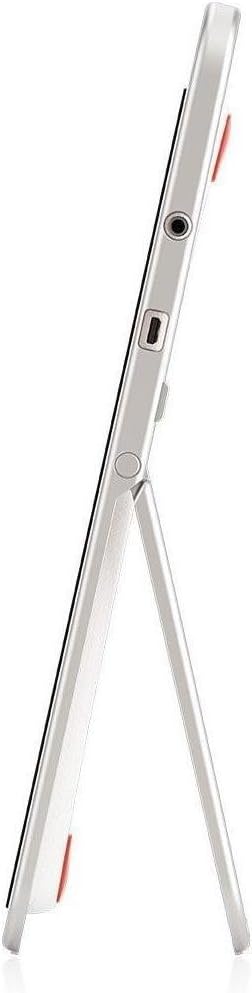
Abbildung 2: Seite view of the InFocus IF195a Touch Pad. This image highlights the device's slim profile and the integrated kickstand, which allows for upright positioning. Visible ports include a headphone jack and a USB port.
- Netzschalter: Used to turn the device on/off or put it to sleep.
- Lautstärketasten: Passen Sie die Audioausgabe des Geräts an.
- Kopfhöreranschluss (3.5 mm): Zum Anschluss externer Audiogeräte.
- Micro-USB-Anschluss: Zum Aufladen und zur Datenübertragung.
- Integrierter Ständer: Allows the device to stand upright.
4. Einrichtung
4.1 Auspacken und Erstaufladung
- Carefully remove the InFocus IF195a Touch Pad and all accessories from the packaging.
- Connect the provided power adapter to the Micro-USB port on the device and plug it into a power outlet. Allow the device to charge fully before first use. The charging indicator will typically show a full battery when complete.
4.2 Ein-/Ausschalten
- So schalten Sie das Gerät ein: Press and hold the Power button until the InFocus logo appears on the screen.
- So schalten Sie das Gerät aus: Halten Sie die Ein-/Aus-Taste gedrückt, bis ein Ausschaltmenü erscheint. Wählen Sie „Ausschalten“ und bestätigen Sie.
- Zum Schlafen/Aufwachen: Drücken Sie kurz den Ein-/Ausschalter, um das Gerät in den Schlafmodus zu versetzen oder es aufzuwecken.
4.3 Ersteinrichtungsassistent
Beim ersten Einschalten führt Sie das Gerät durch einen anfänglichen Einrichtungsprozess:
- Sprachauswahl: Wählen Sie Ihre bevorzugte Sprache.
- Wi-Fi-Verbindung: Select your Wi-Fi network from the list and enter the password. A stable internet connection is required for many features.
- Google Benutzerkonto: Sign in with an existing Google account or create a new one. This is necessary to download apps from the Google Play Store and access Google services.
- Datum und Uhrzeit: Set the correct date and time or allow the device to set it automatically via the network.
- Privatsphäre Einstellungen: Review und passen Sie die Datenschutzeinstellungen nach Wunsch an.
5. Bedienung des Geräts
5.1 Berührungsgesten
- Klopfen: Berühren Sie den Bildschirm einmal, um ein Element auszuwählen oder eine Anwendung zu öffnen.
- Berühren & halten: Press and hold an item to access contextual menus or drag items.
- Wischen: Ziehen Sie mit dem Finger über den Bildschirm, um durch Listen zu scrollen oder zwischen Startbildschirmen zu wechseln.
- Pinch-to-Zoom: Use two fingers to zoom in or out on images, maps, or web Seiten.
5.2 Startbildschirm und Navigation
- Home "Button: Bringt Sie zurück zum Hauptstartbildschirm.
- Zurück-Schaltfläche: Kehrt zum vorherigen Bildschirm zurück oder schließt die aktuelle Anwendung.
- Schaltfläche „Letzte Apps“: Displays a list of recently used applications for quick switching.
- Benachrichtigungsfeld: Durch Wischen vom oberen Bildschirmrand nach unten gelangen Sie zu Benachrichtigungen und Schnelleinstellungen.
5.3 Installation und Verwaltung von Anwendungen
- Google Play Store: Open the "Play Store" app to browse and download applications. A Google account is required.
- Installiere Apps: Select an app and tap "Install." Follow on-screen prompts for permissions.
- Apps deinstallieren: Gehe zu Einstellungen > Apps, select the desired app, and tap "Uninstall." Alternatively, touch and hold an app icon on the home screen and drag it to the "Uninstall" option (if available).
5.4 Anschluss externer Geräte
- Kopfhörer: Stecken Sie 3.5-mm-Kopfhörer in die Kopfhörerbuchse.
- USB-Geräte: Connect compatible USB devices (e.g., flash drives, keyboards) to the Micro-USB port using an appropriate adapter if necessary. The device supports USB On-The-Go (OTG).
6. Wartung
6.1 Gerät reinigen
- Verwenden Sie zum Reinigen des Bildschirms und des Gehäuses des Geräts ein weiches, fusselfreies Tuch.
- Bei hartnäckigen Flecken leicht dampBefeuchten Sie das Tuch mit Wasser oder einem Bildschirmreiniger, der speziell für Elektronikgeräte entwickelt wurde.
- Vermeiden Sie die Verwendung von aggressiven Chemikalien, Scheuermitteln oder Aerosolsprays.
6.2 Batteriepflege
- Um die Lebensdauer des Akkus zu verlängern, vermeiden Sie häufiges vollständiges Entladen des Akkus.
- Do not leave the device connected to the charger for extended periods after it is fully charged.
- Store the device in a cool, dry place if not used for a long time, with the battery charged to about 50%.
6.3 Softwareaktualisierungen
Prüfen Sie regelmäßig, ob Software-Updates verfügbar sind, um optimale Leistung und Sicherheit zu gewährleisten. Gehen Sie zu Settings > About tablet > System updates to check for and install available updates. Ensure your device is connected to Wi-Fi and has sufficient battery charge before starting an update.
7. Fehlerbehebung
| Problem | Mögliche Lösung |
|---|---|
| Das Gerät lässt sich nicht einschalten. | Ensure the device is charged. Connect the charger and wait a few minutes before attempting to power on again. If unresponsive, perform a hard reset by holding the power button for 10-15 seconds. |
| Probleme mit der WLAN-Verbindung. | Prüfen Sie, ob WLAN in den Einstellungen aktiviert ist. Starten Sie Ihren WLAN-Router neu. Trennen Sie das Netzwerk und stellen Sie die Verbindung erneut her. Stellen Sie sicher, dass Sie sich in Reichweite des WLAN-Signals befinden. |
| Anwendungen stürzen ab oder frieren ein. | Close and restart the application. Clear the app's cache (Einstellungen > Apps > [App-Name] > Speicher > Cache leerenSollte das Problem weiterhin bestehen, deinstallieren Sie die App und installieren Sie sie anschließend neu. |
| Der Bildschirm reagiert nicht. | Restart the device. Ensure the screen is clean and free of debris. If the issue continues, contact support. |
| Langsame Leistung. | Close unnecessary background applications. Clear cache for frequently used apps. Check available storage (Einstellungen > Speicher) and free up space if needed. Consider a factory reset as a last resort. |
7.1 Werksreset
Durch das Zurücksetzen auf Werkseinstellungen werden alle Daten von Ihrem Gerät gelöscht und es wird in den ursprünglichen Werkseinstellungen zurückversetzt. Sichern Sie alle wichtigen Daten, bevor Sie fortfahren.
- Gehe zu Einstellungen > Sichern & Zurücksetzen > Auf Werkseinstellungen zurücksetzen.
- Read the warning message carefully.
- Tap "Reset tablet" and then "Erase everything" to confirm.
- Das Gerät wird neu gestartet und der Reset-Vorgang beginnt.
8. Technische Daten
| Besonderheit | Spezifikation |
|---|---|
| Modell | IF195a |
| Marke | Im Fokus |
| Anzeigegröße | 20 Zoll |
| Maximale Auflösung | 1600 x 900 |
| Prozessor | ARM Cortex-A15 Quad-Core 1.8 GHz |
| RAM-Kapazität | 2 GB |
| Speicherkapazität | 16 GB |
| Betriebssystem | Android 4.4 KitKat |
| Auflösung der Rückkamera | 5 Megapixel |
| Abmessungen (L x B x H) | 61.6 x 47 x 8.6 cm |
| Gewicht | 3.7 kg |
| Farbe | Grau |
9. Garantie und Support
For warranty information, please refer to the warranty card included with your product or visit the official InFocus website. For technical support, product registration, or service inquiries, please contact InFocus customer service through their official channels.
Please note that warranty terms may vary by region and retailer. Keep your proof of purchase for warranty claims.


