Einführung
This manual provides essential information for the proper setup, operation, and maintenance of your RCA Cambio 10.1 W101 V2 Windows 10 2-in-1 Tablet PC. Please read these instructions thoroughly before using your device to ensure optimal performance and longevity.
The RCA Cambio 10.1 W101 V2 is a versatile 10-inch tablet powered by an Intel quad-core processor and preloaded with Windows 10. It features a detachable keyboard, allowing for flexible use as both a tablet and a laptop. Key features include Bluetooth connectivity, front and rear 2MP cameras, and 32GB of internal storage.
Aufstellen
1. Auspacken und erste Inspektion
Nehmen Sie alle Komponenten vorsichtig aus der Verpackung. Stellen Sie sicher, dass folgende Teile vorhanden sind:
- RCA Cambio 10.1 W101 V2 Tablet
- Abnehmbare Tastatur
- Netzteil
Inspect the device for any visible damage. If any components are missing or damaged, contact customer support.
2. Aufladen des Geräts
Before first use, fully charge the tablet. Connect the power adapter to the charging port on the tablet and then to a power outlet. The charging indicator will illuminate. A full charge may take several hours.
3. Attaching the Detachable Keyboard
Align the tablet with the magnetic connector on the detachable keyboard. Gently push the tablet down until it securely clicks into place. The keyboard does not require separate power or pairing.

Bild: Rückseite view of the RCA Cambio 10.1 W101 V2 tablet with the detachable keyboard attached, illustrating the connection point and available ports.
4. Initial Power On and Windows 10 Setup
Press and hold the power button located on the side of the tablet until the screen illuminates. Follow the on-screen prompts to complete the initial Windows 10 setup, including language selection, network connection, and user account creation.
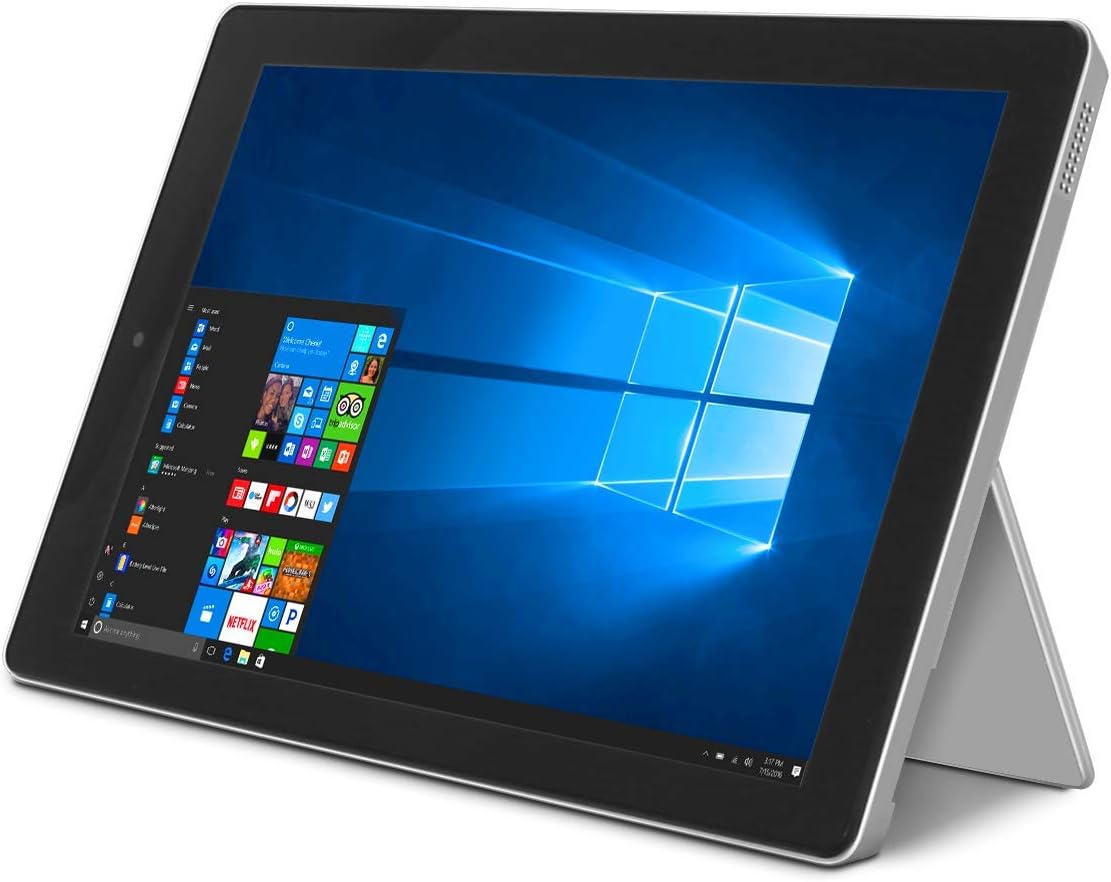
Image: The RCA Cambio 10.1 W101 V2 tablet in laptop mode, showcasing the Windows 10 operating system interface.
Bedienungsanleitung
1. Grundlegende Navigation
Touch-Screen:
The tablet features a multi-touch display. Use gestures such as tap, swipe, pinch-to-zoom, and press-and-hold to interact with the interface.
Tastatur und Touchpad:
When the detachable keyboard is connected, you can use the physical keys for typing and the integrated touchpad for cursor control. The touchpad supports multi-touch gestures similar to a laptop touchpad.

Image: The RCA Cambio 10.1 W101 V2 tablet in portrait orientation, showing the Windows 10 Start screen with application tiles.
2. Verbinden mit Wi-Fi
- Öffnen Sie die Startmenü und klicken Sie auf Einstellungen.
- Wählen Netzwerk & Internet.
- Wählen W-lan aus dem Menü auf der linken Seite.
- WLAN ein-/ausschalten On wenn es ausgeschaltet ist.
- Select your desired network from the list and click Verbinden.
- Geben Sie das Netzwerkkennwort ein, wenn Sie dazu aufgefordert werden.
3. Bluetooth-Kopplung
- Öffnen Sie die Startmenü und klicken Sie auf Einstellungen.
- Wählen Geräte.
- Wählen Bluetooth und andere Geräte aus dem Menü auf der linken Seite.
- Bluetooth ein-/ausschalten On.
- Klicken Bluetooth oder anderes Gerät hinzufügen and follow the instructions to pair with your desired device.
4. Verwenden der Kameras
The tablet is equipped with front and rear 2MP cameras. To access the camera, open the Kamera application from the Start Menu or search bar. You can switch between front and rear cameras within the application interface.
5. Productivity with Microsoft Office 365
The device comes preloaded with Windows 10, which supports Microsoft Office 365 applications. You can create and edit documents, spreadsheets, and presentations. An active subscription to Microsoft Office 365 may be required for full functionality.

Image: The RCA Cambio 10.1 W101 V2 tablet running Microsoft Office applications, highlighting its use for productivity tasks.
6. Speicherverwaltung
The tablet includes 32GB of internal storage. To manage your storage, go to Einstellungen > System > Speicher. Du kannst view storage usage, free up space, and change where new content is saved. Consider using cloud storage or an external microSD card (not included) for additional space.
Wartung
1. Reinigen des Geräts
Verwenden Sie ein weiches, fusselfreies Tuch, um den Bildschirm und die Außenflächen zu reinigen. Hartnäckige Flecken lassen sich leicht mit einem feuchten Tuch entfernen.ampBefeuchten Sie das Tuch mit Wasser oder einem Bildschirmreinigungsmittel. Vermeiden Sie die Verwendung von scharfen Chemikalien oder Scheuermitteln.
2. Software-Updates
Regularly check for and install Windows updates to ensure your system has the latest security patches and features. Go to Einstellungen > Update und Sicherheit > Windows Update um nach Updates zu suchen.
3. Batteriepflege
So verlängern Sie die Akkulaufzeit:
- Vermeiden Sie häufiges vollständiges Entladen des Akkus.
- Setzen Sie das Gerät keinen extremen Temperaturen aus.
- Unplug the charger once the battery is fully charged, especially during extended periods of non-use.
4. Datensicherung
Regularly back up important data to an external drive or cloud storage to prevent data loss in case of device malfunction.
Fehlerbehebung
This section addresses common issues you might encounter with your RCA Cambio 10.1 W101 V2.
Gerät lässt sich nicht einschalten:
- Ensure the device is fully charged. Connect the power adapter and wait a few minutes before attempting to power on again.
- Press and hold the power button for at least 10-15 seconds to perform a hard reset.
Langsame Leistung oder Einfrieren:
- Schließen Sie unnötige Anwendungen, die im Hintergrund laufen.
- Prüfen Sie, ob Windows-Updates ausstehen, und installieren Sie diese gegebenenfalls.
- Ensure sufficient free storage space. Delete unnecessary files or move them to external storage.
- Starten Sie das Gerät neu.
Probleme mit der Wi-Fi-Konnektivität:
- Stellen Sie sicher, dass WLAN aktiviert ist in Einstellungen > Netzwerk & Internet > WLAN.
- Starten Sie Ihren WLAN-Router und das Tablet neu.
- Vergessen Sie das Netzwerk und stellen Sie die Verbindung wieder her, indem Sie das Passwort erneut eingeben.
- Stellen Sie sicher, dass Sie sich in Reichweite des WLAN-Signals befinden.
Probleme beim Bluetooth-Pairing:
- Ensure Bluetooth is enabled on both the tablet and the device you are trying to pair.
- Make sure both devices are in pairing mode and within close proximity.
- Remove previously paired devices from the tablet's Bluetooth settings if you are experiencing conflicts.
Tastatur reagiert nicht:
- Ensure the keyboard is securely attached to the tablet's magnetic connector.
- Detach and reattach the keyboard.
- Starten Sie das Tablet neu.
Batterie entlädt sich schnell:
- Stellen Sie die Bildschirmhelligkeit auf eine niedrigere Einstellung ein.
- Close background applications and disable unnecessary features like Bluetooth or Wi-Fi when not in use.
- Überprüfen Sie den Batterieverbrauch in Settings > System > Battery to identify power-consuming applications.
Werksreset (letzter Ausweg):
If issues persist, you may consider performing a factory reset. This will erase all data and reinstall Windows 10. Sichern Sie alle wichtigen Daten, bevor Sie fortfahren. Gehe zu Settings > Update & Security > Recovery > Reset this PC und folgen Sie den Anweisungen auf dem Bildschirm.
Technische Daten
| Besonderheit | Spezifikation |
|---|---|
| Modellnummer | W101 V2 |
| Betriebssystem | Windows 10 |
| Bildschirmgröße | 10.1 Zoll |
| Bildschirmauflösung | 1280 x 800 |
| Prozessor | Intel Quad-Core (1.83 GHz) |
| RAM | 2 GB DDR3 SDRAM |
| Interner Speicher | 32 GB Flash-Speicher |
| Kabellose Konnektivität | 802.11b Wi-Fi, Bluetooth |
| Kameras | Front and Rear (2 MP) |
| Batterie | 1 Lithium-Ionen-Akku (im Lieferumfang enthalten) |
| Abmessungen (LxBxH) | 12.2 x 8.5 x 3.15 Zoll |
| Artikelgewicht | 2.75 Pfund |
Garantie und Support
Informationen zur Garantie und zum technischen Support finden Sie in der Ihrem Produkt beiliegenden Dokumentation oder auf der offiziellen RCA-Supportseite. webBewahren Sie Ihren Kaufbeleg für Garantieansprüche auf.
For further assistance, you may contact RCA customer service. Contact details are typically available on the manufacturer's webWebsite.


