1. Zu Endeview
The MoKo Bluetooth Wireless Keyboard is designed to enhance your Microsoft Surface Pro experience, offering a comfortable typing solution with advanced features. This keyboard provides a seamless wireless connection, a practical trackpad, and customizable 7-color backlighting, making it suitable for various environments and tasks.

Image: MoKo Bluetooth Wireless Keyboard attached to a Microsoft Surface Pro tablet, showcasing dank seines eleganten Designs und seiner Integration.
2. Packungsinhalt
Bitte prüfen Sie das Paket auf folgende Artikel:
- MoKo Bluetooth Wireless Keyboard
- USB-Ladekabel
- Benutzerhandbuch (dieses Dokument)

Image: A USB Type-C charging cable, included for recharging the keyboard's internal battery.
3. Kompatibilität
This keyboard is designed for specific Microsoft Surface Pro models. Please verify your device model before use.
- Microsoft Surface Pro 7 Plus (2021)
- Microsoft Surface Pro 7 (2019)
- Microsoft Surface Pro 6
- Microsoft Surface Pro 5 (Pro 2017)
- Microsoft Surface Pro 4
- Microsoft Surface Pro 3
Note: This keyboard is NOT compatible with Surface Go (2018) or Surface Go 2.
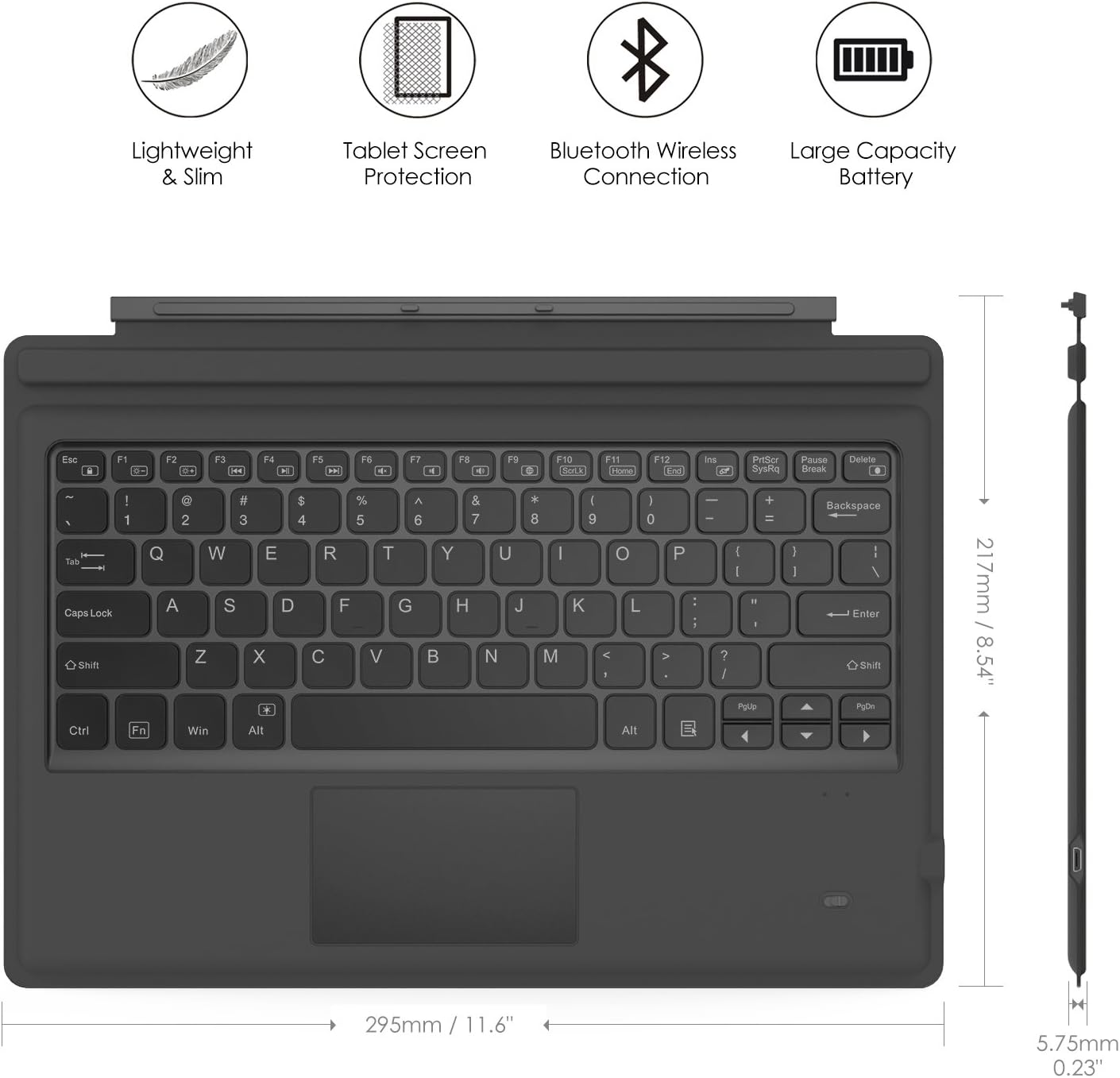
Image: A visual guide indicating compatible Microsoft Surface Pro models (Pro 7 Plus, Pro 7, Pro 6, Pro 5, Pro 4, Pro 3, Pro LTE) and incompatible models (Surface Go, Surface Go 2).
4. Einrichtung
4.1. Aufladen der Tastatur
Before initial use, fully charge the keyboard. Connect the provided USB charging cable to the keyboard's charging port and a USB power source. The charging indicator light will show the charging status.
- Battery Capacity: 750mAh (rechargeable lithium battery)
- Ladezeit: Ungefähr 2-3 Stunden
- Working Time (backlight off): Up to 180 hours
- Working Time (backlight on): Up to 5 hours
- Standby-Zeit: Bis zu 180 Tage

Image: An illustration depicting the keyboard's battery and charging specifications, including charge time and standby duration.
4.2. Bluetooth-Kopplung
Follow these steps to pair your keyboard with your Microsoft Surface Pro:
- Schalten Sie die Tastatur ein, indem Sie den Netzschalter in die Position „EIN“ schieben. Die Kontrollleuchte blinkt.
- Drücken Sie die Fn+C keys simultaneously to activate Bluetooth pairing mode. The Bluetooth indicator light will start blinking rapidly.
- Gehen Sie auf Ihrem Microsoft Surface Pro zu Einstellungen > Geräte > Bluetooth und andere Geräte.
- Ensure Bluetooth is enabled and select Bluetooth oder anderes Gerät hinzufügen.
- Wählen Bluetooth aus den Optionen.
- Wählen Sie die Tastatur (üblicherweise mit der Bezeichnung „Bluetooth-Tastatur“ oder ähnlich) aus der Liste der verfügbaren Geräte aus.
- Folgen Sie den Anweisungen auf dem Bildschirm, um den Kopplungsvorgang abzuschließen. Sobald die Kopplung erfolgreich war, hört die Bluetooth-Anzeigeleuchte an der Tastatur auf zu blinken.

Image: A diagram illustrating the Bluetooth wireless connection process, showing the keyboard both attached and detached from the tablet, with a note on connection distance.
5. Bedienungsanleitung
5.1. Steuerung der Hintergrundbeleuchtung
The keyboard features a 7-color LED backlight with adjustable brightness levels.
- To turn the backlight ON/OFF: Press the Glühbirne Schlüssel.
- So ändern Sie die Hintergrundbeleuchtungsfarbe: Drücken Sie Alt + Light Bulb key. Cycle through 7 different colors.
- So stellen Sie die Helligkeit der Hintergrundbeleuchtung ein: Drücken Sie Fn + Alt keys. This will cycle through different brightness modes.

Image: Instructions on how to change the backlight color by pressing Alt + Light Bulb key.

Image: Instructions on how to adjust backlight brightness by pressing Fn + Alt keys.
5.2. Verwendung des Trackpads
The integrated trackpad provides precise cursor control, similar to a mouse. It supports multi-touch gestures for enhanced navigation.
- To activate/deactivate the trackpad: Press Fn + Trackpad icon Schlüssel.
- Left Click: Press the left side of the trackpad or tap once.
- Right Click: Press the right side of the trackpad or tap with two fingers.
- Scrolling: Use two fingers to scroll up or down.

Image: An illustration highlighting the responsive trackpad with left and right click areas, and the scissor switch mechanism of the keys for comfortable typing.
5.3. Dual-Angle Adjustment
The keyboard features a magnetic attachment stripe that allows for two different typing angles, providing ergonomic comfort for various uses.
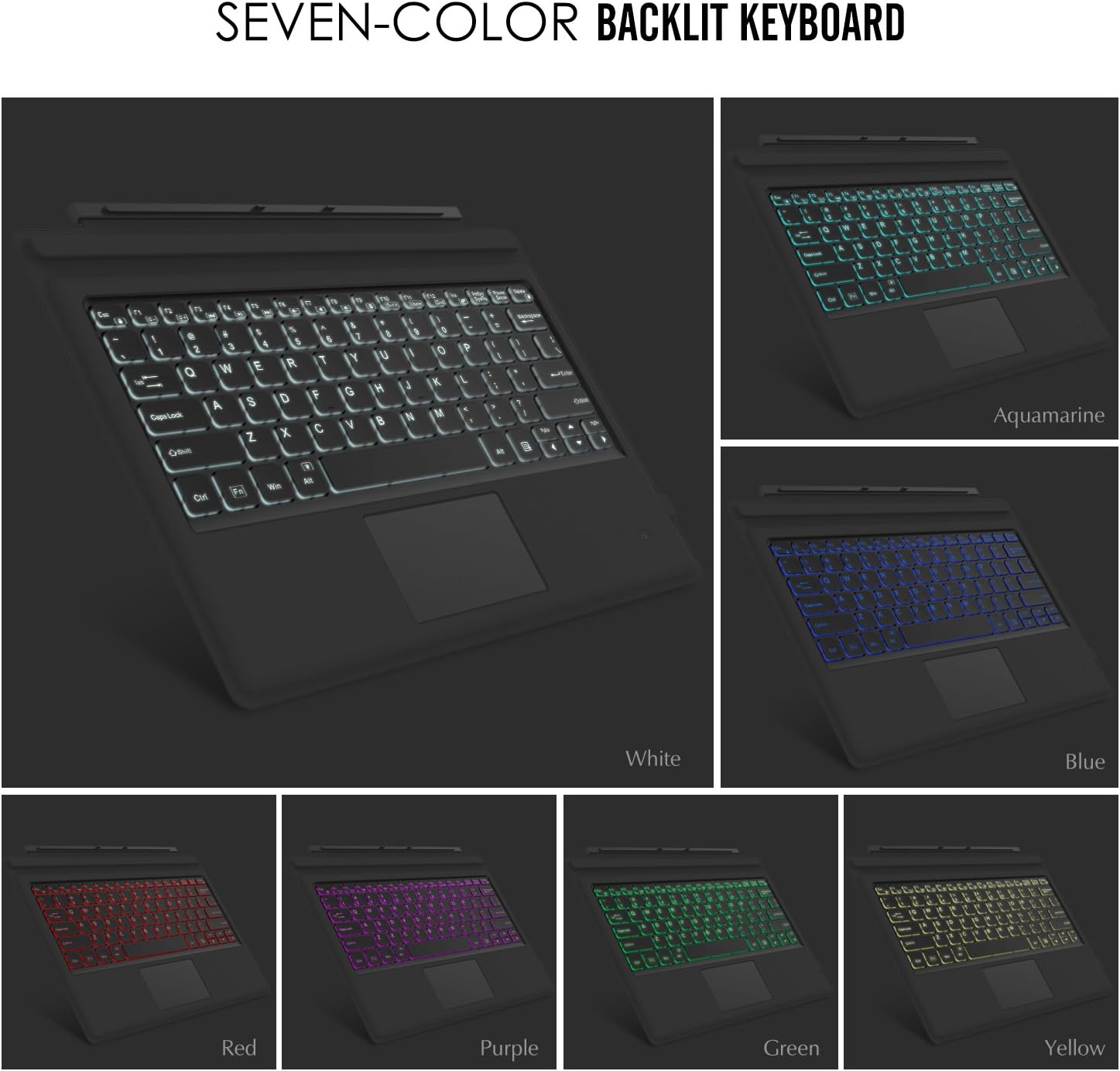
Image: A visual representation of the keyboard's dual-angle adjustment, showing two distinct positions for typing comfort.
6. Wartung
- Halten Sie die Tastatur von Flüssigkeiten und extremen Temperaturen fern.
- Clean the keyboard with a soft, damp Tuch. Vermeiden Sie aggressive Chemikalien.
- Versuchen Sie nicht, die Tastatur auseinanderzunehmen, da dies zum Verlust der Garantie führen kann.
- Bei längerer Nichtbenutzung an einem trockenen Ort aufbewahren.
7. Fehlerbehebung
7.1. Tastatur verbindet sich nicht über Bluetooth
- Stellen Sie sicher, dass die Tastatur vollständig aufgeladen ist.
- Vergewissern Sie sich, dass der Netzschalter der Tastatur eingeschaltet ist.
- Verify that Bluetooth is enabled on your Surface Pro.
- Re-enter pairing mode on the keyboard (Fn + C) and attempt to pair again from your Surface Pro's Bluetooth settings.
- If previously paired, try 'forgetting' the device on your Surface Pro and then re-pairing.
7.2. Hintergrundbeleuchtung funktioniert nicht
- Stellen Sie sicher, dass die Tastatur ausreichend geladen ist.
- Press the Light Bulb key to toggle the backlight.
- Adjust brightness using Fn + Alt keys.
7.3. Trackpad reagiert nicht
- Ensure the trackpad is activated by pressing Fn + Trackpad icon key.
- Reinigen Sie die Oberfläche des Trackpads, um Schmutz und Ablagerungen zu entfernen.
- Restart the keyboard and your Surface Pro.
8. Spezifikationen
| Besonderheit | Detail |
|---|---|
| Marke | MoKo |
| Modellnummer | LYSB01AJOX7LU-ELECTRNCS |
| Farbe | Grau |
| Konnektivitätstechnologie | Bluetooth |
| Tastaturbeschreibung | Ergonomic, QWERTY US International |
| Besondere Merkmale | Wireless, Magnetic, Backlit (7 Colors), Trackpad |
| Stromquelle | Battery (Rechargeable Lithium) |
| Batteriekapazität | 750 mAh |
| Batterie Voltage | 3 Volt |
| Technische Daten | 29.49 x 21.69 x 0.58 cm (11.6 x 8.54 x 0.23 Zoll) |
| Produktgewicht | 500 g |
| Kompatible Geräte | Microsoft Surface Pro 7 Plus (2021) / Pro 7 (2019) / Pro 6 / Surface Pro 5 (Pro 2017) / Pro 4 / Pro 3 |
| Betriebssystem | Windows |

Image: A diagram illustrating the precise dimensions of the MoKo Bluetooth Wireless Keyboard.
9. Garantie und Support
For warranty information and technical support, please refer to the product packaging or contact MoKo customer service directly. Keep your purchase receipt for warranty claims.


