Einführung
This manual provides essential information for the installation, operation, maintenance, and troubleshooting of your NVIDIA 699-51030-0501-101 graphics card. This component is designed for desktop computer systems to enhance graphics processing capabilities. Please read this manual thoroughly before proceeding with installation or use.
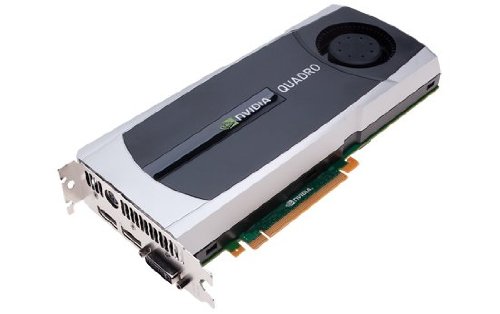
Image: NVIDIA 699-51030-0501-101 Graphics Card. This image displays the graphics card from an angled perspective, showing the cooling fan, heatsink, and the PCIe connector.
Sicherheitshinweise
Beachten Sie die folgenden Sicherheitsvorkehrungen, um Schäden am Produkt oder Verletzungen zu vermeiden:
- Vor dem Einbau oder Ausbau von Komponenten trennen Sie den Computer immer vom Stromnetz.
- Tragen Sie ein antistatisches Armband oder berühren Sie häufig einen geerdeten Metallgegenstand, um statische Elektrizität abzuleiten.
- Fassen Sie die Grafikkarte an den Kanten an, um eine Berührung empfindlicher Bauteile zu vermeiden.
- Sorgen Sie für ausreichende Belüftung im Computergehäuse, um eine Überhitzung zu vermeiden.
- Halten Sie das Produkt von Feuchtigkeit und extremen Temperaturen fern.
Aufstellen
1. Prüfungen vor der Installation
- Verify your power supply unit (PSU) has sufficient wattage and appropriate connectors for the graphics card.
- Ensure your motherboard has an available PCI Express (PCIe) x16 slot.
- Confirm your computer case has adequate space for the graphics card dimensions.
- Benötigte Werkzeuge bereithalten: Kreuzschlitzschraubendreher, antistatisches Armband (empfohlen).
2. Hardware-Installation
- Ausschalten und trennen: Schalten Sie Ihren Computer vollständig aus und ziehen Sie das Netzkabel aus der Steckdose.
- Fall eröffnen: Entfernen Sie die Seitenwand Ihres Computergehäuses, um auf die Hauptplatine zuzugreifen.
- PCIe-Steckplatz finden: Suchen Sie einen freien PCI-Express-x16-Steckplatz auf Ihrem Mainboard. Dies ist in der Regel der längste Steckplatz.
- Steckplatzabdeckung entfernen: Remove the metal slot cover(s) from the back of your computer case corresponding to the PCIe slot you will use.
- Grafikkarte einlegen: Carefully align the graphics card with the PCIe slot. Press down firmly and evenly on both ends of the card until it is fully seated in the slot. You should hear a click from the retention clip.
- Sichere Karte: Secure the graphics card to the computer case using the screw(s) removed from the slot cover(s).
- Stromanschluss (falls zutreffend): If your graphics card requires additional power, connect the appropriate PCIe power cables from your PSU to the graphics card. This model (NVIDIA 699-51030-0501-101) may not require external power, but always check the card itself for connectors.
- Fall abschließen: Ersetzen Sie die Seitenwand Ihres Computergehäuses.
- Reconnect Peripherals: Reconnect your monitor cable to one of the display outputs on the new graphics card. Reconnect all other peripherals and the power cord.
3. Treiberinstallation
- Einschalten: Schalten Sie Ihren Computer ein.
- Treiber herunterladen: Navigate to the official NVIDIA webSeite? ˅ (www.nvidia.com/drivers) and download the latest drivers compatible with your NVIDIA 699-51030-0501-101 graphics card and operating system.
- Treiber installieren: Run the downloaded driver installer and follow the on-screen instructions. It is recommended to perform a clean installation if prompted.
- Neustart: Starten Sie Ihren Computer neu, nachdem die Treiberinstallation abgeschlossen ist.
Betrieb
Once installed and drivers are updated, your NVIDIA 699-51030-0501-101 graphics card will automatically handle graphics processing for your system. You can verify its operation through your operating system's device manager or NVIDIA Control Panel.
- NVIDIA-Systemsteuerung: Access the NVIDIA Control Panel (usually via right-click on desktop or through Windows Control Panel) to adjust display settings, 3D settings, and monitor various aspects of your graphics card.
- Treiber-Updates: Überprüfen Sie regelmäßig die NVIDIA-Einstellungen. website for driver updates to ensure optimal performance and compatibility with new software and games.
Wartung
Durch sachgemäße Wartung wird die Langlebigkeit und optimale Leistung Ihrer Grafikkarte sichergestellt.
- Staubentfernung: Periodically (e.g., every 6-12 months), power off and unplug your computer. Open the case and use compressed air to gently clear dust from the graphics card's heatsink and fan. Hold the fan blades to prevent over-spinning during cleaning.
- Umgebungsbedingungen: Operate your computer in a clean, dry, and well-ventilated environment. Avoid extreme temperatures and humidity.
Fehlerbehebung
Sollten Probleme auftreten, beachten Sie bitte die folgenden gängigen Schritte zur Fehlerbehebung:
- Keine Anzeigeausgabe:
- Stellen Sie sicher, dass das Monitorkabel fest mit der Grafikkarte und dem Monitor verbunden ist.
- Überprüfen Sie, ob der Monitor auf die richtige Eingangsquelle eingestellt ist.
- Check if the graphics card is fully seated in its PCIe slot.
- If applicable, ensure all PCIe power connectors are securely attached.
- Testen Sie es nach Möglichkeit mit einem anderen Monitor oder Kabel.
- Treiberprobleme:
- Reinstall the latest drivers from the NVIDIA webWebsite.
- Try rolling back to a previous driver version if issues started after an update.
- Use Display Driver Uninstaller (DDU) in Safe Mode to completely remove old drivers before installing new ones.
- Leistungsprobleme (Niedrige FPS, Ruckeln):
- Stellen Sie sicher, dass die Treiber auf dem neuesten Stand sind.
- Check for overheating using monitoring software (e.g., MSI Afterburner, HWMonitor). Clean dust if necessary.
- Verify that your system meets the minimum requirements for the applications or games you are running.
- Netzteil prüfentage; an insufficient PSU can cause performance issues.
- System Instability (Crashes, Blue Screens):
- Check for driver conflicts or corruption.
- Monitor temperatures to rule out overheating.
- Ensure the graphics card is properly seated and secured.
- Führen Sie Speicherdiagnosetools aus, um auf RAM-Probleme zu prüfen.
Technische Spezifikationen
Key specifications for the NVIDIA 699-51030-0501-101 graphics card:
| Modellnummer | NVIDIA 699-51030-0501-101 |
| Marke | NVIDIA |
| Grafik-Coprozessor | NVIDIA 699-51030 |
| Hersteller von Grafikprozessoren | NVIDIA |
| Kompatible Geräte | Desktop |
| ASIN | B01NBI92VC |
| Datum der ersten Verfügbarkeit | 8. Dezember 2016 |
Garantie und Support
This NVIDIA graphics card is covered by the manufacturer's standard warranty. For specific warranty terms, duration, and to register your product, please refer to the official NVIDIA website or contact NVIDIA customer support directly.
For technical assistance, driver downloads, and further support resources, visit the official NVIDIA support portal:
- NVIDIA Support: www.nvidia.com/support


