1. Einleitung
The EVGA GeForce GTX 1080 Ti Founders Edition is a high-performance graphics card designed for demanding gaming and professional applications. Based on the NVIDIA Pascal architecture, it features 11GB of GDDR5X memory and advanced technologies for an immersive visual experience.

Figure 1: EVGA GeForce GTX 1080 Ti Founders Edition Graphics Card.
2. Lieferumfang
Bitte überprüfen Sie, ob alle folgenden Artikel in Ihrer Produktverpackung enthalten sind:
- EVGA GTX 1080 Ti FOUNDERS EDITION GAMING Graphics Card
- Treiber-CD
- Installationshandbuch
- 6Pin(2) to 8 Pin Adapter
- EVGA Gaming Poster
- Powered by EVGA Case Badge
- EVGA Enthusiast Built Sticker

Figure 2: Packaging contents for the EVGA GeForce GTX 1080 Ti.
3. Einrichtung und Installation
Before beginning installation, ensure your computer is powered off and unplugged from the wall outlet. It is recommended to wear an anti-static wrist strap to prevent electrostatic discharge (ESD) damage.
3.1 Systemanforderungen
- PCI Express graphics slot required
- Microsoft Windows 10/11 64-bit or Linux 64-bit operating system required
- One 8-pin power connector required
- 450W system power supply required
3.2 Hardware-Installation
- Bereiten Sie Ihr System vor: Power down your computer and unplug all cables. Open your computer case to access the motherboard.
- Suchen Sie den PCIe-Steckplatz: Find an available PCI Express x16 slot on your motherboard. This is typically the longest slot.
- Remove expansion slot covers: Remove the necessary expansion slot covers from the back of your computer case to accommodate the graphics card's output ports.
- Setzen Sie die Grafikkarte ein: Carefully align the graphics card with the PCIe slot and press down firmly until it is securely seated. Ensure the retention clip on the PCIe slot locks into place.
- Sichern Sie die Karte: Use screws to fasten the graphics card to the computer case's expansion slot bracket.
- Stromkabel anschließen: Connect the required 8-pin PCIe power connector from your power supply to the graphics card. If your power supply only has 6-pin connectors, use the provided 6-pin to 8-pin adapter.
- Den Fall schließen: Once the card is securely installed and powered, close your computer case.

Figure 3: Graphics card with power connectors visible.
4. Bedienungsanleitung
4.1 Treiberinstallation
- Schalten Sie Ihren Computer ein: Connect your monitor to one of the graphics card's output ports (DisplayPort or HDMI).
- Treiber installieren: Insert the provided Driver CD into your optical drive and follow the on-screen instructions. Alternatively, download the latest drivers from the official EVGA or NVIDIA webWebsite für optimale Leistung und Kompatibilität.
- Restart your system: After driver installation is complete, restart your computer.
4.2 Displayanschlüsse
The EVGA GeForce GTX 1080 Ti Founders Edition supports multiple display outputs for a versatile setup. Connect your monitor(s) using the available ports:
- DisplayPort 1.4: Für hochauflösende Displays mit hoher Bildwiederholfrequenz.
- HDMI-2.0b: For connecting to TVs and monitors with HDMI input.

Figure 4: Available display output ports on the graphics card.
4.3 EVGA Precision XOC Software
Utilize the EVGA Precision XOC software for advanced control over your graphics card. This software allows for:
- Übertakten: Fine-tune clock speeds and memory for enhanced performance.
- Lüftersteuerung: Customize fan curves for optimal cooling and noise levels.
- OSD-Unterstützung: Monitor critical system information directly on your screen during gameplay.
- LED-Steuerung: Adjust the integrated LED lighting effects.
5. Wartung
Durch sachgemäße Wartung wird die Langlebigkeit und optimale Leistung Ihrer Grafikkarte sichergestellt.
- Halten Sie es sauber: Reinigen Sie Lüfter und Kühlkörper regelmäßig mit Druckluft von Staub. Stellen Sie sicher, dass der Computer vor der Reinigung ausgeschaltet und vom Stromnetz getrennt ist.
- Treiber-Updates: Keep your graphics drivers updated to the latest version from the official NVIDIA or EVGA website. Driver updates often include performance improvements, bug fixes, and compatibility enhancements.
- Monitor temperatures: Use monitoring software (like EVGA Precision XOC) to keep an eye on your GPU temperatures, especially during heavy loads. Ensure temperatures remain within safe operating limits.
- Sorgen Sie für eine ordnungsgemäße Luftzirkulation: Make sure your computer case has adequate airflow to prevent heat buildup. Clear any obstructions around the graphics card.
6. Fehlerbehebung
Sollten Sie Probleme mit Ihrer Grafikkarte haben, versuchen Sie die folgenden Schritte zur Fehlerbehebung:
- Kein Bild/Schwarzer Bildschirm:
- Stellen Sie sicher, dass das Monitorkabel fest mit der Grafikkarte und dem Monitor verbunden ist.
- Prüfen Sie, ob die Grafikkarte vollständig im PCIe-Steckplatz sitzt.
- Prüfen Sie, ob alle notwendigen Stromkabel an die Grafikkarte angeschlossen sind.
- Try connecting to a different display output port or using a different cable.
- Fahrerprobleme:
- Perform a clean installation of the latest graphics drivers. Uninstall existing drivers using DDU (Display Driver Uninstaller) in Safe Mode, then install the new drivers.
- Überhitzung:
- Clean dust from the heatsink and fans.
- Ensure proper airflow within your computer case.
- Adjust fan curves using EVGA Precision XOC to increase cooling.
- Leistungsprobleme:
- Ensure your system meets the minimum requirements for the games/applications you are running.
- Aktualisieren Sie Ihre Grafiktreiber.
- Prüfen Sie, ob Hintergrundanwendungen Systemressourcen verbrauchen.
7. Spezifikationen
| Besonderheit | Detail |
|---|---|
| Marke | EVGA |
| Modellnummer | 11G-P4-6390-KR |
| Grafik-Coprozessor | NVIDIA GP102 |
| Kartenbeschreibung | GeForce GTX 1080 Ti |
| Grafikkarten-RAM-Größe | 11 GB GDDR5X |
| Real Base Clock | 1480 MHz |
| Real Boost Clock | 1582 MHz |
| Speichergeschwindigkeit | 11000 MHz |
| Maximale Bildschirmauflösung | 7680 x 4320 |
| Videoausgangsschnittstelle | DisplayPort 1.4 and HDMI 2.0b |
| Artikelgewicht | 3 Pfund |
| Produktabmessungen (L x B x H) | 10.5 x 1.5 x 4.38 Zoll |
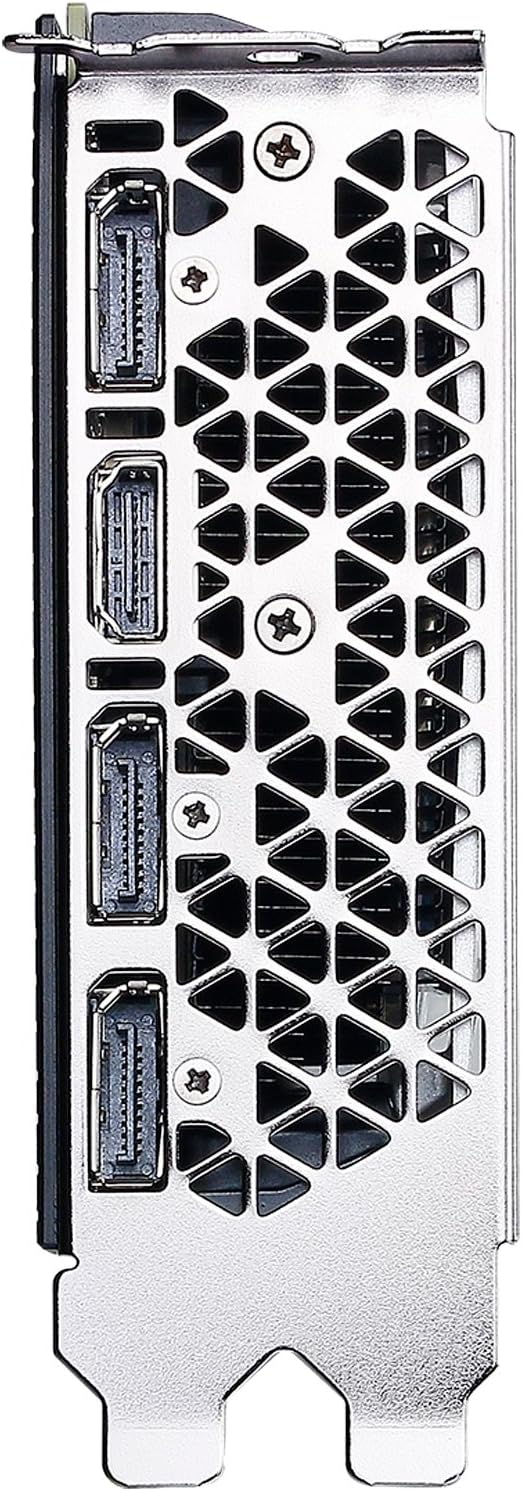
Abbildung 5: Oben view of the EVGA GeForce GTX 1080 Ti.
8. Garantie und Support
EVGA products typically come with a manufacturer's warranty. Please refer to the official EVGA website or your product registration for specific warranty terms and conditions.
For technical support, driver downloads, and product registration, visit the official EVGA support page: www.evga.com.
Legal Disclaimer: A 20% restock fee may apply for returns.


