Einführung
This manual provides instructions for the setup, operation, and maintenance of your myTouchSmart Digital Bar Outlet Timer, Model 26745. Please read these instructions carefully before use and retain them for future reference.
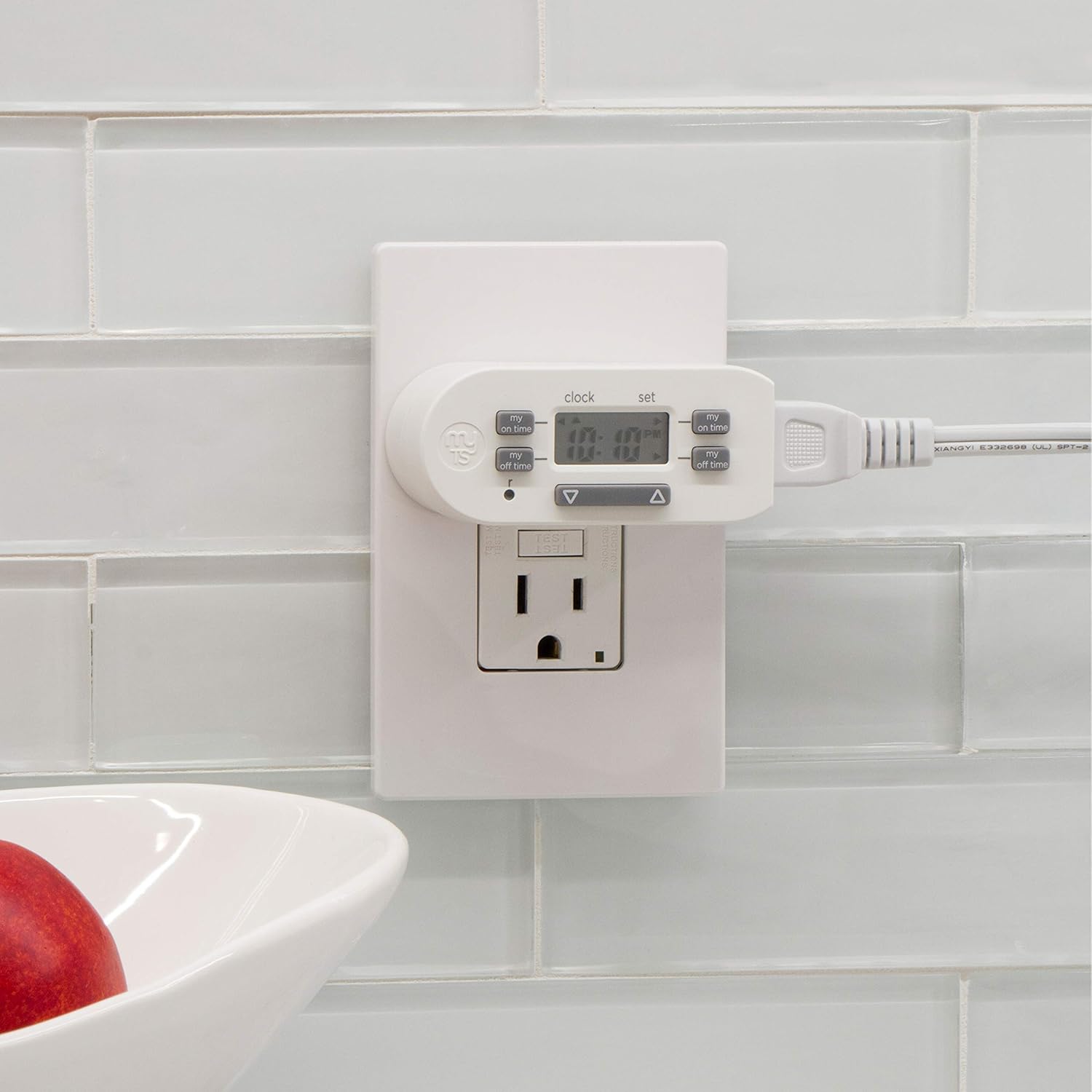
The myTouchSmart Digital Bar Outlet Timer is designed to automate the ON/OFF cycles of indoor lights, lamps, small appliances, and electronics. It features a space-saving design, a digital display, and two programmable custom ON/OFF times.
Wichtige Sicherheitshinweise
- Nur für den Innenbereich.
- Do not exceed electrical ratings: 125V AC, 60Hz, 15A (1875W) General Purpose/Resistive, 5A (625W) Tungsten, 1/2 HP.
- Do not use with appliances that have heating elements, such as coffee makers, toasters, or heaters, as this may create a fire hazard.
- Stellen Sie sicher, dass der Timer vollständig in die Steckdose eingesteckt ist.
- Do not immerse in water or use in wet locations.
- Halten Sie Kinder vom Timer fern.
- Das Gerät darf nicht auseinandergenommen werden. Es enthält keine vom Benutzer wartbaren Teile.
Produkteigenschaften
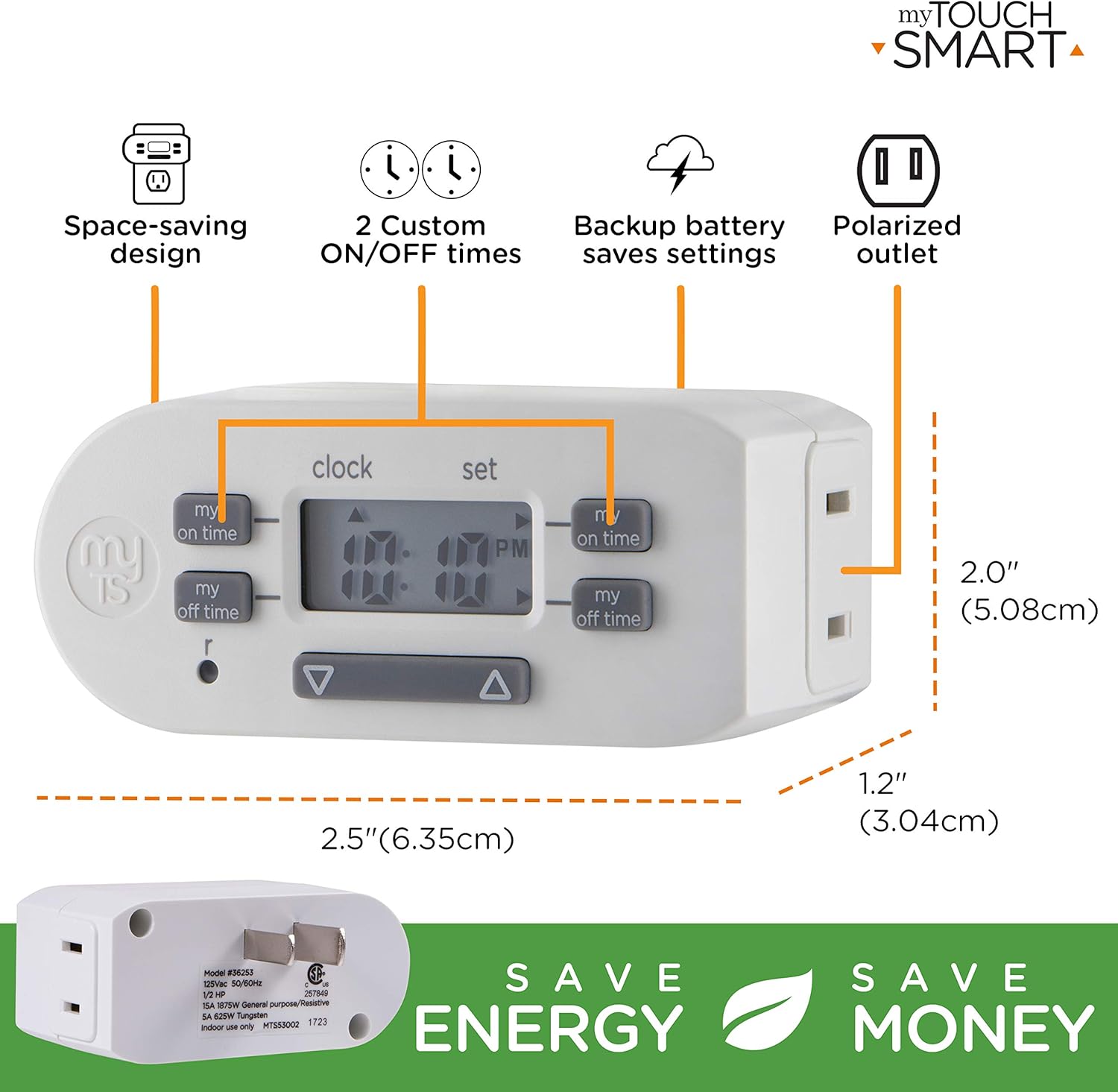
- Space-saving slim bar design.
- One (1) polarized outlet.
- Digital display for easy programming.
- Two custom daily ON/OFF times.
- Backup battery to save settings during power outages.
- Kompatibel mit CFL-, LED-, Glühlampen- und Halogenlichtquellen.
Bildbeschreibung: A detailed diagram of the myTouchSmart Digital Bar Outlet Timer, highlighting its components such as the custom ON/OFF time buttons, clock/set mode indicator, active program indicator, AM/PM indicator, and scroll buttons. This image helps users identify the different parts of the timer for programming.
Einrichtung und Erstkonfiguration
1. Charging the Backup Battery
Before initial use, plug the timer into a live electrical outlet for at least 30 minutes to charge the internal backup battery. This battery retains your settings during power outages oder wenn der Timer ausgesteckt wird.
2. Einstellen der aktuellen Uhrzeit
- Halten Sie die UHR Taste.
- Halten Sie UHR, drücken Sie die ▲ (auf) oder ▼ (down) button to adjust the hour. The AM/PM indicator will change accordingly.
- Lassen Sie den UHR button when the correct hour is set.
- Halten Sie die UHR erneut die Taste.
- Halten Sie UHR, drücken Sie die ▲ (auf) oder ▼ (down) button to adjust the minutes.
- Lassen Sie den UHR button when the correct minute is set.

Bildbeschreibung: This image illustrates the "Simple Setup" process for the timer. It shows the digital display and buttons, with arrows pointing to the scroll buttons for setting the current time and the "my on time" and "my off time" buttons for custom programming. The image emphasizes the ease of setting up the device.
Bedienungsanleitung
Programming Custom ON/OFF Times
The timer allows for two custom daily ON/OFF programs. Follow these steps to set your desired schedules:
Programm 1:
- Drücken Sie die MEINE PÜNKTLICHKEIT button (left side) once. The display will show "1 ON".
- Drücken Sie die ▲ (auf) oder ▼ (down) button to adjust the desired ON hour for Program 1.
- Drücken Sie die MEINE PÜNKTLICHKEIT Drücken Sie erneut die Taste, um die Stunde zu bestätigen und zu den Minuten zu wechseln.
- Drücken Sie die ▲ (auf) oder ▼ (down) button to adjust the desired ON minutes for Program 1.
- Drücken Sie die MEINE PÜNKTLICHKEIT button again to save the ON time.
- Drücken Sie die MEINE FREIZEIT button (left side) once. The display will show "1 OFF".
- Drücken Sie die ▲ (auf) oder ▼ (down) button to adjust the desired OFF hour for Program 1.
- Drücken Sie die MEINE FREIZEIT Drücken Sie erneut die Taste, um die Stunde zu bestätigen und zu den Minuten zu wechseln.
- Drücken Sie die ▲ (auf) oder ▼ (down) button to adjust the desired OFF minutes for Program 1.
- Drücken Sie die MEINE FREIZEIT button again to save the OFF time.
Programm 2:
Repeat the steps above using the MEINE PÜNKTLICHKEIT Und MEINE FREIZEIT Tasten auf der rechte Seite of the timer. The display will show "2 ON" and "2 OFF" respectively.
Bildbeschreibung: This image displays two examples of how to program the timer. Program 1 is set to turn ON at 6:00 A.M. and OFF at 9:00 A.M. Program 2 is set to turn ON at 4:00 P.M. and OFF at 10:00 P.M. This visual guide helps users understand how to set their own custom schedules.
Anschließen eines Geräts
Once programmed, plug the appliance or light you wish to control into the polarized outlet on the side of the timer. Ensure the appliance's power switch is in the ON position for the timer to control its power cycle.

Bildbeschreibung: The image shows the myTouchSmart Digital Bar Outlet Timer plugged into a standard wall outlet. A lamp's power cord is then plugged into the polarized outlet on the side of the timer, demonstrating how to connect a device for timed operation. The slim design of the timer is visible, not obstructing the second wall outlet.
Wartung
- Reinigung: Disconnect the timer from the power outlet before cleaning. Wipe with a dry, soft cloth. Do not use liquid or abrasive cleaners.
- Batterie: The internal backup battery is not user-replaceable. If the display becomes dim or settings are not retained after charging, the unit may need replacement.
- Lagerung: Bewahren Sie den Timer bei Nichtgebrauch an einem kühlen, trockenen Ort auf.
Fehlerbehebung
| Problem | Mögliche Ursache | Lösung |
|---|---|---|
| Das Gerät schaltet sich zu den programmierten Zeiten nicht ein/aus. |
|
|
| Das Display ist dunkel oder leer. |
|
|
| Die Einstellungen gehen nach einem Stromausfall verloren.tage or unplugging. | Backup battery is not sufficiently charged or has reached end of life. | Plug the timer into a live outlet for at least 30 minutes. If the issue persists, the internal battery may need replacement (unit replacement). |
Technische Daten
- Modell: 26745
- Elektrische Wertung: 125V AC, 60Hz
- Maximale Belastung: 15A (1875W) General Purpose/Resistive
- Wolframbeladung: 5A (625W)
- Motorlast: 1 / 2 HP
- Verkaufsstellen: 1 Polarized
- Abmessungen: Ungefähr 2 x 2.5 x 1.25 Zoll
- Zertifizierung: CSA
Garantie und Support
This product is backed by a one-year limited warranty. For warranty claims or technical support, please contact myTouchSmart customer service. Refer to the product packaging or the manufacturer's webWebsite für Kontaktinformationen.
Hersteller: Jasco Products Company, LLC


