1. Einführung und Endeview
The eSSL KartString Biometric Time Attendance Machine is designed to provide efficient and secure time management and access control for organizations. This device utilizes fingerprint recognition technology to accurately record employee attendance, ensuring only authorized individuals are tracked. It features a clear display, a user-friendly keypad, and robust data storage capabilities, making it an essential tool for modern workforce management.
This manual provides detailed instructions for the setup, operation, and maintenance of your eSSL KartString Biometric Time Attendance Machine.
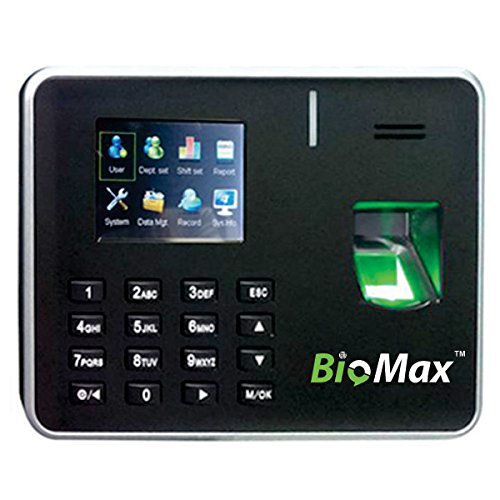
Abbildung 1: Front view of the eSSL KartString Biometric Time Attendance Machine, showing the display, keypad, and fingerprint sensor.
2. Produktmerkmale
- Fingerabdruckerkennung: Secure and accurate biometric identification for attendance.
- High Transaction Storage: Capable of storing up to 100,000 attendance records.
- Farb-TFT-Display: A 2.8-inch color display for clear user interface and information display.
- Multiple Communication Methods: Supports TCP/IP for network connectivity and USB-host for data transfer.
- Integrated Keypad: Soft buttons for password entry and menu navigation.
- Kompaktes Design: Measures approximately 183 x 45 x 138 mm, suitable for various installation environments.
- Cloud-Based Software: Includes 6 months of cloud-based attendance management software by KartString for enhanced data management and reporting.
3. Einrichtungsanweisungen
Follow these steps to set up your eSSL KartString Biometric Time Attendance Machine:
- Auspacken: Carefully remove the device from its packaging and ensure all components are present.
- Montage (Optional): Choose a suitable location for installation, typically near an entrance or exit. Secure the device to a wall using appropriate mounting hardware (not included, consult a professional if unsure).
- Stromanschluss: Connect the provided power adapter to the device's power input port and then plug it into a standard electrical outlet. The device will power on automatically.
- Network Connection (TCP/IP): For network-based data management, connect an Ethernet cable from your network router or switch to the device's LAN port.
- Anfangskonfiguration: Upon first power-on, the device may prompt for initial setup, such as date, time, and administrator registration. Follow the on-screen instructions.
4. Bedienungsanleitung
4.1 Administrator Registration
Before employees can use the system, an administrator must be registered to manage settings and user data.
- Drücken Sie die M/OK Taste, um auf das Hauptmenü zuzugreifen.
- Navigieren Sie zu Benutzerverwaltung or Benutzer registrieren mit den Pfeiltasten.
- Wählen Register Admin oder eine ähnliche Option.
- Follow the on-screen prompts to scan the administrator's fingerprint multiple times for accurate registration.
- Assign administrator privileges as required.
4.2 Employee Fingerprint Enrollment
Each employee needs to register their fingerprint(s) to use the attendance system.
- Access the main menu as an administrator.
- Navigieren Sie zu Benutzerverwaltung or Benutzer registrieren.
- Wählen Neuer Benutzer or Fingerabdruck registrieren.
- Enter the employee ID (if prompted) and then instruct the employee to place their finger on the sensor.
- The device will prompt the employee to lift and place their finger several times for a complete scan.
- Confirm successful enrollment.
4.3 Recording Attendance
Employees can record their attendance by simply placing their registered finger on the sensor.
- Stellen Sie sicher, dass das Gerät eingeschaltet und im Standby-Modus ist.
- The employee places their registered finger firmly on the fingerprint sensor.
- Upon successful recognition, the device will display a confirmation message (e.g., "Thank You" or "Punch In/Out Successful") and an audible prompt.
4.4 Datenmanagement
Attendance data can be retrieved via TCP/IP network or USB-host.
- Via TCP/IP: Connect the device to your network. Use the provided cloud-based attendance management software or compatible third-party software to connect to the device and download attendance logs. Refer to the software's documentation for specific instructions.
- Via USB-Host: Insert a USB flash drive into the device's USB-host port. Navigate to Datenmanagement or Daten herunterladen in the menu. Select the desired data (e.g., attendance logs, user data) and initiate the transfer to the USB drive.
5. Wartung
Regelmäßige Wartung gewährleistet optimale Leistung und Langlebigkeit Ihres Geräts.
- Reinigung des Sensors: Gently wipe the fingerprint sensor with a soft, dry, lint-free cloth. Avoid using abrasive materials or liquid cleaners directly on the sensor.
- Reinigung des Geräts: Benutzen Sie ein weiches, leichtamp cloth to clean the exterior of the device. Do not allow water or cleaning solutions to enter the device.
- Datensicherung: Regularly back up attendance data to an external storage device (USB) or through the network software to prevent data loss.
- Software-Updates: Check the eSSL website or contact support for any available firmware or software updates to ensure your device operates with the latest features and security enhancements.
6. Fehlerbehebung
In diesem Abschnitt werden häufig auftretende Probleme behandelt.
- Gerät lässt sich nicht einschalten:
- Stellen Sie sicher, dass das Netzteil sowohl mit dem Gerät als auch mit einer funktionierenden Steckdose fest verbunden ist.
- Überprüfen Sie die Funktionsfähigkeit der Steckdose, indem Sie ein anderes Gerät anschließen.
- Fingerabdruck nicht erkannt:
- Stellen Sie sicher, dass der Finger sauber und trocken ist.
- Place the entire pad of the registered finger firmly on the sensor.
- Try re-enrolling the fingerprint if recognition issues persist.
- Clean the fingerprint sensor as described in the Maintenance section.
- Cannot Connect to Network (TCP/IP):
- Verify the Ethernet cable is properly connected to both the device and the network router/switch.
- Check network settings on the device to ensure correct IP address, subnet mask, and gateway.
- Ensure your network router is functioning correctly.
- USB-Datenübertragungsfehler:
- Ensure the USB flash drive is properly inserted and formatted to a compatible file System (z. B. FAT32).
- Versuchen Sie es mit einem anderen USB-Stick.
- Verify there is sufficient space on the USB drive.
Sollten Sie auf Probleme stoßen, die hier nicht behandelt werden, konsultieren Sie bitte den Supportbereich.
7. Spezifikationen
| Modell | KartString Biomax K 21 |
| Marke | eSSL |
| Fingerabdrucksensor | Optischer Sensor |
| Transaktionskapazität | 100,000 Aufzeichnungen |
| Anzeige | 2.8 Inch Color TFT |
| Kommunikation | TCP/IP, USB-host |
| Abmessungen (L x B x H) | 183 x 45 x 138 mm (ca.) |
| Artikelgewicht | 650 g |
| Farbe | Schwarz |
8. Garantie und Support
The eSSL KartString Biometric Time Attendance Machine comes with standard manufacturer warranty. Please refer to your purchase documentation for specific warranty terms and conditions.
For technical assistance, troubleshooting, or inquiries regarding the included 6-month cloud-based attendance management software by KartString, please contact eSSL customer support or your authorized dealer. Contact information can typically be found on the eSSL official webauf der Website oder auf Ihrer Produktverpackung.
When contacting support, please have your product model (KartString Biomax K 21) and any relevant purchase details ready.


