1. Einleitung
Welcome to the user manual for your Brother MFC-L8690CDW. This device is a high-performance color laser multifunction printer designed for efficient printing, scanning, and copying. It features an automatic document feeder, A4 paper compatibility, and duplex printing capabilities, making it suitable for various office and home office environments.
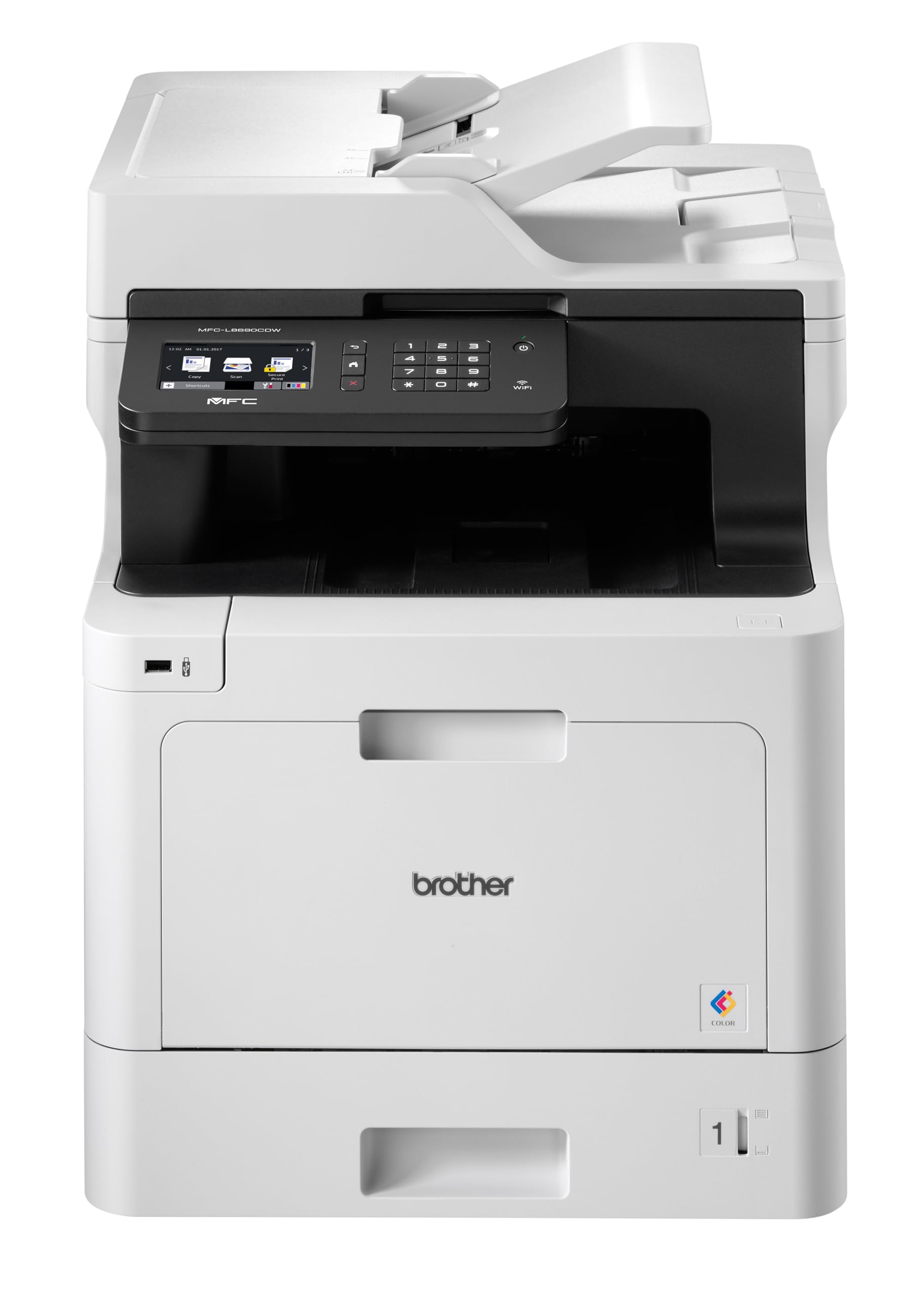
Front view of the Brother MFC-L8690CDW color multifunction printer, showcasing dank seines kompakten Designs und Bedienfelds.
2. Einrichtung
2.1 Auspacken und erste Platzierung
Carefully remove the printer from its packaging. Ensure all protective tapes and packing materials are removed from the exterior and interior of the device. Place the printer on a stable, level surface with adequate ventilation, away from direct sunlight or heat sources.
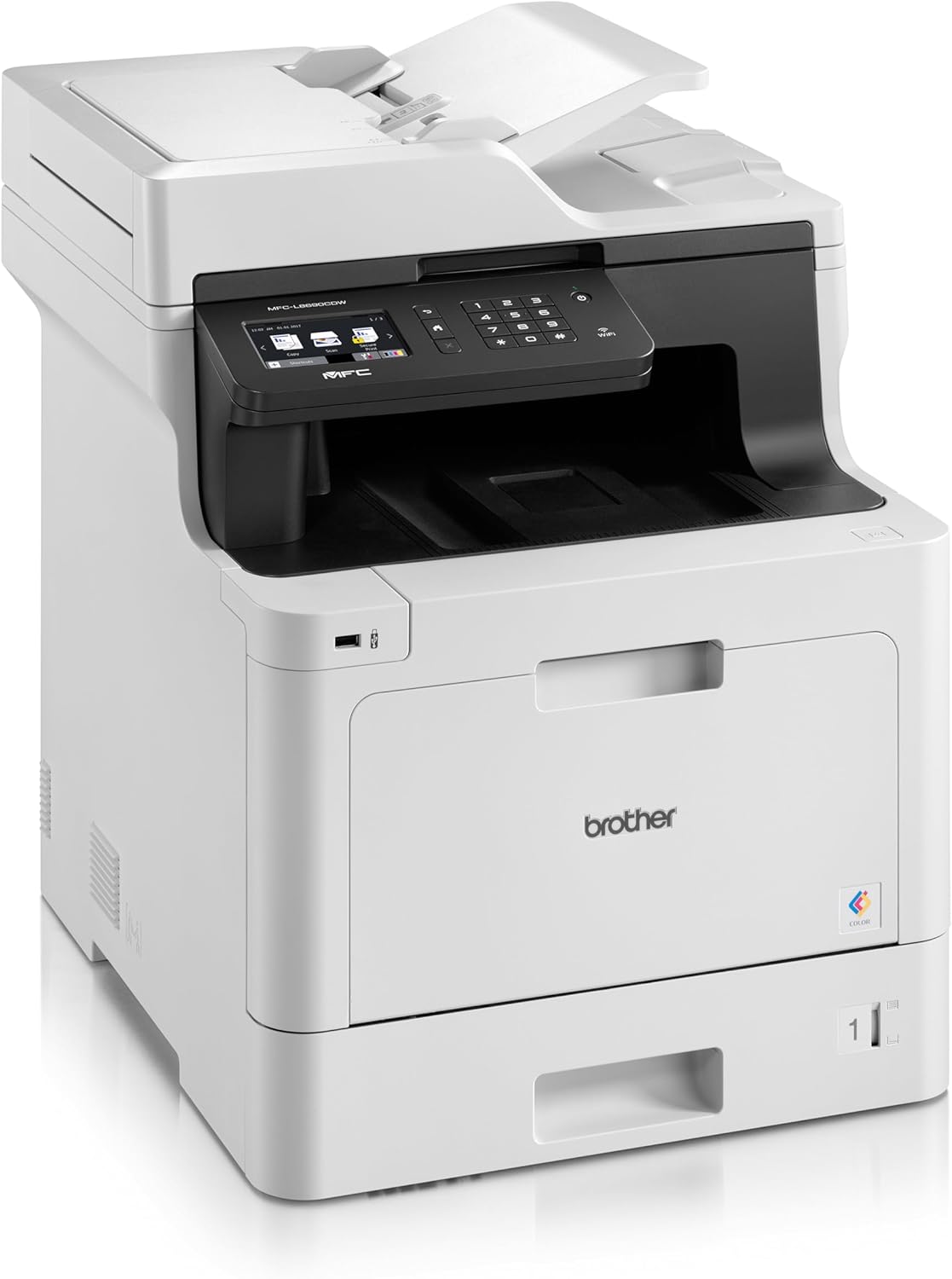
Front view of the Brother MFC-L8690CDW, showing the control panel and paper output tray.
2.2 Stromanschluss
Connect the power cord to the printer's power input and then to a grounded electrical outlet. Do not connect the printer to a power strip or surge protector during initial setup to avoid potential power issues.
2.3 Installation der Tonerkartusche
Open the front cover of the printer. Install the included toner cartridges into their respective color-coded slots. Ensure each cartridge clicks into place. Close the cover securely.
2.4 Papier einlegen
Open the main paper tray. Load standard A4 paper (or other supported sizes) into the tray, ensuring the print side is facing down. Adjust the paper guides to fit the paper size snugly without bending the paper.

Seite view of the Brother MFC-L8690CDW printer, illustrating the paper input tray.
2.5 Software- und Treiberinstallation
Insert the installation CD into your computer's CD-ROM drive or download the latest drivers and software from the official Brother support website. Follow the on-screen instructions to complete the installation for your operating system.
2.6 Netzwerkverbindung
The MFC-L8690CDW supports both wired (Ethernet) and wireless (Wi-Fi IEEE 802.11b/g/n) connections.
2.6.1 Kabelverbindung
Verbinden Sie Ihren Router oder Netzwerk-Hub mit einem Ethernet-Kabel mit dem Ethernet-Anschluss auf der Rückseite des Druckers.
2.6.2 Drahtlose Verbindung
On the printer's control panel, navigate to Netzwerkeinstellungen, Dann WLAN. Select your Wi-Fi network from the list and enter the password when prompted.

Hinteren view of the Brother MFC-L8690CDW printer, highlighting the power input, Ethernet port, and USB port.
3. Bedienungsanleitung
3.1 Grundlegendes Drucken
From your computer, open the document you wish to print. Select Drucken from the application's menu. Choose Brother MFC-L8690CDW as your printer. Adjust settings such as color/monochrome, duplex printing, and paper size as needed in the print dialog box. Click Drucken to start the job.
3.2 Dokumente kopieren
Place your document face down on the scanner glass or face up in the Automatic Document Feeder (ADF). On the printer's control panel, select Kopie. Adjust settings like number of copies, color/monochrome, and reduction/enlargement. Press Start um mit dem Kopieren zu beginnen.
3.3 Dokumente scannen
Place your document on the scanner glass or in the ADF. On the printer's control panel, select Scan. Choose your desired scan destination (e.g., computer, email, network folder). Adjust scan settings like resolution and file format. Press Start to initiate the scan.
4. Wartung
4.1 Drucker reinigen
Regularly clean the exterior of the printer with a soft, lint-free cloth. For the scanner glass, use a mild glass cleaner applied to a cloth, not directly to the glass, to avoid streaks or damage.
4.2 Tonerkartuschen austauschen
When a toner cartridge is low or empty, the printer's display will indicate which cartridge needs replacement. Open the front cover, remove the old cartridge, and insert a new Brother genuine toner cartridge. Ensure it is securely seated before closing the cover.
4.3 Behebung von Papierstaus
If a paper jam occurs, the printer display will show specific instructions and locations. Carefully open the indicated covers and gently pull out any jammed paper in the direction of the paper path. Avoid tearing the paper to prevent small pieces from remaining inside.
5. Fehlerbehebung
5.1 Häufige Probleme und Lösungen
Drucker reagiert nicht: Check the power connection, USB/network cable, and ensure the printer is online. Restart both the printer and your computer.
Schlechte Druckqualität: Check toner levels. Perform a print quality test from the printer's menu. Clean the drum unit if necessary, following the instructions in the maintenance section.
Papierstaus: Follow the on-screen instructions to locate and remove jammed paper. Ensure paper is loaded correctly, not creased, and within the specified weight limits.
Netzwerkverbindungsprobleme: Verify your Wi-Fi password or Ethernet cable connection. Restart your router and printer. Ensure printer firmware is up to date by checking the Brother support webWebsite.
6. Technische Daten
| Besonderheit | Spezifikation |
|---|---|
| Technische Daten | 10 D x 48 B x 50 H Zentimeter |
| Controllertyp | Automatisch |
| Maximale Mediengröße | A4 |
| Energieaufnahme | 680 Watt |
| Im Lieferumfang enthaltene Komponenten | Brother Multifunction Laser MFC-L8690CDW Wifi Network |
| Druckmedientyp | Papier (normal) |
| Scannertyp | Automatischer Dokumenteneinzug |
| Maximale Blattkapazität | 100 Blatt |
| Max. Kopiergeschwindigkeit (Schwarzweiß) | 32 Seiten pro Minute |
| Kompatible Geräte | Desktop-Computer |
| Maximale Farbdruckauflösung | 1200 x 1200 dpi |
| Blattgröße | 210 Millimeter |
| Maximale Schwarzweiß-Druckauflösung | 1200 x 1200 dpi |
| Garantietyp | Eingeschränkte Garantie |
| Farbtiefe | 24 bpp |
| Duplexdruck | Ja |
| Verfügbarkeit von Ersatzteilen in der EU | 2 Jahre |
| Maximale Anzahl Exemplare pro Serie | 32 |
| Leistung | 3600 (Unit not specified) |
| Produkttyp | Alles in einem |
| Betriebssystem | Mac OS 10.15 Catalina (and compatible with other OS) |
| Anschlüsse | Bluetooth, Ethernet, Mini USB |
| Erinnerung | 4 (Unit not specified) |
| Anzahl USB-Anschlüsse | 1 |
| Batterie | 1 Lithium-Ionen-Akku erforderlich |
| Software-Updates garantiert bis | 13. April 2030 |
| Marke | Bruder |
| Konnektivitätstechnologie | Bluetooth |
| Drucktechnologie | Laser |
| Farbe | Mehrfarbig |
| Modellname | MFC L 8690 CDW |
| Druckerausgabe | Farbe |
| Maximale Druckgeschwindigkeit (Farbe) | 10 Seiten pro Minute |
| Maximale Druckgeschwindigkeit (Monochrom) | 10 Seiten pro Minute |
| Artikelgewicht | 19 Kilogramm |
| ASIN | B072C463YX |
| Datum der ersten Verfügbarkeit | 8. April 2022 |
| Hersteller | BRUDER |
7. Garantie und Support
7.1 Produktgarantie
This Brother MFC-L8690CDW printer comes with a limited warranty. Spare parts availability in the EU is guaranteed for 2 years from the date of purchase.
7.2 Softwareaktualisierungen
Software updates for this model are guaranteed until April 13, 2030, ensuring continued compatibility and security enhancements.
7.3 Kundendienst
Für technische Unterstützung, Treiber-Downloads und weitere Hilfe besuchen Sie bitte die official Brother support webWebsite or contact your local Brother customer service center. Have your model number (MFCL8690CDW) and serial number ready when contacting support.


