1. Zu Endeview
The Aerocool Cylon RGB Midi-Tower PC Case, model ACCM-PV10012.11, is designed to house computer components, offering both functionality and aesthetic appeal. It features a side window panel for showcasing internal hardware and an RGB LED illumination strip on the front panel for customizable lighting effects. This case supports ATX motherboards and provides ample space for various components, including multiple storage drives and cooling solutions.

Abbildung 1: Vorderseite view of the Aerocool Cylon RGB Midi-Tower PC Case, highlighting its distinctive RGB LED strip.
2. Packungsinhalt
Bitte überprüfen Sie, ob alle Artikel im Paket vorhanden sind:
- Aerocool Cylon RGB Midi-Tower PC Case (ACCM-PV10012.11)
- Zubehörbox (mit Schrauben, Abstandshaltern, Kabelbindern usw.)
- Benutzerhandbuch (dieses Dokument)
3. Sicherheitshinweise
Read and understand all safety instructions before installing or operating the PC case. Failure to do so may result in injury or damage to the product.
- Vor jeglichen Installations- oder Wartungsarbeiten muss die Stromversorgung stets von der Steckdose getrennt werden.
- Alle Komponenten sind sorgfältig zu behandeln, um Beschädigungen zu vermeiden.
- Avoid touching electronic components directly; use anti-static precautions if possible.
- Kleinteile und Zubehörteile dürfen nicht in die Hände von Kindern gelangen.
- Sorgen Sie für ausreichende Belüftung rund um das Gehäuse, um eine Überhitzung zu vermeiden.
4. Einrichtung und Installation
4.1 Vorbereitung des Falls
Before installing components, remove the side panels to access the interior of the case.
- Stellen Sie das Gehäuse auf eine ebene, stabile Oberfläche.
- Locate the thumbscrews on the rear of the case securing the side panel.
- Unscrew the thumbscrews and carefully slide the side panel backward, then lift it off. Repeat for the other side panel if necessary.
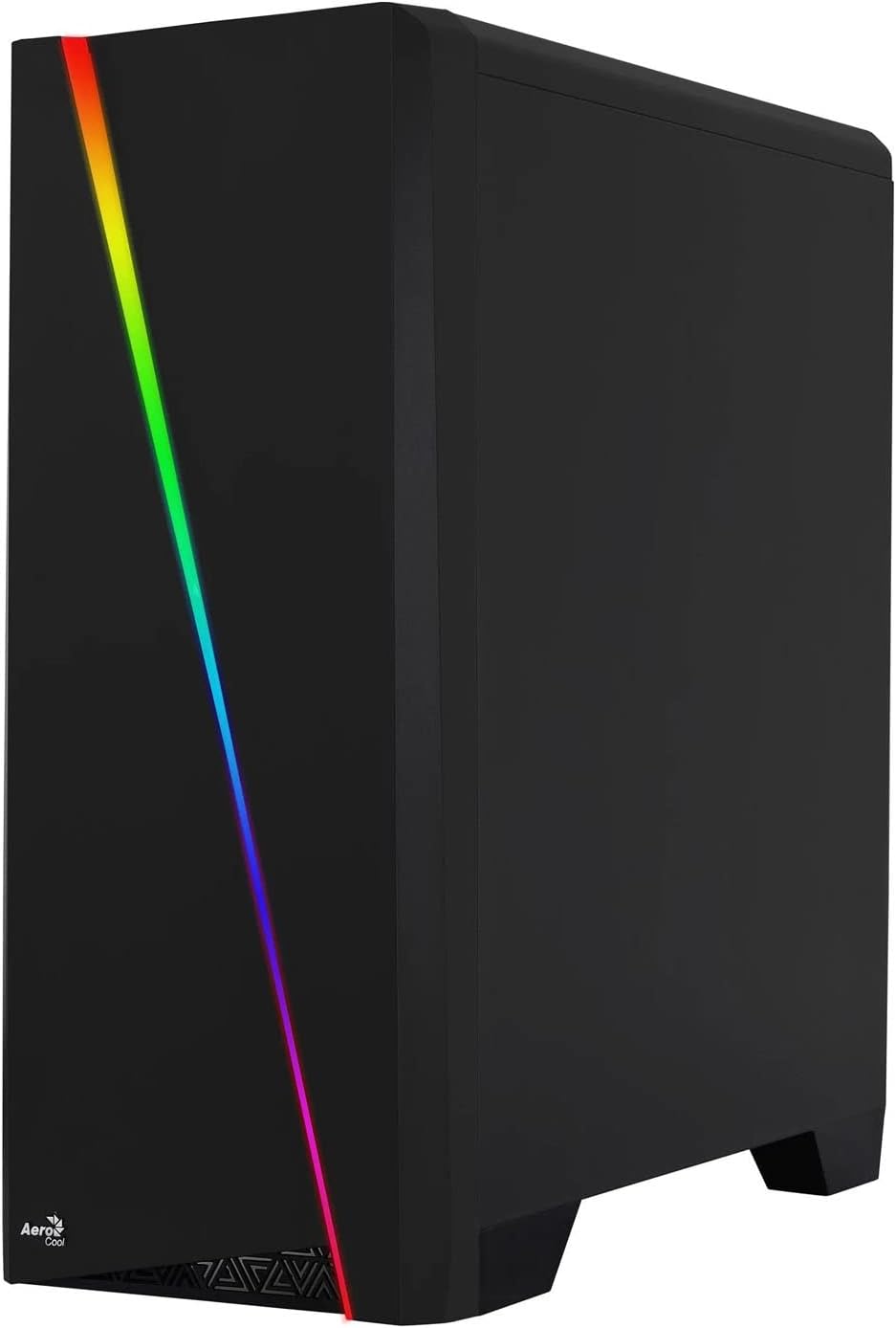

Figure 2: Left image shows the side panel attached, right image shows the side panel removed for access.
4.2 Motherboard-Installation
The Aerocool Cylon case supports ATX motherboards.
- Install the I/O shield that came with your motherboard into the opening at the rear of the case.
- Ensure motherboard standoffs are correctly aligned with your motherboard's screw holes. Install any missing standoffs from the accessory box.
- Setzen Sie das Motherboard vorsichtig auf die Abstandshalter und achten Sie dabei auf die Ausrichtung der Schraubenlöcher.
- Befestigen Sie das Motherboard mit den passenden Schrauben aus dem Zubehörkasten.
4.3 Drive Installation (2.5" / 3.5")
The case provides bays for 2.5-inch and 3.5-inch drives.
- Locate the drive bays within the case. Refer to the case diagram for specific locations.
- For 3.5-inch HDDs, slide the drive into the designated tray or bay and secure it with screws.
- For 2.5-inch SSDs, mount the drive onto the designated bracket or tray and secure it with screws.
4.4 Installation des Netzteils (PSU)
The PSU is typically mounted at the bottom rear of the case.
- Slide the PSU into its designated compartment from the rear of the case.
- Align the PSU's screw holes with those on the case.
- Befestigen Sie das Netzteil mit den mitgelieferten Schrauben.
4.5 Installation der Erweiterungskarte (GPU)
Install your graphics card or other expansion cards into the PCIe slots.
- Remove the necessary PCI-E slot covers from the rear of the case corresponding to your expansion card's size.
- Carefully insert the expansion card into the appropriate PCI-E slot on the motherboard until it clicks into place.
- Befestigen Sie die Erweiterungskarte mit Schrauben.

Abbildung 3: Rückseite view of the PC case, showing the expansion slots and I/O area.
4.6 Fan / Liquid Cooling Radiator Installation
The Aerocool Cylon case supports various cooling configurations.
- Hinteren: 1 x 120mm fan (pre-installed or optional).
- Spitze: Unterstützt 2 x 120-mm-Lüfter oder 1 x 240-mm-Radiator.
- Unten: Unterstützt 2 x 120-mm-Lüfter.
- Mount fans or radiators to their respective positions using the appropriate screws.
- Schließen Sie die Lüfterstromkabel an das Motherboard oder eine Lüftersteuerung an.

Figure 4: An interior shot of the case, illustrating potential fan and liquid cooling radiator placements.
4.7 Kabelmanagement
Effective cable management improves airflow and aesthetics.
- Route cables through the cutouts and behind the motherboard tray.
- Use cable ties (included in the accessory box) to bundle and secure cables.
4.8 Anschließen der Frontplatten-E/A
Verbinden Sie die Frontpanel-Kabel mit den entsprechenden Anschlüssen auf Ihrem Motherboard.
- USB 3.0: Schließen Sie das USB 3.0-Kabel an den USB 3.0-Anschluss des Motherboards an.
- USB 2.0: Connect the USB 2.0 cables (x2) to the motherboard's USB 2.0 headers.
- HD-Audio: Schließen Sie das HD-Audiokabel an den Audioanschluss des Motherboards an.
- Ein-/Ausschalter/Reset/LEDs: Connect the small individual cables (Power SW, Reset SW, HDD LED, Power LED) to the motherboard's front panel headers according to your motherboard manual.
5. Bedienung des PC-Gehäuses
Once all components are installed and connected, reattach the side panels and power on your system.
- Einschalten: Drücken Sie den Netzschalter auf der Oberseite des I/O-Panels des Gehäuses.
- RGB-Lichtsteuerung: The front panel RGB LED illumination can be controlled via a dedicated button on the top I/O panel or through compatible motherboard software, depending on your setup. Refer to your motherboard manual for software control options.
6. Wartung
Regelmäßige Wartung trägt dazu bei, die optimale Leistung und Langlebigkeit Ihres PC-Gehäuses und Ihrer Komponenten zu gewährleisten.
- Reinigung des Staubfilters: The case features dust filters (e.g., on the top and bottom). Regularly remove and clean these filters to prevent dust buildup and maintain good airflow. Use compressed air or a soft brush.
- Allgemeine Reinigung: Verwenden Sie ein weiches,amp cloth to wipe down the exterior of the case. Avoid abrasive cleaners or solvents. For the transparent side panel, use a microfiber cloth to prevent scratches.
7. Fehlerbehebung
Sollten Probleme auftreten, beachten Sie die folgenden gängigen Schritte zur Fehlerbehebung:
- Kein Strom: Ensure the PSU is properly connected to the wall outlet and the power switch on the PSU is in the 'ON' position. Verify all power cables to the motherboard and components are securely seated.
- Lüfter drehen sich nicht: Check that all fan cables are correctly connected to the motherboard or fan controller. Ensure the system is receiving power.
- RGB funktioniert nicht: Confirm RGB cables are properly connected. If using motherboard software, ensure it is installed and configured correctly.
- Lose Verbindungen: Recheck all internal connections (power, data, front panel I/O) to ensure they are firmly seated.
8. Spezifikationen
| Besonderheit | Spezifikation |
|---|---|
| Modellname | ACCM-PV10012.11 |
| Gehäusetyp | Midi-Turm |
| Motherboard-Kompatibilität | ATX |
| Abmessungen (LxBxH) | 16.26 x 7.8 x 18.07 Zoll |
| Artikelgewicht | 8.36 Pfund |
| Material | Acryl |
| USB 3.0-Anschlüsse | 1 |
| USB 2.0-Anschlüsse | 2 |
| Kühlmethode | Luft |
| Fan Size (Rear) | 120 Millimeter |
| RGB-Beleuchtung | Front Panel LED Strip |
9. Garantieinformationen
The Aerocool Cylon RGB Midi-Tower PC Case is covered by a manufacturer's warranty. Please refer to the warranty card included with your product or visit the official AeroCool webAuf der Website finden Sie detaillierte Garantiebedingungen, einschließlich der Garantiezeiträume und des Verfahrens zur Geltendmachung von Ansprüchen.
10. Unterstützung
For further assistance, technical support, or to download the latest drivers and software, please visit the official AeroCool webWebsite:
WebWebsite: www.aerocool.io
You may also contact AeroCool customer service through the contact information provided on their webWebsite.