Einführung
Thank you for choosing the KROM Kernel TKL Mechanical Gaming Keyboard. This compact, tenkeyless (TKL) keyboard is designed for gaming enthusiasts, offering a responsive mechanical experience with customizable RGB backlighting and a Spanish layout. This manual provides detailed instructions for setup, operation, maintenance, and troubleshooting to ensure optimal performance and longevity of your device.
Produkt überview
Hauptmerkmale
- Mechanische Schalter: Durable and responsive mechanical key switches for precise input.
- Tenkeyless (TKL) Design: Compact form factor without a numeric keypad, ideal for saving desk space and improving mouse movement.
- RGB-Hintergrundbeleuchtung: Customizable LED backlighting with various effects and colors.
- Makrofunktionalität: Assign macro functions to any key for personalized commands.
- Multimedia-Tasten: Dedicated or function-layer multimedia controls for convenience.
- Anti-Ghosting: Gewährleistet die präzise Erfassung aller Tastendrücke, auch während intensiver Gaming-Sessions.
- Langlebige Konstruktion: Hergestellt aus hochwertigen Materialien für lang anhaltende Leistung.
- Spanisches Layout: Designed with a QWERTY Spanish key layout.
Packungsinhalt
- KROM Kernel TKL Mechanical Gaming Keyboard
- USB-Kabel (fest angeschlossen)
- Benutzerhandbuch (dieses Dokument)
- (Note: Additional accessories may vary by region or specific product bundle.)
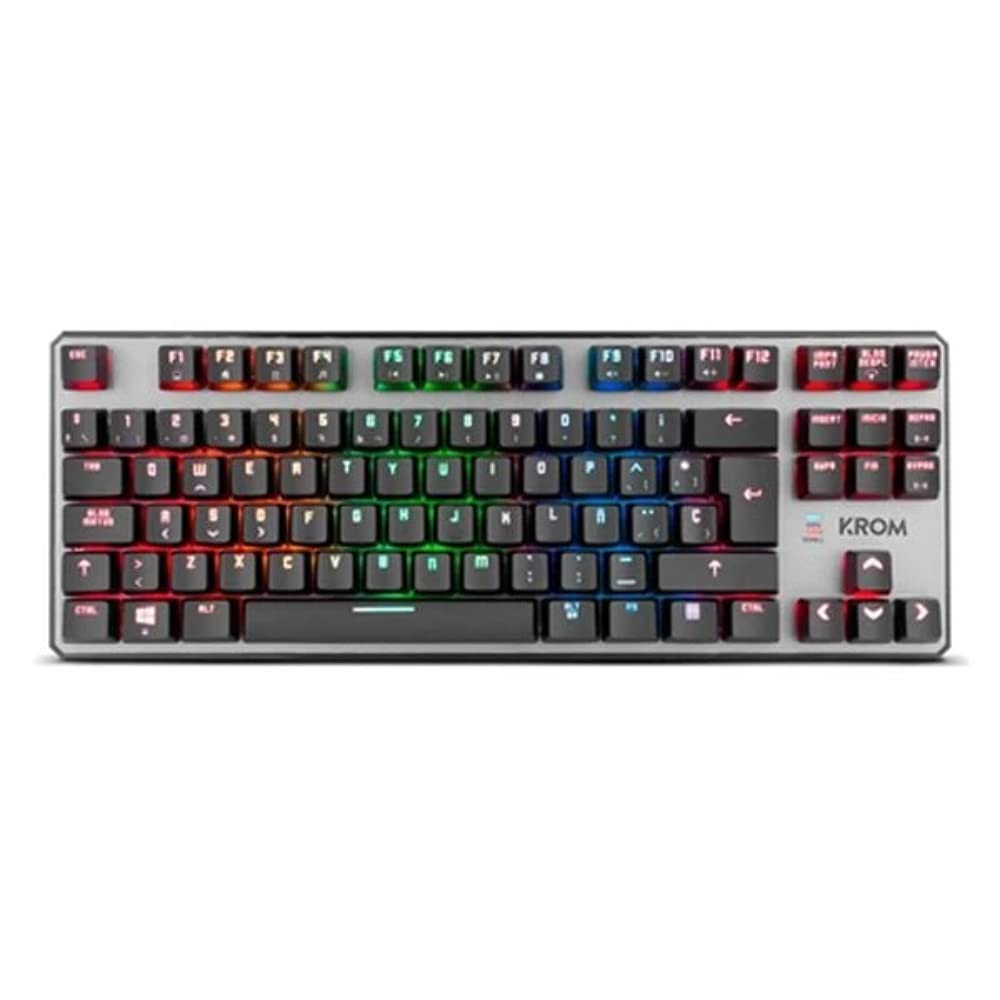
Bild 1.1: KROM Kernel TKL Mechanical Gaming Keyboard packaging, showing the front and back of the box with product features and design.

Bild 1.2: Von oben nach unten view of the KROM Kernel TKL keyboard, showcasing its compact design and vibrant RGB backlighting across all keys.
Aufstellen
- Auspacken der Tastatur: Carefully remove the KROM Kernel TKL keyboard from its packaging.
- Mit Computer verbinden: Locate the USB cable attached to the keyboard. Plug the USB connector into an available USB port on your computer (PC or laptop).
- Treiberinstallation: The keyboard is plug-and-play. Your operating system (Windows 7/8/8.1/10) should automatically detect and install the necessary drivers. This process may take a few moments.
- Funktionalität überprüfen: Once drivers are installed, test the keyboard by typing in a text editor or browser to ensure all keys are responsive.
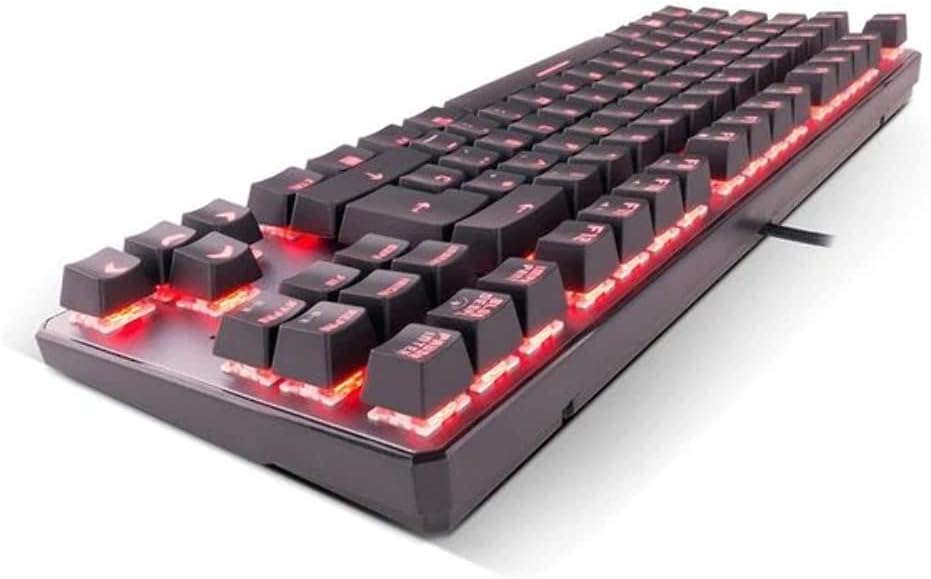
Bild 2.1: Seite view of the KROM Kernel TKL keyboard, highlighting the red backlighting visible beneath the keycaps and the compact profile.
Bedienungsanleitung
RGB-Hintergrundbeleuchtungssteuerung
The KROM Kernel TKL keyboard features dynamic RGB backlighting. Use the following key combinations to adjust lighting effects:
- Fn + [Taste]: Specific function keys (often F1-F12 or dedicated keys) are used in combination with the Function (Fn) key to cycle through lighting modes, adjust brightness, change speed, or select colors. Refer to the keyboard's keycap legends for specific symbols indicating lighting controls.
- Helligkeitsanpassung: Typically Fn + Up/Down arrow keys or dedicated brightness keys.
- Wirkungsgeschwindigkeit: Often Fn + Left/Right arrow keys to increase or decrease the speed of dynamic lighting effects.
- Moduswechsel: Cycle through various pre-set RGB lighting modes (e.g., wave, ripple, breathing, static color) using a dedicated Fn combination.

Bild 3.1: The KROM Kernel TKL keyboard displaying its full RGB spectrum backlighting, enhancing the visual appeal during use.
Macro Function Assignment
The keyboard supports on-the-fly macro recording or software-based macro assignment. For on-the-fly recording:
- Initiate Recording: Press a specific Macro Record key (often labeled "MR" or a Fn combination).
- Select Target Key: Press the key you wish to assign the macro to.
- Aufnahmereihenfolge: Geben Sie die Tastenfolge ein, die Sie als Makro aufzeichnen möchten.
- Aufnahme beenden: Press the Macro Record key again to save the macro.
Note: Detailed macro programming instructions may require specific software or refer to the full digital manual available on the KROM webWebsite.
Multimedia- und Tastenkombinationen
Access multimedia functions and system shortcuts using the Fn key in combination with the F-keys (F1-F12) or other designated keys. Common functions include:
- Lautstärkeregelung: Fn + Fx (e.g., F1-F3 for Mute, Volume Down, Volume Up).
- Medienwiedergabe: Fn + Fx (e.g., F5-F8 for Play/Pause, Stop, Previous Track, Next Track).
- Anwendungsverknüpfungen: Fn + Fx (e.g., F9-F12 for Email, Web Browser, My Computer, Calculator).

Bild 3.2: Eine Nahaufnahme view of the KROM Kernel TKL keyboard's keycaps, clearly showing the Spanish QWERTY layout and secondary functions.
Wartung
Durch sachgemäße Wartung wird die Langlebigkeit und Leistungsfähigkeit Ihrer Tastatur sichergestellt.
- Reinigung:
- Trennen Sie die Tastatur vor der Reinigung vom Computer.
- Verwenden Sie eine Dose Druckluft, um Staub und Schmutz zwischen den Tastenkappen zu entfernen.
- Wischen Sie die Tastenkappen und die Tastaturoberfläche mit einem weichen, leicht feuchten Tuch ab.amp, fusselfreies Tuch. Übermäßige Feuchtigkeit vermeiden.
- Verwenden Sie keine scharfen Chemikalien, Scheuermittel oder Lösungsmittel.
- Lagerung: Bewahren Sie die Tastatur an einem trockenen, kühlen Ort fern von direkter Sonneneinstrahlung und extremen Temperaturen auf.
- Handhabung: Avoid dropping the keyboard or exposing it to liquids. Do not attempt to disassemble the keyboard as this may void the warranty.

Bild 4.1: Ein Seitenprofifile view of the KROM Kernel TKL keyboard, illustrating its ergonomic tilt and compact design.

Bild 4.2: A close-up image showing a mechanical switch on the KROM Kernel TKL keyboard, highlighting its design and potential for easy replacement (CIY Technology).

Bild 4.3: The CIY Technology logo, indicating that the keyboard features hot-swappable mechanical switches for easy customization or replacement.
Fehlerbehebung
If you encounter issues with your KROM Kernel TKL keyboard, refer to the following common solutions:
- Tastatur reagiert nicht:
- Stellen Sie sicher, dass das USB-Kabel sowohl an die Tastatur als auch an den Computer fest angeschlossen ist.
- Versuchen Sie, die Tastatur an einen anderen USB-Anschluss Ihres Computers anzuschließen.
- Starten Sie Ihren Computer neu.
- Testen Sie die Tastatur an einem anderen Computer, um festzustellen, ob das Problem an der Tastatur oder an Ihrem System liegt.
- Hintergrundbeleuchtung funktioniert nicht oder ist fehlerhaft:
- Check if the backlighting is turned off. Use the Fn key combinations to cycle through lighting modes and adjust brightness.
- Ensure no software conflicts are interfering with the lighting controls.
- Tasten werden nicht registriert oder es werden doppelte Eingaben getätigt:
- Clean the affected keys with compressed air to remove any debris.
- If the keyboard uses hot-swappable switches (like the "CIY Technology" mentioned in an image), try gently removing and re-inserting the switch for the problematic key.
- Stellen Sie sicher, dass Ihre Betriebssystemtreiber auf dem neuesten Stand sind.
- Macro Functions Not Working:
- Review the macro programming steps to ensure correct recording.
- Check if any software is overriding the keyboard's native macro functions.
Technische Daten
| Besonderheit | Detail |
|---|---|
| Modellnummer | NXKROMKRNLTKL |
| Tastaturtyp | Mechanisch |
| Layout | Spanish QWERTY (TKL) |
| Hintergrundbeleuchtung | RGB-LEDs |
| Verbindung | Wired USB (Gold-plated) |
| Kabellänge | 180 cm (Braided) |
| Betätigungskraft | 60 +/- 10 g |
| Abfragerate | 1000 Hz |
| Interner Speicher | 64 KB (for macros/profiles) |
| Stromverbrauch | 100-260 mA |
| Bandtage | 5.0 +/- 0.25 V |
| Abmessungen (L x B x H) | 361 x 133.5 x 22.5 mm |
| Gewicht | 950 +/- 30 g |
| Kompatibilität | Windows 7 / 8 / 8.1 / 10 |
| Besondere Merkmale | Macro function assignment, Multimedia keys, Shortcut keys |
Garantie und Support
KROM products are designed for reliability and performance. This product comes with a standard manufacturer's warranty. For specific warranty terms and conditions, please refer to the warranty card included with your product or visit the official KROM webWebsite.
For technical support, driver downloads, or further assistance, please visit the KROM official support page or contact their customer service. Contact information can typically be found on the KROM webStandort oder Produktverpackung.
KROM Official WebWebsite: www.kromgaming.com (Hinweis: Dies ist ein Platzhalter. URL, please verify the actual KROM support webWebsite.)


