Einführung
The KING KF1000 Falcon is a high-gain, self-pointing, roof-mounted RV Wi-Fi antenna designed to provide fast, reliable, and secure Wi-Fi connectivity. Paired with the KING WiFiMax Router, this system allows you to acquire and extend Wi-Fi signals from various sources, enabling all your mobile devices to connect seamlessly.
This system is ideal for RVs, campers, and other mobile applications where access to a strong and stable Wi-Fi signal is crucial. It eliminates the need to seek out public Wi-Fi hotspots by bringing the internet directly to your vehicle.
Zu den Hauptmerkmalen gehören:
- Fully automatic, directional Wi-Fi antenna with extender.
- Ermöglicht einen schnellen, zuverlässigen und sicheren Empfang von Signalen aus Ihrem WLAN-Netzwerk über große Entfernungen.
- Simple setup via the free KING Wi-Fi app, available for Android and iOS devices.
- Effortlessly connect all your mobile devices to a single, secure network.
- Antenna extends 2.4GHz for longest range plus 5GHz with router for fastest speeds.
- Requires rooftop installation for optimal performance.
Lieferumfang
Vergewissern Sie sich vor Beginn der Installation, dass alle Komponenten vorhanden sind:
- KING Falcon Automatic Directional WiFi Antenna
- KING WiFiMax Router
- 12V Stromversorgung
- 9V Stromversorgung
- Power-Inserter

Image: The KING Falcon Automatic Directional WiFi Antenna (white, roof-mounted unit) shown alongside the KING WiFiMax Router (black, rectangular unit with two antennas).
Aufstellen
The KING KF1000 Falcon system requires rooftop installation for the antenna component. Professional installation is recommended if you are not comfortable with RV roof modifications and wiring. Once the physical installation is complete, the system setup is primarily managed through the KING Wi-Fi app.
Physische Installation (Antenne)
The KING Falcon antenna is designed for permanent rooftop mounting. Ensure the mounting location is clear of obstructions and allows for proper cable routing to the interior of your vehicle. The antenna connects to the power inserter, which then connects to the KING WiFiMax Router.
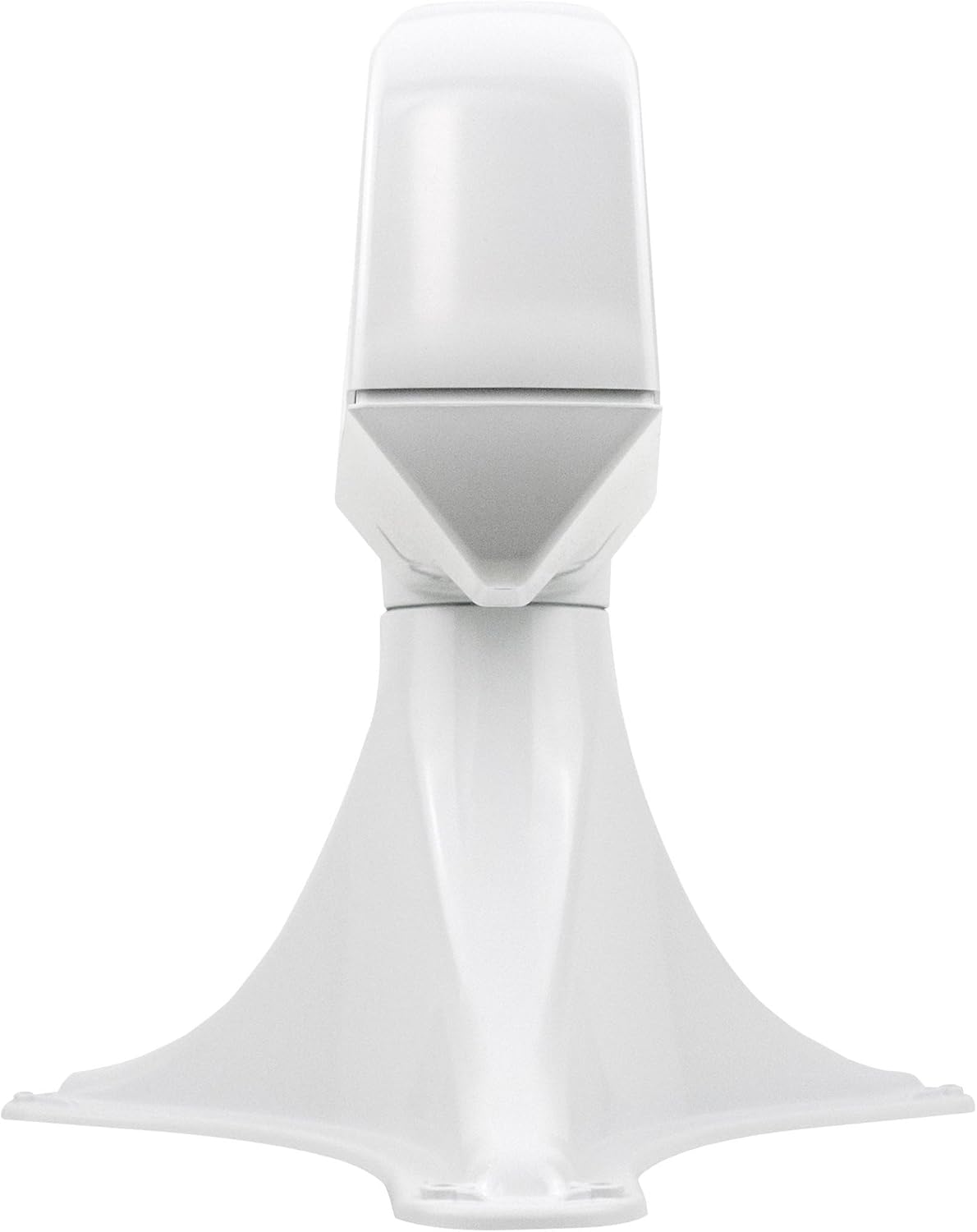
Bild: Seitenansichtfile of the KING Falcon antenna, highlighting its aerodynamic design.

Abbildung: Unterseite view of the KING Falcon antenna, showing the base and pre-drilled mounting holes for secure installation.
Komponenten anschließen
- Connect the cable from the KING Falcon antenna to the designated port on the Power Inserter.
- Connect the Power Inserter to the KING WiFiMax Router using the provided cable.
- Connect the appropriate power supply (12V or 9V) to the KING WiFiMax Router.
- Power on the KING WiFiMax Router. The LED indicator on the router will illuminate.

Bild: Eine Nahaufnahme view of a small electronic component, likely the power inserter, which facilitates power and data transfer between the antenna and router.
App-Based Setup (Initial Configuration)
- Download the free KING Wi-Fi app from your device's app store (Android or iOS).
- Connect your smartphone or tablet to the default Wi-Fi network broadcast by the KING WiFiMax Router (SSID and password typically found on the router's label).
- Open the KING Wi-Fi app and follow the on-screen prompts to scan for available Wi-Fi networks.
- Select the desired Wi-Fi network you wish to connect to (e.g., campground Wi-Fi, public hotspot).
- Geben Sie gegebenenfalls das Passwort für das ausgewählte Netzwerk ein.
- The app will guide the KING Falcon antenna to automatically point towards the strongest signal source.
- Once connected, the app will allow you to configure your private Wi-Fi network broadcast by the KING WiFiMax Router, including setting a custom SSID and password.
Bedienungsanleitung
Once the initial setup is complete, operating your KING KF1000 Falcon system is straightforward. The system is designed to automatically maintain a strong connection to your chosen Wi-Fi source and re-broadcast it as a secure, private network within your vehicle.
Anschließen Ihrer Geräte
After configuring your private Wi-Fi network via the KING Wi-Fi app, all your devices (smartphones, tablets, laptops, smart TVs) can connect to this single network using the custom SSID and password you set. This eliminates the need to connect each device individually to public Wi-Fi networks, simplifying connectivity and enhancing security.
Changing Wi-Fi Sources
When you move to a new location or wish to connect to a different Wi-Fi source:
- Open the KING Wi-Fi app on your smartphone or tablet.
- Navigate to the network scanning feature within the app.
- Select the new desired Wi-Fi network from the list of available networks.
- Enter the password for the new network, if required.
- The KING Falcon antenna will automatically re-point to optimize the signal from the new source.
- Your private network will remain active, and your devices will automatically reconnect.
Note: In some cases, especially after connecting to a new Wi-Fi source, a reboot of the KING WiFiMax Router may be required to ensure stable connectivity.
Wartung
The KING KF1000 Falcon system is designed for durability and minimal maintenance. However, periodic checks can help ensure optimal performance and longevity.
- Reinigung: Periodically clean the exterior of the KING Falcon antenna with a soft, damp Mit einem Tuch abwischen. Vermeiden Sie die Verwendung von scharfen Chemikalien oder Scheuermitteln, die die Oberfläche beschädigen könnten.
- Kabelinspektion: Annually inspect all external cables and connections for signs of wear, fraying, or damage. Ensure all connections are secure and weatherproofed.
- Firmware-Updates: Check the KING Wi-Fi app or the KING website for any available firmware updates for the KING WiFiMax Router. Keeping the firmware updated can improve performance and security.
- Antenna Movement: Ensure the antenna's movement mechanism is free from obstructions. Do not attempt to manually force the antenna to move.
Fehlerbehebung
If you encounter issues with your KING KF1000 Falcon system, refer to the following common troubleshooting steps:
| Problem | Mögliche Ursache | Lösung |
|---|---|---|
| No internet connection or very slow speeds. | Weak or poor quality source Wi-Fi signal; incorrect network selection; router issue. | Verify the strength and quality of the source Wi-Fi signal using another device. Ensure you have selected the correct network and entered the password accurately in the KING Wi-Fi app. Reboot the KING WiFiMax Router by unplugging it for 10 seconds and plugging it back in. |
| Devices cannot connect to the KING WiFiMax private network. | Incorrect private network password; router not broadcasting. | Double-check the SSID and password for your private network. Ensure the KING WiFiMax Router is powered on and its LED indicator is active. Try rebooting the router. |
| Antenna does not point or search for signals. | Power issue; app communication issue; physical obstruction. | Ensure the power inserter and router are correctly connected and powered. Close and reopen the KING Wi-Fi app. Check for any physical obstructions around the antenna on the roof. |
| Intermittent connection or frequent disconnections. | Weak source signal; interference; router overload. | Try repositioning your RV slightly if possible to improve signal strength. Ensure no other devices are causing significant interference. Reduce the number of devices actively streaming or downloading on your private network. |
If these steps do not resolve your issue, please refer to the official KING support resources or contact customer service.
Technische Daten
| Besonderheit | Detail |
|---|---|
| Modellname | Falke |
| Artikelmodellnummer | KF1000 |
| Marke | KÖNIG |
| Artikelgewicht | 2.7 Pfund (ca. 1.22 kg) |
| Technische Daten | 22.65 x 10.95 x 9.18 Zoll (ca. 57.5 x 27.8 x 23.3 cm) |
| Besonderheit | LED-Anzeige |
| Frequenzbandklasse | Dualband (2.4 GHz, 5 GHz) |
| Drahtloser Kommunikationsstandard | 2.4-GHz-Funkfrequenz, 5-GHz-Funkfrequenz |
| Kompatible Geräte | Router |
| Konnektivitätstechnologie | W-lan |
| Farbe | Weiß |
Garantie und Support
For detailed warranty information, please refer to the documentation included with your product or visit the official KING webDie Garantiebedingungen können je nach Website variieren.
Additional support resources, including FAQs, troubleshooting guides, and contact information for customer service, can be found on the KING website. You can also refer to the official User Manual PDF available online for more in-depth instructions: KING KF1000 User Manual (PDF).
Visit the KING Brand Store for more products and information: KING Store auf Amazon.


