Einführung
This manual provides essential information for the safe and efficient use of your AOC 22P1D 21.5-inch Full HD LED Monitor. Please read these instructions carefully before operating the device and retain them for future reference.
Sicherheitshinweise
Always observe the following safety precautions to prevent damage to the monitor and ensure personal safety:
- Um Brand- oder Stromschlaggefahren zu vermeiden, setzen Sie den Monitor weder Regen noch Feuchtigkeit aus.
- Öffnen Sie den Monitor nicht.asing. Im Inneren befinden sich keine vom Benutzer wartbaren Teile. Alle Wartungsarbeiten dürfen nur von qualifiziertem Servicepersonal durchgeführt werden.
- Stellen Sie den Monitor auf eine stabile, ebene Fläche, um zu verhindern, dass er herunterfällt.
- Sorgen Sie für ausreichende Belüftung um den Monitor herum. Blockieren Sie keine Lüftungsöffnungen.
- Verwenden Sie ausschließlich das mit dem Monitor gelieferte Netzkabel und Netzteil.
- Trennen Sie den Monitor bei Gewittern oder wenn er längere Zeit nicht benutzt wird vom Stromnetz.
Packungsinhalt
Überprüfen Sie, ob alle Artikel im Paket vorhanden sind:
- AOC 22P1D Monitor
- Monitorständer (Fuß und Hals)
- Stromkabel
- HDMI-Kabel
- VGA-Kabel
- Audiokabel (3.5 mm)
- User Manual (on CD, if applicable)
Installationsanweisungen
1. Zusammenbau des Ständers
Carefully remove the monitor and stand components from the packaging. Attach the stand neck to the monitor panel, then secure the base to the neck. Ensure all connections are firm.

Bild: Rückseite view of the AOC 22P1D monitor, showing the stand assembly point.
2. Monitor anschließen
Connect the necessary cables to the monitor and your computer. The AOC 22P1D supports HDMI and VGA inputs.
- Stromanschluss: Schließen Sie das Netzkabel an den Stromeingang des Monitors und anschließend an eine Wandsteckdose an.
- Videoanschluss (HDMI): Verbinden Sie ein Ende des HDMI-Kabels mit dem HDMI-Anschluss des Monitors und das andere Ende mit dem HDMI-Anschluss Ihres Computers.
- Videoanschluss (VGA): Alternatively, connect one end of the VGA cable to the VGA port on the monitor and the other end to the VGA port on your computer.
- Audioverbindung: If using VGA or a source without audio over HDMI, connect the 3.5mm audio cable from your computer's audio output to the monitor's audio input for sound through the monitor's built-in speakers.
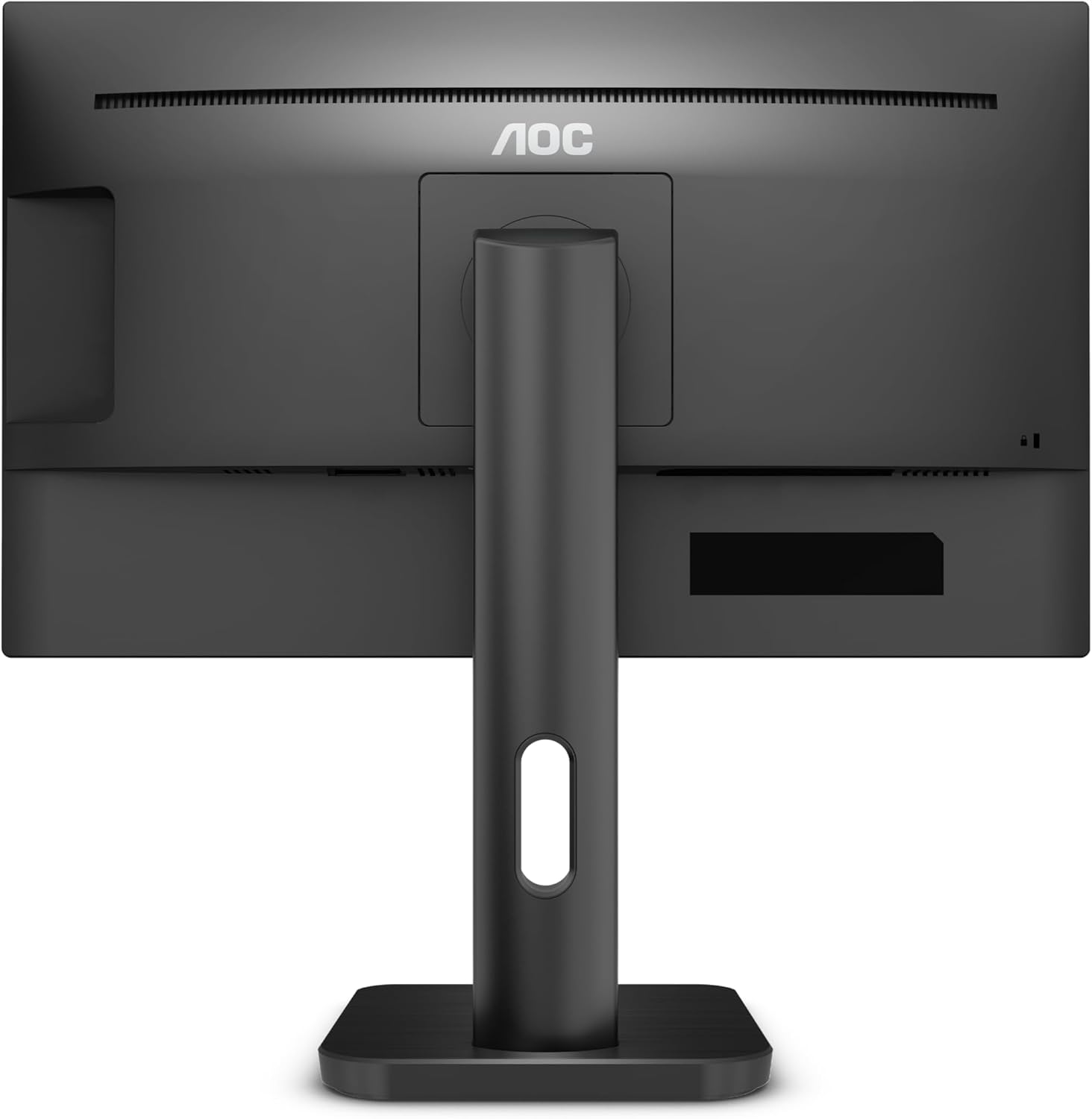
Bild: Rückseite view of the AOC 22P1D monitor, highlighting the various input ports for connectivity.
3. Erstes Einschalten
After connecting all cables, press the power button on the monitor to turn it on. The monitor will automatically detect the active input signal. If no signal is detected, ensure your computer is powered on and the correct input source is selected on the monitor.
Bedienungsanleitung
1. Ein-/Ausschalten
Drücken Sie den Netzschalter an der unteren rechten Ecke des Monitors, um ihn ein- oder auszuschalten.

Bild: Vorderseite view of the AOC 22P1D monitor, showing the power button location and key features.
2. Menünavigation über das Bildschirmdisplay (OSD).
Über das OSD-Menü können Sie verschiedene Monitoreinstellungen anpassen. Verwenden Sie die Steuerungstasten an der unteren rechten Ecke, um im Menü zu navigieren.
- Drücken Sie die Speisekarte Taste zum Öffnen des OSD.
- Verwenden Sie die Hoch/Runter Tasten zur Navigation durch die Menüoptionen.
- Drücken Sie die Wählen button to enter a sub-menu or confirm a setting.
- Drücken Sie die Ausfahrt button to go back or close the OSD.
3. Bildeinstellungen
Adjust the display quality to your preference:
- Helligkeit: Steuert die Gesamthelligkeit des Bildschirms.
- Kontrast: Passt den Unterschied zwischen hellen und dunklen Bereichen an.
- Farbtemperatur: Selects preset color modes (e.g., Warm, Cool, Normal) or custom RGB settings.
- Low Blue Mode: Reduziert die Blaulichtemission für mehr Augenkomfort.
- Flimmerfrei: Technology to reduce screen flickering.
4. Eingabeauswahl
If you have multiple devices connected, use the OSD menu or a dedicated input button to switch between HDMI and VGA inputs.
5. Audioeinstellungen
If using the monitor's built-in speakers, adjust the volume through the OSD menu. Ensure your computer's audio output is directed to the monitor.
Wartung
Reinigen des Monitors
To maintain optimal performance and appearance, follow these cleaning guidelines:
- Vor der Reinigung immer den Netzstecker des Monitors ziehen.
- Mit einem weichen, fusselfreien Tuch leichtampMit Wasser oder einem milden, nicht scheuernden Bildschirmreiniger abspülen.
- Sprühen Sie den Reiniger nicht direkt auf den Bildschirm. Tragen Sie ihn zuerst auf ein Tuch auf.
- Vermeiden Sie die Verwendung von Benzol, Verdünner, ammoniakhaltigen Reinigern oder Scheuermitteln, da diese den Bildschirm oder die Elektronik beschädigen können.asing.
- Wischen Sie den Bildschirm vorsichtig ab, um Staub und Fingerabdrücke zu entfernen.
Fehlerbehebung
Sollten Sie Probleme mit Ihrem Monitor haben, beachten Sie bitte die folgenden häufig auftretenden Probleme und Lösungen:
| Problem | Mögliche Ursache | Lösung |
|---|---|---|
| Kein Strom | Netzkabel nicht angeschlossen; Steckdose nicht aktiv. | Ensure power cable is securely connected to both monitor and outlet. Test outlet with another device. |
| Kein Signal | Videokabel nicht angeschlossen; Falsche Eingangsquelle ausgewählt; Computer nicht eingeschaltet. | Check video cable connections (HDMI/VGA). Select the correct input source via the OSD menu. Ensure computer is on and outputting video. |
| Schlechte Bildqualität | Incorrect resolution; Brightness/Contrast settings incorrect; Dirty screen. | Set display resolution to 1920x1080. Adjust brightness and contrast via OSD. Clean the screen as per maintenance instructions. |
| Kein Ton | Audio cable not connected (for VGA); Monitor volume too low; Computer audio output incorrect. | If using VGA, connect the 3.5mm audio cable. Increase monitor volume via OSD. Check computer's audio settings to ensure output is to the monitor. |
Technische Daten
Technical specifications for the AOC 22P1D monitor:
| Besonderheit | Spezifikation |
|---|---|
| Modellnummer | 22P1D |
| Bildschirmgröße | 21.5 Zoll |
| Display-Technologie | LED |
| Auflösung | 1920 x 1080 (Full HD) |
| Seitenverhältnis | 16:9 |
| Bildwiederholrate | 60 Hz |
| Ansprechzeit | 2 Millisekunden |
| Kontrastverhältnis | 1000:1 |
| Eingangsanschlüsse | 1x HDMI, 1x VGA |
| Eingebaute Lautsprecher | Ja |
| Farbe | Schwarz |
| Technische Daten | 50.6 x 19.8 x 50.4 cm |
| Artikelgewicht | 4.2 Kilogramm |
| Energieaufnahme | 22 Watt (typisch) |

Bild: Vorderseite view of the AOC 22P1D monitor with approximate dimensions shown.
Garantieinformationen
Your AOC 22P1D monitor comes with a standard manufacturer's warranty. Please refer to the warranty card included in your product packaging or visit the official AOC webAuf der Website finden Sie detaillierte Informationen zu Garantieumfang, -dauer und Serviceverfahren.
Kundenservice
For further assistance, technical support, or service inquiries, please contact AOC customer support. You can find contact information and additional resources on the official AOC webWebsite:
Please have your monitor's model number (22P1D) and serial number ready when contacting support.