Einführung
This manual provides instructions for the setup, operation, and maintenance of your ENHANCE Infiltrate Membrane Gaming Keyboard. This keyboard is designed for gaming, featuring quiet hybrid mechanical switches, customizable RGB lighting, and a spill-resistant design.

Bild: Abgewinkelt view of the ENHANCE Infiltrate Membrane Gaming Keyboard, showcasing its full layout and active RGB backlighting.
Aufstellen
- Auspacken: Nehmen Sie die Tastatur vorsichtig aus der Verpackung. Vergewissern Sie sich, dass alle Komponenten vorhanden sind.
- Verbindung: Connect the keyboard's USB cable to an available USB port on your computer.
- Treiberinstallation: Die Tastatur ist Plug-and-Play-fähig und benötigt in der Regel keine zusätzlichen Treiber. Ihr Betriebssystem sollte die erforderlichen Treiber automatisch erkennen und installieren.
- Platzierung: Position the keyboard comfortably on your desk. The integrated kickstands at the rear can be used to adjust the typing angle.
Bedienungsanleitung
Lichteffekte
The Infiltrate keyboard features customizable RGB backlighting with 7 static colors and 9 dynamic lighting effects. The transparent letters and symbols on each key ensure clear visibility in low-light conditions.
- Ändern der Lichteffekte: Drücken Sie die FN Taste + 1 durch 9 keys to cycle through the 9 dynamic lighting effects.
- Changing Static Colors: Drücken Sie die FN Taste + ~ (tilde) key to cycle through the 7 static color options.
- Anpassen der Helligkeit: Drücken Sie die FN Taste + Bild nach oben or Bild ab keys to increase or decrease the backlight brightness.
- Sound Response Mode: One of the dynamic effects is a Sound Response mode, where the keyboard's lighting pulses and changes color in response to audio input (music, in-game sounds).

Image: Close-up of the keyboard illustrating the FN key combinations for toggling LED effects, colors, and brightness.

Image: The keyboard positioned with external speakers, visually representing the sound response lighting feature where lights react to audio.
Multimedia and Gaming Features
- Multimedia-Tasten: The keyboard includes 12 quick-access multimedia keys (F1-F12 functions when combined with FN key) for controlling audio, video, and other system functions.
- Anti-Ghosting and 19-Key Rollover: Designed for precise input, the keyboard supports 19-key rollover and anti-ghosting, ensuring that multiple simultaneous key presses are registered accurately during intense gaming sessions.
- Hybrid Mechanical Switches: The keyboard utilizes hybrid mechanical switches, providing a tactile keystroke experience similar to mechanical keyboards but with reduced noise, suitable for environments where quiet operation is preferred.

Image: A graphic overlay on the keyboard highlighting its advanced features, including multiple color modes, lighting effects, anti-ghosting, and 19-key rollover.

Bild: Eine vergrößerte view of a keycap removed, revealing the hybrid mechanical switch mechanism underneath, designed for tactile yet quiet keystrokes.
Wartung
Spill and Dust Resistance
The ENHANCE Infiltrate keyboard features a special raised switch design and rear drainage ports, providing water and dust resistance. This design helps protect the internal components from accidental spills and dust accumulation.
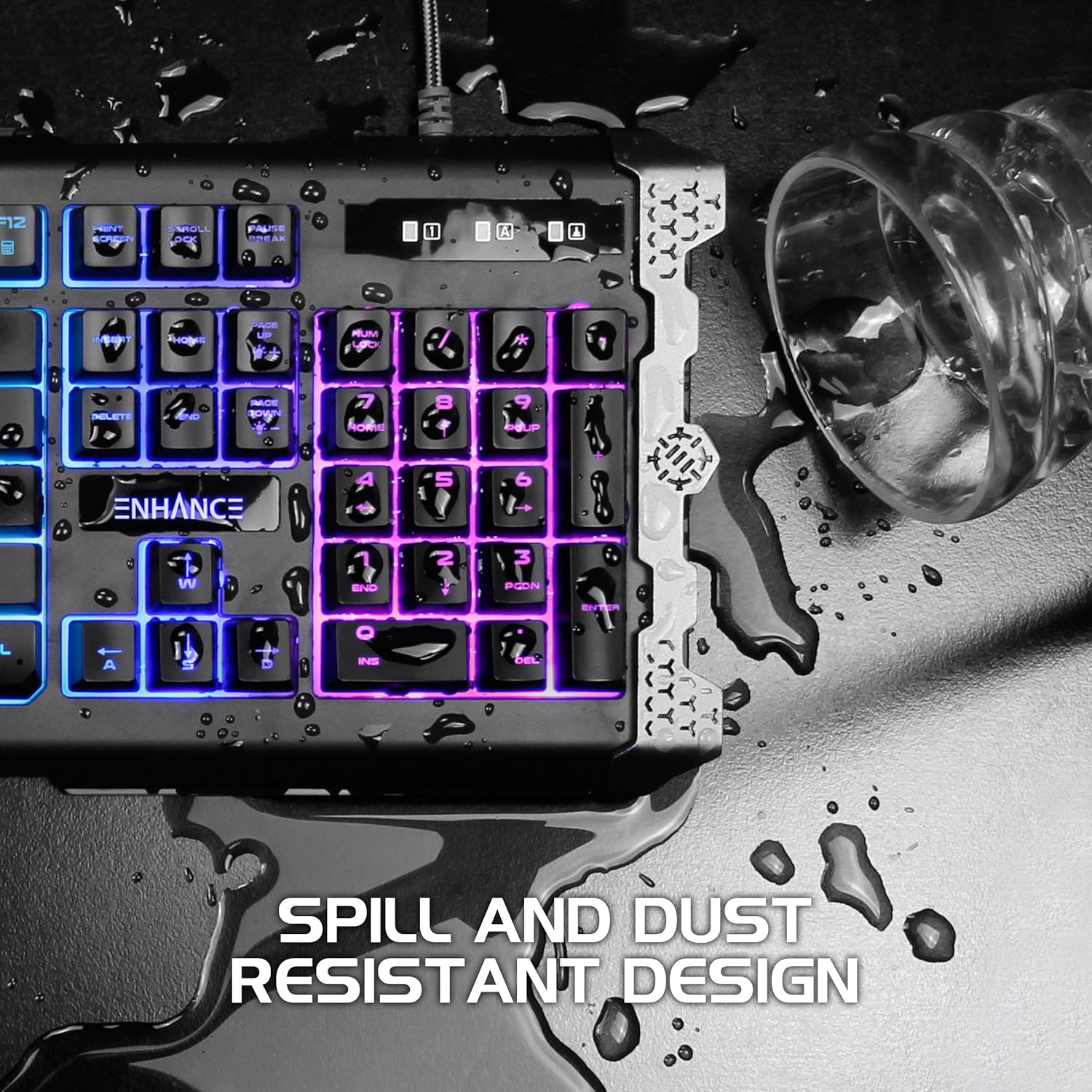
Image: The keyboard with water droplets on its surface, illustrating its spill-resistant design and drainage capabilities.
Reinigungshinweise
- Allgemeine Reinigung: Verwenden Sie ein weiches, trockenes Tuch, um die Tastaturoberfläche regelmäßig abzuwischen.
- Staubentfernung: Verwenden Sie Druckluft, um Staub und Schmutz zwischen den Tasten zu entfernen.
- Beseitigung von Verschmutzungen: In case of a liquid spill, immediately disconnect the keyboard from your computer. Gently wipe away the liquid with a clean cloth. Allow the keyboard to air dry completely before reconnecting. Do not use harsh chemicals or abrasive materials.
Fehlerbehebung
- Tastatur reagiert nicht:
- Stellen Sie sicher, dass das USB-Kabel sowohl mit der Tastatur als auch mit dem Computer fest verbunden ist.
- Versuchen Sie, die Tastatur an einen anderen USB-Anschluss anzuschließen.
- Starten Sie Ihren Computer neu.
- Test the keyboard on another computer to determine if the issue is with the keyboard or the computer's port/drivers.
- Backlighting Not Working or Inconsistent:
- Ensure the backlight brightness is not set to the lowest level (use FN + Page Up).
- Cycle through different lighting effects and colors (FN + 1-9, FN + ~) to see if the issue persists across all modes.
- If specific keys or sections of the lighting are consistently out, this may indicate a hardware issue.
- Schlüssel werden nicht registriert:
- Prüfen Sie, ob sich unter der Tastenkappe physische Hindernisse befinden.
- Clean the keyboard as per the maintenance instructions.
- If only specific keys are affected, it might be a hardware malfunction.
Technische Daten
| Besonderheit | Detail |
|---|---|
| Marke | ERWEITERN |
| Modellnummer | ENINKNL100BKUS |
| Hardware-Plattform | PC |
| Konnektivitätstechnologie | USB |
| Tastaturbeschreibung | Spiele |
| Besonderheit | Auslaufsicher |
| Tastatur Hintergrundbeleuchtung | RGB (7 colors, 9 dynamic effects) |
| Schlüssel-Rollover | 19-Tasten-Rollover |
| Anti-Ghosting | Ja |
| Schaltertyp | Hybrid Mechanical Membrane |
| Material | Metal Accents |
| Artikelgewicht | 1.84 Pfund |
| Produktabmessungen (L x B x H) | 18.75 x 6.75 x 2 Zoll |
Garantie
The ENHANCE Infiltrate Membrane Gaming Keyboard comes with a 3 Jahr HerstellergarantieDiese Garantie deckt Material- und Verarbeitungsfehler bei normalem Gebrauch ab. Bitte bewahren Sie Ihren Kaufbeleg für Garantieansprüche auf.
For detailed warranty terms and conditions, please refer to the official ENHANCE webWebsite oder wenden Sie sich an den Kundendienst.
Unterstützung
If you encounter any issues not covered in this manual or require further assistance, please contact ENHANCE customer support.
- Online-Ressourcen: Visit the official ENHANCE webWebsite mit häufig gestellten Fragen, aktualisierten Handbüchern und Supportartikeln.
- Kontaktinformationen: Refer to the product packaging or the ENHANCE website for the most current customer service contact details (phone, email, or support portal).
Weitere Informationen
Dieses Produkt stammt von einer kleinen Unternehmensmarke. Wir freuen uns über Ihre Unterstützung.


