1. Einführung und Endeview
The Zoom LiveTrak L-20 is a 20-channel digital mixer designed for live sound, studio recording, and podcasting. It integrates a 24-bit/96kHz 22-track recorder, a 22-in/4-out USB audio interface, 6 independent monitor outputs, 3-band EQ, and 20 built-in effects. This manual provides essential information for setting up, operating, maintaining, and troubleshooting your L-20 unit.
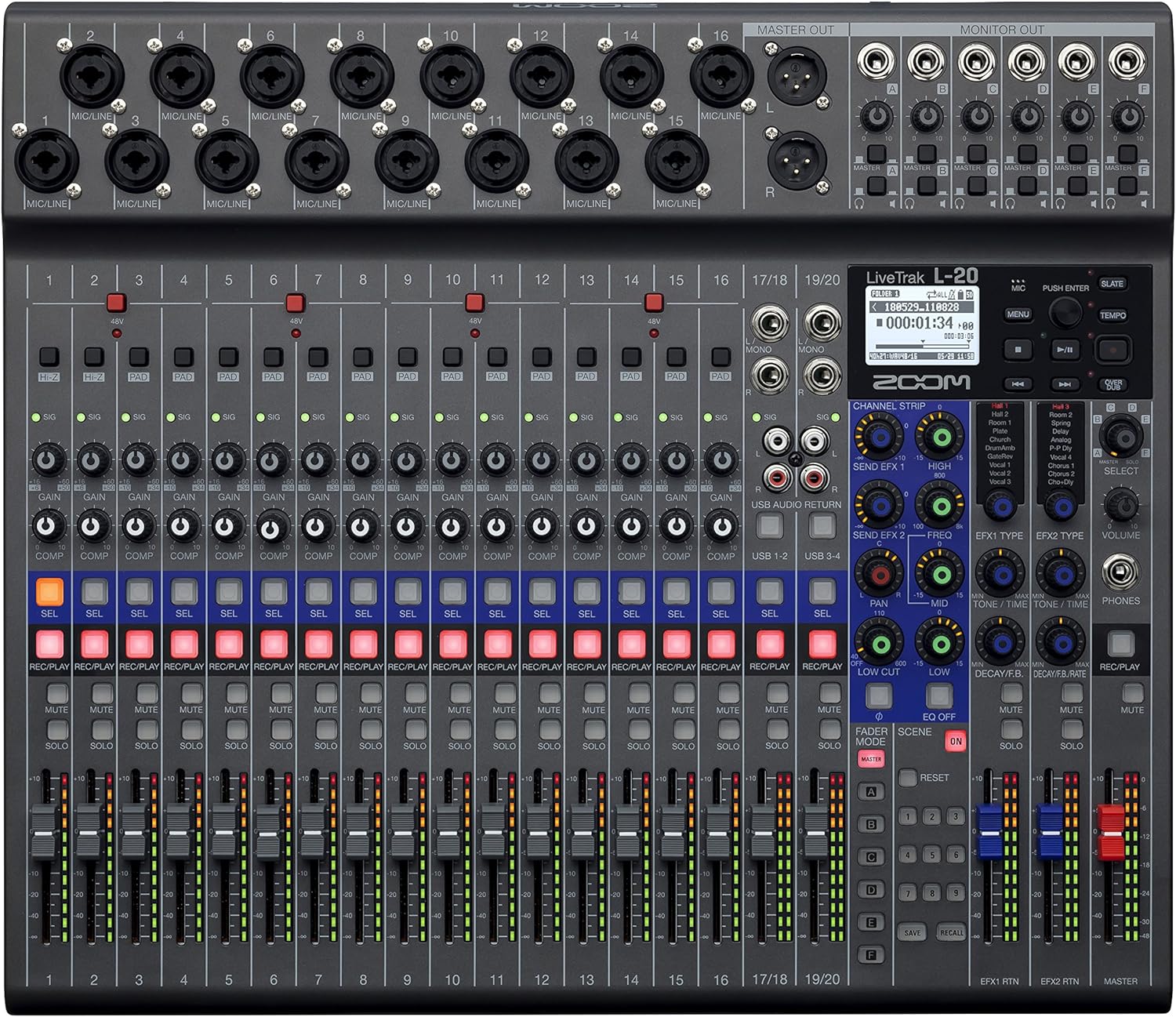
Abbildung 1: Vorderseite view of the Zoom LiveTrak L-20 Digital Mixer, showcasing its comprehensive control surface.
Hauptmerkmale:
- Überlegene Klangqualität: Experience pristine audio with 44.1/48/96 kHz sampling, ensuring every recording captures the nuances of your performance with exceptional clarity and depth.
- Vielseitige Konnektivität: Seamlessly integrate with various devices using USB 2.0 for audio interface capabilities, offering 22-channel recording and 4-channel playback for flexible workflow.
- Intuitive Steuerung: Navigate effortlessly with the LCD backlight display (128 x 64 resolution), providing clear visual feedback for settings and levels, enhancing your mixing experience.
- Expanded Input Options: Accommodate diverse audio sources with 16 mono (MIC/LINE) inputs and 2 stereo (LINE) inputs, offering XLR/TRS combo jacks and selectable Hi-Z input for instruments.
- Robust Recording Capabilities: Capture every moment with up to 22 simultaneous recording tracks at high resolution (96 kHz), ensuring no detail is missed during live performances or studio sessions.
2. Einrichtung
2.1 Auspacken und erste Inspektion
Upon receiving your Zoom LiveTrak L-20, carefully unpack all components. The package typically includes the L-20 unit and an AC Adapter. Inspect the unit for any signs of damage during transit. Ensure all listed accessories are present.
2.2 Stromversorgung anschließen
Connect the supplied AC adapter to the DC IN 12V port on the rear panel of the L-20 and plug it into a suitable power outlet. Use the POWER switch to turn the unit on or off.
2.3 Ein- und Ausgangsanschlüsse
The L-20 offers extensive connectivity options:
- Mikrofon-/Line-Eingänge (Kanäle 1-16): These channels feature XLR/TRS combo jacks, accommodating both microphones and line-level instruments. Channels 1-2 also offer selectable Hi-Z input for direct connection of guitars or basses.
- Stereo Line Inputs (Channels 17/18, 19/20): These inputs are suitable for stereo line-level sources such as keyboards or media players.
- Master-Ausgang: XLR outputs for connecting to main PA systems or studio monitors.
- Monitor Outputs (A-F): Six independent TRS outputs for connecting to personal monitor systems or headphones, allowing for customized mixes for each performer.
- USB-Anschlüsse: USB Host port for connecting flash drives and a USB 2.0 port for computer connectivity (audio interface mode).
- SD-Kartensteckplatz: For multitrack recording directly to an SD card.
- Fußschalter-Eingang: Allows connection of an optional foot switch for remote control of certain functions, such as punch-in/out for recording.

Figure 2: Rear panel connections of the Zoom LiveTrak L-20, detailing various input and output options.
2.4 Einlegen der SD-Karte
Insert a compatible SD card (up to 512GB) into the SD card slot on the front panel. The L-20 supports SD, SDHC, and SDXC cards. Ensure the card is formatted correctly by the L-20 before recording.
2.5 Bluetooth-Fernbedienung
The L-20 includes a Bluetooth remote adapter. Insert this adapter into the 'REMOTE' port on the front panel. This enables wireless control of the L-20 via a dedicated application on a compatible device (e.g., iPad).
3. Bedienungsanleitung
3.1 Kanalsteuerung
Each channel on the L-20 features dedicated controls for optimal sound shaping:
- Gain-Regler: Adjusts the input level for each channel.
- PAD-Taste: Attenuates the input signal by 26dB for high-level sources.
- COMP (Compressor) Knob: Applies compression to the input signal, helping to control dynamics.
- 3-Band-EQ: High, Mid, and Low frequency controls to shape the tone of each channel.
- SEND EFX: Controls the amount of signal sent to the built-in effects processor.
- SCHWENKEN: Adjusts the stereo position of the channel.
- REC/PLAY Button: Engages recording or playback for the individual track.
- MUTE-Taste: Schaltet den Kanal stumm.
- SOLO Button: Isolates the channel for monitoring.
- Fader: Controls the output level of the channel.
3.2 Multitrack Recording
The L-20 can record up to 22 tracks simultaneously to an SD card. To begin recording:
- Ensure an SD card is inserted and formatted.
- Drücken Sie die AUFNAHME/WIEDERGABE button on each channel you wish to record. The button will illuminate red.
- Drücken Sie die Haupttaste AUFNAHME button (red circle) in the master section to start recording.
- Drücken Sie die SPIELEN Schaltfläche, um die Aufnahme zu stoppen.
3.3 Monitor Mixes
The L-20 provides 6 independent monitor mixes (A-F). Each mix can be customized for individual performers:
- Select the desired monitor mix (A-F) using the dedicated buttons.
- Adjust the level of each channel within that specific monitor mix using the channel's SCHICKEN Knopf.
- Connect headphones or in-ear monitors to the corresponding monitor output.
3.4 Built-in Effects
The L-20 features 20 built-in effects. To apply effects:
- Verwenden Sie die EFX-TYP knob to select the desired effect.
- Passen Sie die EFX-RÜCKGABE level to control the overall effect amount.
- Verwenden Sie die SEND EFX knob on individual channels to send signal to the effects processor.
3.5 USB Audio Interface Mode
The L-20 can function as a 22-in/4-out USB audio interface for your computer (Mac/PC/iOS). Use the GERÄTEMODUS switch to select between HOST (for flash drives) and DEVICE (for computer connection). The CLASS COMPLIANT MODE switch allows for driverless operation with iOS devices.
Video 1: Produktübergabeview of the Zoom LiveTrak L-20. This video demonstrates the key features and operational aspects of the mixer, including inputs, outputs, and controls.
Video 2: Ausführliche Informationenview of the Zoom LiveTrak L-20 Digital Mixer and Multitrack Recorder. This video focuses on the recording features, input channels, and overall design.
4. Wartung
4.1 Reinigung
Regularly clean the surface of the L-20 with a soft, dry cloth. For stubborn dirt, use a slightly damp cloth with a mild, non-abrasive cleaner. Avoid using harsh chemicals or solvents, as these can damage the finish and electronic components. Ensure no liquids enter the unit.
4.2 Speicherung
When not in use, store the L-20 in a cool, dry place away from direct sunlight, extreme temperatures, and high humidity. Protect the unit from dust by covering it with a dust cover or storing it in its original packaging or a suitable carrying case.
4.3 Firmware-Updates
Überprüfen Sie regelmäßig die offizielle Zoom-Website. website for firmware updates. Keeping your L-20's firmware up-to-date ensures optimal performance, new features, and bug fixes. Follow the instructions provided by Zoom carefully when performing updates.
5. Fehlerbehebung
This section addresses common issues you might encounter with your Zoom LiveTrak L-20.
5.1 Kein Strom
- Ensure the AC adapter is securely connected to both the L-20 and a working power outlet.
- Prüfen Sie, ob sich der Netzschalter in der Position „EIN“ befindet.
- Testen Sie die Steckdose mit einem anderen Gerät, um sicherzustellen, dass sie funktionsfähig ist.
5.2 Keine Tonausgabe
- Überprüfen Sie alle Kabelverbindungen von den Eingängen zu den Ausgängen.
- Ensure channel faders and the master fader are raised.
- Verify that channels are not muted or soloed incorrectly.
- Check the gain settings for each channel to ensure adequate input level.
- Confirm that monitor mixes are correctly configured and their output levels are sufficient.
5.3 Aufnahmeprobleme
- Ensure a compatible SD card is inserted and properly formatted.
- Check the available space on the SD card.
- Überprüfen Sie, ob die AUFNAHME/WIEDERGABE button is illuminated red for the desired tracks before pressing the main AUFNAHME Taste.
- If using as a USB audio interface, ensure the correct drivers are installed (if required by your OS) and the L-20 is selected as the audio input/output device in your DAW.
5.4 Bluetooth Connectivity Problems
- Ensure the Bluetooth remote adapter is securely inserted into the 'REMOTE' port.
- Verify Bluetooth is enabled on your controlling device (e.g., iPad).
- Restart both the L-20 and your controlling device.
- Ensure the controlling app is up-to-date.
6. Spezifikationen
| Besonderheit | Spezifikation |
|---|---|
| Artikelgewicht | 9.8 Unzen (0.28 kg) |
| Technische Daten | 17.5 x 15.3 x 3.25 Zoll (44.45 x 38.86 x 8.26 cm) |
| Artikelmodellnummer | L-20 |
| Anzahl der Kanäle | 20 |
| Stromquelle | Kabelgebundene Elektrik |
| Konnektivitätstechnologie | USB |
| Sampling Frequenz | 44.1/48/96 kHz |
| Aufnahmespuren | Up to 22 simultaneous tracks |
| Monitorausgänge | 6 unabhängige Ausgänge |
| Eingebaute Effekte | 20 Typen |
7. Garantieinformationen
The Zoom LiveTrak L-20 typically comes with a manufacturer's warranty. For detailed information regarding warranty coverage, duration, and terms, please refer to the warranty card included with your product or visit the official Zoom webBewahren Sie Ihren Kaufbeleg für Garantieansprüche auf.
8. Unterstützung und Kontakt
For further assistance, technical support, or to download the latest drivers and firmware, please visit the official Zoom support website. You can also find FAQs and community forums for additional help.
Official Zoom WebWebsite: www.zoom.co.jp


