Einführung
Welcome to the user manual for your Google Pixel 3 smartphone. This guide provides comprehensive instructions on setting up, operating, maintaining, and troubleshooting your device. The Google Pixel 3 is designed to offer a seamless and intelligent smartphone experience, featuring an advanced camera system, the Google Assistant, and an all-day battery.
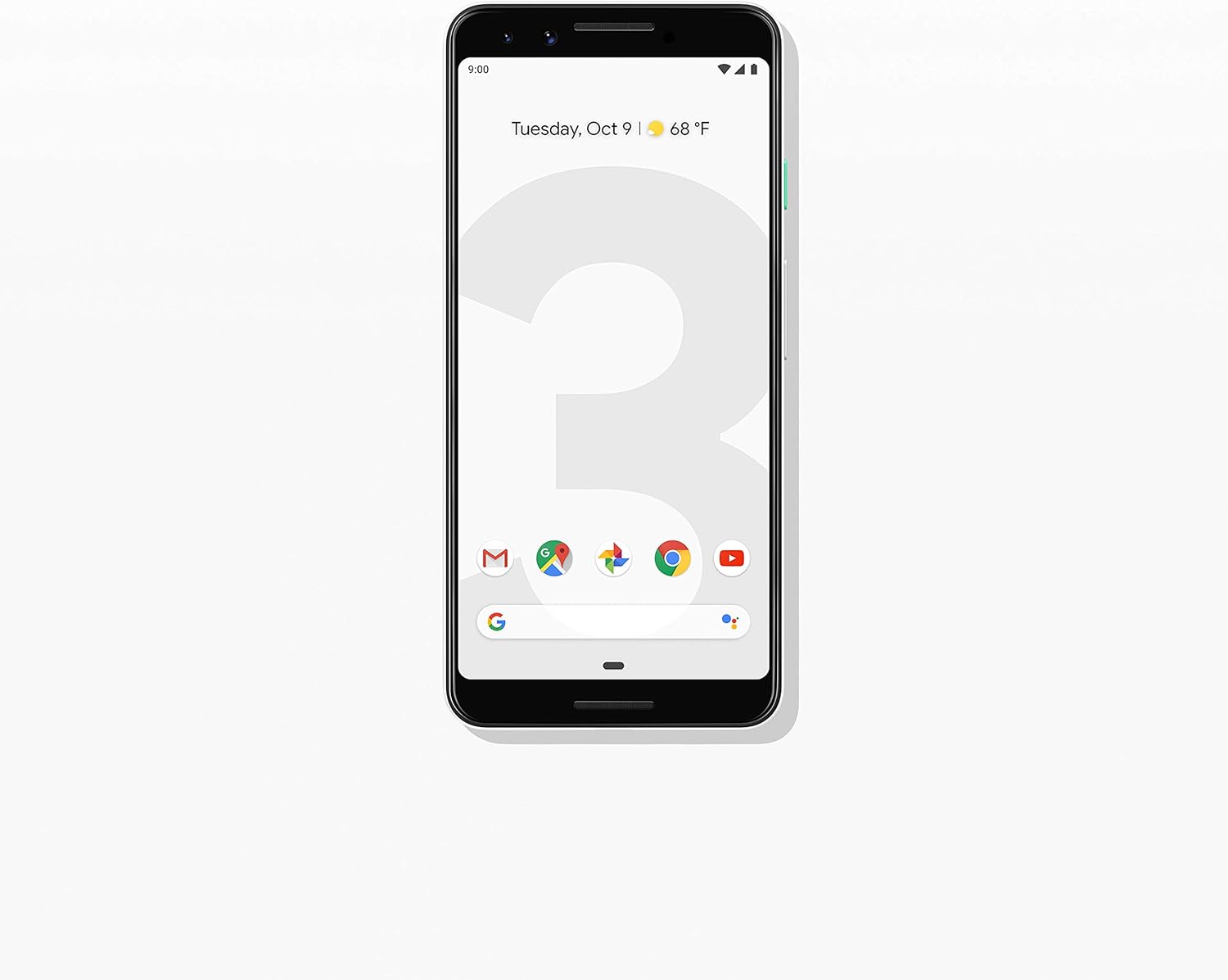
Bild: Vorderseite view of the Google Pixel 3 smartphone, showcasing its display and sleek design in Clearly White.
Aufstellen
1. Auspacken und erste Inspektion
Upon opening the package, ensure all components are present and in good condition. The standard package for your Google Pixel 3 includes:
- Google Pixel 3 Smartphone
- USB-C digital earbud
- USB-C-auf-USB-C-Kabel
- USB-C to 3.5mm headphone adapter
- Schnellwechseladapter (USB-A auf USB-C)
- SIM-Tool
2. SIM-Karteninstallation
So installieren Sie Ihre Nano-SIM-Karte:
- Suchen Sie den SIM-Karten-Einschub auf der linken Seite des Telefons.
- Insert the SIM tool into the small hole on the tray to eject it.
- Legen Sie Ihre Nano-SIM-Karte mit den goldenen Kontakten nach unten in den Kartenhalter ein.
- Drücken Sie die Ablage vorsichtig wieder in das Telefon, bis sie einrastet.

Abbildung: Seite view of the Google Pixel 3, highlighting the location of the SIM card tray and volume/power buttons.
3. Ersteinrichtungsassistent
Press and hold the power button on the right side of the phone until the Google logo appears. Follow the on-screen instructions to complete the initial setup, including connecting to Wi-Fi, signing in with your Google account, and setting up security features.
4. Aufladen des Geräts
Connect the USB-C cable to the phone's charging port at the bottom and the other end to the power adapter. Plug the adapter into a wall outlet. The Pixel 3 supports fast charging and wireless charging. A full charge typically takes approximately 2 hours.
Bedienungsanleitung
1. Basic Navigation (Android 9 Pie)
The Google Pixel 3 runs on Android 9 Pie, offering intuitive gesture navigation.
- Startbildschirm: Wischen Sie vom unteren Bildschirmrand nach oben, um zum Startbildschirm zu gelangen.
- App-Schublade: Swipe up from the home screen to access all your applications.
- Aktuelle Apps: Vom unteren Rand nach oben wischen und gedrückt halten view kürzlich verwendete Apps.
- Zurück: Tap the back arrow icon or swipe from the left or right edge of the screen (if gesture navigation is enabled).
- Benachrichtigungen: Wischen Sie vom oberen Bildschirmrand nach unten zu view Benachrichtigungen und Schnelleinstellungen.

Image: The Google Pixel 3 display showing the home screen with various app icons and the date/weather widget.
2. Kamerafunktionen
The Pixel 3 camera is equipped with advanced features to capture high-quality photos and videos.
- Group Selfies: Utilize the wide-angle front camera to fit more people into your selfies.
- Portraitmodus: Create professional-looking photos with a blurred background (bokeh effect).
- Top Shot: Automatically recommends the best shot from a burst of photos, ensuring no blinks or missed moments.
- Nachtsicht: Enhances low-light photography, capturing vibrant details in dark environments.
- 4K-Videoaufnahme: Record high-resolution videos at 30 frames per second.
3. Google Assistant
Access the Google Assistant by squeezing the sides of your phone or by saying "Hey Google" or "Ok Google." The Assistant can help with tasks such as setting alarms, getting directions, making calls, sending messages, and providing information.
4. Call Screening
The Call Screen feature allows the Google Assistant to answer calls from unknown numbers and provide a real-time transcription of the conversation, helping you avoid spam and nuisance calls.
5. Digital Wellbeing
Monitor and manage your screen time with Digital Wellbeing. Set app timers, enable Wind Down mode to grayscale your screen and mute notifications for better sleep, and focus on what matters.
6. Google Lens
Use Google Lens to search what you see. Point your camera at objects, text, or landmarks to get information, translate languages, or identify plants and animals.
Wartung
1. Batteriepflege
To maximize battery life (2915 mAh capacity):
- Vermeiden Sie extreme Temperaturen.
- Use the provided charger or a certified wireless charger.
- Enable Adaptive Battery in settings to limit battery usage for infrequently used apps.
- Consider using Battery Saver mode when battery is low.
2. Software-Updates
Halten Sie die Software Ihres Geräts auf dem neuesten Stand, um optimale Leistung, Sicherheit und Zugriff auf neue Funktionen zu gewährleisten. Navigieren Sie zu Einstellungen > System > Erweitert > Systemaktualisierung um nach Updates zu suchen und diese zu installieren.
3. Reinigen Ihres Geräts
Use a soft, lint-free cloth to clean the screen and body of your Pixel 3. Avoid abrasive materials or harsh chemicals. For stubborn smudges, slightly dampspülen Sie das Tuch mit Wasser aus.
4. Speicherverwaltung
The Pixel 3 comes with 64GB of internal storage. To manage storage effectively:
- Regularly clear app caches.
- Unnötiges löschen files, Fotos und Videos.
- Utilize cloud storage services like Google Photos (which offers free unlimited storage for Pixel users at original quality for photos and videos uploaded from the device).
Fehlerbehebung
This section addresses common issues you might encounter with your Google Pixel 3.
| Problem | Lösung |
|---|---|
| Telefon lässt sich nicht einschalten | Ensure the battery is charged. Connect to a charger for at least 15 minutes. If unresponsive, press and hold the power button for 30 seconds. |
| Schlechte Akkulaufzeit | Check battery usage in settings to identify draining apps. Reduce screen brightness, disable unnecessary features (Bluetooth, GPS when not in use), and enable Adaptive Battery. |
| Apps stürzen ab oder frieren ein | Löschen Sie den Cache und die Daten der App (Settings > Apps & notifications > App info > [App Name] > Storage & cache). Update the app or reinstall it. Ensure system software is up to date. |
| Verbindungsprobleme (WLAN/Bluetooth) | Toggle Wi-Fi/Bluetooth off and on. Restart the phone. Forget and reconnect to the network/device. Reset network settings (Settings > System > Advanced > Reset options > Reset Wi-Fi, mobile & Bluetooth). |
| Das Telefon reagiert langsam oder gar nicht. | Restart the phone. Clear cached data. Uninstall unused apps. Check for system updates. As a last resort, consider a factory reset (back up data first). |
Werksrücksetzung
A factory reset will erase all data from your phone's internal storage. Sichern Sie alle wichtigen Daten, bevor Sie fortfahren.
- Gehe zu Settings > System > Advanced > Reset options.
- Klopfen Alle Daten löschen (Werksreset).
- Bestätigen Sie Ihre Entscheidung und geben Sie gegebenenfalls Ihre PIN/Ihr Entsperrmuster/Ihr Passwort ein.
- Klopfen Alle Daten löschen.
Technische Daten
Key technical specifications for the Google Pixel 3 (Model: G013A):
| Besonderheit | Detail |
|---|---|
| Technische Daten | 5.73 x 2.69 x 0.31 Zoll |
| Artikelgewicht | 12.8 Unzen |
| Betriebssystem | Android 9.0 Pie |
| RAM | 4 GB |
| Speicherkapazität | 64 GB |
| Bildschirmgröße | 5.5 Zoll |
| Auflösung | 2560 x 1440 |
| Batteriekapazität | 2915 Milliamp Std |
| Ladezeit | 2 Stunden (ca.) |
| Konnektivitätstechnologien | Bluetooth, 4G-Mobilfunk |
| Besondere Merkmale | 4K Video Recording, GPS |
| Farbe | Klar Weiß |
Garantie und Support
Your Google Pixel 3 is covered by a limited warranty provided by Google LLC. For detailed warranty terms and conditions, please refer to the warranty information included with your device packaging or visit the official Google support webWebsite.
Kontaktaufnahme mit dem Support
For technical assistance, troubleshooting beyond this manual, or warranty claims, please contact Google Support:
- Online-Hilfe: Besuchen support.google.com/pixelphone
- Community-Foren: Engage with other Pixel users and experts on Google's official forums.
When contacting support, please have your device's model number (G013A) and serial number ready.


