1. Einleitung
This manual provides essential information for the proper use and care of your BoxWave Micro USB DuraCable. This cable is designed for both charging and data synchronization of devices equipped with a Micro USB port, such as the Huawei E5577Cs-321 Mobible WiFi Hotspot. Its durable braided nylon construction and reinforced strain reliefs ensure longevity and reliable performance.
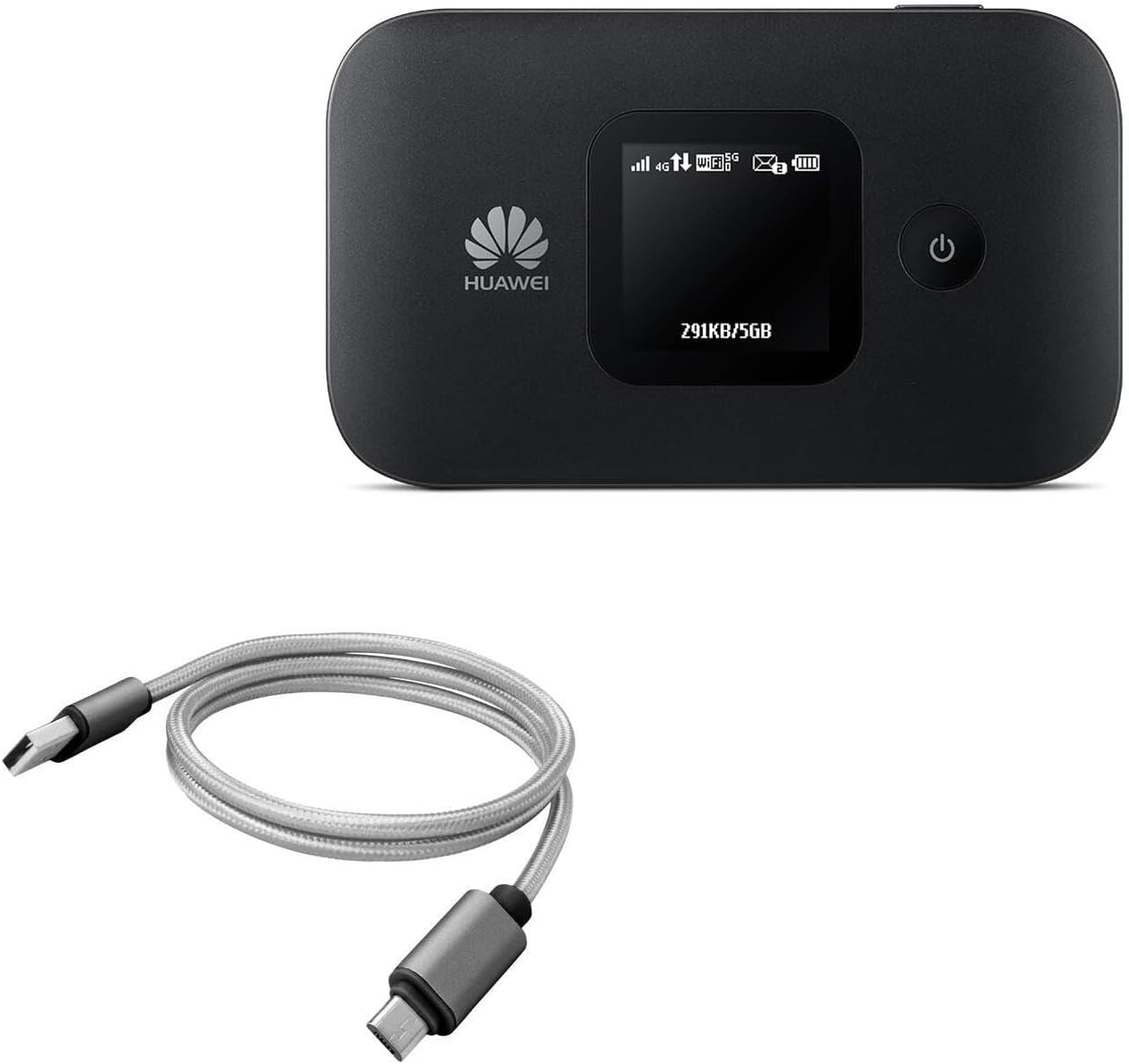
Image 1.1: The BoxWave Micro USB DuraCable shown alongside a compatible Huawei E5577Cs-321 Mobible WiFi Hotspot, illustrating its intended use.
2. Funktionen
- 100% Compatible: Features USB 2.0 standards for easy syncing and charging compatibility with Micro USB devices.
- Stability and Strength: Constructed with durable braided nylon to prevent kinking or splitting, enhanced with rubberized grommet strain reliefs for added durability.
- Optimale Länge: A 3-foot cable provides flexibility for various charging and syncing scenarios.
- Universelle Konnektivität: The standard USB-A connector can be used with any compatible USB port or charger.
- Doppelfunktionsdesign: Combines both data synchronization and charging capabilities into a single, convenient cable.

Image 2.1: The DuraCable in use, demonstrating its ability to charge a smartphone while connected to a laptop for data synchronization.
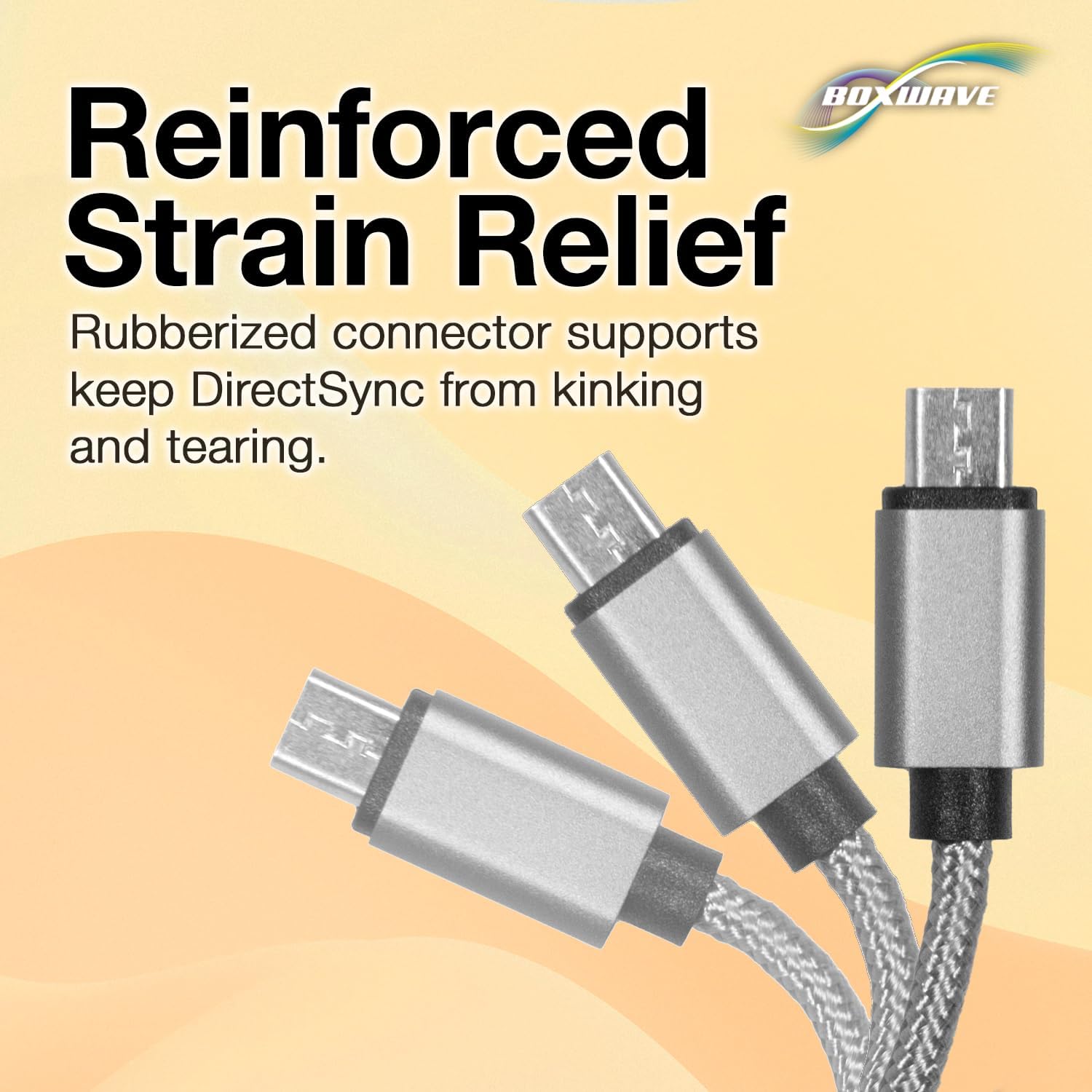
Abbildung 2.2: Eine detaillierte view of the cable's braided nylon exterior, highlighting its durable and tangle-resistant design.

Image 2.3: An illustration of the reinforced strain relief at the connector points, designed to prevent kinking and tearing.
3. Einrichtung
The BoxWave Micro USB DuraCable is designed for plug-and-play functionality. No software installation is required for basic operation.
3.1 Anschließen zum Laden
- Identify the Micro USB port on your device. This is typically a small, trapezoidal port.
- Gently insert the Micro USB end of the DuraCable into your device's Micro USB port. Ensure the connector is oriented correctly to avoid damage.
- Insert the standard USB-A end of the DuraCable into a compatible USB power source, such as a wall adapter, car charger, or computer USB port.
- Ihr Gerät sollte anzeigen, dass es geladen wird.
3.2 Connecting for Data Synchronization
- Connect the Micro USB end of the DuraCable to your device.
- Connect the standard USB-A end of the DuraCable to a USB port on your computer.
- Your computer should recognize the connected device. Follow any on-screen prompts on your computer or device to enable data transfer mode, if necessary.
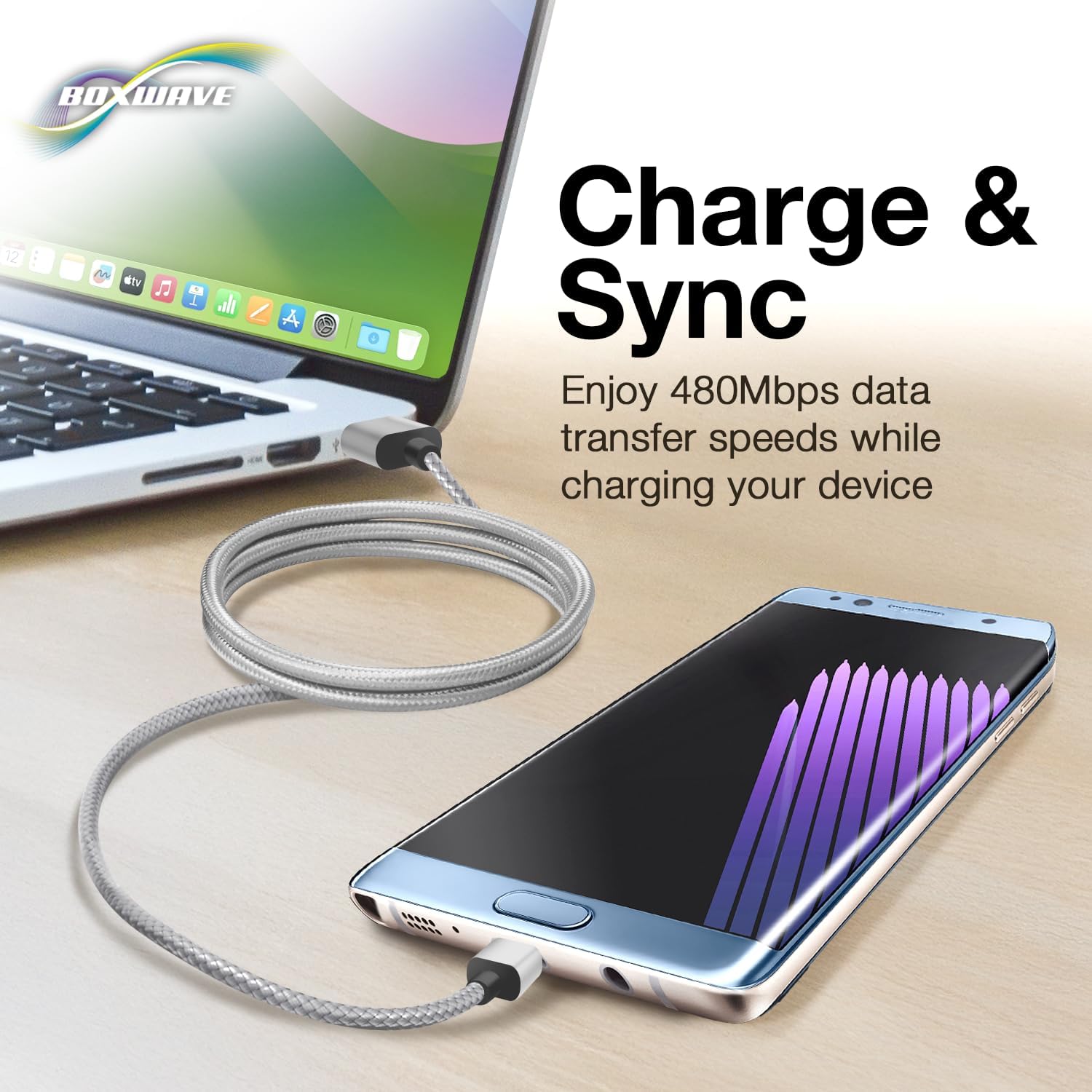
Image 3.1: A clear depiction of the USB-A and Micro USB connectors on the cable, aiding in proper identification for connection.
4. Bedienungsanleitung
Once connected, the DuraCable facilitates both power delivery and data communication simultaneously.
4.1 Laden
The cable will deliver power from the USB source to your Micro USB device. Charging speed may vary depending on the power output of the USB source and the device's charging capabilities.
4.2 Datensynchronisation
When connected to a computer, the cable enables data transfer at USB 2.0 speeds (up to 480 Mbps). You can transfer files, photos, videos, and other data between your device and computer. Ensure your device's settings allow for data transfer when prompted by your computer.
5. Wartung
Proper care will extend the life of your BoxWave Micro USB DuraCable.
- Lagerung: Store the cable in a cool, dry place away from direct sunlight and extreme temperatures. Avoid tightly coiling or bending the cable at sharp angles, especially near the connectors.
- Reinigung: If the cable becomes dirty, gently wipe it with a soft, dry cloth. Do not use harsh chemicals or abrasive cleaners.
- Handhabung: Always grasp the connector head when plugging or unplugging the cable. Avoid pulling directly on the cable itself, as this can damage the internal wires or strain reliefs.
- Inspektion: Periodically inspect the cable and connectors for any signs of wear, fraying, or damage. Discontinue use if damage is observed.
6. Fehlerbehebung
If you encounter issues with your DuraCable, refer to the following common problems and solutions:
| Problem | Mögliche Ursache | Lösung |
|---|---|---|
| Gerät lädt nicht | Loose connection; Faulty power source; Damaged cable; Device issue | Ensure both ends of the cable are securely connected. Try a different USB port or power adapter. Inspect the cable for visible damage. Test with another device if possible. |
| Gerät synchronisiert keine Daten | Loose connection; Device not in data transfer mode; Driver issues on computer; Damaged cable | Verify secure connections. Check your device's settings to ensure it's set to data transfer mode (e.g., MTP, File Transfer). Try a different USB port on your computer. Update or reinstall USB drivers on your computer. |
| Das Kabel scheint beschädigt zu sein. | Physical stress; Manufacturing defect | Discontinue use immediately to prevent potential damage to your devices. Contact BoxWave support if within the return period. |
7. Spezifikationen
| Attribut | Detail |
|---|---|
| Marke | BoxWave |
| Steckertyp | Micro USB, USB 2.0 |
| Kabeltyp | USB |
| Farbe | Space Grau |
| Connector-Geschlecht | Mann-zu-Mann |
| Form | Runden |
| Einheitenanzahl | 1.0 Anzahl |
| Artikelgewicht | 0.7 Unzen |
| Verwendung im Innen- und Außenbereich | Innenbereich, Außenbereich |
| Hersteller | BoxWave |
| ASIN | B07RG6MNTW |
| Datum der ersten Verfügbarkeit | 29. April 2019 |
8. Garantie und Support
This product is subject to a 30-day return policy from the date of purchase, allowing for a refund or replacement. For technical assistance, limited 3rd party tech support is available (up to 3 inquiries via messaging). Please note that this support is not affiliated with or endorsed by Huawei.
For further assistance or to inquire about product support, please refer to the seller's contact information on the platform where the product was purchased.


