1. Einleitung
The Xiaomi Mi Router 4A Gigabit Edition (Model: R4AC) is a high-performance dual-band wireless router designed for home and small office environments. It features Gigabit Ethernet ports and supports both 2.4GHz and 5GHz Wi-Fi bands, providing fast and stable internet connectivity for multiple devices. This manual provides detailed instructions for the proper setup, operation, and maintenance of your router.
2. Packungsinhalt
Bevor Sie mit der Einrichtung fortfahren, überprüfen Sie bitte, ob alle Artikel in Ihrem Paket vorhanden sind:
- Xiaomi Mi Router 4A Gigabit Edition (Host)
- Netzteil
- Benutzerhandbuch (dieses Dokument)

Image: Visual representation of the router, power cable, and instruction manual included in the package.
3. Produktüberschreitungview
The Xiaomi Mi Router 4A Gigabit Edition features a minimalist design with four external antennas for enhanced signal coverage. It includes multiple ports for wired connections and LED indicators for status monitoring.
3.1-Vorderseite View

Bild: Vorderseite view of the Xiaomi Mi Router 4A Gigabit Edition, showing its sleek white casing and four antennas.
3.2 abgewinkelt View with Antennas

Bild: Abgewinkelt view of the Xiaomi Mi Router 4A, highlighting its four external antennas in an upright position.
3.3 Abmessungen
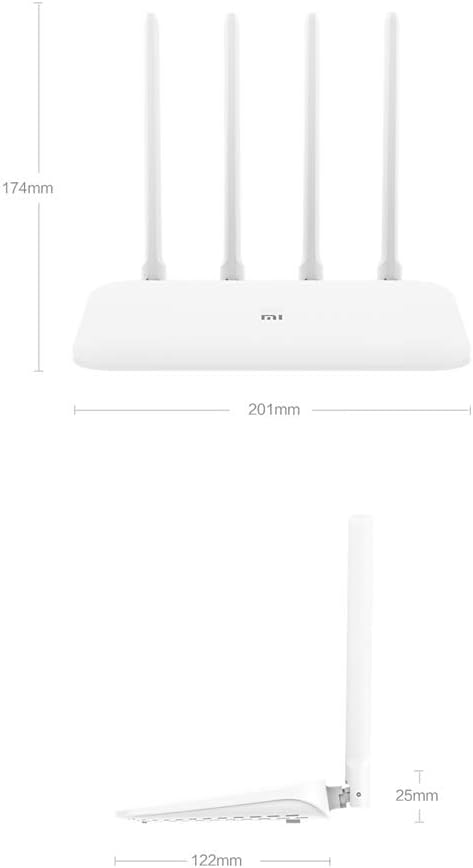
Image: Technical drawing displaying the dimensions of the Xiaomi Mi Router 4A, with measurements in millimeters.
3.4 Häfen und Anzeigen
The router features:
- WAN-Port: 1x 10/100/1000M adaptive port for connecting to your modem or internet service provider.
- LAN-Ports: 2x 10/100/1000M adaptive ports for connecting wired devices like computers or gaming consoles.
- Leistungsaufnahme: Zum Anschluss des Netzteils.
- System-Reset-Taste: Dient zum Wiederherstellen der Werkseinstellungen.
- LED-Anzeigen: Two indicators for system status and network activity.
4. Einrichtung
4.1 Hardware-Anschluss
- Schließen Sie das Netzteil an: Stecken Sie das Netzteil in den Stromeingang des Routers und anschließend in eine Steckdose.
- Mit dem Internet verbinden: Connect an Ethernet cable from your modem's LAN port to the router's WAN port.
- Anschluss kabelgebundener Geräte (optional): For wired connections, connect Ethernet cables from your devices to the router's LAN ports.
4.2 Erstkonfiguration
Sie können den Router mithilfe eines konfigurieren web browser or the Mi Wi-Fi mobile application.
- Stellen Sie eine Verbindung zum WLAN des Routers her: On your computer or smartphone, connect to the default Wi-Fi network broadcast by the router. The network name (SSID) and password are usually found on a label on the bottom of the router.
- Access the Configuration Interface:
- Web Browser: Öffnen Sie ein web Browser und geben Sie die Standard-IP-Adresse ein (z. B.
192.168.31.1ormiwifi.com) into the address bar. Follow the on-screen instructions to set up your internet connection and Wi-Fi network. - Mi Wi-Fi App: Download and install the Mi Wi-Fi app on your smartphone. Open the app and follow the prompts to detect and configure your new router.
- Web Browser: Öffnen Sie ein web Browser und geben Sie die Standard-IP-Adresse ein (z. B.
- Set Up Wi-Fi Name and Password: During the initial setup, you will be prompted to create a new Wi-Fi network name (SSID) and a strong password for both the 2.4GHz and 5GHz bands. The router supports a unified Wi-Fi name for both frequencies, allowing devices to automatically switch to the optimal band.

Image: Diagram illustrating the unified Wi-Fi name feature, where both 2.4GHz and 5GHz bands share a single SSID for seamless connectivity.
5. Bedienungsanleitung
5.1 Geräte anschließen
- Wi-Fi-Verbindung: On your wireless devices (smartphones, tablets, laptops), search for your Wi-Fi network name (SSID) and enter the password you set during configuration.
- Ethernet-Verbindung: For devices requiring a wired connection, plug an Ethernet cable from the device into one of the router's LAN ports.
5.2 Netzwerkmanagementfunktionen
The router offers several features to manage and optimize your home network:
- Geräteverwaltung: Control internet access times and accessible webWebsites für spezifische Geräte.
- Intelligent Speed Limit: Allocate bandwidth on demand to ensure a smooth online experience for critical applications.
- WLAN-Optimierung: Perform a one-click detection to improve network performance and resolve common Wi-Fi issues.
- Netzwerksicherheit: Active interception features help eliminate the risk of unauthorized access or network attacks.

Image: Icons representing various router features, including network management, speed measurement, bandwidth control, Wi-Fi optimization, and network security.
5.3 Gerätekapazität
The Xiaomi Mi Router 4A Gigabit Edition is equipped with 128MB of DDR3 memory, supporting stable data transmission for up to 128 connected devices simultaneously. This makes it suitable for smart homes with numerous connected gadgets.

Image: Illustration showing the router's 128MB memory capacity, capable of supporting up to 128 connected devices, surrounded by various smart home devices.
6. Wartung
6.1 Firmware-Updates
Prüfen Sie regelmäßig, ob Firmware-Updates verfügbar sind, und installieren Sie diese, um optimale Leistung, Sicherheit und Zugriff auf neue Funktionen zu gewährleisten. Firmware-Updates können in der Regel über die Router-Einstellungen durchgeführt werden. web Benutzeroberfläche oder die Mi Wi-Fi App.
6.2 Router zurücksetzen
Sollten weiterhin Probleme auftreten oder Sie alle Einstellungen löschen möchten, können Sie einen Werksreset durchführen:
- With the router powered on, locate the System Reset Button (usually a small pinhole button).
- Use a paperclip or a similar pointed object to press and hold the reset button for approximately 5-10 seconds until the LED indicators change behavior.
- Lassen Sie die Taste los. Der Router startet mit den Werkseinstellungen neu. Sie müssen ihn anschließend neu konfigurieren.
6.3 Umweltaspekte
To ensure the longevity and stable operation of your router, adhere to the following environmental guidelines:
- Betriebstemperatur: 0 °C bis 40 °C (32 °F bis 104 °F)
- Betriebsfeuchtigkeit: 10 % bis 90 % relative Luftfeuchtigkeit (nicht kondensierend)
- Lagertemperatur: -40 °C bis 70 °C (-40 °F bis 158 °F)
- Lagerfeuchtigkeit: 5 % bis 90 % relative Luftfeuchtigkeit (nicht kondensierend)
Avoid placing the router in direct sunlight, near heat sources, or in areas with high humidity.
Image: Details on recommended operating and storage temperature and humidity ranges for the router.
7. Fehlerbehebung
This section addresses common issues you might encounter with your Xiaomi Mi Router 4A Gigabit Edition.
- Kein Internetzugang:
- Prüfen Sie, ob das WAN-Port-Kabel fest mit Ihrem Modem verbunden ist.
- Vergewissern Sie sich, dass Ihr Modem ordnungsgemäß funktioniert und über eine aktive Internetverbindung verfügt.
- Starten Sie sowohl Ihr Modem als auch Ihren Router neu.
- Ensure the router's internet settings (e.g., PPPoE, DHCP, Static IP) are correctly configured according to your ISP.
- Wi-Fi Signal Weak or Unstable:
- Platzieren Sie den Router an einem zentralen Ort, fernab von Hindernissen und Störquellen (z. B. Mikrowellen, schnurlose Telefone).
- Richten Sie die Antennen des Routers für eine optimale Signalrichtung aus.
- Use the Wi-Fi Optimization feature in the router's interface or app.
- Ensure your devices are connecting to the appropriate 2.4GHz or 5GHz band.
- Zugriff auf die Router-Konfigurationsseite nicht möglich:
- Stellen Sie sicher, dass Ihr Gerät mit dem Netzwerk des Routers verbunden ist (entweder über WLAN oder Ethernet).
- Vergewissern Sie sich, dass Sie die richtige IP-Adresse eingeben (z. B.
192.168.31.1) oder Domäne (miwifi.com). - Leeren Sie den Cache Ihres Browsers oder versuchen Sie es mit einem anderen Browser.
- Deaktivieren Sie vorübergehend alle VPN- oder Proxy-Einstellungen auf Ihrem Gerät.
- Langsame Internetgeschwindigkeit:
- Überprüfen Sie die Geschwindigkeit Ihres Internetanbieters.
- Ensure no other devices are consuming excessive bandwidth. Use the Intelligent Speed Limit feature if necessary.
- Perform a Wi-Fi Optimization scan.
- If using Wi-Fi, try connecting via Ethernet to determine if the issue is wireless-related.
8. Spezifikationen
Detailed technical specifications for the Xiaomi Mi Router 4A Gigabit Edition:

Image: Table detailing the router's internal specifications, including processor, memory, Wi-Fi standards, and port configuration.
| Besonderheit | Beschreibung |
|---|---|
| Modellnummer | R4AC |
| Prozessor | MT7621A MPIS Dual Core 880MHz |
| ROM | 16 MB |
| Product Memory (RAM) | 128MB DDR3 |
| 2.4G Wi-Fi | 2x2 (supports IEEE 802.11n protocol, up to 300Mbps) |
| 5G Wi-Fi | 2x2 (supports IEEE 802.11ac protocol, up to 867Mbps) |
| Produktantenne | 2x 2.4G (max gain 5dBi), 2x 5G (max gain 6dBi) |
| Maschinenschnittstelle | 1x 10/100/1000M adaptive WAN port (Auto MDI/MDIX), 2x 10/100/1000M adaptive LAN ports (Auto MDI/MDIX) |
| LED-Anzeige | 2 |
| System-Reset-Taste | 1 |
| Stromeingangsschnittstelle | 1 |
| Protokollstandard | IEEE 802.11a/b/g/n/ac, IEEE 802.3/3u |
| Doppelfrequenz | 2.4 GHz und 5 GHz |
| Drahtloskanäle (2.4 GHz) | 1, 2, 3, 4, 5, 6, 7, 8, 9, 10, 11, 12, 13 |
| Drahtloskanäle (5 GHz) | 36, 40, 44, 48, 149, 153, 157, 161, 165 |
| Betriebssystem | RouterOS (Custom Xiaomi firmware) |
| Farbe | Weiß |
| Abmessungen (L x B x H) | 201mm x 122mm x 174mm (with antennas up) |
| Kompatible Geräte | Personalcomputer, Laptop, Tablet, Smartphone, Spielkonsole |
| Empfohlene Verwendung | Heim |
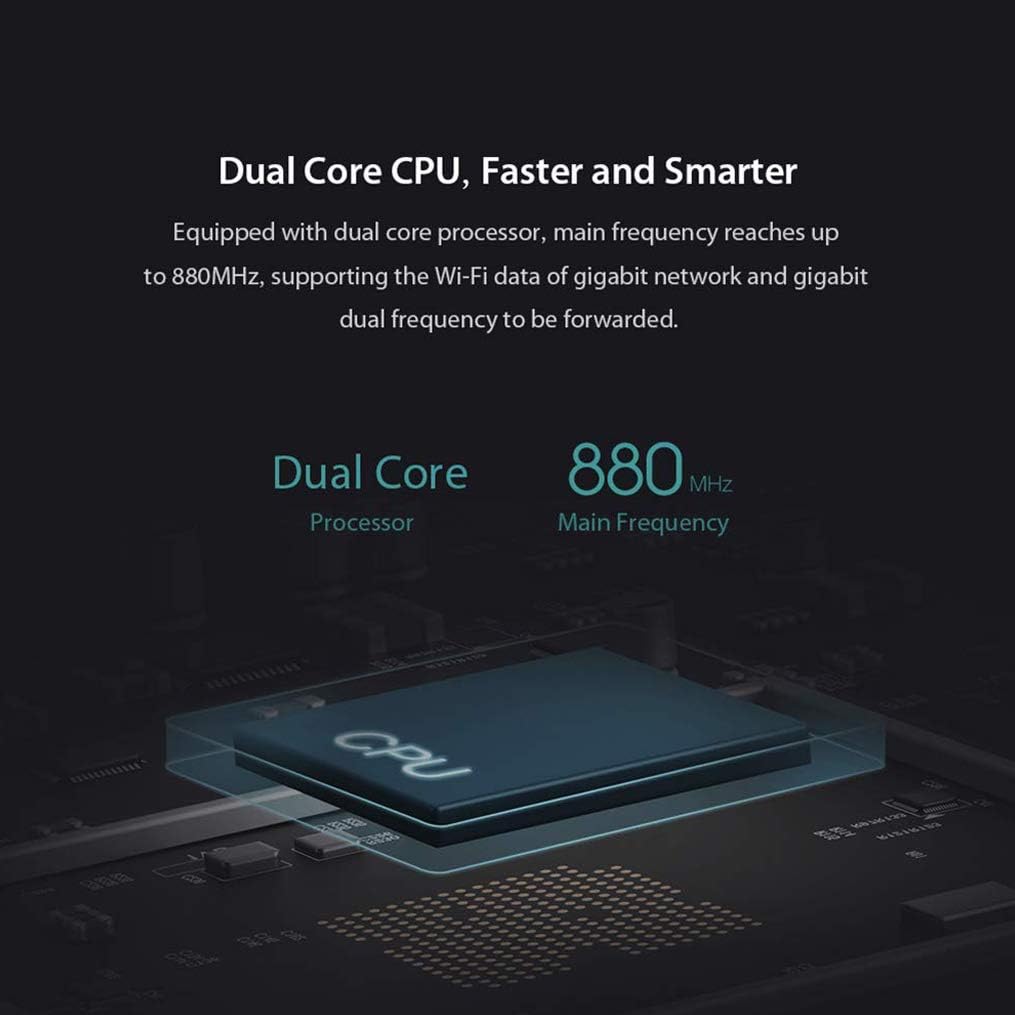
Image: Diagram illustrating the router's dual-core CPU with an 880MHz main frequency, emphasizing its processing capabilities.
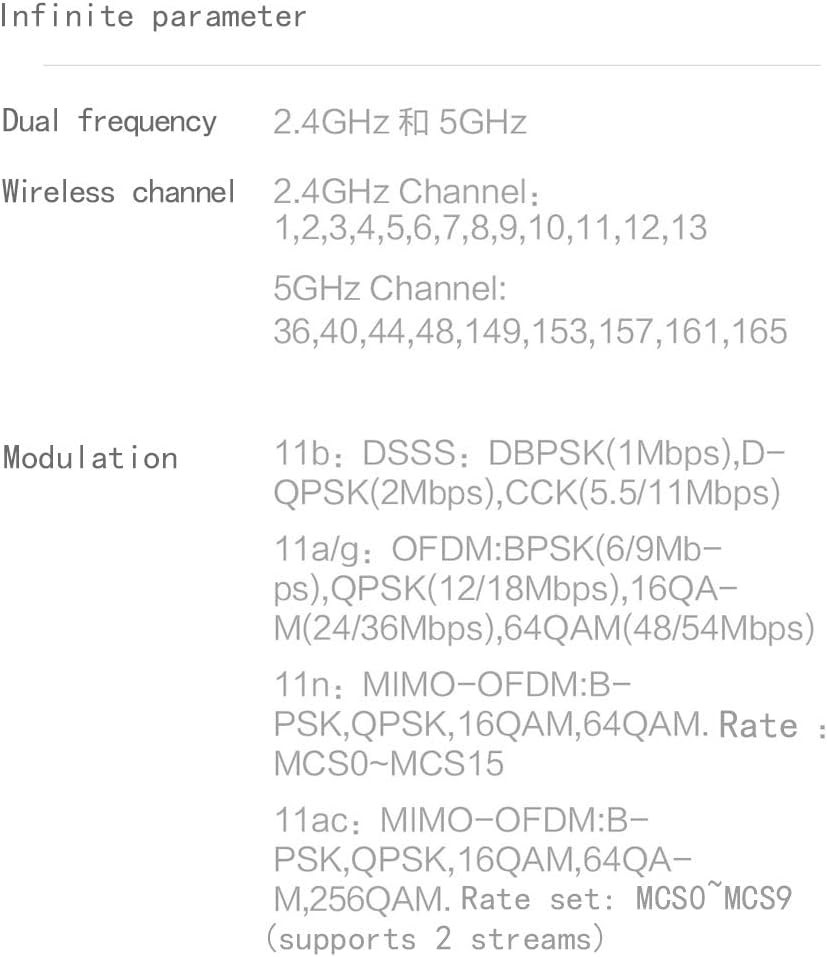
Image: Information on the specific wireless channels available for 2.4GHz and 5GHz bands, along with supported modulation types.
9. Garantie und Support
Informationen zur Garantie finden Sie auf der Ihrem Produkt beiliegenden Garantiekarte oder auf der offiziellen Xiaomi-Website. website for your region. Support resources, including FAQs and contact information, can also be found on the official Xiaomi support pages. Please retain your proof of purchase for warranty claims.