Einführung
Thank you for choosing the Macally Wireless Bluetooth Keyboard. This multi-device keyboard is designed to enhance your productivity across various platforms, including Mac, iOS, Windows, and Android devices. Featuring 110 keys, 20 Mac OS shortcuts, and a numeric keypad, it offers a comfortable and efficient typing experience. Its ultra-slim design and rechargeable battery make it an ideal companion for both work and leisure.

Image: The Macally Wireless Bluetooth Keyboard, showcasing its full layout and sleek silver design.
Packungsinhalt
- Macally Wireless Bluetooth Keyboard
- Ladekabel
- Benutzerhandbuch
Aufstellen
1. Aufladen der Tastatur
Before initial use, fully charge the keyboard using the included charging cable. Connect the cable to the keyboard's charging port and a USB power source. The LED indicator will show charging status.

Image: Illustration showing the keyboard connected to a charging cable, emphasizing its rechargeable nature.
2. Kopplung mit Geräten
The Macally Wireless Bluetooth Keyboard supports connecting up to three Bluetooth-enabled devices simultaneously. Follow these steps to pair your devices:
- Schalten Sie die Tastatur mit dem Netzschalter ein.
- Press and hold one of the Bluetooth keys (BT1, BT2, or BT3) for a few seconds until the corresponding LED indicator starts blinking rapidly. This indicates pairing mode.
- Gehen Sie auf Ihrem Gerät (Computer, Tablet oder Smartphone) zu den Bluetooth-Einstellungen und suchen Sie nach verfügbaren Geräten.
- Select "Macally Keyboard" (or similar name) from the list.
- If prompted, enter the pairing code displayed on your screen using the Macally keyboard and press Enter.
- Nach erfolgreicher Kopplung hört die LED-Anzeige auf zu blinken und leuchtet einige Sekunden lang dauerhaft, bevor sie sich ausschaltet.
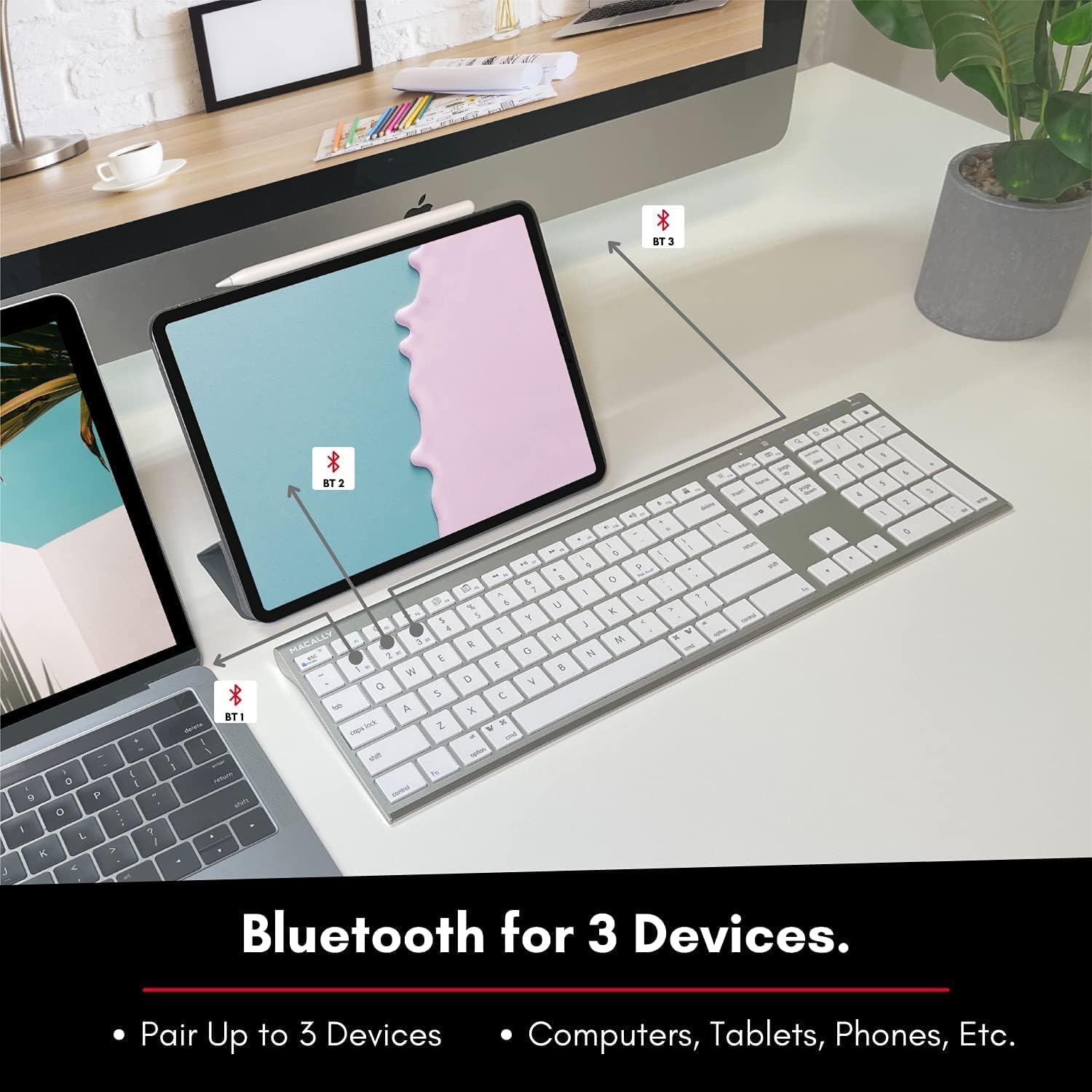
Image: The keyboard connected to a laptop and a tablet, illustrating its multi-device pairing capability.
Bedienungsanleitung
Umschalten zwischen Geräten
To switch between paired devices, simply press the corresponding Bluetooth key (BT1, BT2, or BT3) once. The keyboard will automatically connect to the selected device within a few seconds.

Image: Visual representation of the keyboard seamlessly switching between a smartphone, iMac, and laptop, highlighting the multi-sync feature.
Funktionstasten und Tastenkombinationen
The keyboard features a full set of 110 keys, including a numeric keypad and 20 dedicated Mac OS shortcut keys. These shortcuts provide quick access to various functions such as brightness control, volume adjustment, media playback, and more. Refer to your device's operating system documentation for specific shortcut functionalities.
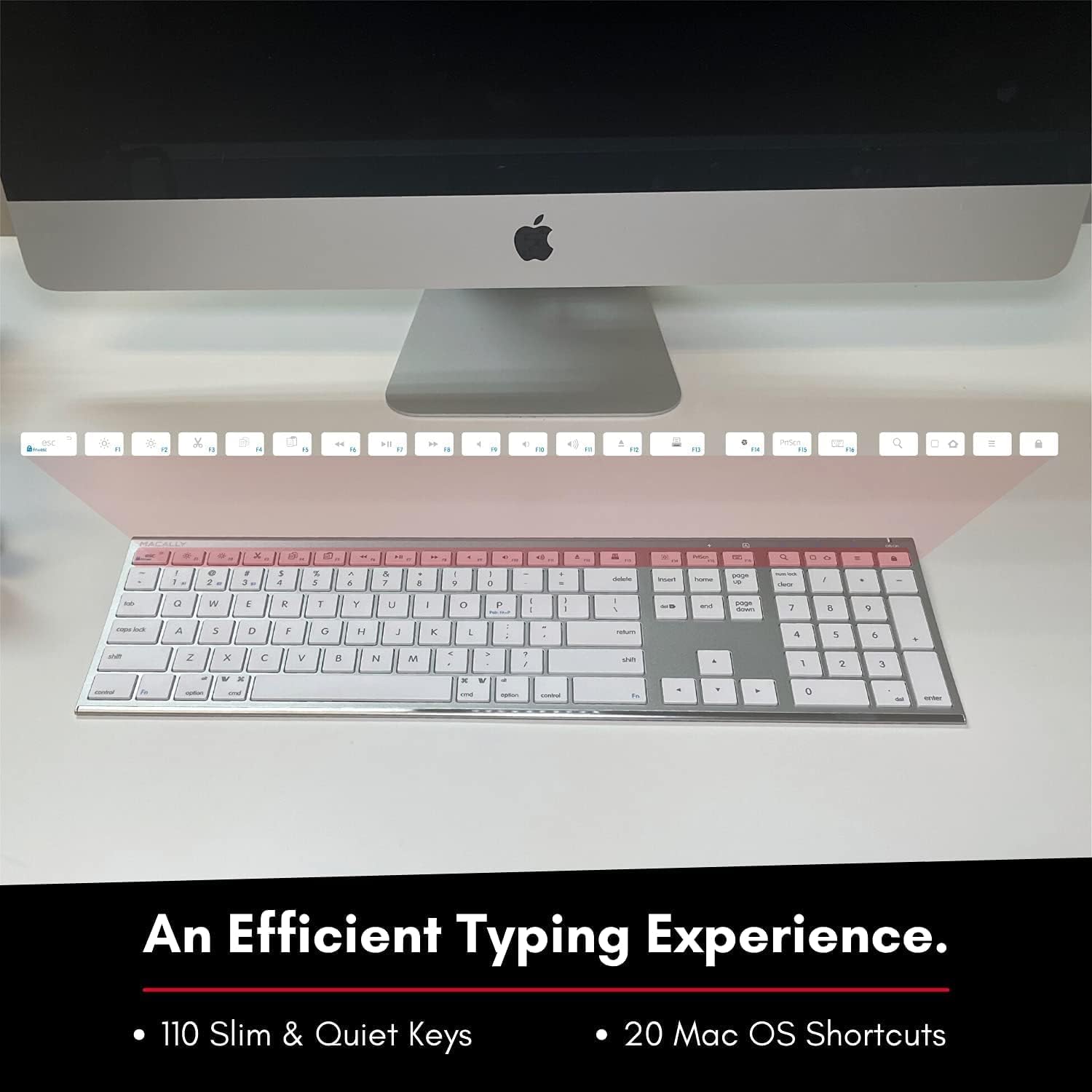
Image: Close-up of the keyboard's top row, highlighting the dedicated function and shortcut keys.
Kompatibilität
This keyboard is broadly compatible with a range of operating systems and devices, including:
- macOS
- Windows
- iOS (iPhone, iPad)
- Android

Image: The keyboard positioned in front of an iMac, indicating its compatibility with Mac systems.
Wartung
To ensure the longevity and optimal performance of your Macally Wireless Bluetooth Keyboard, follow these maintenance guidelines:
- Reinigung: Verwenden Sie ein weiches, fusselfreies Tuch, um die Oberfläche der Tastatur abzuwischen. Bei hartnäckigem Schmutz leicht andrücken.ampBefeuchten Sie das Tuch mit Wasser oder einer milden Reinigungslösung. Vermeiden Sie übermäßige Feuchtigkeit.
- Batteriepflege: The keyboard features a built-in rechargeable battery. To maximize battery life, avoid fully discharging the battery frequently. Charge the keyboard when the low battery indicator appears.
- Lagerung: Schalten Sie die Tastatur bei längerer Nichtbenutzung aus, um die Batterielebensdauer zu verlängern. Bewahren Sie sie an einem kühlen, trockenen Ort, geschützt vor direkter Sonneneinstrahlung und extremen Temperaturen, auf.
- Verschütten vermeiden: Um Schäden an den internen Bauteilen zu vermeiden, sollten Flüssigkeiten von der Tastatur ferngehalten werden.
Fehlerbehebung
Keyboard Not Responding or Typing Incorrectly
- Stellen Sie sicher, dass die Tastatur aufgeladen ist.
- Verify that the keyboard is powered on and the correct Bluetooth channel (BT1, BT2, or BT3) is selected for your device.
- Versuchen Sie, die Tastatur erneut mit Ihrem Gerät zu koppeln.
- Check if the Fn lock is active. On the top right, there should be a lock symbol with an FN in the lock. If there is a Blue LED light on the panel which is on the top right, then press and hold Fn und drücke ESC to shut off the Fn lock.

Image: A troubleshooting tip for the Fn lock feature, showing the relevant keys.
Mouse Keys Issue (macOS)
- If your keyboard inputs are behaving like mouse movements, you may have "Mouse Keys" enabled.
- Go to System Preferences (or System Settings on newer macOS versions), then click on Zugänglichkeit. After that, scroll to Zeigersteuerung und deaktivieren Maustasten aktivieren.

Image: A troubleshooting tip for disabling Mouse Keys in system settings.
Probleme mit der Bluetooth-Verbindung
- Stellen Sie sicher, dass Bluetooth auf Ihrem Gerät aktiviert und es für den Nutzer sichtbar ist.
- Move the keyboard closer to your device to ensure a strong signal.
- Entfernen Sie alle potenziellen Störquellen (z. B. andere drahtlose Geräte, große Metallgegenstände).
- Starten Sie sowohl die Tastatur als auch Ihr Gerät neu.
Technische Daten
| Marke | Macally |
| Modellnummer | ACEBTKEY-US |
| Technische Daten | 18.11 x 6.3 x 0.91 Zoll |
| Artikelgewicht | 14.9 Unzen |
| Konnektivitätstechnologie | Bluetooth |
| Anzahl der Schlüssel | 110 |
| Kompatible Geräte | MacOS, Windows, iOS, Android |
| Batterie | 3 Lithium Polymer batteries (included, rechargeable) |
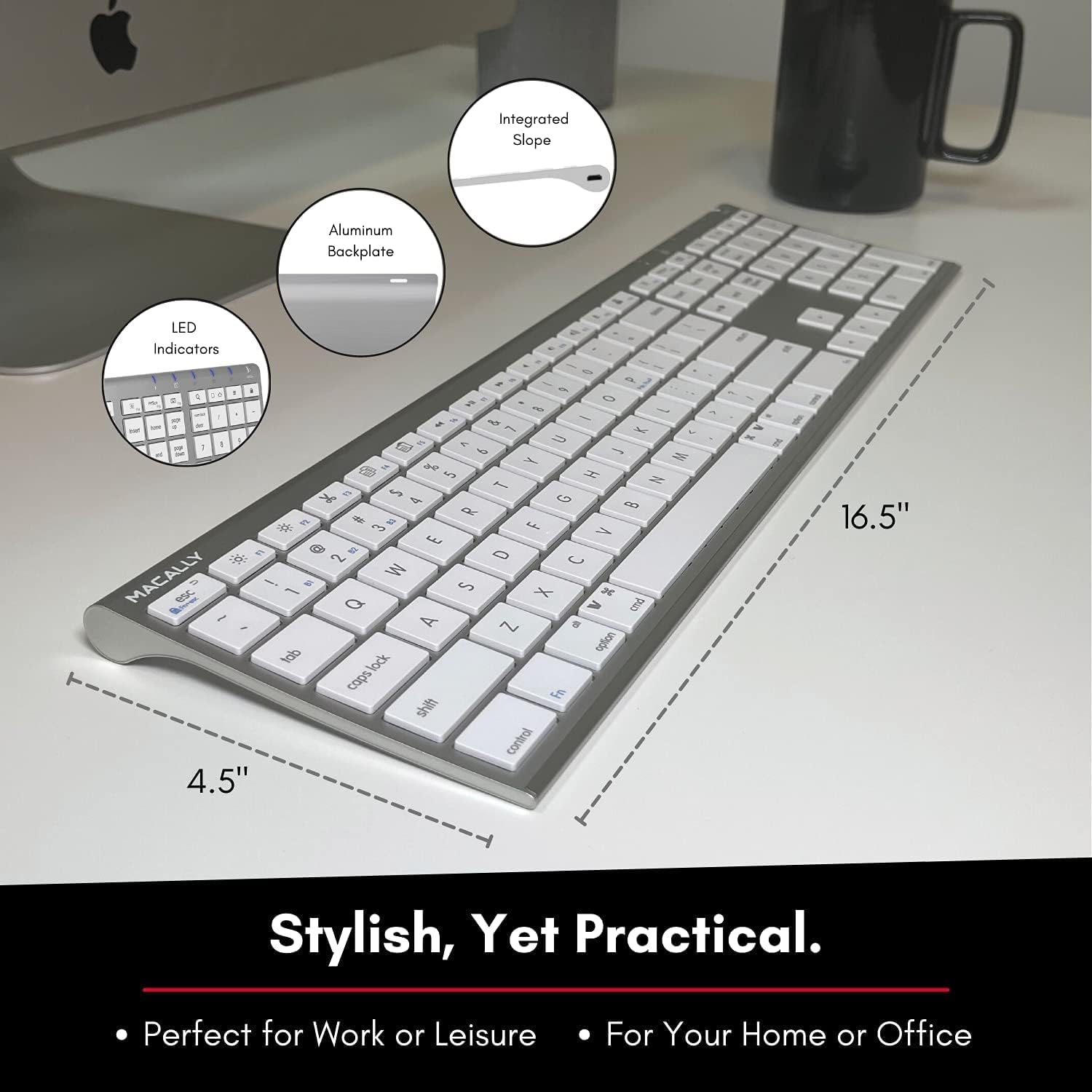
Image: Diagram illustrating the physical dimensions of the Macally Wireless Bluetooth Keyboard.
Garantie und Support
Macally is committed to delivering high-quality, user-friendly workflow solutions. For any product inquiries, technical support, or warranty information, please visit the official Macally webAuf der Website oder beim Kundenservice finden Sie weitere Informationen und Unterstützung. Macally Store auf Amazon.


