1. Einleitung
This manual provides detailed instructions for the installation, operation, and maintenance of your Aerocool Streak Mid-Tower ATX PC Gaming Case. Designed for both new and experienced PC builders, the Streak case offers a compact design with a polished aluminum front panel, vibrant RGB lighting, and a full tempered glass side panel to showcase your components. It supports various cooling configurations to ensure optimal performance for your system.
2. Sicherheitshinweise
Please read and understand all safety instructions before installing or operating the PC case. Failure to do so may result in personal injury or damage to the product.
- Vor jeglichen Installations- oder Wartungsarbeiten muss die Stromversorgung stets von der Steckdose getrennt werden.
- Be aware of sharp edges inside the case. Handle components with care to avoid cuts.
- Kleinteile und Schrauben von Kindern fernhalten.
- Sorgen Sie für eine ordnungsgemäße Erdung, um Stromschläge zu vermeiden.
- Do not expose the case to water or excessive humidity.
3. Packungsinhalt
Überprüfen Sie, ob alle Artikel im Paket vorhanden sind:
- Aerocool Streak Mid-Tower ATX PC Gaming Case
- Accessory box (screws, standoffs, cable ties, etc.)
- Benutzerhandbuch (dieses Dokument)
4. Case Components Overview
Familiarize yourself with the various parts of your Aerocool Streak case.

Abbildung 4.1: Abgewinkelt view of the Aerocool Streak PC case, showcasing die RGB-Frontblende und die Seitenwand aus gehärtetem Glas.

Abbildung 4.2: von oben schräg view of the Aerocool Streak PC case, highlighting the top panel and front I/O ports.
4.1 Front-I/O-Anschlüsse
The front I/O panel provides convenient access to essential connections.
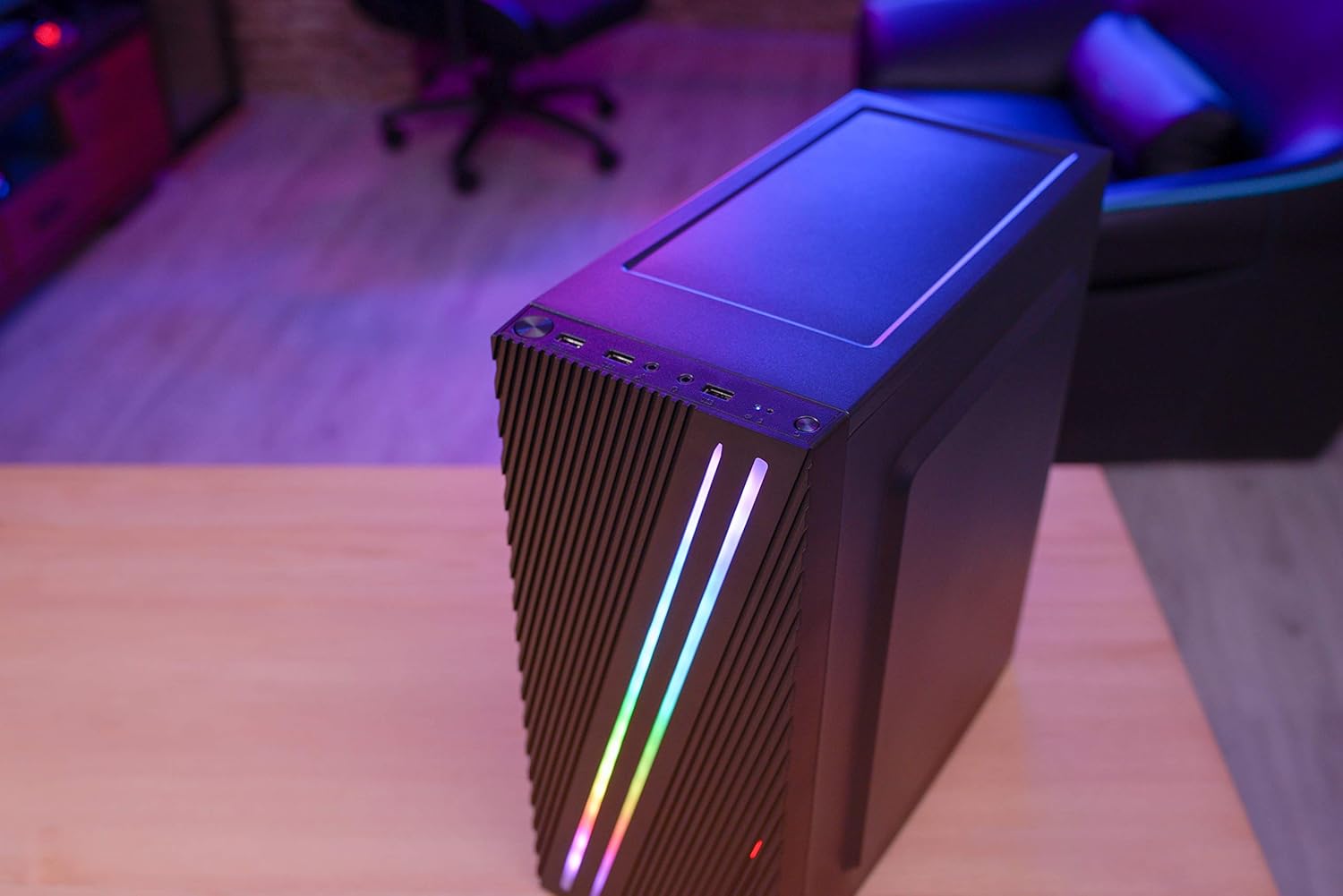
Abbildung 4.3: Close-up of the front I/O panel, showing the power button, LED control button, USB 3.0 port, two USB 2.0 ports, and HD audio/microphone jacks.
- Netzschalter: Zum Ein-/Ausschalten des Systems.
- LED-Steuertaste: To cycle through RGB lighting modes.
- USB 3.0-Anschluss (x1): Für Hochgeschwindigkeits-Datenübertragung.
- USB 2.0-Anschlüsse (x2): Für Standard-USB-Geräte.
- HD Audio & Mic Jacks: Zum Anschließen von Kopfhörern und Mikrofonen.
4.2 Innenraumgestaltung
The interior is designed for efficient component installation and cable management.

Abbildung 4.4: Intern view of the Aerocool Streak PC case, showing the motherboard tray, drive bays, and cable routing cutouts.
5. Einrichtung und Installation
Follow these steps to assemble your PC components within the Aerocool Streak case.
5.1 Vorbereitung
- Packen Sie den Koffer aus und entfernen Sie sämtliches Verpackungsmaterial.
- Stellen Sie das Gehäuse auf eine stabile, ebene Fläche.
- Gather necessary tools: Phillips head screwdriver, cable ties (included in accessory box).
- Remove the tempered glass side panel by unscrewing the four thumb screws.
5.2 Motherboard-Installation
The Aerocool Streak supports ATX, Micro-ATX, and Mini-ITX motherboards.

Abbildung 5.1: Diagram illustrating the compatible motherboard sizes (Mini-ITX, Micro-ATX, ATX) within the case.
- Install the necessary motherboard standoffs into the motherboard tray according to your motherboard's form factor.
- Place your motherboard carefully onto the standoffs, aligning the screw holes.
- Befestigen Sie das Motherboard mit den mitgelieferten Schrauben.
5.3 Installation des Netzteils (PSU)
The case features a bottom-mount PSU design.
- Schieben Sie das Netzteil in das dafür vorgesehene Fach an der unteren Rückseite des Gehäuses.
- Secure the PSU to the case rear with screws.
5.4 Installation des Speicherlaufwerks
Install your 2.5" SSDs and 3.5" HDDs.
- 2.5"-SSDs: Mount SSDs to the designated 2.5" drive trays or mounting points on the motherboard tray.
- 3.5"-Festplatten: Install HDDs into the drive cage located beneath the PSU shroud.
5.5 Expansion Card Installation (Graphics Card, etc.)
The case supports high-end graphics cards up to 335mm in length.
- Entfernen Sie die erforderlichen PCIe-Steckplatzabdeckungen von der Rückseite des Gehäuses.
- Insert your expansion card into the corresponding PCIe slot on the motherboard.
- Secure the card with a screw.
5.6 Installation des Kühlsystems
The Aerocool Streak supports both air and liquid cooling solutions.

Abbildung 5.2: Diagram showing air cooling options, including front 120mm fans (optional) and a rear 80mm fan (included).

Abbildung 5.3: Diagram illustrating liquid cooling support, specifically a 240mm radiator at the front (optional).
- Luftkühlung: The case supports up to two 120mm fans at the front (optional) and includes one 80mm fan at the rear.
- Flüssigkeitskühlung: A 240mm radiator can be installed at the front of the case (optional).
- Install fans or radiators into their respective mounting points and secure them with screws.
5.7 Kabelmanagement
Utilize the cable routing cutouts and tie-down points behind the motherboard tray to organize cables for improved airflow and aesthetics.
- Route all power and data cables through the designated cutouts.
- Use cable ties to bundle and secure cables neatly.
6. Bedienungsanleitung
6.1 Einschalten Ihres Systems
- Ensure all components are correctly installed and all cables are securely connected.
- Connect the power cable to your PSU and then to a wall outlet.
- Schalten Sie den Netzschalter am Netzteil in die Position „EIN“.
- Press the power button on the front I/O panel of the case to start your system.
6.2 RGB-Beleuchtungssteuerung
The Aerocool Streak features 18 distinct RGB lighting modes on its front panel.

Abbildung 6.1: The Aerocool Streak PC case with its vibrant RGB lighting illuminated on the front panel.
- Drücken Sie die LED-Steuertaste on the front I/O panel to cycle through the 18 available lighting modes.
- These modes include 11 RGB flow modes and 7 static color modes.
7. Wartung
Regelmäßige Wartung trägt dazu bei, die Langlebigkeit und optimale Leistung Ihres PC-Gehäuses und Ihrer Komponenten zu gewährleisten.
7.1 Reinigung des Gehäuses
- Exterieur: Verwenden Sie ein weiches,amp Mit einem Tuch die Außenflächen abwischen. Scheuermittel vermeiden.
- Innere: Periodically use compressed air to remove dust buildup from inside the case, especially around fans and heatsinks.
7.2 Wartung des Staubfilters
The case may include removable dust filters to prevent dust ingress. Clean these filters regularly.
- Locate and carefully remove any dust filters (e.g., top, bottom, front).
- Clean the filters with water and mild soap, or use compressed air.
- Stellen Sie sicher, dass die Filter vollständig trocken sind, bevor Sie sie wieder einsetzen.
8. Fehlerbehebung
If you encounter issues with your Aerocool Streak case, refer to the following common problems and solutions.
- System does not power on:
- Check all power connections, including the PSU to the wall, PSU switch, and motherboard power cables.
- Stellen Sie sicher, dass das Netzkabel an der Vorderseite korrekt mit dem Motherboard verbunden ist.
- RGB lighting is not working:
- Verify that the RGB lighting cables are properly connected to the power supply or motherboard RGB header.
- Press the LED control button to cycle through modes, as it might be on a static black mode.
- Poor airflow/overheating:
- Stellen Sie sicher, dass alle Gehäuselüfter ordnungsgemäß laufen.
- Clean any dust filters and internal components.
- Verify proper fan orientation for optimal airflow (intake/exhaust).
9. Spezifikationen
| Besonderheit | Spezifikation |
|---|---|
| Modellname | Strähne |
| Modellnummer | ACCM-PV19012.11 |
| Gehäusetyp | Mittelturm |
| Motherboard-Kompatibilität | ATX, Mikro-ATX, Mini-ITX |
| Material | Tempered Glass (side panel) |
| Farbe | Schwarz |
| Front I / O Ports | 1x USB 3.0, 2x USB 2.0, HD Audio, Mic, LED Control Button, Power Button |
| RGB-Beleuchtung | 18 Lighting Modes (11 flow, 7 static) |
| Abstand des CPU-Kühlers | Bis zu 151 mm |
| Länge der Grafikkarte | Bis zu 335 mm |
| Netzteilmontage | Untere Montage |
| Kühlmethode | Luft, Wasser |
| Mitgelieferte Lüfter | 1x 80mm Rear Fan |
| Optional Fan Support | Vorderseite: 2x 120mm |
| Kühlerhalterung | Front: 1x 240mm (optional) |
10. Garantie und Support
The Aerocool Streak PC Gaming Case comes with a 2-year warranty on parts. For technical support, warranty claims, or further assistance, please contact your retailer or the official Aerocool support channels. Keep your proof of purchase for warranty validation.


