1. Einleitung
This manual provides essential information for the proper setup, operation, and maintenance of your VIOTEK GNV34DB 34-inch Ultrawide Gaming Monitor. Please read this manual thoroughly before using the product to ensure optimal performance and longevity. Keep this manual for future reference.

Image: The VIOTEK GNV34DB monitor from a front-right angle, showcasing sein gebogenes Display.
2. Packungsinhalt
Bitte prüfen Sie beim Öffnen des Pakets, ob alle unten aufgeführten Artikel vorhanden und in einwandfreiem Zustand sind. Sollten Artikel fehlen oder beschädigt sein, kontaktieren Sie bitte unseren Kundenservice.
- VIOTEK GNV34DB 34-Inch Ultrawide Gaming Monitor
- Netzteil
- HDMI-Kabel
- DisplayPort-Kabel
- Benutzerhandbuch (dieses Dokument)
3. Einrichtung
3.1 Montage des Ständers
- Nehmen Sie die Monitor- und Standfußkomponenten vorsichtig aus der Verpackung.
- Befestigen Sie den Standfuß mit den mitgelieferten Schrauben am Standhals.
- Befestigen Sie den montierten Ständer an der Rückseite des Monitors. Stellen Sie sicher, dass alle Verbindungen fest sitzen.
3.2 VESA-Montage
The monitor supports VESA mounting (75x75mm) for alternative mounting solutions. Remove the stand before attaching a VESA-compatible mount.
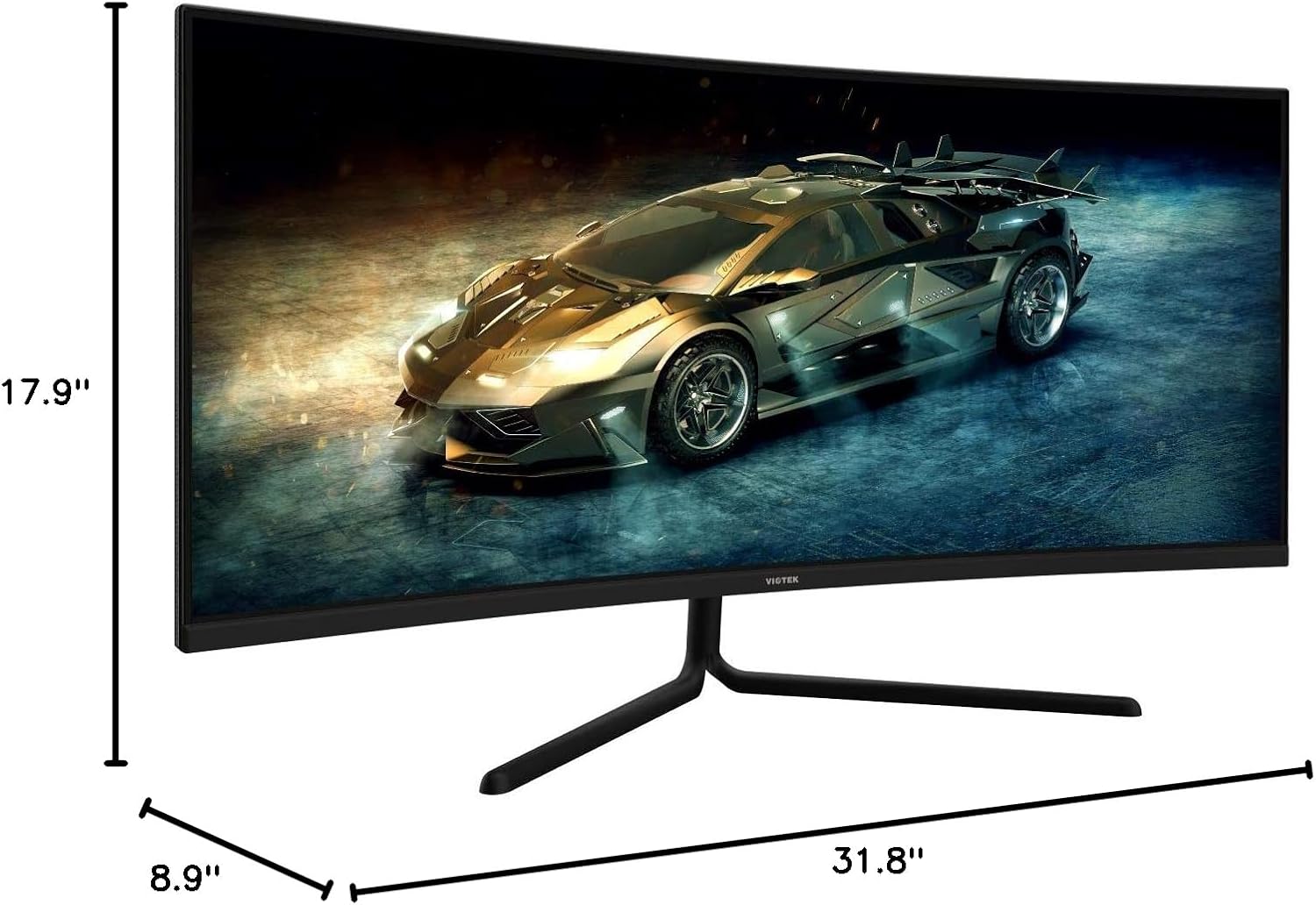
Image: Monitor dimensions are shown as 31.8 inches wide, 17.9 inches high, and 8.9 inches deep, indicating the physical size for placement and VESA compatibility.
3.3 Mit einem Gerät verbinden
Connect your computer or other devices to the monitor using the appropriate ports. Ensure the monitor is powered off before making connections.
- DisplayPort (DP 1.2): For optimal performance, use the included DisplayPort cable to connect to your graphics card.
- HDMI (HDMI 1.4 / HDMI 2.0): Verwenden Sie ein HDMI-Kabel, um eine Verbindung zu Geräten herzustellen, die einen HDMI-Ausgang unterstützen.
- 3.5-mm-Audioausgang: Schließen Sie externe Lautsprecher oder Kopfhörer an diesen Anschluss an, um Audio auszugeben.

Abbildung: Die Rückseite view of the monitor highlighting the available input ports: DisplayPort 1.2, 3.5mm Audio Out, two HDMI 1.4 ports, and one HDMI 2.0 port.
4. Bedienungsanleitung
4.1 Ein-/Ausschalten
Drücken Sie den Netzschalter am Monitor, um ihn ein- oder auszuschalten. Die Betriebsanzeige leuchtet, wenn der Monitor eingeschaltet ist.
4.2 Bildschirmmenü (OSD)
The OSD menu allows you to adjust various monitor settings. Use the control buttons (typically located on the back or bottom of the monitor) to navigate the menu.
- Helligkeit Kontrast: Passen Sie die Helligkeits- und Kontrastwerte des Displays an.
- Farbeinstellungen: Farbtemperatur, Gamma und einzelne RGB-Werte anpassen.
- Eingabequelle: Manually select the active input (DP, HDMI 1, HDMI 2, HDMI 3).
- Bildmodus: Select from preset display modes optimized for different content types (e.g., Standard, Movie, Game).
- Overdrive: Adjust response time for reduced motion blur.
4.3 Hauptmerkmale
- AMD FreeSync: This technology synchronizes the monitor's refresh rate with your graphics card's frame rate to eliminate screen tearing and stuttering during gaming. Enable FreeSync in the OSD menu and in your graphics card's control panel.

Image: A visual comparison demonstrating the effect of AMD FreeSync, showing a distorted image when FreeSync is off and a smooth image when FreeSync is on.
- GAMEPLUS: Activate on-screen crosshairs for enhanced aiming accuracy in games.

Image: A gaming scene on the monitor with three different GAMEPLUS crosshair options displayed at the bottom, indicating enhanced aiming features.
- FPS/RTS Optimization: Specific display modes designed to enhance visibility in First-Person Shooter (FPS) and Real-Time Strategy (RTS) games, often by adjusting gamma and contrast in dark areas.
- 1500R Krümmung: The monitor's 1500R curve provides a more immersive viewing experience by matching the natural curvature of the human eye, reducing eye strain and expanding the perceived field of view.

Abbildung: Draufsicht view of the curved monitor on a desk, illustrating the 1500R curvature and its benefit of providing full field of view Abdeckung.
- UWQHD (3440x1440) Resolution & 21:9 Aspect Ratio: Offers a wide workspace and immersive cinematic experience.

Image: The monitor displaying a vibrant game scene, with an overlay highlighting its 34-inch size, 21:9 aspect ratio, and 3440x1440p UWQHD resolution.
5. Spezifikationen
| Besonderheit | Spezifikation |
|---|---|
| Anzeigegröße | 34 Zoll |
| Panel-Typ | VA-Panel |
| Krümmung | 1500R |
| Auflösung | 3440x1440p (UWQHD) |
| Seitenverhältnis | 21:9 |
| Bildwiederholrate | 100 Hz |
| Ansprechzeit | 6ms GTG (5ms Overdrive) |
| Viewing-Winkel | H178° / V178° |
| Anzeigefarben | 16.7 Millionen |
| Farbumfang | sRGB: 99%, NTSC: 85% |
| Kontrastverhältnis | 3000:1 (statisch), 1M:1 (dynamisch) |
| Helligkeit | 300 cd/m² |
| VESA-Kompatibilität | 75 x 75 mm |
| Häfen | 1x DP 1.2, 2x HDMI 1.4, 1x HDMI 2.0, 1x 3.5mm Audio Out |
| Neigungseinstellung | -5° bis 15° |
| Abmessungen (mit Ständer) | 31.8 x 17.9 x 8.9 Zoll (808.65 x 454.19 x 225.58 mm) |
| Gewicht | 15.5 kg |
6. Fehlerbehebung
Sollten Sie Probleme mit Ihrem Monitor haben, beachten Sie bitte die folgenden häufig auftretenden Probleme und Lösungen:
- Kein Strom:
- Stellen Sie sicher, dass das Netzkabel fest mit dem Monitor und einer funktionierenden Steckdose verbunden ist.
- Prüfen Sie, ob das Netzteil ordnungsgemäß funktioniert.
- Kein Signal:
- Check that the video cable (DP or HDMI) is firmly connected to both the monitor and your computer.
- Wählen Sie die richtige Eingangsquelle über das OSD-Menü aus.
- Ensure your computer's graphics card is properly installed and drivers are up to date.
- Flackernder Bildschirm:
- Vergewissern Sie sich, dass das Videokabel nicht beschädigt und ordnungsgemäß angeschlossen ist.
- Passen Sie die Bildwiederholfrequenz in den Anzeigeeinstellungen Ihres Computers an.
- Disable or enable FreeSync in the OSD menu and graphics card settings to see if it resolves the issue.
- Tote Pixel:
- Refer to the warranty section for information on Viotek's Zero-Tolerance Dead Pixel Policy.
7. Wartung
Follow these guidelines to maintain your monitor's performance and appearance:
- Reinigen des Bildschirms: Wischen Sie den Bildschirm vorsichtig mit einem weichen, fusselfreien Tuch ab. Bei hartnäckigen Flecken verwenden Sie ein für Monitore geeignetes Reinigungsmittel, das Sie auf das Tuch und nicht direkt auf den Bildschirm auftragen.
- Reinigung des Casing: Verwenden Sie ein weiches, trockenes Tuch, um den Bildschirm des Monitors zu reinigen.asing. Vermeiden Sie scheuernde Reinigungs- und Lösungsmittel.
- Belüftung: Um eine Überhitzung zu vermeiden, stellen Sie sicher, dass die Lüftungsöffnungen des Monitors nicht blockiert sind.
- Lagerung: Bei längerer Nichtbenutzung sollte der Monitor an einem kühlen, trockenen Ort, idealerweise in der Originalverpackung, aufbewahrt werden.
8. Garantie und Support
Your VIOTEK GNV34DB monitor is covered by a 3 Jahr eingeschränkte Garantie. This warranty includes Viotek's Zero-Tolerance Dead Pixel Policy, ensuring that your display is free from dead pixels upon purchase.

Image: A graphic highlighting the 3-year warranty and Zero Dead Pixel policy for parts and labor.
For warranty claims, technical support, or any inquiries, please contact Viotek customer service. Details can typically be found on the official Viotek weboder über Ihre Kaufdokumentation.


