1. Einleitung
This manual provides detailed instructions for the installation, operation, and maintenance of your Cooler Master RR-A71C-18PA-R1 CPU Cooler. This air cooler is designed to efficiently dissipate heat from your desktop CPU, featuring a PWM controlled fan for optimized performance and addressable RGB lighting for customizable aesthetics. Please read this manual thoroughly before proceeding with installation to ensure proper setup and safe operation.
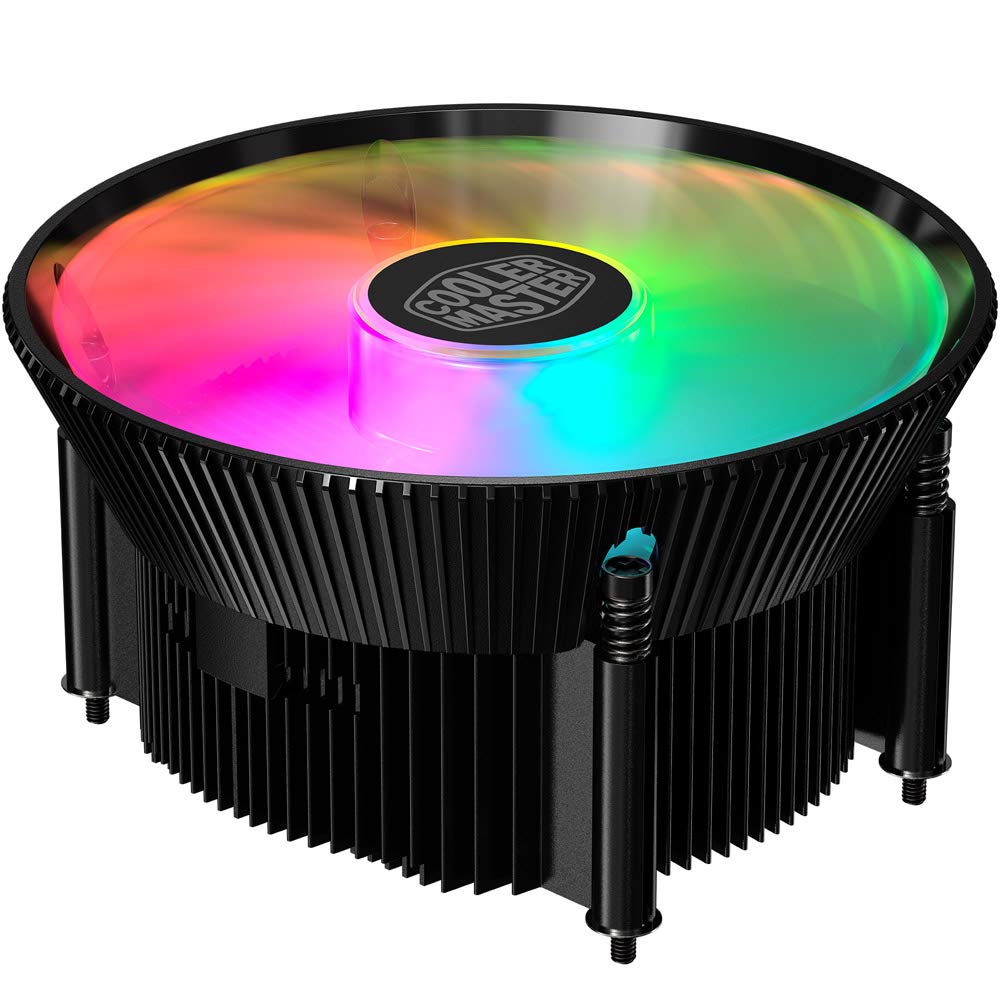
Abbildung 1.1: Oben view of the Cooler Master RR-A71C-18PA-R1 CPU Cooler showcasing its addressable RGB fan.
2. Sicherheitshinweise
Beachten Sie die folgenden Sicherheitsvorkehrungen, um Schäden am Produkt oder Verletzungen zu vermeiden:
- Stellen Sie sicher, dass Ihr Computersystem ausgeschaltet und vom Stromnetz getrennt ist, bevor Sie Installationen oder Wartungsarbeiten durchführen.
- Avoid touching the fan blades while the system is operating.
- Handle the cooler and its components with care to prevent damage.
- Außerhalb der Reichweite von Kindern aufbewahren.
- Versuchen Sie nicht, den Kühler oder seine Komponenten zu verändern. Nicht autorisierte Änderungen können zum Erlöschen der Garantie führen und Sicherheitsrisiken bergen.
3. Packungsinhalt
Überprüfen Sie, ob alle Artikel in Ihrem Paket vorhanden sind:
- Cooler Master RR-A71C-18PA-R1 CPU Cooler Assembly
- Mounting Hardware (for compatible CPU sockets)
- Wärmeleitpaste (voraufgetragen oder in einer Tube)
- Benutzerhandbuch (dieses Dokument)
4. Einrichtung und Installation
Follow these steps for proper installation of the CPU cooler:
- Bereiten Sie das Motherboard vor:
Ensure your motherboard is removed from the PC case or has sufficient access for cooler installation. Refer to your motherboard's manual for specific CPU socket preparation.
- Wärmeleitpaste auftragen:
If thermal paste is not pre-applied to the cooler's base, apply a small, pea-sized amount to the center of your CPU's integrated heat spreader (IHS). Do not spread it manually; the pressure from the cooler will distribute it evenly.

Abbildung 4.1: Unterseite view of the CPU cooler, illustrating the fan and copper contact base. Ensure this surface is clean before applying thermal paste.
- Kühler montieren:
Carefully align the cooler with the mounting holes on your motherboard. Gently place the cooler onto the CPU, ensuring even contact. Secure the cooler using the provided mounting hardware. Tighten screws in a diagonal pattern (e.g., top-left, bottom-right, top-right, bottom-left) until snug, but do not overtighten.
- Lüfterkabel anschließen:
Locate the 4-pin PWM fan connector on the cooler. Connect this cable to the "CPU_FAN" header on your motherboard. Refer to your motherboard manual for the exact location of this header.
- Connect RGB Cable:
Locate the addressable RGB (ARGB) connector on the cooler. Connect this cable to a compatible 3-pin 5V ARGB header on your motherboard. Warnung: Schließen Sie die LEDs nicht an einen 4-poligen 12V RGB-Header an, da dies die LEDs beschädigen wird.
- Letzte Kontrollen:
Double-check all connections. Ensure no cables are obstructing the fan blades or other components. Reinstall your motherboard into the PC case if it was removed.
5. Bedienungsanleitung
Once installed, the Cooler Master RR-A71C-18PA-R1 CPU Cooler operates automatically, but its performance and aesthetics can be managed:
- Lüfterdrehzahlregelung (PWM):
The fan's speed is controlled by your motherboard's BIOS/UEFI settings or through motherboard software. PWM (Pulse Width Modulation) allows for dynamic fan speed adjustments based on CPU temperature, providing optimal cooling and noise levels. Consult your motherboard manual for instructions on configuring fan curves.
- Addressable RGB Lighting Control:
The addressable RGB lighting can be controlled via your motherboard's RGB software (e.g., ASUS Aura Sync, MSI Mystic Light Sync, Gigabyte RGB Fusion, ASRock Polychrome Sync) or a dedicated ARGB controller (not included). Ensure the ARGB cable is correctly connected to a 3-pin 5V ARGB header. Refer to your motherboard's software documentation for lighting customization options.
6. Wartung
Regelmäßige Wartung gewährleistet optimale Leistung und Langlebigkeit Ihres CPU-Kühlers:
- Staubentfernung:
Periodically (every 3-6 months, depending on environment) power off your computer and unplug it. Use compressed air to gently blow dust out of the heatsink fins and fan blades. Hold the fan blades to prevent them from spinning rapidly during cleaning, which can damage the bearings.
- Verbindungen prüfen:
Occasionally verify that the fan and RGB cables are securely connected to their respective headers on the motherboard.
- Erneutes Auftragen der Wärmeleitpaste:
If you remove the cooler for any reason, it is recommended to clean off the old thermal paste from both the CPU and the cooler base and apply fresh thermal paste before reinstallation.
7. Fehlerbehebung
Sollten Sie Probleme mit Ihrem CPU-Kühler haben, beachten Sie bitte die folgenden häufig auftretenden Probleme und Lösungen:
| Problem | Mögliche Ursache | Lösung |
|---|---|---|
| Lüfter dreht sich nicht |
|
|
| No RGB lighting |
|
|
| Hohe CPU-Temperaturen |
|
|
8. Spezifikationen
Detailed technical specifications for the Cooler Master RR-A71C-18PA-R1 CPU Cooler:
| Besonderheit | Wert |
|---|---|
| Technische Daten | 4.72 Zoll L x 0.98 Zoll B x 4.72 Zoll H |
| Marke | Kühler Meister |
| Typ des Stromanschlusses | 4-Pin (PWM) |
| Bandtage | 12 Volt |
| Wastage | 1.44 Watt |
| Kühlmethode | Luft |
| Kompatible Geräte | Desktop |
| Geräuschpegel | 24.9 Dezibel |
| Material | Aluminium, Kupfer |
| Maximale Drehzahl | 2500 U/min |
| Artikelgewicht | 0.42 Kilogramm |
| Einheitenanzahl | 1.0 Anzahl |
| UPC | 884102066931 |
9. Garantie und Support
Cooler Master products come with a limited warranty. For detailed warranty information, please refer to the official Cooler Master website or the warranty card included with your product. If you encounter any issues not covered in this manual or require further assistance, please contact Cooler Master customer support:
- WebWebsite: www.coolermaster.com/support/
- Kontakt: Weitere Informationen finden Sie im Supportbereich der webWebsite für regionale Kontaktinformationen.


