Einführung
This manual provides essential information for setting up, operating, maintaining, and troubleshooting your Acer Aspire XC-886 desktop personal computer. Please read this manual thoroughly before using your new system to ensure proper operation and to maximize its lifespan.
Packungsinhalt
Bitte prüfen Sie, ob alle unten aufgeführten Artikel in Ihrem Paket enthalten sind. Sollten Artikel fehlen oder beschädigt sein, wenden Sie sich bitte an Ihren Händler.
- Acer Aspire XC-886 Desktop PC
- Kabellose Tastatur
- Drahtlose Maus
- Netzkabel
- Dokumentation (Schnellstartanleitung, Garantiekarte)
- McAfee Internet Security (3-year physical card)
Aufstellen
Follow these steps to set up your Acer Aspire XC-886 desktop PC.
1. Peripheriegeräte anschließen
- Monitor anschließen: Use an HDMI or D-Sub cable to connect your monitor to the corresponding port on the rear of the desktop. The system has two HDMI ports and one D-Sub port.
- Tastatur und Maus anschließen: Insert the wireless receiver for your keyboard and mouse into an available USB port. Both USB 2.0 and USB 3.1 Gen 1 ports are available on the front and rear of the system.
- Strom anschließen: Plug the power cord into the power connector on the rear of the desktop, then plug the other end into a power outlet.
- Optionale Verbindungen:
- Netzwerk: For a wired connection, connect an Ethernet cable to the LAN port on the rear. For wireless, the system supports 802.11ac Wi-Fi and Bluetooth.
- Audio: Schließen Sie Lautsprecher oder Kopfhörer an die Audiobuchsen an der Vorder- oder Rückseite an.
- USB-Geräte: Connect other USB devices (e.g., external hard drives, printers) to the available USB ports. The front panel includes one USB 3.1 Gen 1 port and one USB Type-C port. The rear panel has two USB 3.1 Gen 1 ports and four USB 2.0 ports.

Abbildung 1: Front view of the Acer Aspire XC-886 desktop PC, showing the optical drive, card reader, USB ports (including Type-C), and audio jacks.
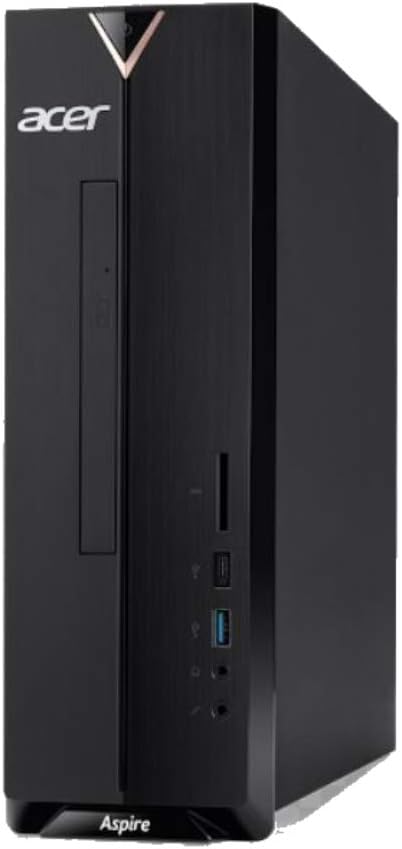
Abbildung 2: Rechte Seite view of the Acer Aspire XC-886 desktop PC, illustrating the compact tower form factor and side panel design.
2. Einschalten
Press the power button located on the top front of the desktop to turn on the system. The power indicator light will illuminate.
3. Erste Einrichtung des Betriebssystems
Beim ersten Start werden Sie durch die Einrichtung von Windows 10 Home geführt. Folgen Sie den Anweisungen auf dem Bildschirm, um Sprache, Region, Netzwerkeinstellungen und Benutzerkonto zu konfigurieren.
Bedienungsanleitung
Dieser Abschnitt behandelt die grundlegende Bedienung Ihres Desktop-PCs.
Ein-/Ausschalten und Neustart
- So schalten Sie das Gerät ein: Drücken Sie den Netzschalter auf der Vorderseite.
- So fahren Sie herunter: Klicken Sie in Windows auf die Schaltfläche „Start“ und wählen Sie dann „Ein/Aus“ > „Herunterfahren“.
- Neustarten: Klicken Sie in Windows auf die Schaltfläche „Start“ und wählen Sie dann „Ein/Aus“ > „Neustart“.
- Zum Schlafen: Klicken Sie in Windows auf die Schaltfläche „Start“ und wählen Sie dann „Ein/Aus“ > „Ruhezustand“.
Using the DVD Writer
The integrated DVD writer allows you to read and write CDs and DVDs. Press the eject button on the drive to open the tray, place your disc, and gently push the tray back in.
Herstellen einer Verbindung zum Internet
- Kabelverbindung: Verbinden Sie ein Ethernet-Kabel von Ihrem Router oder Modem mit dem LAN-Anschluss auf der Rückseite des Desktop-Computers.
- Drahtlose Verbindung: Windows 10 will automatically detect available Wi-Fi networks. Click the network icon in the taskbar, select your desired network, and enter the password if prompted.
Using USB Ports and Card Reader
Connect USB devices such as flash drives, external hard drives, or printers to any available USB port. The integrated card reader on the front panel supports various memory card formats for easy data transfer.
Wartung
Proper maintenance helps ensure the longevity and optimal performance of your desktop PC.
- Halte es sauber: Regularly clean the exterior of the desktop with a soft, dry cloth. Ensure ventilation openings are free from dust and obstructions to prevent overheating.
- Software-Updates: Keep your Windows operating system and drivers updated. Windows Update can be accessed via Settings > Update & Security.
- Virenschutz: Utilize the included McAfee Internet Security to protect your system from malware and viruses. Ensure its definitions are regularly updated.
- Datensicherung: Um Datenverlust zu vermeiden, sollten Sie wichtige Daten regelmäßig auf einer externen Festplatte oder in der Cloud sichern.
- Umgebungsbedingungen: Operate the desktop in a well-ventilated area, away from direct sunlight, heat sources, and excessive moisture.
Fehlerbehebung
If you encounter issues with your desktop, try these basic troubleshooting steps.
- Kein Strom:
- Ensure the power cord is securely connected to both the desktop and the power outlet.
- Überprüfen Sie die Funktionsfähigkeit der Steckdose, indem Sie ein anderes Gerät anschließen.
- Kein Bildschirm:
- Check that the monitor is powered on and its video cable is securely connected to the desktop.
- Stellen Sie sicher, dass an Ihrem Monitor die richtige Eingangsquelle ausgewählt ist.
- Tastatur/Maus reagiert nicht:
- For wireless devices, check battery levels and ensure the wireless receiver is properly inserted into a USB port.
- Versuchen Sie, den Receiver an einen anderen USB-Anschluss anzuschließen.
- Keine Internetverbindung:
- Bei kabelgebundenen Verbindungen überprüfen Sie bitte das Ethernet-Kabel und den Status des Routers/Modems.
- For wireless connections, ensure Wi-Fi is enabled in Windows and you are connected to the correct network with the correct password.
- Starten Sie Ihren Router/Ihr Modem und Ihren Desktop-Computer neu.
- Systemverlangsamung:
- Schließen Sie nicht benötigte Anwendungen.
- Führen Sie einen vollständigen Systemscan mit Ihrer Antivirensoftware durch.
- Prüfen Sie, ob Windows-Updates ausstehen, und installieren Sie diese gegebenenfalls.
If these steps do not resolve your issue, please refer to the Acer support webWebsite oder wenden Sie sich an den Kundendienst.
Technische Daten
Detailed technical specifications for the Acer Aspire XC-886 desktop PC.
| Besonderheit | Detail |
|---|---|
| Modellnummer | i594MR81TS73 |
| Prozessor | 9th Gen Intel Core i5-9400 (up to 4.1GHz, 9MB cache) |
| Betriebssystem | Windows 10 Home (64 Bit) |
| RAM | 8 GB DDR4 RAM |
| Lagerung | 1 TB PCIe NVMe SSD |
| Grafik | NVIDIA GeForce GT 730, 2GB GDDR3 RAM |
| Optisches Laufwerk | DVD-Brenner |
| Kabellose Konnektivität | Integrated AC Wireless LAN (802.11ac), Bluetooth |
| Front/Side I/O Ports |
|
| E/A-Anschlüsse auf der Rückseite |
|
| Formfaktor | Turm |
| Abmessungen (Paket) | 49.8 x 40.8 x 17.4 cm |
| Gewicht (Paket) | 5.9 kg |
| Bandtage | 220 Volt |
Garantie und Support
Your Acer Aspire XC-886 desktop PC comes with a 1-year On-site Local Singapore WarrantyDiese Garantie deckt Herstellungsfehler und Hardwareausfälle bei normalem Gebrauch ab.
For technical support, warranty claims, or service inquiries, please visit the official Acer support website or contact Acer customer service in Singapore. Keep your proof of purchase for warranty validation.
Acer-Support WebWebsite: https://www.acer.com/sg-en/support


