Einführung
This manual provides essential instructions for the proper use, setup, and maintenance of your BYTECH Lightning Cable (Model: CLMFCBLASST). This cable is designed for charging and data transfer with compatible Apple iOS devices, including iPhones, iPads, and iPods, as well as connecting to laptops and personal computers.
Produkt überview
The BYTECH Lightning Cable is a durable accessory for your Apple devices. It features a Lightning connector on one end and a USB-A connector on the other, facilitating both power delivery for charging and data exchange. The cable supports fast charging capabilities for compatible devices.
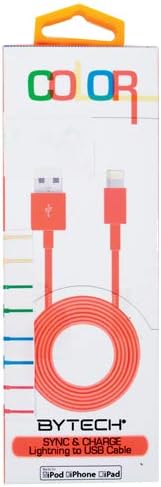
This image displays the retail packaging for the BYTECH Lightning to USB Cable. The packaging is white with 'COLOR' printed at the top in multi-colored letters. An orange Lightning to USB cable is visible through a clear window, coiled neatly. The bottom of the package indicates 'BYTECH SYNC & CHARGE Lightning to USB Cable' and compatibility with iPod, iPhone, and iPad.
Komponenten:
- Lightning-Anschluss: Connects to your Apple iOS device (iPhone, iPad, iPod).
- USB-A-Anschluss: Connects to a USB power adapter, computer USB port, or other USB charging source.
- Kabel: The flexible cord connecting the two connectors, designed for durability and efficient power/data transfer.
Aufstellen
To begin using your BYTECH Lightning Cable, follow these steps:
- Konnektoren identifizieren: Locate the Lightning connector (smaller, 8-pin) and the USB-A connector (larger, rectangular).
- An Stromquelle oder Computer anschließen:
- For charging, insert the USB-A connector into a compatible USB wall adapter or car charger.
- For charging and data transfer, insert the USB-A connector into an available USB port on your laptop or personal computer.
- Mit iOS-Gerät verbinden: Insert the Lightning connector into the charging port of your iPhone, iPad, or iPod. Ensure it is fully seated.
- Verbindung überprüfen: Your device should indicate that it is charging or connected to a computer.
Bedienungsanleitung
Aufladen Ihres Geräts:
Once connected as described in the "Setup" section, your iOS device will begin charging automatically. The cable supports fast charging when paired with a compatible power adapter and device.
Datenübertragung:
When connected to a computer, the cable enables data transfer between your iOS device and the computer. This allows for syncing media, documents, and other files using iTunes or Finder (macOS Catalina and later).
- Connect your iOS device to your computer using the BYTECH Lightning Cable.
- Unlock your iOS device and respond to any "Trust This Computer?" prompts by tapping "Trust" and entering your passcode if required.
- Open iTunes (Windows/older macOS) or Finder (macOS Catalina and later) on your computer.
- Select your device within the application to manage and transfer data.
Wartung
Proper care extends the life of your cable:
- Lagerung: When not in use, coil the cable loosely. Avoid tight coiling or sharp bends, especially near the connectors, as this can damage the internal wires.
- Reinigung: Verwenden Sie ein weiches, trockenes Tuch, um Kabel und Anschlüsse vorsichtig abzuwischen. Verwenden Sie keine flüssigen Reiniger oder Scheuermittel.
- Handhabung: Always grasp the connector head when plugging or unplugging the cable. Avoid pulling directly on the cable itself.
- Umfeld: Das Kabel sollte vor extremen Temperaturen, direkter Sonneneinstrahlung und Feuchtigkeit geschützt werden.
Fehlerbehebung
If you encounter issues with your BYTECH Lightning Cable, consider the following:
- Gerät wird nicht geladen:
- Stellen Sie sicher, dass beide Enden des Kabels fest angeschlossen sind.
- Versuchen Sie es mit einem anderen USB-Netzteil oder einem anderen USB-Anschluss am Computer.
- Check the charging port on your iOS device for debris or lint.
- Test the cable with a different compatible iOS device, if available.
- Probleme bei der Datenübertragung:
- Ensure your iOS device is unlocked and you have tapped "Trust This Computer" when prompted.
- Restart both your iOS device and your computer.
- Update iTunes or Finder to the latest version.
- Probieren Sie einen anderen USB-Anschluss an Ihrem Computer aus.
- Kabelschaden: Inspect the cable for any visible signs of damage, such as fraying, cuts, or bent connectors. Discontinue use if damage is found.
Technische Daten
| Attribut | Detail |
|---|---|
| Marke | Bytech |
| Modellnummer | CLMFCBLASST |
| UPC | 805112016938 |
| Steckertyp | Lightning (Male) to USB-A (Male) |
| Kabeltyp | Blitz |
| Kompatible Geräte | iPhone, iPad, iPod, Laptop, Personal Computer |
| Besonderheit | Schnelles Laden |
| Empfohlene Verwendung | Charging, data transfer for iOS devices |
| Anzahl der Pins | 8 (Lightning) |
| Artikelgewicht | 1.76 Unzen |
| Technische Daten | 1 x 1 x 1 Zoll (Verpackung) |
Garantie und Support
For warranty information or technical support regarding your BYTECH Lightning Cable, please refer to the official Bytech webBesuchen Sie die Website oder kontaktieren Sie direkt den Kundenservice. Bewahren Sie Ihren Kaufbeleg für Garantieansprüche auf.
Für allgemeine Anfragen besuchen Sie bitte die Bytech brand page on Amazon.


