1. Einleitung
This manual provides detailed instructions for the memzuoix 2.4G Portable Wireless Mouse, Model WM-697. Please read this manual carefully before using the product to ensure proper operation and to maximize its lifespan.
Packungsinhalt
- 1 x memzuoix 2.4G Portable Wireless Mouse (Model WM-697)
- 1 x USB-Nano-Empfänger
- 1 x Benutzerhandbuch (dieses Dokument)

Image 1.1: The memzuoix wireless mouse and its USB nano receiver.
2. Spezifikationen
| Besonderheit | Detail |
|---|---|
| Modell | WM-697 |
| Konnektivität | 2.4 GHz kabellos (USB-Empfänger) |
| DPI | 1400 DPI |
| Schaltflächen | 5 (Left, Right, Scroll Wheel, Forward, Backward) |
| Bewegungserkennung | Optisch |
| Betriebsbereich | Bis zu 43 Fuß (13 Meter) |
| Stromquelle | 2 x AAA-Batterien (nicht enthalten) |
| Schlafmodus | Automatischer Ablauf nach 7 Minuten Inaktivität |
| Abmessungen (L x B x H) | 4.19 x 2.63 x 1.50 Zoll |
| Gewicht | 2.22 Unzen |
| Kompatibilität | Windows 7/8/10/XP, Vista 7/8, Mac OS, Linux |

Image 2.1: Physical dimensions of the mouse.
3. Installationsanleitung
3.1 Einlegen der Batterie
- Suchen Sie die Abdeckung des Batteriefachs an der Unterseite der Maus.
- Gently slide the cover open.
- Legen Sie zwei AAA-Batterien (nicht im Lieferumfang enthalten) in das Batteriefach ein und achten Sie dabei auf die richtige Polarität (+/-).
- Schließen Sie den Batteriefachdeckel, bis er sicher einrastet.
3.2 USB-Empfängeranschluss
- Locate the USB nano receiver, which is typically stored in a slot within the battery compartment for safekeeping during transport.
- Nehmen Sie den USB-Empfänger aus seinem Aufbewahrungsfach.
- Plug the USB nano receiver into an available USB port on your computer (laptop, PC, desktop, MacBook, etc.).
- Schalten Sie die Maus mit dem EIN/AUS-Schalter an der Unterseite ein.
- Your computer should automatically detect and install the necessary drivers. No manual driver installation is required.

Image 3.1: Underside of the mouse, illustrating battery compartment, USB receiver slot, and power switch.

Image 3.2: Wireless connection setup with a laptop.
4. Bedienungsanleitung
4.1 Grundfunktionen
- Links Klick: Primäre Selektion und Aktivierung.
- Rechtsklick: Greift auf Kontextmenüs zu.
- Scrollrad: Scrolls content vertically. Can also be clicked for middle-click functionality (application dependent).
4.2 Advanced Functions (5-Button Mouse)
- Vorwärts-Taste: Navigiert vorwärts in web Browser bzw file explorers. (Located on the side of the mouse)
- Rückwärts-Taste: Navigiert rückwärts in web Browser bzw file explorers. (Located on the side of the mouse)
Notiz: The side buttons (Forward/Backward) are not available for Mac OS. Other functions operate normally.
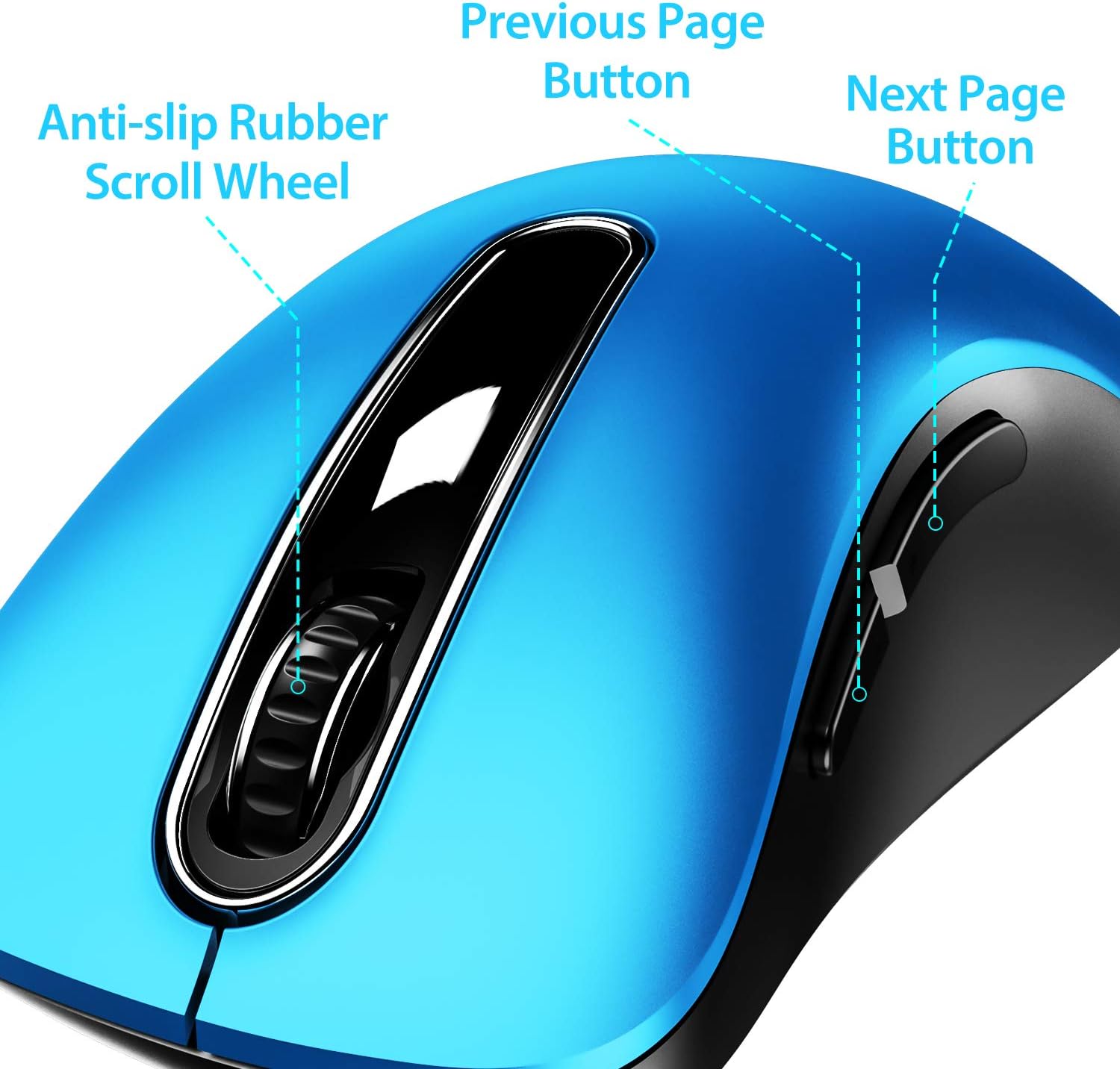
Bild 4.1: Überview of mouse buttons, including the scroll wheel and side navigation buttons.
4.3 Energiesparmodus
The mouse features an automatic power-saving sleep mode. If inactive for 7 minutes, the mouse will enter sleep mode to conserve battery life. To reactivate the mouse, simply click any button.
5. Wartung und Pflege
- Reinigung: Reinigen Sie die Maus mit einem weichen, trockenen Tuch. Bei hartnäckigem Schmutz kann ein leicht feuchtes Tuch hilfreich sein.amp Ein Tuch kann verwendet werden, achten Sie aber darauf, dass keine Feuchtigkeit in die inneren Bauteile eindringt.
- Batteriewechsel: Replace batteries when the mouse performance degrades or stops responding. Always use fresh AAA batteries.
- Lagerung: When not in use for extended periods, turn off the mouse using the ON/OFF switch and store the USB receiver in its dedicated slot on the mouse's underside to prevent loss.
- Vermeiden Sie extreme Bedingungen: Setzen Sie die Maus keinen extremen Temperaturen, direkter Sonneneinstrahlung oder übermäßiger Feuchtigkeit aus.
6. Fehlerbehebung
| Problem | Mögliche Lösung |
|---|---|
| Maus reagiert nicht |
|
| Die Cursorbewegung ist unregelmäßig oder langsam. |
|
| Seitentasten funktionieren nicht unter Mac OS | This is a known compatibility limitation. The side buttons are not supported on Mac OS. Other mouse functions should work normally. |
| Die Maus wechselt zu schnell in den Schlafmodus. | The mouse is designed to enter sleep mode after 7 minutes of inactivity to conserve power. This is normal operation. Click any button to wake it up. |
7. Garantie und Support
The memzuoix 2.4G Portable Wireless Mouse (Model WM-697) comes with a 365-day worry-free warranty from the date of purchase. This warranty covers manufacturing defects and malfunctions under normal use.
For warranty claims, technical support, or any inquiries, please contact memzuoix customer service through the retailer where the product was purchased or visit the official memzuoix webWebsite für Kontaktinformationen.
Bitte bewahren Sie Ihren Kaufbeleg zur Überprüfung der Garantie auf.


