Einführung
This manual provides comprehensive instructions for setting up, operating, maintaining, and troubleshooting your Mercusys MR50G AC1900 Dual-Band Wi-Fi 5 Router. The MR50G is designed to deliver high-speed wireless connectivity with AC1900 speeds, Gigabit Ethernet ports, and advanced features like MU-MIMO and Beamforming.

Bild: Vorderseite view of the Mercusys MR50G router, illustrating its dual-band capabilities with 5GHz (1300 Mbps) and 2.4GHz (600 Mbps) speeds.
Installationshandbuch
1. Packungsinhalt
Überprüfen Sie, ob Ihr Paket die folgenden Artikel enthält:
- Mercusys MR50G AC1900 Dual-Band Wi-Fi 5 Router
- Netzteil
- Ethernet-Kabel
- Quick Installation Guide (User Guide)
2. Physische Verbindung
Befolgen Sie diese Schritte, um Ihren Router anzuschließen:
- Ausschalten: Trennen Sie gegebenenfalls Ihr Modem und Ihren Router vom Stromnetz.
- Modem an Router anschließen: Connect one end of the provided Ethernet cable to the WAN port (usually blue) on your MR50G router and the other end to your modem's Ethernet port.
- Geräte anschließen (optional): For wired connections, connect your computer or other devices to the LAN ports (yellow) on the MR50G router using Ethernet cables.
- Einschalten: Connect the power adapter to the router's power port and plug it into a power outlet. Power on your modem, then power on the MR50G router.
- Warten Sie auf die Indikatoren: Wait for the router's LED indicators to stabilize. The Power LED should be solid green.
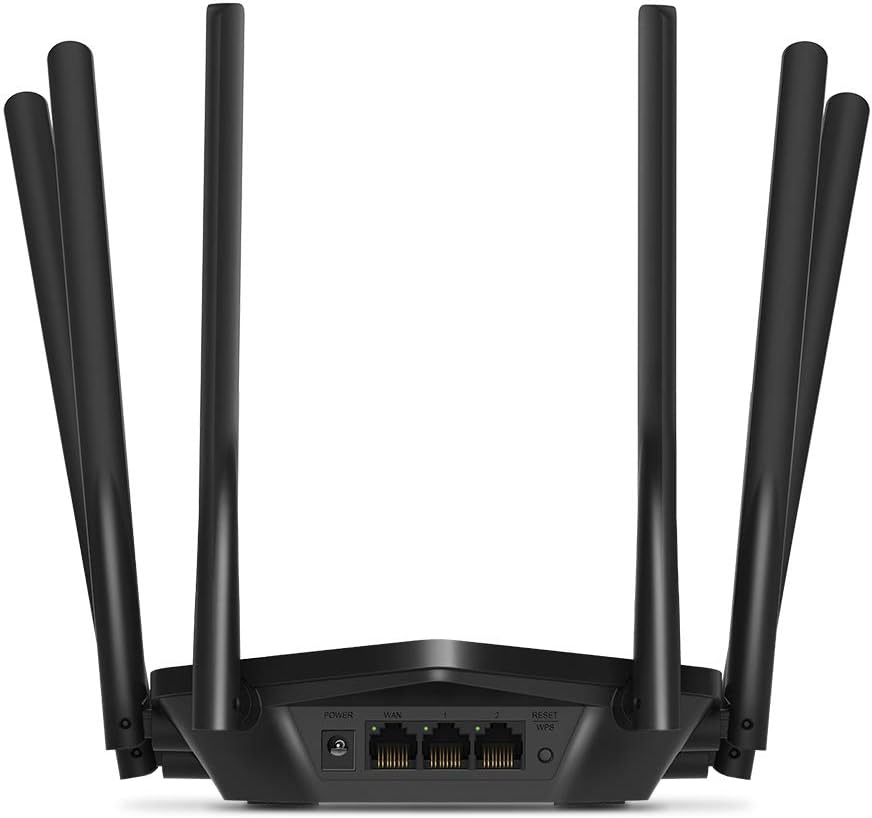
Bild: Rückseite view of the Mercusys MR50G router, illustrating the power input, WAN port (blue), and three LAN ports (yellow) for wired connections, along with the Reset/WPS button.
3. Erstkonfiguration
So konfigurieren Sie Ihren Router zum ersten Mal:
- Mit WLAN verbinden: Connect your computer or mobile device to the router's default Wi-Fi network (SSID and password are typically printed on a label on the bottom of the router).
- Zugang Web Schnittstelle: Öffnen Sie ein web Browser und Typ
mwlogin.netor192.168.1.1in die Adressleiste. - Anmeldepasswort erstellen: Follow the on-screen instructions to create a login password for the router's management page.
- Follow Quick Setup: The Quick Setup wizard will guide you through basic internet and wireless settings.
Bedienungsanleitung
1. Grundlegende WLAN-Einstellungen
Nach dem Einloggen in die web Schnittstelle:
- Netzwerk Name (SSID): Navigate to the Wireless settings to change your Wi-Fi network names (SSIDs) for both 2.4 GHz and 5 GHz bands.
- Passwort: Set a strong, unique password for your Wi-Fi networks. The MR50G supports WPA3 for enhanced security.
- Sicherheitsstufe: It is recommended to use WPA2-PSK/WPA3-Personal for optimal security.
2. Dualbandbetrieb
The MR50G operates on two frequency bands:
- 2.4 GHz: Bietet eine größere Reichweite und bessere Durchdringung von Wänden, geeignet für die allgemeine Internetnutzung und ältere Geräte.
- 5 GHz: Offers faster speeds and less interference, ideal for bandwidth-intensive activities like 4K streaming and online gaming, but with a shorter range.
You can configure separate SSIDs for each band or use Smart Connect to combine them into a single SSID, allowing the router to automatically assign devices to the optimal band.
3. Zugriffspunktmodus
To use the MR50G as an Access Point (AP) to extend an existing wired network:
- Verbinden: Connect an Ethernet cable from your existing router's LAN port to one of the MR50G's LAN ports (not the WAN port).
- Konfigurieren: Log into the MR50G's web interface, navigate to the Operation Mode settings, and select "Access Point Mode". Follow the prompts to complete the setup.
4. Erweiterte Funktionen
- MU-MIMO: Multi-User, Multiple-Input, Multiple-Output technology allows the router to communicate with multiple devices simultaneously, improving network efficiency.
- Strahlformung: Fokussiert Wi-Fi-Signale auf verbundene Geräte und verbessert so Signalstärke und Reichweite.
- VPN-Unterstützung: The router supports VPN functionality, allowing for secure remote access or connection to VPN services. Refer to the router's web interface for specific VPN client/server configurations.
- Kindersicherung: Manage and restrict internet access for specific devices or users.
- Gast-Netzwerk: Richten Sie ein separates WLAN-Netzwerk für Gäste ein, um Ihr Hauptnetzwerk zu schützen.
Wartung
1. Firmware-Updates
Regularly check for and install firmware updates to ensure optimal performance, security, and access to new features. Firmware updates can typically be found in the router's web interface under System Tools or Advanced settings.
2. Router zurücksetzen
If you encounter persistent issues or forget your login password, you may need to reset the router to its factory default settings:
- With the router powered on, press and hold the Reset/WPS button on the back panel for approximately 5-10 seconds until the LED indicators flash.
- Release the button and wait for the router to restart. All settings will be restored to factory defaults.
3. Optimale Platzierung
For the best Wi-Fi coverage and performance:
- Place the router in a central location in your home or office.
- Avoid placing it near obstructions like thick walls, metal objects, or large appliances (microwaves, refrigerators) that can interfere with Wi-Fi signals.
- Elevate the router if possible, as Wi-Fi signals tend to spread downwards.

Image: Mercusys MR50G router positioned on a table, demonstrating a typical placement for optimal signal distribution within a living space.
Fehlerbehebung
1. Kein Internetzugang
- Verbindungen prüfen: Stellen Sie sicher, dass alle Ethernet-Kabel fest mit den richtigen Ports verbunden sind (WAN zum Modem, LAN zu den Geräten).
- Geräte neu starten: Schalten Sie zuerst Ihr Modem, dann den Router und anschließend Ihre angeschlossenen Geräte aus und wieder ein.
- WAN-LED prüfen: Verify that the WAN LED on the router is lit, indicating a connection to the modem.
- ISP-Status: Kontaktieren Sie Ihren Internetdienstanbieter (ISP), um zu bestätigen, dass keine Dienstausfälle vorliegen.tages in Ihrer Nähe.
2. Langsame WLAN-Geschwindigkeiten
- Routerplatzierung: Ensure the router is placed optimally (refer to "Optimal Placement" section).
- Interferenz: Platzieren Sie den Router fern von anderen elektronischen Geräten, die Störungen verursachen könnten.
- Band Auswahl: For speed-critical applications, ensure your device is connected to the 5 GHz band.
- Kanaloptimierung: Im Router web Versuchen Sie, den WLAN-Kanal sowohl für das 2.4-GHz- als auch für das 5-GHz-Band auf einen weniger ausgelasteten Kanal zu ändern.
- Firmware: Stellen Sie sicher, dass die Firmware Ihres Routers auf dem neuesten Stand ist.
3. Zugriff auf die Router-Verwaltungsseite nicht möglich
- IP-Adresse: Stellen Sie sicher, dass Sie die richtige Adresse verwenden (
mwlogin.netor192.168.1.1). - Kabelverbindung: Try accessing the page from a computer connected directly to the router via an Ethernet cable.
- Browser-Cache leeren: Löschen Sie Ihre web Bitte löschen Sie den Browser-Cache und die Cookies oder versuchen Sie es mit einem anderen Browser.
- Firewall/Antivirus: Deaktivieren Sie vorübergehend jegliche Firewall- oder Antivirensoftware auf Ihrem Computer, die möglicherweise den Zugriff blockiert.
- Router zurücksetzen: If all else fails, perform a factory reset (refer to "Resetting the Router" section).
Technische Daten
| Modell | MR50G (EU) |
| Drahtlose Standards | IEEE 802.11a / b / g / n / ac |
| Frequenz | 2.4 GHz und 5 GHz (Dualband) |
| Datenrate | AC1900 (600 Mbit/s im 2.4-GHz-Band, 1300 Mbit/s im 5-GHz-Band) |
| Ethernet-Anschlüsse | 1x Gigabit-WAN-Anschluss, 3x Gigabit-LAN-Anschlüsse |
| Antennen | 6x Fixed Omni-Directional Antennas |
| Sicherheit | WPA-PSK / WPA2-PSK / WPA3-Personal |
| Abmessungen (B x T x H) | 15.72 x 17.56 x 4.5 cm |
| Gewicht | 450 g |
| Besondere Merkmale | MU-MIMO, Beamforming, Access Point Mode, VPN Support, Parental Controls, Guest Network |
| Leistungsaufnahme | 100-240 V ~ 50/60 Hz |
Garantie und Support
Mercusys products come with a limited warranty. For detailed warranty information, please refer to the warranty card included with your product or visit the official Mercusys webWebsite.
For technical support, firmware updates, and additional resources, please visit the Mercusys support website. You can typically find contact information and FAQs there.
Official Mercusys WebWebsite: www.mercusys.com


