
1. Einleitung
This manual provides detailed instructions for the setup, operation, and maintenance of your AOC Essential-line Q32E2N monitor. Please read this manual thoroughly before using the product to ensure proper and safe operation.
The AOC Q32E2N monitor features a 31.5-inch VA/SNB panel with QHD (2560 x 1440) resolution, designed for professional use. Key features include a slim 3-sided frameless design, wide 178°/178° viewing angles, built-in speakers, 250 cd/m² brightness, 4ms response time, and automatic source input detection. It also incorporates eye-friendly technologies such as Flicker-Free and Low Blue Mode for enhanced viewKomfort.

Visual representation of the AOC Q32E2N monitor's main features, including its size, display technologies, and mounting options.
2. Einrichtung
2.1 Auspacken und Inhalt
Carefully remove all components from the packaging. Ensure all items listed below are present. If any items are missing or damaged, contact your retailer.
- AOC Q32E2N Monitor
- Monitorständer (Fuß und Hals)
- Stromkabel
- HDMI-Kabel
- DisplayPort-Kabel (kann je nach Region variieren)
- Benutzerhandbuch (dieses Dokument)
- Garantiekarte
2.2 Montage des Ständers
- Legen Sie den Monitor mit dem Bildschirm nach unten auf eine weiche, saubere Oberfläche, um Kratzer zu vermeiden.
- Befestigen Sie den Stativhals an der Rückseite des Monitors und richten Sie die Befestigungslöcher aus.
- Befestigen Sie den Hals mit den mitgelieferten Schrauben.
- Befestigen Sie den Stativfuß am unteren Ende des Stativhalses und ziehen Sie die Rändelschraube(n) fest.

Hinteren view of the monitor, illustrating the VESA mount compatibility and the location of various input ports.
2.3 Anschließen an einen Computer
Connect the monitor to your computer using one of the available video input ports. Ensure both the monitor and computer are powered off before making connections.
- HDMI-Verbindung: Verbinden Sie ein Ende des HDMI-Kabels mit dem HDMI-Anschluss Ihres Computers und das andere Ende mit einem HDMI-Anschluss des Monitors.
- DisplayPort-Verbindung: Connect one end of the DisplayPort cable to the DisplayPort on your computer and the other end to the DisplayPort on the monitor.
- Audioverbindung: If using external speakers or headphones, connect them to the audio output jack on the monitor.

Nahaufnahme view of the monitor's bottom-facing ports, including power, HDMI, DisplayPort, and audio jacks.
2.4 Stromanschluss
Schließen Sie das Netzkabel an den Stromeingang des Monitors an und stecken Sie das andere Ende in eine geerdete Steckdose.
3. Bedienung des Monitors
3.1 Ein-/Ausschalten
Drücken Sie den Netzschalter unten rechts am Monitor, um ihn ein- oder auszuschalten. Die Betriebsanzeige leuchtet, wenn der Monitor eingeschaltet ist.
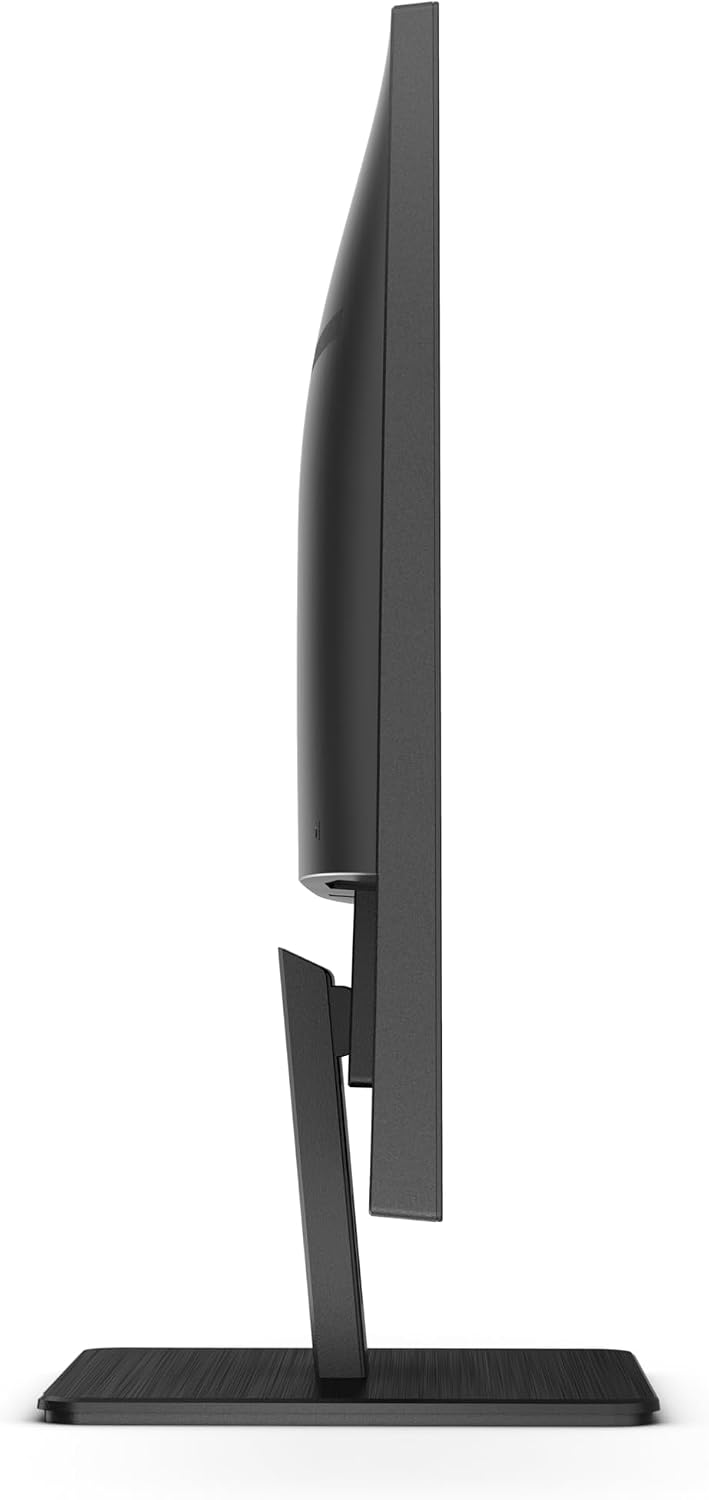
Seite view of the monitor, indicating the slim profile and the general area of the control buttons.
3.2 Menünavigation über das Bildschirmdisplay (OSD).
The OSD menu allows you to adjust various display settings. Use the control buttons on the bottom right bezel of the monitor to navigate the menu.
- Drücken Sie die Speisekarte Taste zum Öffnen des OSD.
- Verwenden Sie die Hoch/Runter or Links rechts Schaltflächen zur Navigation durch die Optionen.
- Drücken Sie die Eingeben or OK Schaltfläche zum Auswählen einer Option oder zum Bestätigen einer Einstellung.
- Drücken Sie die Ausfahrt Taste zum Schließen des OSD oder zum Zurückkehren zum vorherigen Menü.

Von oben nach unten view of the monitor, highlighting the position of the OSD control buttons on the lower right side.
3.3 Auswahl der Eingangsquelle
The monitor can automatically detect the active input source. If multiple sources are connected, you can manually switch between them using the OSD menu or a dedicated input select button (if available).
3.4 Anpassen der Anzeigeeinstellungen
Im OSD-Menü können Sie verschiedene Anzeigeparameter anpassen:
- Helligkeit Kontrast: Passen Sie die Gesamthelligkeit und das Kontrastverhältnis des Displays an.
- Farbeinstellungen: Farbtemperatur, Gamma und einzelne RGB-Werte anpassen.
- Bildmodus: Select from predefined modes (e.g., Standard, Text, Game, Movie) for optimized viewing.
- Flimmerfreie Technologie: This feature reduces screen flickering, minimizing eye strain during prolonged use.
- Low Blue Mode: Reduces harmful blue light emissions to protect your eyes, especially during nighttime viewing.
- Audio: Die Lautstärke für die eingebauten Lautsprecher oder die angeschlossenen Kopfhörer anpassen.
4. Wartung
4.1 Pflege und Reinigung
- Vor der Reinigung immer den Netzstecker des Monitors ziehen.
- Mit einem weichen, fusselfreien Tuch leichtampReinigen Sie den Bildschirm anschließend mit Wasser oder einem nicht scheuernden Bildschirmreiniger. Sprühen Sie den Reiniger nicht direkt auf den Bildschirm.
- Für den Monitor casing) Verwenden Sie ein weiches, trockenes Tuch. Vermeiden Sie scharfe Reinigungsmittel oder Scheuermittel.
- Do not allow liquids to enter the monitor's interior.
4.2 Speicherung
When storing the monitor for an extended period, place it in its original packaging or a suitable protective container. Store in a cool, dry place away from direct sunlight and extreme temperatures.
5. Fehlerbehebung
In der folgenden Tabelle finden Sie häufige Probleme und deren Lösungen. Sollte das Problem weiterhin bestehen, wenden Sie sich bitte an den Kundensupport.
| Problem | Mögliche Ursache | Lösung |
|---|---|---|
| Kein Bild auf dem Bildschirm | Monitor nicht eingeschaltet; Videokabel locker oder nicht angeschlossen; Falsche Eingangsquelle ausgewählt. | Ensure power cable is securely connected and monitor is on; Check video cable connections (HDMI/DisplayPort) at both ends; Select the correct input source via OSD. |
| Das Bild ist unscharf oder verzerrt. | Falsche Auflösungseinstellung; Problem mit dem Videokabel. | Set the display resolution to 2560 x 1440 (QHD) in your computer's display settings; Try a different video cable. |
| Kein Ton von den Lautsprechern | Volume too low or muted; Incorrect audio output selected on computer; Audio cable disconnected. | Increase monitor volume via OSD; Check computer's audio settings to ensure monitor is selected as output device; Ensure audio cable (if used) is connected. |
| Bildschirm flackert | Refresh rate mismatch; Environmental interference. | Adjust refresh rate in computer display settings; Ensure no strong electromagnetic devices are near the monitor. |
6. Spezifikationen
Detailed technical specifications for the AOC Q32E2N monitor:
- Modell: Q32E2N
- Bildschirmgröße: 31.5 Zoll
- Panel-Typ: VA/SNB
- Auflösung: 2560 x 1440 (QHD)
- Seitenverhältnis: 16:9
- Helligkeit: 250 cd/m²
- Ansprechzeit: 4 ms
- Viewing-Winkel: 178°/178°
- Eingebaute Lautsprecher: Ja
- VESA-Halterung kompatibel: Ja
- Gewicht: 21.9 Pfund (Artikelgewicht)
- Hersteller: AOC
- Frühestmöglicher Termin: 23. September 2020
For more detailed energy information, please refer to the official product information sheet:

Official Product Information Sheet providing comprehensive technical and energy-related data for the AOC Q32E2N monitor.
You can also find this information and more on the EPREL database: https://eprel.ec.europa.eu/qr/424528
7. Garantie und Support
7.1 Garantieinformationen
AOC provides a limited warranty for the Q32E2N monitor. Please refer to the warranty card included in your product packaging for specific terms, conditions, and duration of the warranty. Keep your purchase receipt as proof of purchase for warranty claims.
7.2 Kundendienst
For technical assistance, troubleshooting, or warranty service, please contact AOC customer support. You can find contact information on the official AOC website or through the details provided in your product documentation.
Visit the official AOC Store for more products and support: AOC Store on Amazon


