Einführung
This manual provides comprehensive instructions for the setup, operation, maintenance, and troubleshooting of your Lorex 4K Ultra HD 8-Channel Fusion Series PoE Network Video Recorder (NVR) with 2TB Storage. This system is designed to provide advanced surveillance capabilities for your property.
The Lorex NVR is engineered for seamless integration with the Lorex Home app, allowing for remote viewing and control of your security system from compatible smartphones or tablets. It supports 4K Ultra HD resolution for superior video clarity and includes smart motion detection features.

Abbildung 1: Vorderseite view of the Lorex 4K Ultra HD NVR, showcasing its sleek design and front USB port.
Aufstellen
Follow these steps to set up your Lorex NVR system. Ensure all components are present before beginning the installation process.
- Kameras anschließen: Connect your PoE (Power over Ethernet) cameras to the NVR's PoE ports. These ports provide both power and video signal through a single Ethernet cable.
- Router verbinden: Connect the NVR to your network router using an Ethernet cable. This enables remote access and internet connectivity for the system.
- Maus anschließen: Plug the included USB mouse into one of the NVR's USB ports for local control and navigation of the NVR interface.
- Monitor anschließen: Connect a monitor to the NVR using an HDMI or VGA cable to view the live feed and access system settings.
- Strom anschließen: Connect the power adapter to the NVR and then to a power outlet. The NVR will power on automatically.
- Lorex Setup Wizard: Upon first power-on, the Lorex Setup Wizard will guide you through initial configuration, including setting up passwords and network settings.

Figure 2: Visual guide for initial NVR setup, illustrating the connection points for cameras, router, mouse, monitor, and power.
For camera compatibility information, visit the official Lorex website. Cameras are typically sold separately.

Figure 3: Diagram showing how Power over Ethernet (PoE) simplifies camera installation by delivering both power and data through a single cable to the NVR.
Bedienungsanleitung
The Lorex NVR offers various features for monitoring and managing your security system.
Lorex Home App Integration
Monitor your property remotely using the Lorex Home app, available for Android and iPhone devices. Download the free app, scan the QR code on your NVR, and your connected cameras will appear for live viewing und Essentagich review. The app can also send motion-activated push notifications to your phone.

Figure 4: The Lorex NVR shown with mobile devices displaying the Lorex Home app, highlighting remote monitoring capabilities.
4K Ultra HD-Aufnahme
The NVR supports 4K Ultra HD resolution, providing superior detail and definition for recorded video. This high resolution enhances the clarity of surveillance footage, making it easier to identify important details.

Figure 5: A visual comparison demonstrating the enhanced detail and clarity of 4K Ultra HD resolution compared to standard 1080p HD.
Lorex Fusion Technology
As part of the Lorex Fusion collection, this NVR can be paired with additional Lorex Wi-Fi products, such as Wi-Fi cameras, doorbells, and floodlights, to create a comprehensive security ecosystem.

Figure 6: An illustration of the Lorex Fusion feature, showing a hand interacting with the NVR, symbolizing active deterrence capabilities.
Area Search
Utilize Lorex's Area Search feature to quickly find specific events. Select an area of interest within your recorded footage, and the system will automatically playback any video showing scene changes in that designated area. This is particularly useful for monitoring doorways, driveways, or other high-traffic zones.
Smart Home Kompatibilität
The NVR and compatible cameras support integration with Amazon Alexa and Google Assistant for voice control. This allows for convenient hands-free operation and viewauf kompatiblen Smart-Displays.
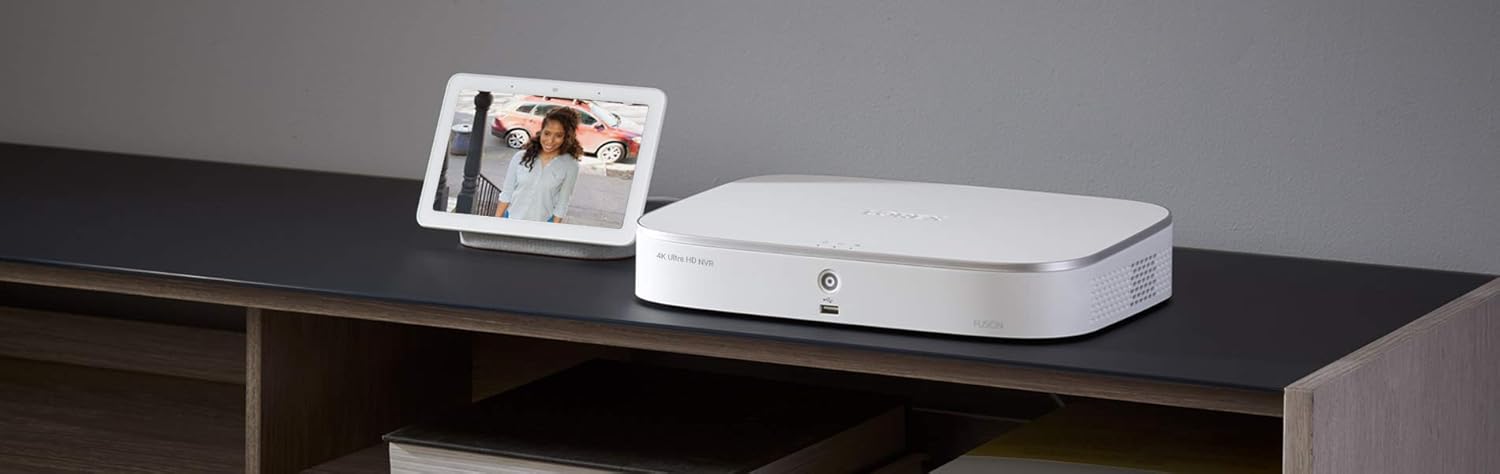
Figure 7: The Lorex NVR integrated with a smart display, demonstrating compatibility with voice assistants like Google Assistant for viewKamerabilder.
Wartung
Regular maintenance ensures the optimal performance and longevity of your Lorex NVR system.
- Firmware-Updates: Periodically check for and install firmware updates from the Lorex website or through the NVR's system settings. Updates often include performance improvements, bug fixes, and new features.
- Festplattenzustand: The NVR's hard drive stores all recorded footage. Monitor its health through the system's storage settings. Consider backing up important footage regelmäßig.
- Reinigung: Keep the NVR unit clean and free from dust. Use a soft, dry cloth to wipe surfaces. Ensure ventilation openings are not obstructed to prevent overheating.
- Kabelverbindungen: Periodically inspect all cable connections (power, Ethernet, video) to ensure they are secure and free from damage.
- Passwortsicherheit: Regularly change your NVR and Lorex Home app passwords to strong, unique combinations to enhance security.
Fehlerbehebung
This section addresses common issues you might encounter with your Lorex NVR.
| Problem | Mögliche Ursache | Lösung |
|---|---|---|
| Es wird kein Video auf dem Monitor angezeigt. | Loose video cable, incorrect input selected on monitor, NVR not powered on. | Check HDMI/VGA cable connection. Ensure monitor is on correct input. Verify NVR power indicator. |
| Die Kameras zeigen kein Video an. | Loose PoE cable, camera power issue, network configuration. | Check PoE cable connections at both NVR and camera ends. Restart NVR. Verify camera status in NVR settings. |
| Cannot access NVR remotely via Lorex Home app. | NVR nicht mit dem Internet verbunden, falsche App-Einstellungen, Firewall-Probleme. | Ensure NVR is connected to router and has internet access. Verify QR code scan and account login in app. Check router firewall settings. |
| Festplatte voll oder keine Aufnahme. | Recording settings, hard drive error. | Check recording schedule and motion detection settings. Format hard drive (this will erase all data). Contact support if issue persists. |
For more detailed troubleshooting, refer to the comprehensive instruction manual available on the Lorex website or contact Lorex technical support.
Technische Daten
Key technical specifications for the Lorex 4K Ultra HD 8-Channel Fusion Series PoE Network Video Recorder (Model: N841A82).
- Modellnummer: N841A82
- Videoauflösung: Up to 4K Ultra HD (3840 x 2160 pixels)
- Kanäle: 8-Kanal
- Speicherkapazität: 2TB (Terabytes) Hard Disk Drive
- Konnektivität: PoE (Power over Ethernet) for cameras, Wi-Fi (for Fusion compatibility), Ethernet for network
- Kompatible Geräte: Lorex PoE cameras, Lorex Wi-Fi cameras, Doorbells, Floodlights, Smartphones, Tablets, Smart Displays (Amazon Alexa, Google Assistant)
- Abmessungen (L x B x H): Ungefähr 16 x 14 x 6 Zoll
- Gewicht: Ungefähr 7.04 Pfund
- Datum der Erstveröffentlichung: 22. Oktober 2020
- Hersteller: Lorex

Figure 8: Rear panel of the Lorex NVR, detailing the various input and output ports for connectivity.
Garantie und Support
For warranty information, please refer to the documentation included with your product or visit the official Lorex website. Lorex typically offers a limited warranty on its products, covering defects in materials and workmanship.
For technical support, product registration, or to download the latest manuals and software, please visit the Lorex support page:
Lorex-Unterstützung WebWebsite
You can also find frequently asked questions (FAQs) and community forums on their webWebsite für zusätzliche Hilfe.


