1. Einleitung
This manual provides instructions for the Xgody Mate10+ smartphone. It covers device setup, operation, features, and maintenance to ensure optimal performance and user experience. The Mate10+ operates on Android 8.1, features a 5.5-inch HD display, dual 5MP cameras, and supports dual SIM functionality.
2. Packungsinhalt
Prüfen Sie, ob alle Artikel in der Produktverpackung vorhanden sind:
- 1 x Xgody Mate10+ Smartphone
- 1 x Ladegerät Adapter
- 1 x USB-Kabel
- 1 x Handytasche
- 1 x englisches Benutzerhandbuch
- 1 x HD-Folie (Displayschutzfolie)
- 1 x Displayschutzfolie (Displayschutzfolie)

Image: Contents of the Xgody Mate10+ smartphone package.
3. Erste Schritte
3.1. Installation der SIM-Karte und der Speicherkarte
The Xgody Mate10+ supports dual SIM dual standby, allowing the use of two SIM cards simultaneously. It has two independent card slots: one for a Nano SIM and one for a Micro SIM or a TF (microSD) card for expandable storage.
- Suchen Sie das SIM-/TF-Kartenfach an der Seite des Geräts.
- Verwenden Sie das mitgelieferte SIM-Auswurfwerkzeug, um das Fach zu öffnen.
- Carefully place your Nano SIM card, Micro SIM card, and/or TF card into the designated slots. Ensure correct orientation.
- Schieben Sie die Ablage vorsichtig wieder in das Gerät, bis sie bündig abschließt.
3.2. Aufladen des Geräts
Before first use, fully charge the smartphone using the provided charger and USB cable.
- Schließen Sie das USB-Kabel an den Ladeadapter an.
- Stecken Sie den Ladeadapter in eine Steckdose.
- Verbinden Sie das USB-Kabel mit dem Ladeanschluss Ihres Telefons.
- Das Batteriesymbol auf dem Bildschirm zeigt den Ladestatus an.
3.3. Ein-/Ausschalten
- Zum Einschalten: Halten Sie die Ein-/Aus-Taste gedrückt, bis der Bildschirm aufleuchtet.
- Zum Ausschalten: Halten Sie die Ein-/Aus-Taste gedrückt und wählen Sie dann auf dem Bildschirm die Option „Ausschalten“ aus.
3.4. Ersteinrichtung
Upon first power-on, follow the on-screen prompts to complete the initial setup, including language selection, Wi-Fi connection, Google account setup, and security settings.
4. Hauptmerkmale und Bedienung
4.1. Anzeige
The Xgody Mate10+ features a 5.5-inch HD full-view display, providing a wide visual experience for viewInhalt.

Image: The 5.5-inch full-view display of the Xgody Mate10+.

Image: The compact design of the Xgody Mate10+ for easy portability.
4.2. Betriebssystem (Android 8.1)
The device runs on Android 8.1, offering a user-friendly interface and enhanced performance for daily tasks.
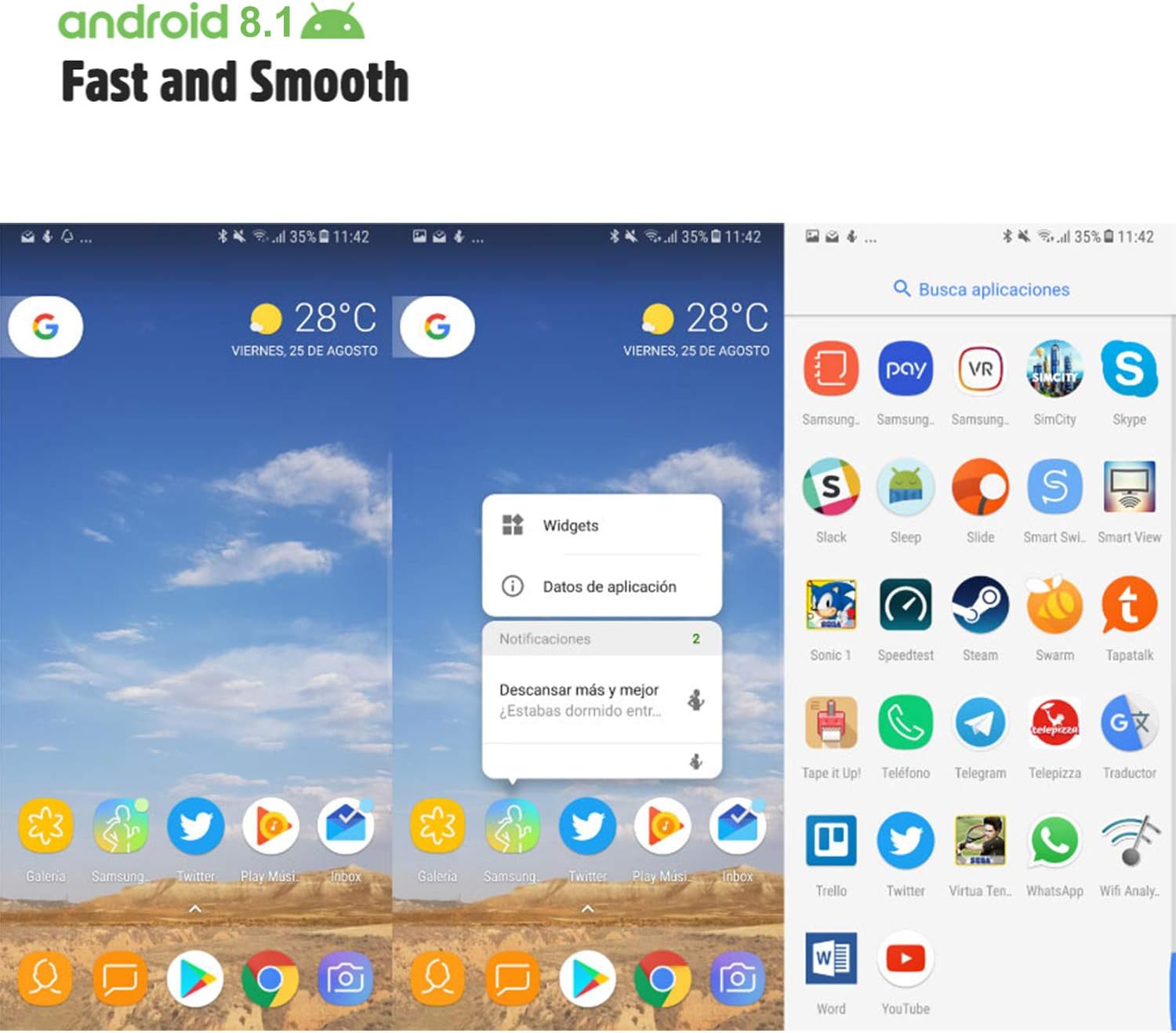
Image: Android 8.1 interface on the Xgody Mate10+.
4.3. Kamera
The Xgody Mate10+ is equipped with dual 5MP cameras, including a rear camera and a front beauty camera, for capturing photos and videos.

Image: Using the front camera for selfies.
4.4. Leistung und Speicherung
The device includes 1GB RAM and 8GB internal storage (ROM), expandable up to 32GB with an external SD card, providing sufficient space for applications and media.

Image: Internal components and storage capabilities.
4.5. Konnektivität
The Xgody Mate10+ is a 3G unlocked smartphone, supporting WCDMA 850/1900/2100MHz and GSM 850/900/1800/1900 MHz network bands. It is compatible with most WCDMA SIM carriers but not with CDMA carriers (e.g., Sprint, Verizon, Boost Mobile).
4.6. Sicherheit
The device supports Face ID for unlocking, providing a convenient and secure method to access your phone.
Video: Overview of Xgody Mate10+ features, including camera, processor, memory, Face ID, 5.5-inch screen, dual SIM, and Android 8.1 operating system.
5. Spezifikationen
| Modell | Mate10+ |
| Betriebssystem | Android 8.1 |
| Anzeige | 5.5 inch HD Full View Bildschirm |
| RAM | 1 GB |
| ROM (Interner Speicher) | 8 GB |
| Erweiterbarer Speicher | Bis zu 32 GB (TF-Karte) |
| Rückfahrkamera | 5 Megapixel |
| Frontkamera | 5MP (Beauty Camera) |
| SIM-Karten-Unterstützung | Dual SIM Dual Standby (1 Nano SIM, 1 Micro SIM or TF card) |
| Netzwerkbänder | 3G WCDMA 850/1900/2100MHz, 2G GSM 850/900/1800/1900 MHz |
| Batteriekapazität | 2000 mAh |
| Wireless-Technologien | Bluetooth, Wi-Fi, Cellular |
| Konnektivität | USB |
| GPS | GLONASS |
| Artikelgewicht | 14 Unzen |
| Technische Daten | 0.39 x 0.39 x 0.39 Zoll |
6. Fehlerbehebung
If you encounter issues with your Xgody Mate10+, refer to the following common solutions:
- Gerät lässt sich nicht einschalten: Stellen Sie sicher, dass der Akku geladen ist. Schließen Sie das Ladegerät an und warten Sie einige Minuten, bevor Sie versuchen, das Gerät erneut einzuschalten.
- Schlechte Akkulaufzeit: Reduce screen brightness, close unused apps running in the background, disable Wi-Fi/Bluetooth when not in use, and limit background data usage.
- Probleme mit der Netzwerkverbindung: Check if your SIM card is properly inserted. Verify that your SIM card supports the device's network bands (3G WCDMA 850/1900/2100MHz & 2G GSM 850/900/1800/1900 MHz). Restart the device.
- Anwendungen frieren ein oder stürzen ab: Close and restart the application. If the issue persists, clear the app's cache and data in Settings > Apps. Consider uninstalling and reinstalling the app.
- Langsame Leistung: Close unnecessary background applications. Clear cache data regularly. Ensure sufficient free storage space.
- Bildschirm reagiert nicht: Starten Sie das Gerät neu, indem Sie den Ein-/Ausschalter gedrückt halten. Sollte es nicht reagieren, erzwingen Sie einen Neustart, indem Sie den Ein-/Ausschalter längere Zeit (normalerweise 10–15 Sekunden) gedrückt halten.
7. Garantie und Support
For warranty information and technical support, please refer to the warranty card included in your product package or contact Xgody customer service through their official website or designated support channels. Keep your purchase receipt as proof of purchase for warranty claims.