1. Einleitung
This manual provides comprehensive instructions for the installation, use, and maintenance of your BoxWave ClearTouch Anti-Glare Screen Protector. This product is designed to protect the screen of your Icom M220 device from scratches, smudges, and glare, while maintaining optimal screen visibility and touch responsiveness.
The ClearTouch Anti-Glare screen protector is engineered with a matte surface that disperses light, reducing reflections and improving readability in various lighting conditions. It also features an anti-fingerprint coating to keep your screen clean.
2. Packungsinhalt
Überprüfen Sie, ob alle Artikel in Ihrem Paket vorhanden sind:
- Two (2) BoxWave ClearTouch Anti-Glare Screen Protectors
- Eine (1) Applikatorkarte
- Ein (1) Mikrofasertuch
- Ein (1) Staubentfernungsaufkleber

Image: Contents of the BoxWave ClearTouch Anti-Glare Screen Protector package, showing two screen protectors, an applicator card, a microfiber cleaning cloth, and a dust removing sticker.
3. Einrichtung und Installation
Eine fachgerechte Installation ist für eine optimale Leistung unerlässlich. Befolgen Sie diese Schritte sorgfältig:
- Bereiten Sie Ihren Arbeitsbereich vor: Wählen Sie eine saubere, staubfreie Umgebung. Waschen Sie Ihre Hände gründlich, um zu vermeiden, dass Öle oder Schmutz auf den Bildschirm oder die Schutzfolie gelangen.
- Reinigen Sie den Gerätebildschirm:
- Use the provided microfiber cleaning cloth to gently wipe the screen of your Icom M220, removing any smudges or fingerprints.
- If necessary, use a screen cleaner solution (not included) designed for electronics, applied to the cloth, not directly to the screen.
- Use the dust removing sticker to lift any remaining dust particles from the screen. Ensure the screen is completely free of dust, dirt, and oils.
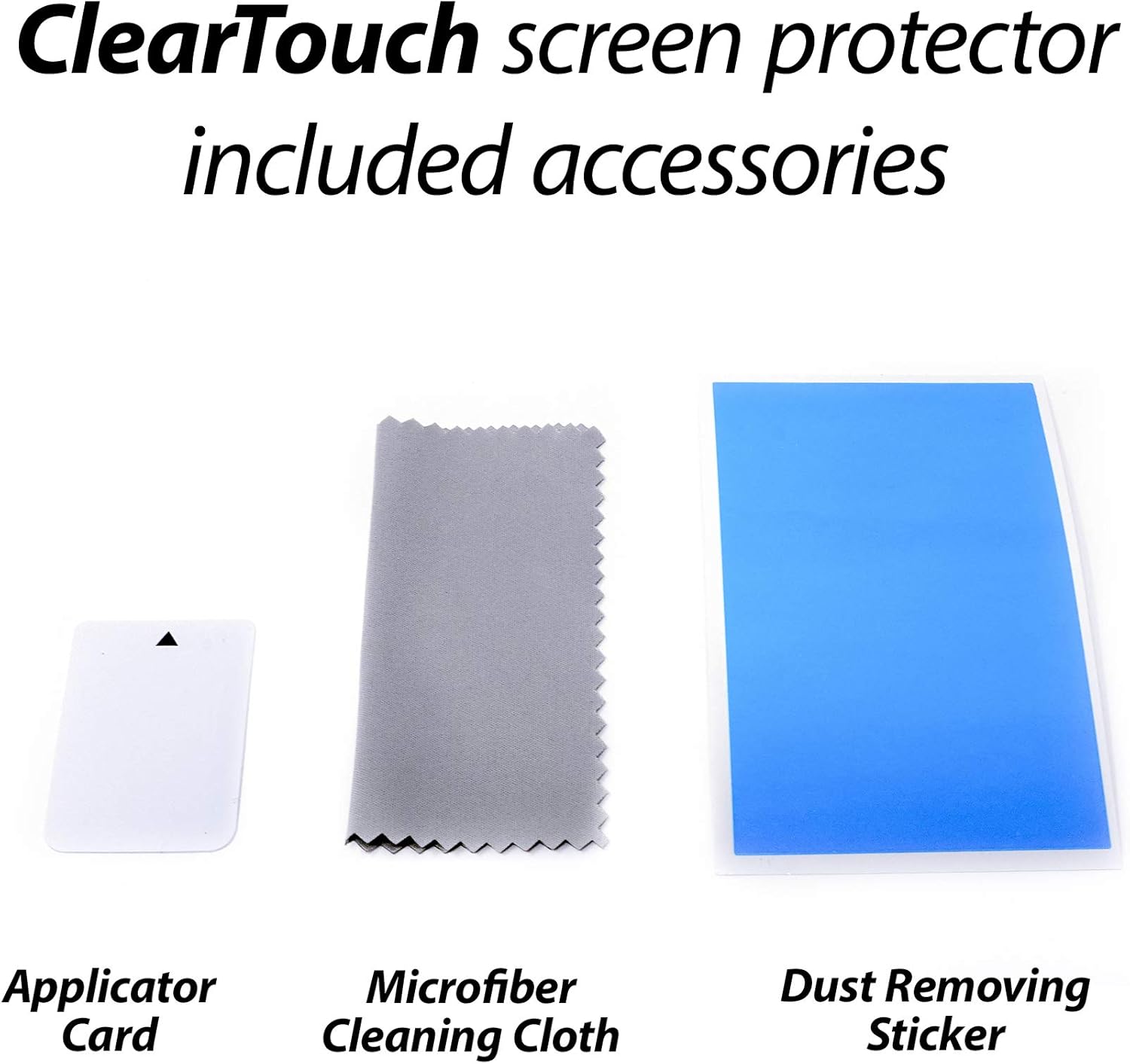
Image: Illustration of cleaning the device screen using a microfiber cloth and a dust removal sticker.
- Richten Sie die Displayschutzfolie aus:
- Carefully peel back a small portion of the protective film labeled "Step 1" or similar from one end of the screen protector. Avoid touching the adhesive side.
- Align the exposed edge of the screen protector with the corresponding edge of your Icom M220 screen. Pay close attention to cutouts for speakers, cameras, or buttons to ensure perfect alignment.
- Bringen Sie die Displayschutzfolie an:
- Once aligned, slowly and steadily peel back the rest of the "Step 1" protective film while simultaneously pressing the screen protector onto the device screen.
- Use the applicator card to gently smooth out any air bubbles as you go. Start from the center and push bubbles towards the edges.

Image: A hand using an applicator card to smooth out a screen protector during installation, removing air bubbles.
- Obere Folie entfernen: Once the screen protector is fully adhered and free of bubbles, carefully peel off the top protective film labeled "Step 2" or similar.
- Letzte Löschung: Use the microfiber cloth to give the newly installed screen protector a final gentle wipe.
4. Betrieb mit der Displayschutzfolie
The BoxWave ClearTouch Anti-Glare Screen Protector is designed to integrate seamlessly with your Icom M220 device, preserving its functionality while adding protection.
- Berührungsempfindlichkeit: The screen protector is engineered to maintain the original touch sensitivity of your device. You should experience no noticeable difference in responsiveness.
- Blendschutzfunktion: The matte finish reduces reflections from bright light sources, making your screen easier to view outdoors or under strong indoor lighting.
- Anti-Fingerprint-Oberfläche: The oleophobic coating helps repel oils and smudges, keeping your screen cleaner for longer.

Image: A tablet screen with a screen protector, demonstrating reduced glare in a bright environment.

Image: A visual comparison showing how the screen protector's surface resists fingerprints compared to an unprotected screen.
5. Pflege und Wartung
Um die Langlebigkeit und Wirksamkeit Ihrer Displayschutzfolie zu gewährleisten, beachten Sie bitte folgende Pflegehinweise:
- Reinigung: Use the provided microfiber cloth to wipe the screen protector regularly. For stubborn smudges, slightly dampen the cloth with water or a mild, electronics-safe screen cleaner. Avoid harsh chemicals or abrasive materials.
- Schutz: While the screen protector offers significant protection against scratches, avoid placing your device with sharp objects (e.g., keys, coins) in the same pocket or bag.
- Ersatz: If the screen protector becomes heavily scratched, damaged, or loses its adhesive properties, it is recommended to replace it with a new one. Your package includes two protectors for this purpose.
6. Fehlerbehebung
Häufige Probleme und ihre Lösungen:
| Problem | Mögliche Ursache | Lösung |
|---|---|---|
| Luftblasen nach der Installation | Dust particles trapped underneath, or uneven application. | Gently lift the nearest edge of the protector and re-apply, using the applicator card to push out bubbles. Ensure the screen is dust-free before re-application. Small bubbles may disappear over 24-48 hours. |
| Screen Protector Not Sticking | Oils or dirt on the screen, or adhesive damage. | Ensure the screen is thoroughly cleaned before application. If the adhesive is damaged, use the second screen protector provided. |
| Verminderte Berührungsempfindlichkeit | Incorrect installation or a faulty protector. | Re-install the protector carefully, ensuring no air gaps. If the issue persists, contact BoxWave customer support. |
| Excessive Glare | Not a ClearTouch Anti-Glare protector, or extreme lighting conditions. | Verify the product is indeed the ClearTouch Anti-Glare model. While it significantly reduces glare, it may not eliminate it entirely in direct sunlight. |
7. Spezifikationen
| Besonderheit | Beschreibung |
|---|---|
| Produktname | ClearTouch Anti-Glare Screen Protector |
| Marke | BoxWave |
| Kompatibilität | Icom M220 |
| Material | Polyethylenterephthalat (PET) |
| Oberflächenfinish | Matte, Anti-Glare, Anti-Fingerprint |
| UV Reduction | Reduces 90% UV rays |
| Packungsmenge | 2 Displayschutzfolien |
8. Garantie und Support
BoxWave products are designed for quality and durability. For information regarding warranty coverage or technical support, please refer to the official BoxWave webWebsite oder wenden Sie sich direkt an den Kundendienst.
Kontaktinformationen:
- WebWebsite: www.boxwave.com
- E-Mail: Siehe webWebsite für Support-E-Mail.
- Telefon: Siehe webWebsite für Support-Telefonnummer.
When contacting support, please have your product model (ClearTouch Anti-Glare Screen Protector for Icom M220) and purchase details ready.


