Einführung
Thank you for choosing the Macally Wireless Ergonomic Keyboard. This manual provides detailed instructions for setting up, operating, maintaining, and troubleshooting your new keyboard. Please read this manual thoroughly to ensure optimal performance and longevity of your device.

Figure 1: Macally Wireless Ergonomic Keyboard (Model BTERGOKEY)
Aufstellen
Packungsinhalt
- Macally Wireless Ergonomic Keyboard
- Micro-USB-zu-USB-A-Ladekabel
- Benutzerhandbuch (dieses Dokument)
Aufladen der Tastatur
The keyboard features a built-in 500mAh rechargeable battery. Before initial use, or when the battery is low, charge the keyboard using the included Micro USB to USB-A cable.
- Locate the Micro USB port on the keyboard.
- Connect the Micro USB end of the cable to the keyboard.
- Verbinden Sie das USB-A-Ende des Kabels mit einer kompatiblen USB-Stromquelle (z. B. USB-Anschluss am Computer, USB-Netzteil).
- Die LED-Anzeige zeigt den Ladestatus an.

Figure 2: Keyboard connected to charging cable.
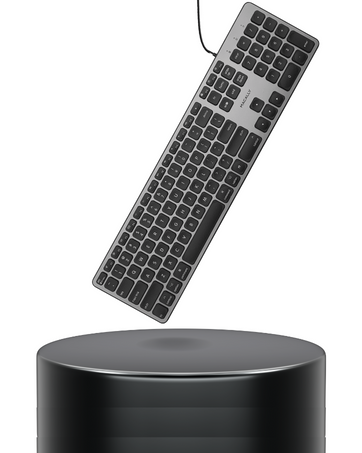
Figure 3: Close-up of the charging port and On/Off switch.
Bluetooth-Kopplung
The Macally BTERGOKEY keyboard can pair with up to three Bluetooth devices simultaneously.
- Ensure the keyboard is charged and the On/Off switch is in the "On" position.
- To initiate pairing, press and hold the Fn key, and while holding it, press the Number 1, 2, or 3 key on the number row. Release both keys. This selects the Bluetooth channel.
- Als nächstes drücken und halten Fn again, and while holding it, press the "P" key. Release both keys. The LED light for the selected channel (B1, B2, or B3) will flash rapidly, indicating it is in pairing mode.
- Gehen Sie auf Ihrem Mac, iPad oder iPhone zu Systemeinstellungen (Mac) oder Einstellungen (iOS), then navigate to Bluetooth.
- Select "Macally BTERGOKEY" from the list of available devices.
- Follow any on-screen prompts to complete the pairing process. The LED light will stop flashing rapidly once successfully paired.
Figure 4: Bluetooth connectivity with multiple Apple devices.
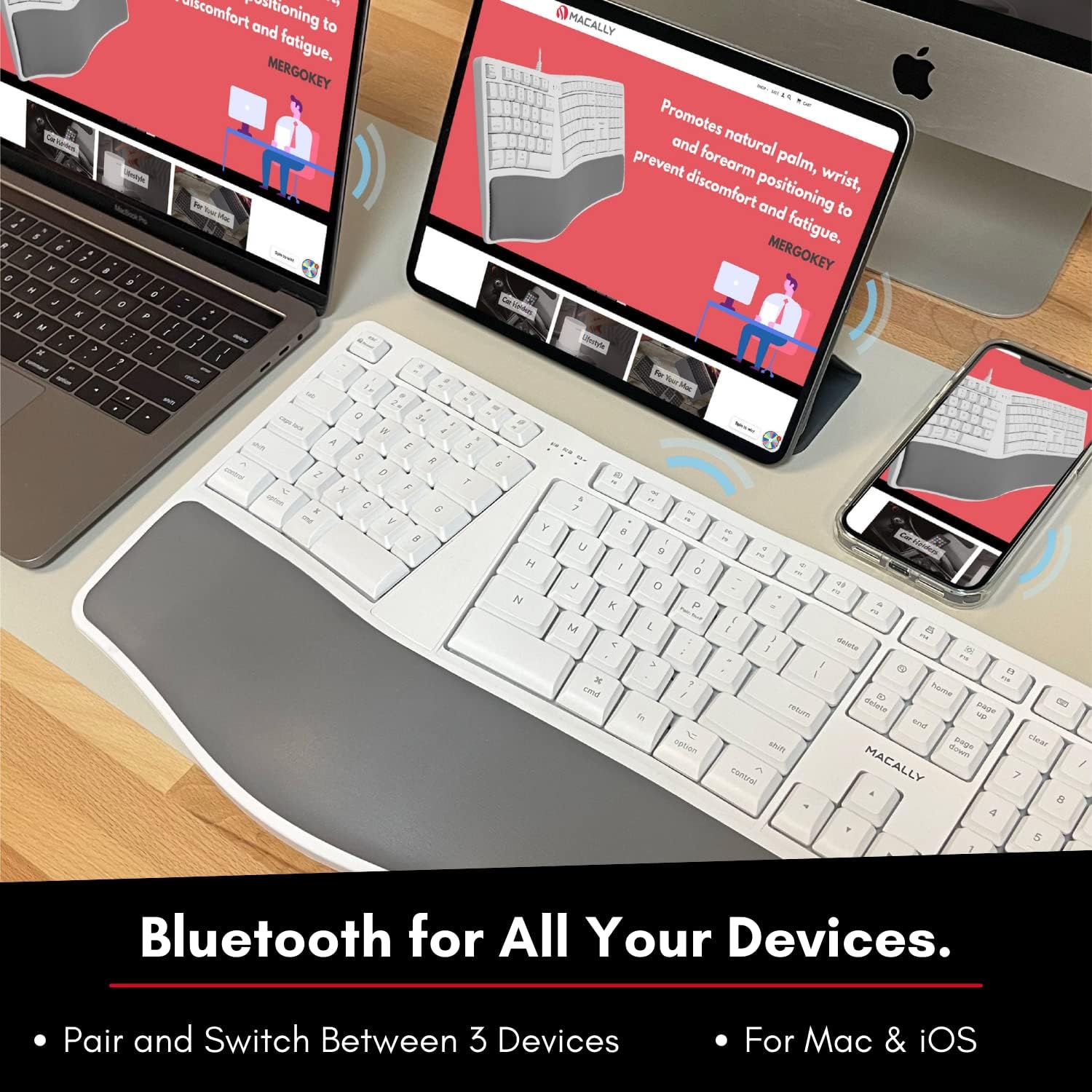
Figure 5: The keyboard supports Bluetooth connection to Mac, iPad, and iPhone.
Bedienungsanleitung
Umschalten zwischen gekoppelten Geräten
To quick-switch between your paired Bluetooth devices (B1, B2, or B3), simply press and hold the Fn key and then press the corresponding Number 1, 2, or 3 on the number row. Release both keys. The keyboard will connect to the selected device.
Ergonomic Design and Typing
The Macally BTERGOKEY features a split ergonomic design with keys in two zones and at an angle to promote natural arm and wrist posture. It includes a padded wrist cushion for enhanced comfort.

Figure 6: The keyboard's design promotes neutral arm resting position and sloped comfort.
The keyboard's layout includes two dedicated typing zones and a space bar for each hand, which can help improve typing speed and reduce strain.

Figure 7: The keyboard features two distinct typing zones for improved efficiency.
It may take a few days to adjust to the unique layout of this ergonomic keyboard. Consistent use will help you adapt and experience the full benefits.

Figure 8: Adjustment period for the ergonomic layout.
MacOS Shortcut Keys
The keyboard features a 110-key Mac-specific layout with 21 MacOSX shortcut keys to enhance your productivity. These keys provide quick access to common functions.

Abbildung 9: Überview of the 21 MacOS shortcut keys.
Wartung
Reinigen Ihrer Tastatur
To maintain the cleanliness and functionality of your keyboard, follow these guidelines:
- Always turn off the keyboard before cleaning.
- Mit einem weichen, fusselfreien Tuch leichtampMit Wasser oder einer milden, nicht scheuernden Reinigungslösung abspülen.
- Avoid spraying cleaners directly onto the keyboard.
- Verwenden Sie keine aggressiven Chemikalien, Lösungsmittel oder Scheuermittel.
- Regularly remove dust and debris from between the keys using compressed air.
Batteriepflege
To prolong the life of the rechargeable battery:
- Vermeiden Sie häufiges vollständiges Entladen des Akkus.
- Laden Sie die Tastatur regelmäßig auf, insbesondere wenn sie über einen längeren Zeitraum nicht benutzt wird.
- Bewahren Sie die Tastatur bei Nichtgebrauch an einem kühlen, trockenen Ort auf.
Fehlerbehebung
Koppelungsprobleme
- LED light flashing rapidly: This indicates the keyboard is actively searching for a device to pair with. Ensure Bluetooth is enabled on your host device and it is discoverable.
- LED light flashing slowly: This means the keyboard is attempting to reconnect to a previously paired device. Ensure the paired device's Bluetooth is on and within range.
- Keyboard not appearing in Bluetooth list:
- Stellen Sie sicher, dass die Tastatur aufgeladen und eingeschaltet ist.
- Make sure the keyboard is in pairing mode (LED flashing rapidly).
- Try restarting both the keyboard and your host device.
- Clear existing Bluetooth connections on your host device if you have too many.
Number Pad Not Working
If your number pad is not functioning, and there is no dedicated "Num Lock" key, you may need to adjust a setting in your macOS:
- Gehe zu Systemeinstellungen auf Ihrem Mac.
- Klicken Sie auf Zugänglichkeit.
- Scrollen Sie nach unten und wählen Sie Zeigersteuerung.
- Deaktivieren the "Enable Mouse Keys" option. This setting can sometimes interfere with the number pad's functionality.
Allgemeine Verbindungsprobleme
- Ensure the keyboard is within the effective range of your Bluetooth device (typically up to 33 feet or 10 meters).
- Minimieren Sie Störungen durch andere drahtlose Geräte (z. B. Wi-Fi-Router, schnurlose Telefone).
- If issues persist, try unpairing and re-pairing the keyboard with your device.
Technische Daten
| Besonderheit | Detail |
|---|---|
| Technische Daten | 19 x 9.85 x 1.5 Zoll |
| Artikelgewicht | 2.89 Pfund |
| Modellnummer | BTERGOKEY |
| Konnektivitätstechnologie | Bluetooth |
| Kompatible Geräte | Apple Mac Pro/Mini, Macbook Pro/Air, iMac, iPad, iPhone |
| Anzahl der Schlüssel | 110 |
| Batterie | Wiederaufladbarer 500-mAh-Akku |
| Besondere Merkmale | Split Ergonomic Design, Padded Wrist Cushion, Multi-sync Bluetooth, 21 MacOS Shortcut Keys, Adjustable Kickstand |
Garantie und Support
Macally products are designed with quality and reliability in mind. For warranty information and technical support, please visit the official Macally webWebsite oder wenden Sie sich an den Kundendienst.
WebWebsite: www.macally.com
Please have your product model number (BTERGOKEY) and purchase information ready when contacting support.


