Einführung
This manual provides essential information for setting up, operating, and maintaining your Amazon Fire TV 4-Series 50-inch 4K UHD Smart TV. The Fire TV 4-Series brings vivid 4K Ultra HD, HDR 10, HLG, and Dolby Digital Plus support, offering a clearer and more vibrant picture than 1080p Full HD. Enjoy access to over 1.5 million movies and TV episodes from various streaming services, along with live TV, video games, and music. The integrated Fire TV platform continuously updates with new Alexa skills, features, smart home capabilities, and voice functionality.

Bild: Vorderseite view of the Amazon Fire TV 4-Series 50-inch 4K UHD Smart TV, showcasing mit seinem schmalen Rahmen und Display.
Lieferumfang
Packen Sie den Karton vorsichtig aus und vergewissern Sie sich, dass alle Komponenten vorhanden sind:
- Fire TV 4-Series 50-inch Television
- Alexa Voice Remote Enhanced
- Netzkabel
- 2 AAA-Batterien (für die Fernbedienung)
- 4 Schrauben (zur Befestigung am Ständer)
- TV-Ständer (2 Beine)
- Kurzanleitung

Image: All components included in the Amazon Fire TV 4-Series package, laid out for inspection.
Aufstellen
1. Attaching the TV Stand or Wall Mounting
The TV is designed to be lightweight for easier handling. For the 50-inch model, one person can typically unbox it, but for larger sizes, two people are recommended. The TV stand legs attach easily to the bottom of the television.
- Legen Sie den Fernseher vorsichtig mit dem Bildschirm nach unten auf eine weiche, saubere Oberfläche, um Kratzer zu vermeiden.
- Richten Sie jedes Standbein an den entsprechenden Schlitzen an der Unterseite des Fernsehers aus.
- Befestigen Sie jedes Bein mit den mitgelieferten Schrauben.
Alternatively, for wall mounting, the TV supports a VESA Wall Mount Standard of 300 mm x 300 mm. Ensure you use a compatible wall mount (sold separately) and follow its installation instructions carefully.

Image: Visual guide to the TV components and stand assembly.
2. Peripheriegeräte anschließen
Connect your external devices such as cable boxes, gaming consoles, or sound systems to the appropriate ports on the back and side of the TV. The TV features 3 HDMI 2.0 ports and 1 HDMI 2.1 port with eARC, 1 USB port, 1 Ethernet port, and a Digital Optical Audio Port.

Bild: Detailliert view der Anschlussbuchsen des Fernsehers.
3. Erste Inbetriebnahme und Netzwerkeinrichtung
- Stecken Sie das Netzkabel in den Fernseher und dann in eine Wandsteckdose.
- Insert the two AAA batteries into the Alexa Voice Remote Enhanced.
- Drücken Sie die Ein-/Aus-Taste auf der Fernbedienung, um den Fernseher einzuschalten.
- Follow the on-screen prompts to select your language and connect to your Wi-Fi network. You can also use an Ethernet cable for a wired connection.
- The TV may download and install software updates. This process can take 10-15 minutes. Allow it to complete without interruption.
- Sign in with your Amazon account. If you do not have one, you will be prompted to create one.
- Configure any desired parental controls or additional channel subscriptions.
Bedienung des Fernsehers
Grundlegende Navigation
Use the Alexa Voice Remote Enhanced to navigate the Fire TV interface. The remote features a directional pad for menu navigation, a select button, and dedicated buttons for Home, Back, Menu, and various streaming services.
Using Alexa Voice Remote Enhanced
The included Alexa Voice Remote Enhanced allows you to control your TV and access content using voice commands. Press and hold the Alexa button on the remote, then speak your command. You can ask Alexa to:
- Find and launch movies, TV shows, and apps.
- Wiedergabe steuern (Wiedergabe, Pause, Vorspulen, Zurückspulen).
- Adjust TV settings like volume and input source.
- Check weather, sports scores, and other information.
- Steuern Sie kompatible Smart-Home-Geräte.
The remote can also control certain functions, such as power and volume, on a wide range of compatible IR-enabled devices, soundbars, and A/V receivers. Note that certain functions may not be available on all IR-enabled devices.
Zugriff auf Inhalte
The Fire TV interface provides access to a vast library of streaming content. Subscription fees may apply for certain services.

Bild: Examples of streaming services available on Fire TV.
Konnektivität
The Amazon Fire TV 4-Series offers various connectivity options for your home entertainment system:
- HDMI-Anschlüsse: 3 HDMI 2.0-Anschlüsse und 1 HDMI 2.1-Anschluss mit eARC für hochauflösende Audio- und Videoverbindungen.
- Ethernet: 1 Ethernet-Anschluss für eine stabile kabelgebundene Internetverbindung.
- USB: 1 USB port for connecting external storage or other USB devices.
- Digitaler optischer Audioausgang: Zum Anschluss an Soundbars oder Audio-Receiver.
- Kabellose Verbindung: Supports Wi-Fi for wireless internet access.
- Bluetooth: Bluetooth 5.0 for connecting compatible accessories like headphones.
Technische Daten
| Besonderheit | Spezifikation |
|---|---|
| Auflösung | 3840 x 2160 (4K UHD) |
| Hoher Dynamikbereich (HDR) | HDR 10, HLG |
| Hintergrundbeleuchtungstyp | Direkte LED |
| Bildwiederholrate | 60 Hz |
| Bildschirmgröße | 50 Zoll (49.5 Zoll) viewfähig) |
| HDMI-Anschlüsse | 3 HDMI 2.0 + 1 HDMI 2.1 mit eARC |
| Ethernet-Anschluss | 1 |
| USB-Anschluss | 1 |
| Audio-Unterstützung | Dolby Digital Plus mit Durchleitung von Dolby-codiertem Audio |
| Audioenergie | 8W + 8W |
| Betriebssystem | Fire TV Betriebssystem |
| Produktgröße (ohne Ständer) | 44.2 x 25.6 x 3.5 Zoll |
| Gewicht (ohne Ständer) | 20.6 Pfund |
| VESA-Wandhalterungsstandard | 300 mm x 300 mm |
| Artikelnummer | 4K50N400A |
| Konnektivität | Wi-Fi or Ethernet, Bluetooth 5.0 |
| Alexa Voice Remote Enhanced Compatibility | Fire TV 2-Series, Fire TV 4-Series, Fire TV Omni Series, Fire TV Omni QLED Series, Fire TV Cube (3rd Gen) |
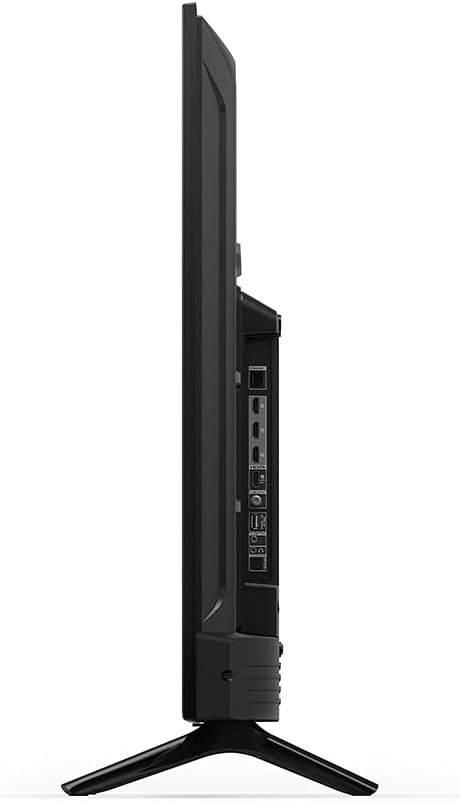
Bild: Seitenansichtfile of the TV, highlighting its slimness.
Bild: Rückseite view of the TV, illustrating the VESA mounting pattern.
Wartung
Den Fernseher reinigen
- Vor der Reinigung immer den Netzstecker des Fernsehers ziehen.
- Verwenden Sie ein weiches, trockenes, fusselfreies Tuch, um den Bildschirm und das Gehäuse vorsichtig abzuwischen.
- Bei hartnäckigen Flecken auf dem Bildschirm leicht dampBefeuchten Sie das Tuch mit Wasser oder einem speziell für Elektronikgeräte entwickelten Bildschirmreiniger. Sprühen Sie keine Flüssigkeit direkt auf den Bildschirm.
- Vermeiden Sie die Verwendung von scheuernden Reinigungsmitteln, Wachsen oder Lösungsmitteln, da diese die Oberfläche beschädigen können.
Software-Updates
Your Fire TV will periodically receive software security updates to improve performance and add new features. Ensure your TV is connected to the internet to receive these updates automatically. You can also check for updates manually through the TV's settings menu.
Fehlerbehebung
If you encounter issues with your Fire TV, refer to the following common solutions:
- Kein Strom: Vergewissern Sie sich, dass das Netzkabel fest mit dem Fernseher und einer funktionierenden Steckdose verbunden ist. Versuchen Sie es mit einer anderen Steckdose.
- Kein Bild/Ton: Verify that the correct input source is selected. Check all cable connections (HDMI, audio) are secure. Restart the TV by unplugging it for 30 seconds and plugging it back in.
- Fernbedienung reagiert nicht: Replace the AAA batteries in the Alexa Voice Remote Enhanced. Ensure there are no obstructions between the remote and the TV. Re-pair the remote if necessary (hold Home button for 10 seconds).
- Netzwerkverbindungsprobleme: Check your Wi-Fi router and modem. Restart your network equipment. Ensure the TV is within range of your Wi-Fi signal or that the Ethernet cable is properly connected.
- Alexa reagiert nicht: Ensure the remote batteries are fresh. Press and hold the Alexa button firmly when speaking. Check your internet connection.
For more detailed troubleshooting or persistent issues, refer to the online support resources for Fire TV.
Garantie und Support
Garantieinformationen
Your Amazon Fire TV 4-Series 50-inch includes a 1-year limited warranty and service. Optional 3-Year and 4-Year Extended Warranties are available for U.S. customers and can be purchased separately. Use of Fire TV is subject to the terms found on the official Amazon webWebsite.
Kundenservice
For additional support, frequently asked questions, or to manage your device, please visit the official Amazon Fire TV support pages online. You can find information specific to your device by visiting the 'Manage Your Content and Devices' section on Amazon.