1. Einleitung
Thank you for choosing the DELTACO GAMING GAM-106 Wired Gaming Mouse. This manual provides essential information for setting up, operating, maintaining, and troubleshooting your new gaming mouse. Please read this manual carefully before use to ensure optimal performance and longevity of your device.
2. Produktüberschreitungview
The DELTACO GAMING GAM-106 is a high-performance wired gaming mouse designed for precision and comfort. It features an ergonomic design, a lightweight honeycomb shell, and an optical sensor for accurate tracking.
2.1 Packungsinhalt
- DELTACO GAMING GAM-106 Wired Gaming Mouse
- Benutzerhandbuch (dieses Dokument)
2.2 Mouse Features and Components
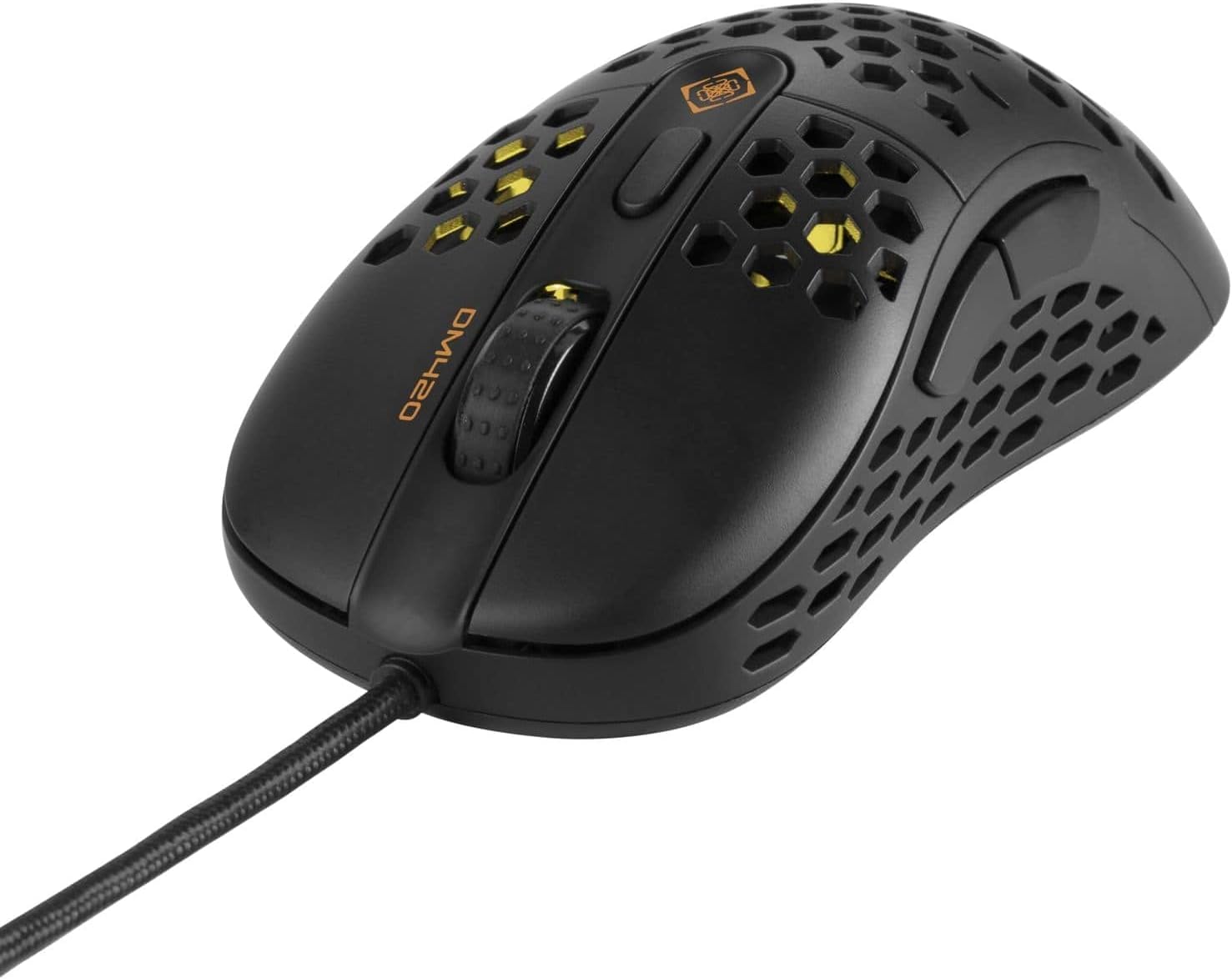
Abbildung 2.2.1: Oben vorne view of the DELTACO GAMING GAM-106 mouse, showcasing its honeycomb design and wired connection.

Abbildung 2.2.2: Spitze view of the mouse, highlighting the left and right click buttons, scroll wheel, and DPI adjustment button.

Abbildung 2.2.3: Seite view of the mouse, showing the ergonomic contour and the two programmable side buttons.

Abbildung 2.2.4: Heck oben view of the mouse, illustrating the internal lighting visible through the honeycomb shell.
- Linksklick-Taste: Standardmäßige primäre Maustaste.
- Rechtsklick-Schaltfläche: Standardmäßige sekundäre Maustaste.
- Scrollrad: Zum vertikalen Scrollen und kann auch als mittlere Maustaste fungieren.
- DPI-Einstelltaste: Cycles through different DPI (Dots Per Inch) sensitivity settings.
- Vorwärts-Taste: Default function for navigating forward in web Browser bzw file Entdecker.
- Rückwärts-Taste: Default function for navigating backward in web Browser bzw file Entdecker.
- Optischer Sensor: Located on the underside, provides precise tracking.
- USB-Kabel: Connects the mouse to your computer.
3. Einrichtung
Setting up your DELTACO GAMING GAM-106 mouse is a simple plug-and-play process.
- Schließen Sie die Maus an: Locate an available USB port on your computer. Insert the USB connector of the GAM-106 mouse firmly into the USB port.
- Treiberinstallation: Your operating system (Windows, macOS, Linux) will automatically detect and install the necessary drivers for the mouse. This process usually takes a few seconds. No additional software installation is typically required for basic functionality.
- Bereit zum Benutzen: Sobald die Treiber installiert sind, ist die Maus sofort einsatzbereit.
4. Bedienungsanleitung
4.1 Grundlegende Bedienung
- Bewegung: Bewegen Sie die Maus über eine ebene Fläche, um den Cursor auf Ihrem Bildschirm zu steuern.
- Klicken: Use the left and right click buttons for primary and secondary actions, respectively.
- Scrollen: Rotate the scroll wheel up or down to scroll through documents or web pages. Press the scroll wheel for a middle-click action.
4.2 DPI-Anpassung
The GAM-106 mouse features a dedicated DPI adjustment button (usually located behind the scroll wheel) that allows you to change the mouse's sensitivity on the fly. Pressing this button will cycle through predefined DPI settings, indicated by a change in the mouse's LED lighting color or pattern. Higher DPI settings result in faster cursor movement for the same physical mouse movement, which is often preferred for gaming, while lower DPI settings offer more precise control for tasks like graphic design.
4.3 Seitentasten
The two side buttons (Forward and Backward) are pre-programmed for navigation in web Browser und file explorers. In many games and applications, these buttons can be customized to perform specific actions or macros through in-game settings or third-party software (if supported by the application).
5. Wartung
Proper maintenance will help extend the life of your DELTACO GAMING GAM-106 mouse.
- Reinigung: Regularly clean the mouse to prevent dust and debris buildup. Use a soft, dry, lint-free cloth to wipe the surface. For stubborn dirt, slightly dampBefeuchten Sie das Tuch mit Wasser oder einer milden Reinigungslösung. Vermeiden Sie die Verwendung von scharfen Chemikalien oder Scheuermitteln.
- Sensorreinigung: Occasionally inspect the optical sensor on the underside of the mouse. If dust or lint accumulates, gently clean it with a cotton swab or compressed air.
- Kabelpflege: Vermeiden Sie scharfe Knicke oder Biegungen am USB-Kabel. Ziehen Sie die Maus nicht am Kabel.
- Lagerung: Bewahren Sie die Maus bei Nichtgebrauch an einem sauberen, trockenen Ort fern von extremen Temperaturen und direkter Sonneneinstrahlung auf.
6. Fehlerbehebung
If you encounter issues with your DELTACO GAMING GAM-106 mouse, try the following troubleshooting steps:
6.1 Maus reagiert nicht
- USB-Verbindung prüfen: Vergewissern Sie sich, dass das USB-Kabel fest an einen funktionierenden USB-Anschluss Ihres Computers angeschlossen ist. Versuchen Sie, es an einen anderen USB-Anschluss anzuschließen.
- Starte den Computer neu: Manchmal lassen sich Verbindungsprobleme durch einen einfachen Neustart des Computers beheben.
- Test auf einem anderen Computer: Testen Sie die Maus nach Möglichkeit an einem anderen Computer, um festzustellen, ob das Problem an der Maus oder an den Einstellungen Ihres Computers liegt.
6.2 Unregelmäßige Cursorbewegung
- Sensor reinigen: Staub oder Schmutz auf dem optischen Sensor können zu unregelmäßigen Bewegungen führen. Reinigen Sie den Sensor wie im Abschnitt „Wartung“ beschrieben.
- Oberfläche prüfen: Ensure you are using the mouse on a clean, non-reflective, and uniform surface. Mouse pads are recommended for optimal tracking.
- Interferenz: While less common for wired mice, ensure no strong electromagnetic interference sources are near the mouse.
6.3 Buttons or Scroll Wheel Not Working
- Auf physische Hindernisse prüfen: Achten Sie darauf, dass sich keine Fremdkörper um die Tasten oder das Scrollrad herum befinden.
- Softwarekonflikt: If you have installed any third-party mouse customization software, try temporarily disabling it to see if it resolves the issue.
7. Spezifikationen
| Besonderheit | Spezifikation |
|---|---|
| Modellnummer | GAM-106 |
| Konnektivitätstechnologie | USB (kabelgebunden) |
| Bewegungserkennungstechnologie | Optisch |
| Farbe | Schwarz |
| Besonderheit | Ergonomisches Design |
| Technische Daten | 12.5 x 6.5 x 0.25 cm |
| Gewicht | 65 Gramm |
8. Garantie und Support
DELTACO GAMING products are built to high-quality standards. For information regarding warranty terms and conditions, please refer to the warranty card included with your purchase or visit the official DELTACO GAMING website. For technical support or further assistance, please contact DELTACO GAMING customer service through their official channels.
Official DELTACO GAMING Store: Besuchen Sie den Shop


