1. Einleitung
This manual provides detailed instructions for the proper installation, operation, and maintenance of your Xprinter XP-N160II thermal receipt printer. Please read this manual thoroughly before using the printer to ensure optimal performance and to prevent damage.
2. Produktüberschreitungview
2.1 Hauptmerkmale
- Marke: Xprinter
- Farbe: Schwarz
- Printer Type: Receipt Thermal Printer
- Modellnummer: N160
- Konnektivitätstechnologie: USB
- Printer Output: Monochrome
- Print Media: Labels
- Maximum Black and White Print Resolution: 203 dpi
2.2 Druckerkomponenten
Familiarize yourself with the various parts of your Xprinter XP-N160II printer:
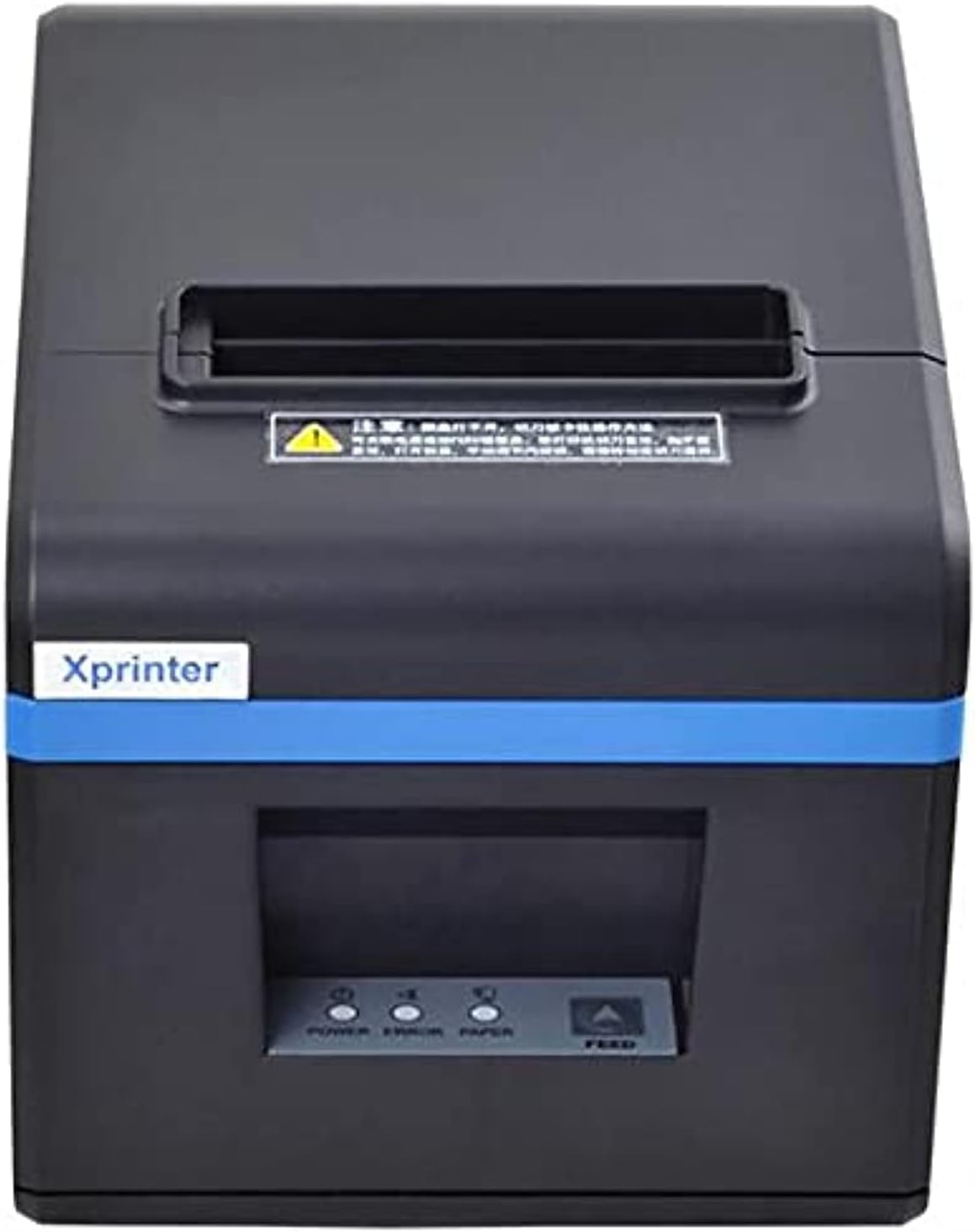
Abbildung 1: Front view of the Xprinter XP-N160II thermal receipt printer, showing the paper output slot, control panel with indicator lights (POWER, ERROR, PAPER), and FEED button.
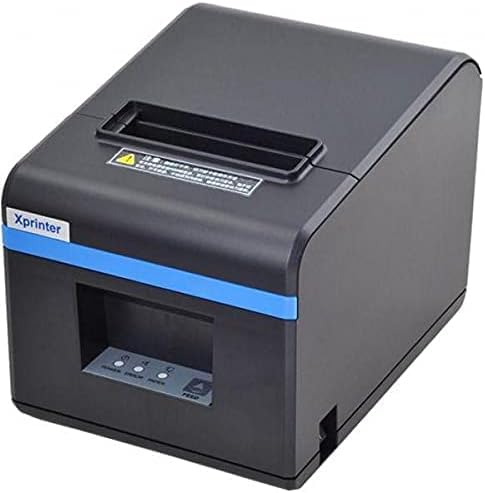
Abbildung 2: Abgewinkelte Vorderseite view of the Xprinter XP-N160II, highlighting its compact design and the Xprinter branding on the front.
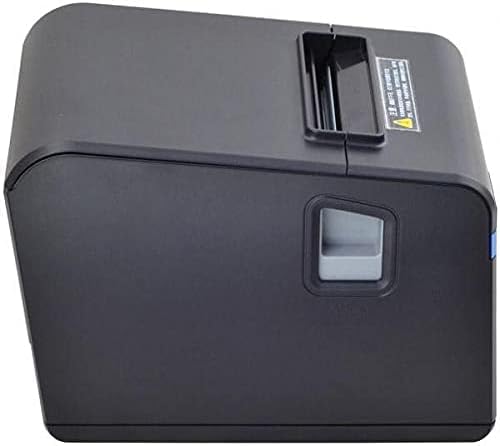
Abbildung 3: Seite view of the Xprinter XP-N160II, illustrating the paper cover release lever for easy paper roll replacement.

Abbildung 4: Hinteren view of the Xprinter XP-N160II, displaying the power input port, USB port, and an additional port (likely for cash drawer connection).
3. Einrichtungsanweisungen
- Auspacken: Nehmen Sie den Drucker vorsichtig aus der Verpackung. Bewahren Sie sämtliches Verpackungsmaterial für späteren Transport oder Lagerung auf.
- Strom anschließen: Connect the power adapter to the printer's power input port (refer to Figure 4) and then plug the power cord into a suitable electrical outlet.
- Datenkabel anschließen: Connect the USB cable from the printer's USB port (refer to Figure 4) to your computer or point-of-sale system.
- Papierrolle einlegen:
- Press the paper cover release lever (refer to Figure 3) to open the printer cover.
- Insert a new thermal paper roll into the compartment, ensuring the paper feeds from the bottom and the leading edge extends slightly out of the printer.
- Schließen Sie die Druckerabdeckung fest, bis sie einrastet.
- Treiber installieren: Insert the driver CD (if included) into your computer or download the latest drivers from the official Xprinter webFolgen Sie den Anweisungen auf dem Bildschirm, um die Treiberinstallation abzuschließen.
- Einschalten: Press the power button on the printer. The POWER indicator light should illuminate.
4. Bedienungsanleitung
- Selbsttestdruck: To perform a self-test, turn off the printer. While holding down the FEED button, turn the printer back on. Release the FEED button once the printer starts printing. This will print a configuration page, confirming basic functionality.
- Printing from Application: Ensure the printer is connected and drivers are installed. In your application (e.g., POS software, word processor), select the Xprinter XP-N160II as your default printer and initiate the print command.
- Feeding Paper Manually: Press the FEED button on the front panel to advance the paper by a small amount. Hold the FEED button down to continuously feed paper.
5. Wartung
- Reinigen des Druckkopfes: Regularly clean the thermal print head with an alcohol swab or a specialized print head cleaning pen. Ensure the printer is turned off and cooled down before cleaning.
- Reinigung der Walzenplatte: Verwenden Sie ein weiches,amp cloth to wipe the platen roller (the rubber roller that feeds the paper) to remove any paper dust or debris.
- Austausch der Papierrolle: Replace the paper roll when the PAPER indicator light illuminates or when the red line appears on the paper, indicating the end of the roll is near. Follow the steps outlined in Section 3.4.
- Allgemeine Reinigung: Keep the printer exterior clean by wiping it with a soft, dry cloth. Avoid using harsh chemicals or abrasive cleaners.
6. Fehlerbehebung
| Problem | Mögliche Ursache | Lösung |
|---|---|---|
| Der Drucker lässt sich nicht einschalten | No power supply; faulty power adapter | Überprüfen Sie den Anschluss des Stromkabels; stellen Sie sicher, dass die Steckdose funktioniert; versuchen Sie es gegebenenfalls mit einem anderen Netzteil. |
| No paper feeding / PAPER light on | Paper roll empty or incorrectly loaded | Replace paper roll or re-load correctly (refer to Section 3.4). |
| Print output is blank or faded | Paper loaded incorrectly (upside down); print head dirty or damaged | Ensure thermal paper is loaded with the thermal side facing the print head; clean the print head (refer to Section 5). |
| Drucker wird vom Computer nicht erkannt. | USB cable disconnected; drivers not installed or corrupted | Check USB cable connection; re-install printer drivers (refer to Section 3.5). |
| Die Fehlerleuchte leuchtet. | Paper jam; print head overheating; cover open | Clear any paper jams; allow printer to cool down; ensure printer cover is closed properly. |
7. Spezifikationen
| Besonderheit | Detail |
|---|---|
| Markenname | Xprinter |
| Modellname | N160 |
| Farbe | Schwarz |
| Druckertechnologie | Thermal |
| Konnektivitätstechnologie | USB |
| Druckerausgabe | Einfarbig |
| Printmedien | Labels |
| Maximale Schwarzweiß-Druckauflösung | 203 dpi |
| Maximale Blattkapazität | 50 (referring to individual labels or a roll capacity equivalent) |
| Verpackungsabmessungen | 33 x 21.4 x 18.3 cm |
| Artikelgewicht | 1.62 kg |
| Hersteller | Xprinter |
| Datum der ersten Verfügbarkeit | 1. Juni 2021 |
8. Sicherheitshinweise
- Setzen Sie den Drucker weder Wasser noch hoher Luftfeuchtigkeit aus.
- Vermeiden Sie es, den Drucker direkter Sonneneinstrahlung oder der Nähe von Wärmequellen auszusetzen.
- Verwenden Sie ausschließlich das mit dem Drucker gelieferte Netzteil.
- Versuchen Sie nicht, den Drucker selbst zu zerlegen oder zu reparieren. Wenden Sie sich an qualifiziertes Servicepersonal.
- Außerhalb der Reichweite von Kindern aufbewahren.
- Sorgen Sie während des Betriebs für ausreichende Belüftung rund um den Drucker.
9. Garantie und Support
The Xprinter XP-N160II thermal receipt printer comes with a standard manufacturer's warranty. For specific warranty terms and conditions, please refer to the documentation included with your purchase or contact Xprinter customer support directly. For technical assistance or service inquiries, please visit the official Xprinter webBesuchen Sie die Website oder wenden Sie sich an deren autorisierte Servicezentren.


