1. Einleitung
This manual provides essential information for the safe and efficient operation of your GIGABYTE AORUS FO48U 48" 4K OLED Gaming Monitor. Please read this manual thoroughly before using the product and retain it for future reference. The AORUS FO48U is designed to deliver a high-performance visual experience with its 4K OLED display, fast refresh rate, and advanced features.
2. Sicherheitshinweise
Beachten Sie die folgenden Sicherheitsvorkehrungen, um Schäden am Monitor zu vermeiden und die Sicherheit des Benutzers zu gewährleisten:
- Um Brand- oder Stromschlaggefahren zu vermeiden, setzen Sie den Monitor weder Regen noch Feuchtigkeit aus.
- Öffnen Sie den Monitor nicht.asing. Im Inneren befinden sich keine vom Benutzer wartbaren Teile. Alle Wartungsarbeiten dürfen nur von qualifiziertem Fachpersonal durchgeführt werden.
- Stellen Sie den Monitor auf eine stabile, ebene Fläche, um zu verhindern, dass er herunterfällt.
- Sorgen Sie für ausreichende Belüftung um den Monitor herum. Blockieren Sie keine Lüftungsöffnungen.
- Verwenden Sie ausschließlich das mitgelieferte oder vom Hersteller angegebene Netzteil und die Kabel.
- Trennen Sie den Monitor bei Gewittern oder wenn er längere Zeit nicht benutzt wird vom Stromnetz.
- Vermeiden Sie es, den Bildschirm mit scharfen Gegenständen zu berühren, um Schäden zu vermeiden.
3. Packungsinhalt
Bitte überprüfen Sie, ob alle unten aufgeführten Artikel in Ihrem Paket enthalten sind:
- GIGABYTE AORUS FO48U 48" 4K OLED Gaming Monitor
- Stromkabel
- HDMI 2.1-Kabel
- DP 1.4-Kabel
- USB 3.0 B to A cable
- Kurzanleitung (QSG)
- Garantiekarte
- AORUS Remote Control
4. Einrichtung
4.1 Physische Einrichtung
The monitor can be set up using its included stand or a VESA-compatible wall mount.
Standmontage:
Follow the instructions in the Quick Start Guide to securely attach the stand to the monitor base. Ensure all screws are tightened.
Installation der VESA-Wandhalterung:
The AORUS FO48U supports VESA wall mounts with a 300 x 300mm pattern. Remove the stand if already attached. Use appropriate screws and a VESA-compatible bracket (not included) to mount the monitor. Refer to your wall mount's instructions for specific installation steps.

Bild: Rückseite view of the AORUS FO48U monitor, highlighting the VESA 300x300mm mounting points for wall installation.
4.2 Anschlusskabel
Connect the necessary cables to the monitor's I/O ports. Ensure the monitor is powered off before connecting or disconnecting cables.

Abbildung: Detailansicht view of the monitor's I/O ports, including USB 3.0, USB Upstream, USB Type-C (KVM), DisplayPort 1.4, HDMI 2.1, Headphone Jack, and Audio Line-Out.
- Stromanschluss: Verbinden Sie das Netzkabel mit dem Stromeingang des Monitors und anschließend mit einer Steckdose.
- Video-Eingang: Connect your PC or gaming console using either the provided HDMI 2.1 cable or DisplayPort 1.4 cable. The monitor features two HDMI 2.1 ports and one DisplayPort 1.4.
- USB-Anschlüsse: Connect the USB 3.0 B to A cable from your PC to the monitor's USB Upstream port to enable the monitor's USB 3.0 ports and KVM functionality.
- USB Type-C (KVM): For KVM functionality, connect a USB Type-C cable (10Gbps Type-C cable required, not always included) from your device to the monitor's USB Type-C port. This allows control of multiple devices with a single keyboard and mouse connected to the monitor.
- Audioausgang: Use the Headphone Jack or Audio Line-Out for external audio devices.
4.3 Erstes Einschalten
After connecting all necessary cables, press the power button on the monitor to turn it on. The monitor will automatically detect the active input source. If no signal is detected, ensure your source device is powered on and correctly connected.
5. Bedienungsanleitung
5.1 Navigation über das On-Screen-Display (OSD)
The monitor's settings can be adjusted using the OSD menu, typically accessed via a joystick or buttons on the monitor's rear or bottom edge, or with the included AORUS Remote Control.
- Use the joystick/buttons or remote to navigate through menu options.
- Press to select an option or enter a sub-menu.
- Move left/right or up/down to adjust values or select different settings.
- Press the back button or move the joystick in a specific direction (as indicated on-screen) to exit menus.
5.2 Hauptmerkmale
The AORUS FO48U offers several features for an enhanced viewSpiel- und Gaming-Erlebnis:
- 4K UHD-Auflösung (3840x2160): Provides crisp, detailed visuals.
- 120Hz Bildwiederholfrequenz: Ensures smooth motion for gaming and fast-paced content.
- 1 ms (GTG) Reaktionszeit: Minimiert Geisterbilder und Bewegungsunschärfe.
- FreeSync Premium Support: Synchronisiert die Bildwiederholfrequenz des Monitors mit Ihrer Grafikkarte für ruckelfreies Spielen.
- 10-bit Color / 98% DCI-P3 / 130% sRGB: Delivers accurate and vibrant color reproduction.

Image: Visual comparison demonstrating the difference between 1ms response time at 120Hz refresh rate and 5ms response time at 60Hz, illustrating smoother motion with higher specifications.
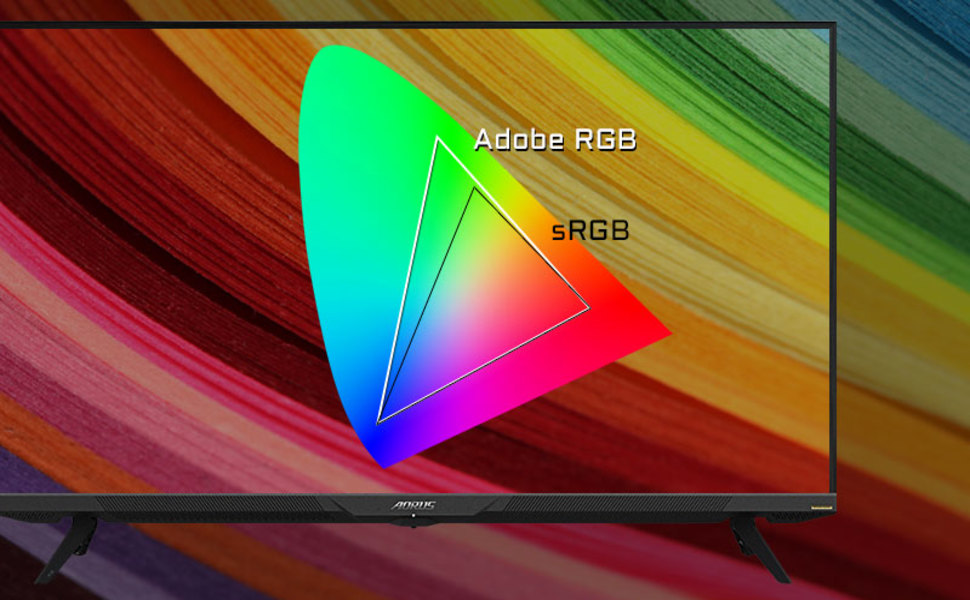
Image: A visual representation of color gamut, comparing Adobe RGB and sRGB color spaces, indicating the monitor's wide color coverage.
5.3 Sonderfunktionen
The monitor includes several advanced features accessible via the OSD or OSD Sidekick software:
- OSD Sidekick: A software utility that allows you to control OSD settings directly from your desktop.
- Bild-in-Bild (PiP) / Bild-neben-Bild (PbP): Display content from multiple sources simultaneously on the screen.
- Armaturenbrett: Real-time hardware information display (e.g., CPU/GPU temperature, fan speed).
- Schwarzer Equalizer: Enhances visibility in dark areas without overexposing bright areas.
- Spielassistent: Provides in-game enhancements like crosshairs, timers, and refresh rate counters.
- Space Audio: Offers 5 modes of audio experiences for immersive sound.
- KVM Feature: Allows you to control multiple devices (e.g., two PCs) connected to the monitor using a single keyboard and mouse. Connect devices via USB Type-C and USB 3.0 Upstream ports.

Image: A diagram showing how the Type-C KVM feature allows switching between a desktop PC and a laptop connected to the monitor using one keyboard and mouse.
6. Wartung
6.1 Reinigung des Monitors
To clean the monitor, first unplug the power cord. Use a soft, lint-free cloth lightly dampened with water or a mild, non-abrasive screen cleaner. Do not spray cleaner directly onto the screen. Avoid using alcohol, ammonia, or abrasive cleaners, as they can damage the screen surface.
6.2 OLED Care and Burn-in Prevention
OLED displays are susceptible to image retention (burn-in) if static images are displayed for extended periods. To prolong the life of your OLED panel:
- Avoid displaying static images (e.g., desktop icons, taskbars, logos) for long durations.
- Utilize screen savers or dynamic wallpapers.
- Enable the monitor's built-in OLED care features (e.g., pixel shift, pixel refresh, logo luminance adjustment) through the OSD menu.
- Reduzieren Sie die Bildschirmhelligkeit, wenn sie nicht benötigt wird.
- Power off the monitor when not in use.
7. Fehlerbehebung
Sollten Sie Probleme mit Ihrem Monitor haben, beachten Sie bitte die folgenden häufig auftretenden Probleme und Lösungen:
| Problem | Mögliche Ursache | Lösung |
|---|---|---|
| Kein Bild auf dem Bildschirm | Power cable disconnected; Video cable disconnected or loose; Incorrect input source selected; Source device off. | Check power and video cable connections; Ensure source device is on; Select correct input source via OSD. |
| Das Bild ist unscharf oder verzerrt. | Incorrect resolution; Video cable quality; Graphics card driver issues. | Set display resolution to 3840x2160; Use high-quality HDMI 2.1 or DP 1.4 cables; Update graphics drivers. |
| Screen randomly turns off/on | Loose video cable; Power supply issue; Monitor firmware issue; Source device instability. | Ensure video cables are securely connected; Try a different power outlet; Check for and install the latest monitor firmware updates from GIGABYTE's website; Test with a different source device. |
| Kein Ton | Volume too low or muted; Incorrect audio output selected; Audio cable disconnected. | Adjust monitor volume; Select correct audio output in PC settings; Ensure external speakers/headphones are connected. |
| KVM feature not working | Incorrect USB cable; USB Upstream cable not connected; Devices not properly configured. | Ensure a 10Gbps USB Type-C cable is used for Type-C connection; Connect the USB 3.0 B to A cable to your primary PC; Refer to the OSD Sidekick software for KVM setup. |
8. Spezifikationen
Key technical specifications for the GIGABYTE AORUS FO48U monitor:
| Besonderheit | Detail |
|---|---|
| Bildschirmgröße | 48 Zoll |
| Panel-Typ | OLED |
| Auflösung | 3840 x 2160 (4K UHD) |
| Bildwiederholrate | 120 Hz |
| Ansprechzeit | 1ms (GTG) |
| Farbumfang | 98 % DCI-P3 / 130 % sRGB |
| Farbtiefe | 10-Bit |
| Viewing-Winkel | 178°(H)/178°(V) |
| Konnektivität | 2x HDMI 2.1, 1x DisplayPort 1.4, 1x USB Type-C (KVM), 2x USB 3.0, 1x USB 3.0 Upstream, Earphone Jack, Audio Line-Out |
| Lautsprecher | 2x 15W, 1x 20W (Space Audio) |
| VESA-Montierung | 300 x 300 mm |
| Abmessungen (BxHxT) | 26.58 x 42.07 x 9.89 Zoll (mit Ständer) |
| Gewicht | 39.8 Pfund (mit Ständer) |
9. Garantie und Support
For detailed warranty information, please refer to the warranty card included in your product package or visit the official GIGABYTE website. For technical support, driver downloads, and further assistance, please visit the GIGABYTE support page or contact their customer service.
Offizieller GIGABYTE-Artikel WebWebsite: www.gigabyte.com


