1. Einleitung
This manual provides detailed instructions for the setup, operation, and maintenance of your Bytech BYMCWC101BLK PC Web Camera. Please read this manual thoroughly before using the product to ensure proper functionality and longevity.
2. Packungsinhalt
Überprüfen Sie, ob alle unten aufgeführten Artikel in Ihrem Produktpaket enthalten sind:
- Bytech BYMCWC101BLK PC Web Kamera
- Benutzerhandbuch (dieses Dokument)
- Integriertes USB-Kabel
3. Einrichtung
Follow these steps to set up your Bytech BYMCWC101BLK PC Web Kamera:
- Platzierung: Positionieren Sie den webcam on top of your computer monitor, laptop screen, or a flat surface. The adjustable clip allows for secure attachment.
- Mit Computer verbinden: Schließen Sie das integrierte USB-Kabel an das Gerät an. webcam in einen freien USB-Port Ihres Computers.
- Treiberinstallation: Der webcam is typically plug-and-play. Your operating system (Windows, macOS, Linux) should automatically detect and install the necessary drivers. Wait for the installation to complete.
- Überprüfung: Open a video conferencing application (e.g., Zoom, Skype, Microsoft Teams) or your computer's camera application to confirm the webcam is recognized and displaying video.
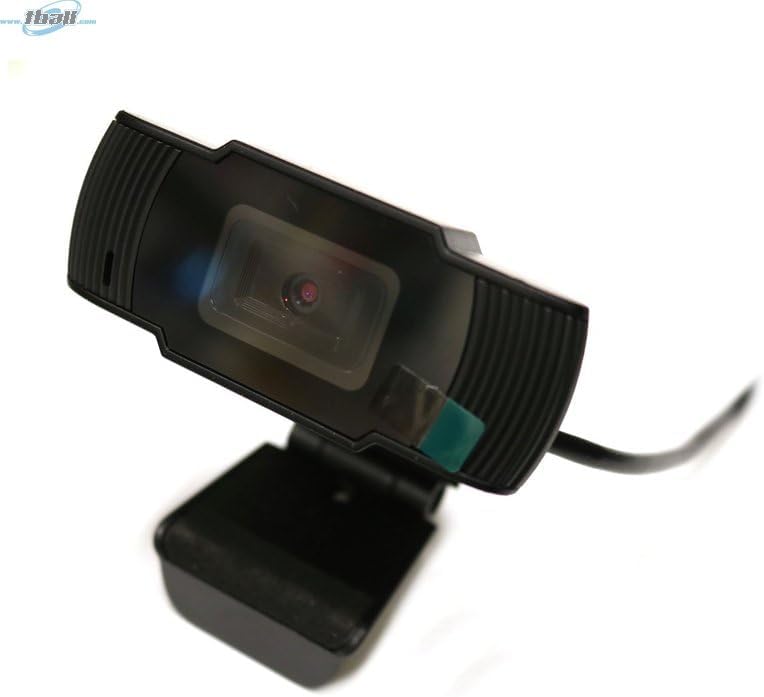
Image: The Bytech BYMCWC101BLK PC Web Camera securely mounted on top of a computer monitor, demonstrating its adjustable clip design.
4. Bedienungsanleitung
Once installed, the Bytech BYMCWC101BLK PC Web Camera can be used with various applications:
- Videokonferenzen: Select the Bytech webcam as your video input device within your preferred video conferencing software (e.g., Zoom, Skype, Google Meet).
- Streaming: For live streaming platforms, configure the webcam as your primary video source in your streaming software (e.g., OBS Studio).
- Aufnahme: Use your computer's built-in camera application or third-party software to record video.
- Leistung bei schwachem Licht: Der webcam features BSI CMOS photo sensor technology and is designed to perform effectively in low-light conditions, providing clear video even with limited ambient lighting.
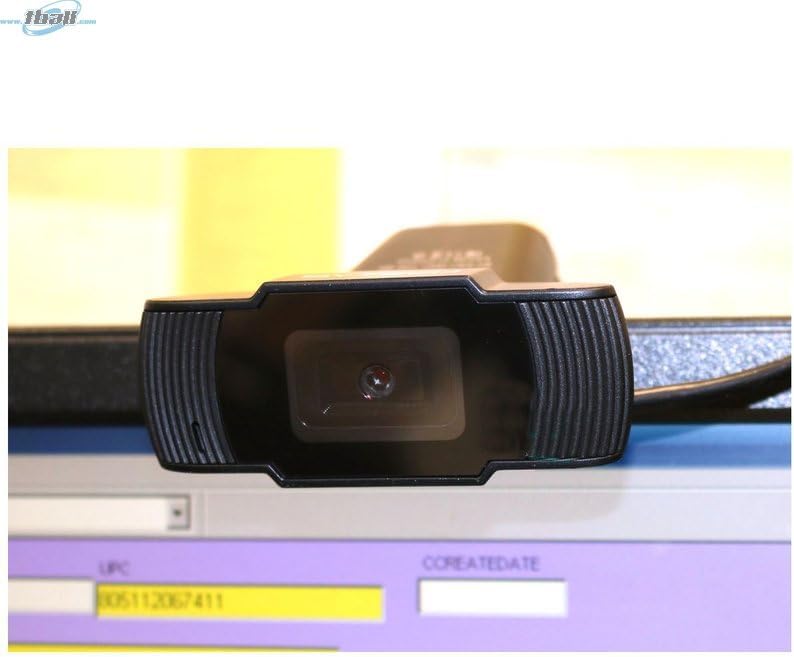
Bild: Eine Nahaufnahme view of the Bytech BYMCWC101BLK PC Web Camera's lens, highlighting its design and integrated privacy cover (if applicable, otherwise just lens).
5. Wartung
To ensure optimal performance and extend the lifespan of your webNocken:
- Reinigung: Reinigen Sie die Linse vorsichtig mit einem weichen, fusselfreien Tuch. Vermeiden Sie die Verwendung von scharfen Chemikalien oder scheuernden Materialien.
- Lagerung: Bewahren Sie die . bei Nichtgebrauch auf webcam in a clean, dry environment away from direct sunlight and extreme temperatures.
- Kabelpflege: Das USB-Kabel darf nicht übermäßig geknickt oder gequetscht werden.
6. Fehlerbehebung
Sollten Sie Probleme mit Ihrem webCam, beachten Sie die folgenden häufigen Probleme und Lösungen:
- Kein Bild/Video:
- Stellen Sie sicher, dass das USB-Kabel fest mit beiden Geräten verbunden ist. webKamera und Ihr Computer.
- Versuchen Sie, die webcam in einen anderen USB-Port.
- Starten Sie Ihren Computer neu.
- Check your application settings to ensure the Bytech webAls Videoeingabegerät wurde die Kamera ausgewählt.
- Schlechte Videoqualität:
- Sorgen Sie für ausreichende Beleuchtung in Ihrer Umgebung.
- Reinigen Sie die webMit einem weichen Tuch die Kameralinse abwischen.
- Check your application's video settings for resolution and frame rate.
- Mikrofon funktioniert nicht (falls zutreffend):
- Überprüfen Sie, ob die webcam's microphone is selected as the audio input device in your computer's sound settings and within your application.
- Ensure the microphone is not muted in your system or application.
7. Spezifikationen
| Besonderheit | Detail |
|---|---|
| Modellname | BYMCWC101BLK |
| Marke | Bytech |
| Konnektivitätstechnologie | USB |
| Fotosensor-Technologie | BSI CMOS |
| Videoaufnahmeformat | MP4 |
| Besonderheit | Schwaches Licht |
| Farbe | Schwarz |
| Artikelgewicht | 4.9 Unzen |
| Verpackungsabmessungen | 7.76 x 4.65 x 2.44 Zoll |
8. Garantie und Support
Informationen zur Garantie und technische Unterstützung finden Sie in der Ihrer Bestellung beiliegenden Dokumentation oder wenden Sie sich an Ihren Händler. Bewahren Sie Ihren Kaufbeleg für Garantieansprüche auf.


